
CNH Reward Card on a Work Order
Note: PFW Feature 6305 - Case Credit Card/Freedom Pay is required for this interface.
The following are steps to set up the CNH Reward Card:
- Add a new GL Part for the CNH Reward card
- Vendor = GL
- Tax 1, 2, 3, 4 and discount should all be set to exempt
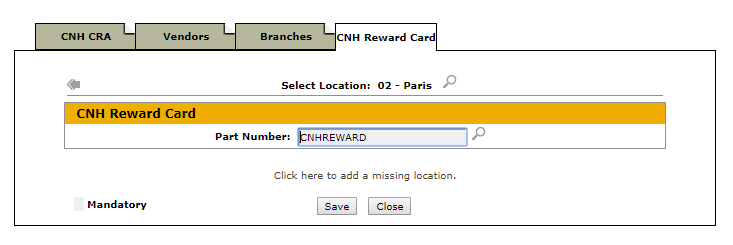
- Go to Configuration \ Interfaces \ CNH \ CNH CRA
- click the CNH Reward Card tab
- enter your new CNH Reward Card for each branch
Parts Invoicing
- Create your parts invoice and add parts
- Press the CNH Reward Card button at the bottom of the screen
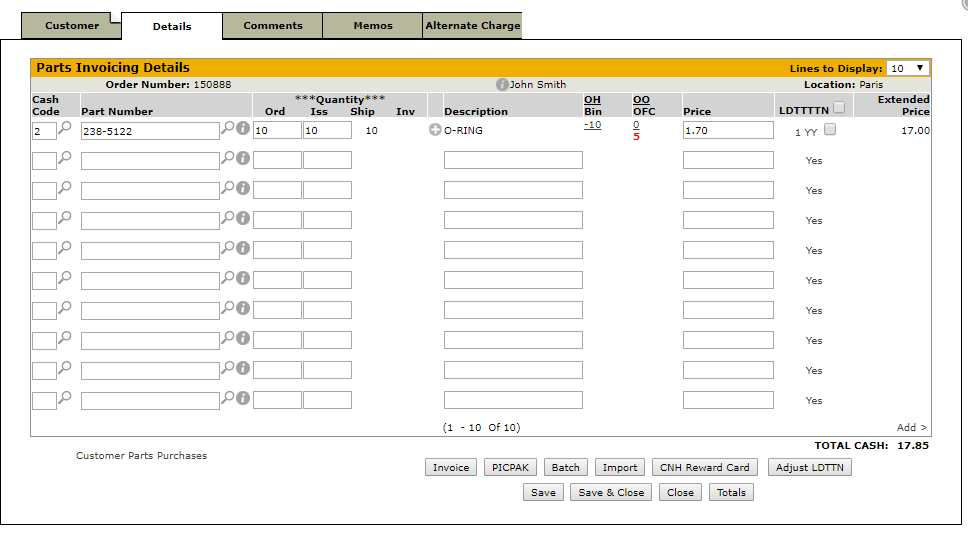
- The amount to be charged to the CNH Reward card will be the total of the parts invoice. You will want to make sure all of the parts are on the invoice prior to pressing the button.
- Enter the reward card number in the prompt
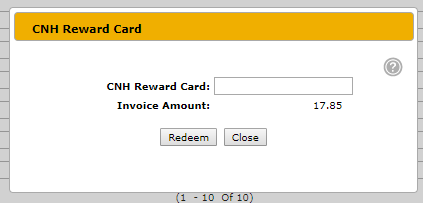
- Press the Redeem button.
- If the reward card is accepted by CNH, the CNH Reward part will be added to the invoice. The last four digits will be in the description and the request id will be added to the long description.
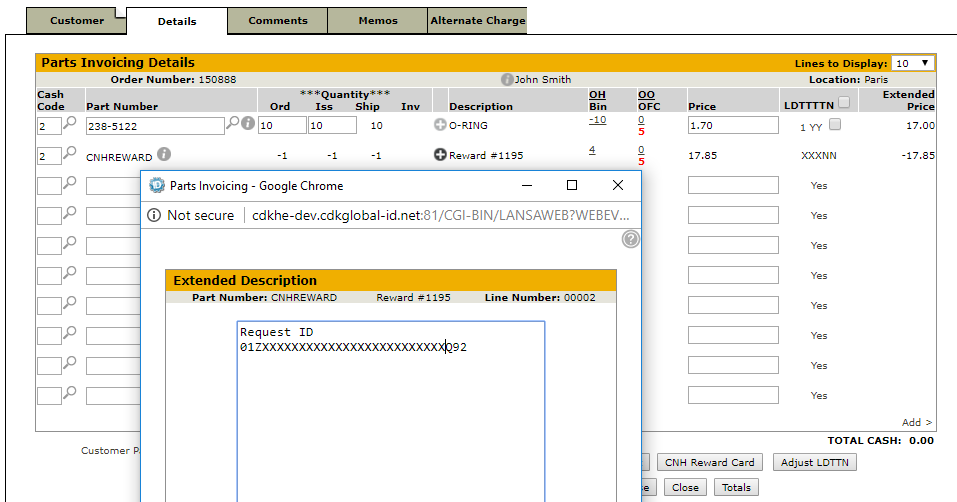
Note: The interface attempts to post the entire invoice total at the time you press "REDEEM" button. If the reward card doesn't have enough available credit, it will only post the amount the reward card has available. For example, if your invoice is for $125 and it is a 50 reward card, then the CNH will bring the reward card to $0 and we will create a line on the invoice for $50, and you will need to find another payment type the customer can use to get the remaining $75.
Service
- Create and complete your work order with all of the required charges
- On the segments screen, press the CNH Reward Card button
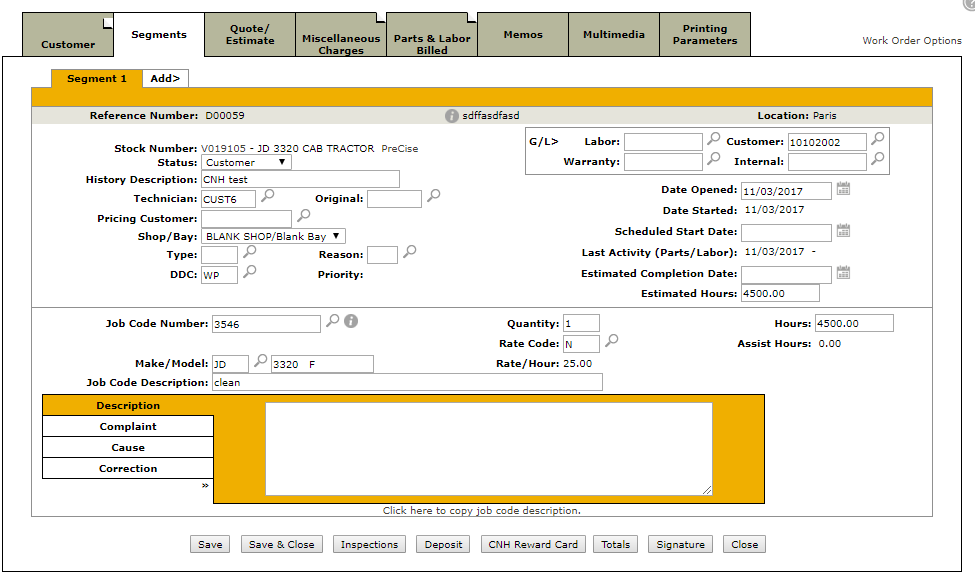
- Enter the reward card number in the prompt
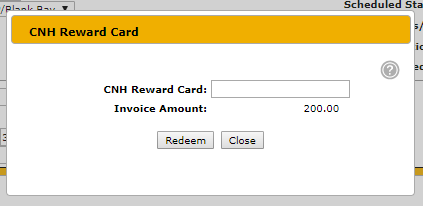
- When the reward card has been accepted, a new requestion will be created with the amount that was accepted. In this case, we attempted to invoice $200 to the reward card, however, only $50 was accepted as below.
