
CNH eQuipment Interface Expanded Setup Document
The CNH eQuipment interface runs as an automated nightly task that creates new and updates existing Equipment Profile stock numbers in IntelliDealer with on-order and invoicing information provided by CNH. It does not require a scheduled task, as this task is automatically run by the system. Stock numbers assigned to these Equipment Profile records are also system generated.
Dealers can create Wholesale Quotes and Sales Orders using a CNH developed eQuipment application where a unique vehicle record is created for every sales-order. Status changes are updated during the vehicle update cycle that passes through the original dealer request, manufacturing, and then to the invoicing process. This interface makes SAP Vehicle Order information available to dealers within IntelliDealer.
Vehicle order invoice information is received either in real-time or with a nightly task based on the last time the interface was run. Using the information retrieved from CNH, VitalEdge is able to create a whole-goods unit and associated configuration options which is viewable through the Equipment Profile section of IntelliDealer, as well as equipment base/options records in the Base/Options section. These whole-goods units and base/option records can be updated as additional information becomes available from CNH throughout the vehicle life-cycle. Whole-goods units are created with "On Order" status.
Equipment Identifier/Customer Fleet Number
CNH eQuipment units are managed via a link between the CNH equipment identifier and the customer fleet number field in IntelliDealer. If the CNH eQuipment interface does not locate any unit in IntelliDealer with a customer fleet number, equipment identifier, or machine serial number matching the CNH equipment identifier then a new unit will be created in the system. Serial number matches are made on the machine serial number, NOT on the PIN (shorter number).
Note: If dealers would like to set up equipment units ahead of time to be managed by the interface, they will need to add the CNH Equipment Identifier into the Customer Fleet Number field. The Customer Fleet Number is no longer checked for but might still exist for some systems.
Setup Requirements
Feature 6223: CNH Equipment Order Invoice Inquiry is required to use this interface.
Detailed configuration steps are below.
Some of these steps may already be done if the CNH Wholesale Quotes/Retail Offers interface has been configured before the CNH eQuipment interface. Both interfaces use the same dealer codes and username/password, but CNH eQuipment has a few additional setup requirements.
Configuration Screen
- Navigate to Configuration > Interfaces > CNH > eQuipment:
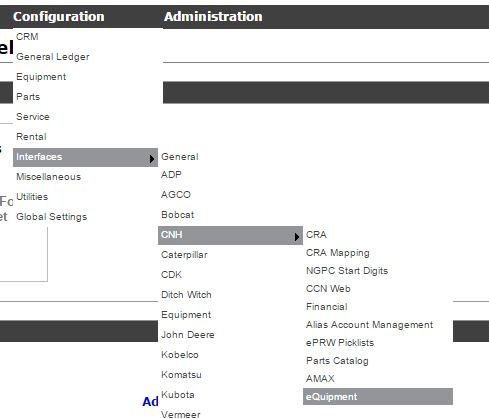
-
On the popup window, you must fill in all mandatory fields.
-
Add the CNH username and password. Check with CNH to make sure the user ID for CNH eQuipment interfaces has been added.
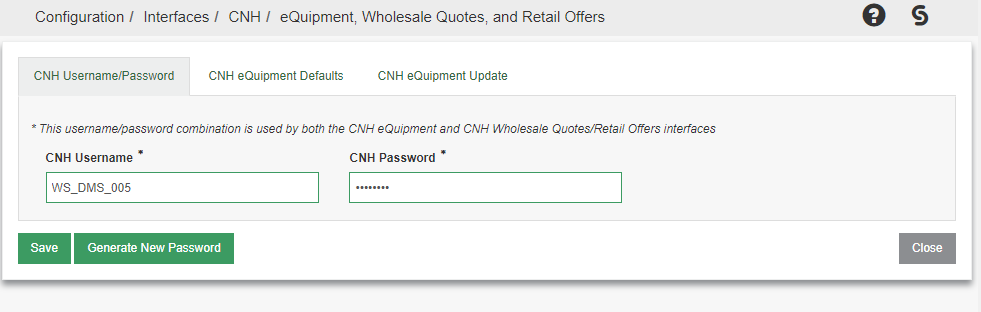
- If the password has expired, you may wish to generate a new password using the Generate New Password button. However, there is a nightly task to automatically generate new passwords when they are about to expire on CNH's system.
-
On the CNH eQuipment Defaults tab, fill in all mandatory fields. A more detailed description of each field is below.
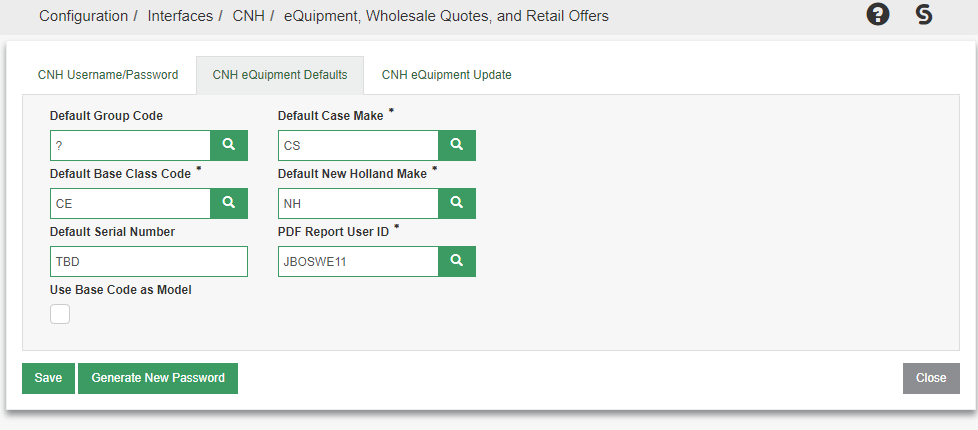
- Default Case/New Holland Make: The interface needs to know which make code to use for Case and New Holland units.
- Default Serial Number: As units may not have a serial number when they are first received from CNH, a temporary placeholder is required. This placeholder should be replaced on all equipment records once CNH provides a serial number for the unit.
- PDF Report User ID: The CNH eQuipment interface will generate a PDF report as part of its nightly processing. You will need to provide a PDF user ID to create these reports under.
- Use Base Code as Model: Dealers may wish to use the Base code as the model on CNH equipment units created through the interface. If this field is not checked, the CNH model code is used by default.
- Default Base Class Code: You may wish to set up a new base class code to identify new equipment bases created through this interface.
-To do so, navigate to Configuration > Equipment > Profile > Classes: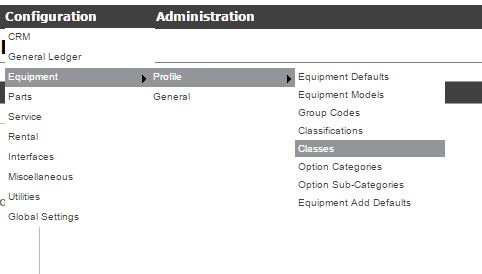
-On the popup window, select Need to create a new class? Click here to add.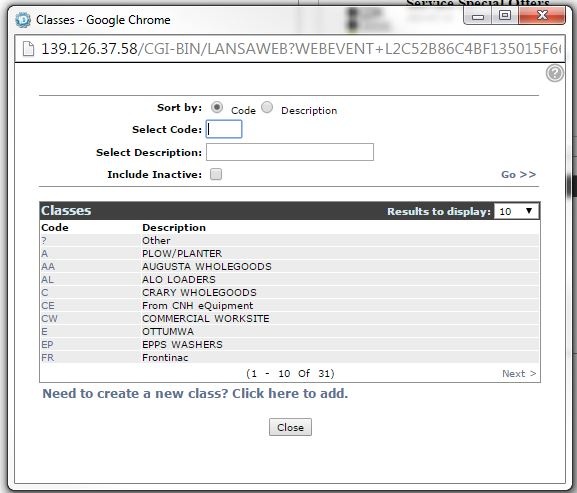
-Fill in the Code and Description boxes. You may choose any available one or two letter code. "CE" is used below: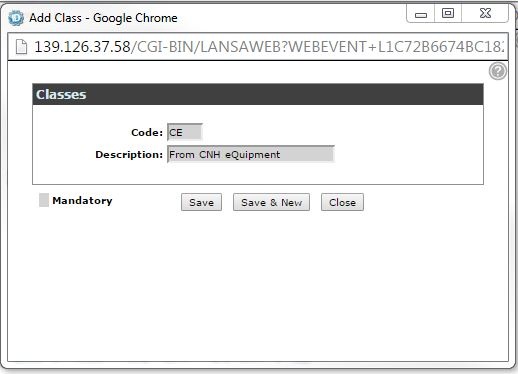
-Click Save. You may now select your new Class from the CNH eQuipment Configuration popup. - A custom Group code can also be setup and is done similarly to the Base Code setup above.
-Navigate to Configuration > Equipment > Profile > Group Codes - and choose Need to add a group code? Click here to add:
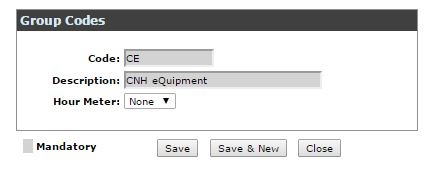
- Default Case/New Holland Make: The interface needs to know which make code to use for Case and New Holland units.
Dealer Codes
- To set up your CNH eQuipment manufacturer code and dealer codes, The CNH eQuipment interface uses the SAP dealer codes (used by eQuipment and eWarranty) and NOT the Parts dealer codes (e.g CCNWEB).
- Navigate to Financial Management > Accounts Payable > Vendor Profile:
- On the screen that appears, search for your Case or CNH vendor code and select it and choose Update/View Profile
On the popup window, on the Profile tab, ensure that you have selected the correct Manufacturer Code for CNH/Case. If you do not see CNH or Case in the list, please configure the manufacturer code according to this guide: Manufacturer Codes - Creation and Configuration
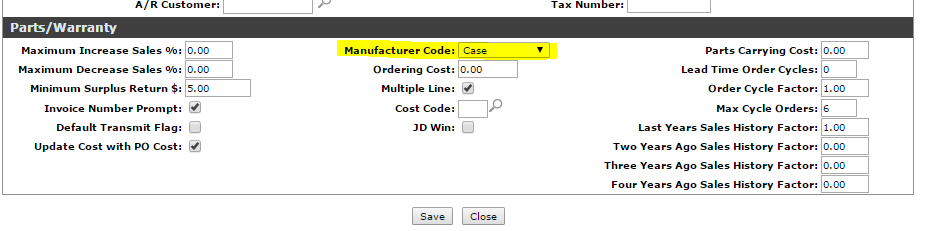
Select the Dealer tab.
Click on Is there a dealer missing from the list? Click here to add.
Fill in the appropriate information.
The Description field must be filled in as "CNHEQUIP" or the interface will not work for this dealer code. Also ensure the dealer number is 10 characters long. Add leading 0s to ensure the dealer number is the correct length: "12345" must be entered as "0000012345"
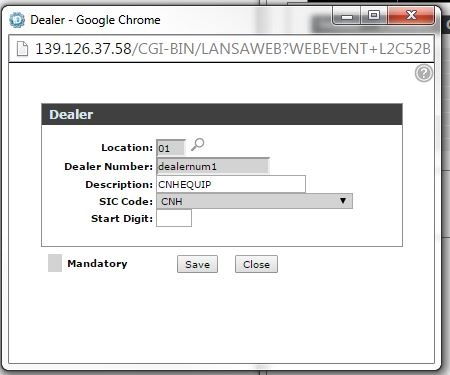
- Click Save.
-
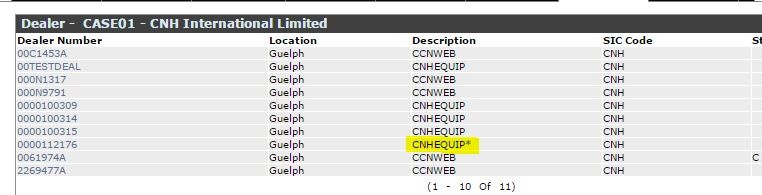
Set up your primary dealer number. Dealer Numbers are listed as the Ownership Group by CNH. To add the primary dealer number, use the same process as any non-primary dealer numbers, but use the dealer number description CNHEQUIP*. The "*" character after CNHEQUIP informs the interface that this is your primary dealer number. See the screenshot below for an example of a properly configured Dealer tab for CNH. Notice the primary dealer number in yellow.
Equipment Defaults
Equipment Defaults are used by the interface to determine which inventory account should be associated with created units.
- Navigate to Configuration > Equipment > Profile > Equipment Defaults
- On the screen that appears, click Need to add a new equipment default? Click here to add.
- On this new screen, there are fields the must be configured for each location:
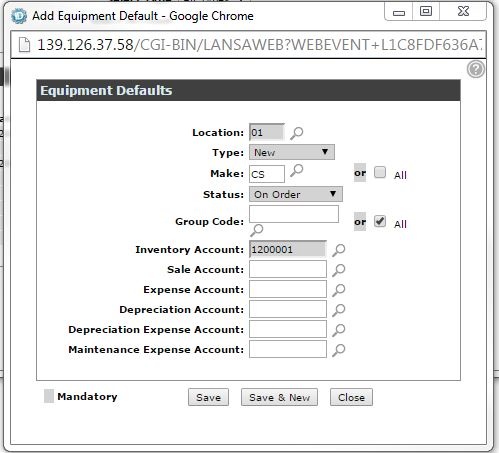
- Type must be set to New
- Select the same Make code used on the original CNH eQuipment configuration screen (for example: CS for Case and NH for New Holland) or Choose All
- Status must be set to On Order
- Group Code must be set to All
Once you have completed this setup the interface must be run manually to ensure that old data is not reused. Navigate to Configuration > Interfaces > CNH > eQuipment and select the current date as both the From and To dates: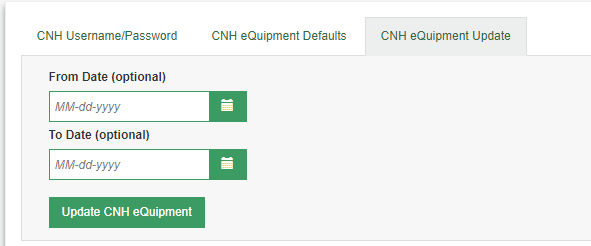
The CNH eQuipment interface should now be configured for use.
Walkthrough
- When configured, the CNH eQuipment interface runs automatically as a nightly task.
- If you need to run the interface manually, you can use the CNH eQuipment configuration screen under Configuration > Interfaces > CNH > eQuipment
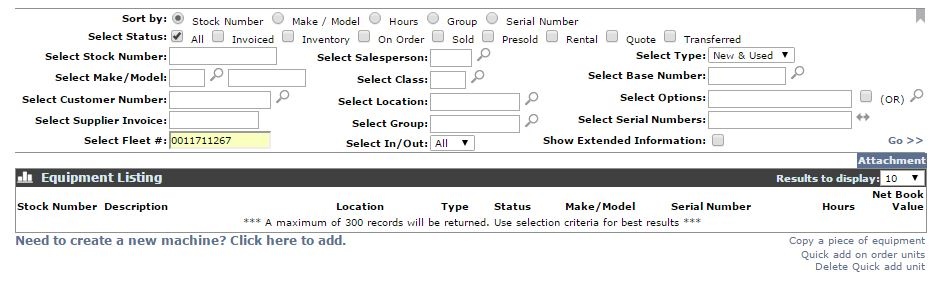
-Specify a From and To date if you wish to update only between a specific date range. - To view whole-good units created by the CNH eQuipment interface, navigate to Equipment > Equipment Profile. Search for a unit by entering the CNH Vehicle Number into the Fleet # box and clicking Go >>:
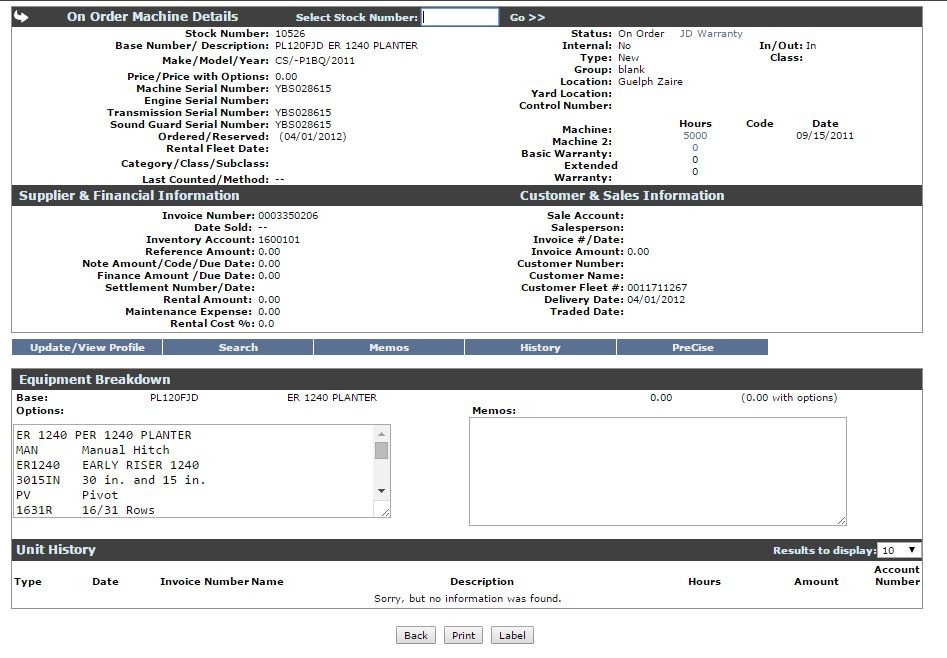
- View the unit on the Equipment Details screen:
Revision: 2024.07