Komatsu: New Parts System Parts Ordering Walkthrough
Komatsu NPS Parts Ordering allows you to place a parts order with Komatsu.
Prerequisites: Ensure the initial NPS setup has been completed. See Komatsu NPS Setup.
Komatsu NPS Parts Ordering can be accessed by creating a parts order in IntelliDealer, either through the stock ordering system, consolidated ordering, or the parts invoicing system. After an order is created and released, the Transmit button can be clicked to display the following screen:

Order Class and Shipment Method are required fields, and may require additional information that will be displayed based on which order type is selected.
An availability grid is displayed as well, and can be expanded to view additional availability quantities.
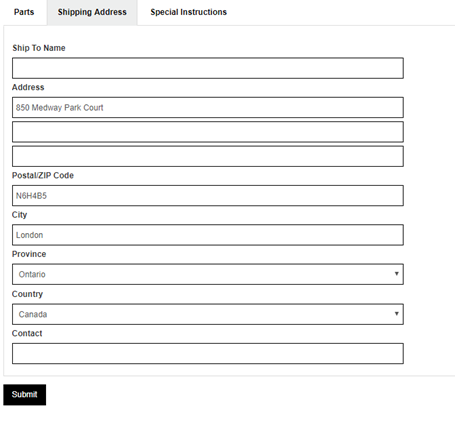
If the order has been created through parts invoicing and is associated with a customer, that customer address will be imported into the Shipping Address tab. When the order is submitted, this address is validated and you are given the opportunity to select from a formatted address if one is found.
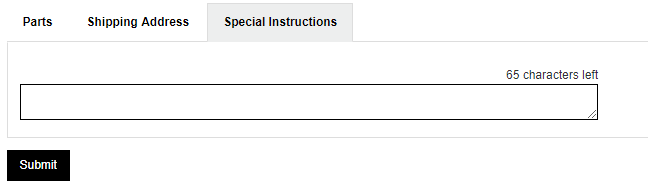
The Special Instructions tab allows you to enter up to 65 characters of special instructions to transmit to Komatsu.
Once the order is ready, you can click Submit to send the order to Komatsu.
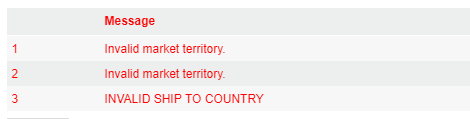
If the order is unsuccessful, the list of errors on the order are displayed on the top of the screen as follows:
If the order is successful, a summary screen containing the Komatsu Order Number is displayed along with any messages.

At this point, if any individual parts are rejected for any reason, the rejected part appears in the list with a message stating why it was rejected. If that part is able to be re-ordered, a new order must be created containing that part, as Komatsu does not allow orders to be re-sent.