
Customer Profile - Task Tracker Historical
You can use the Task Tracker Historical screen to view details of tasks for a specific customer. This screen is for review only. To create or edit a specific task, see Task Tracker.
To access the Task Tracker Historical screen , on the Customer Profile screen, under Quick Links, click the Task Tracker button.
 The Task Tracker Historical screen opens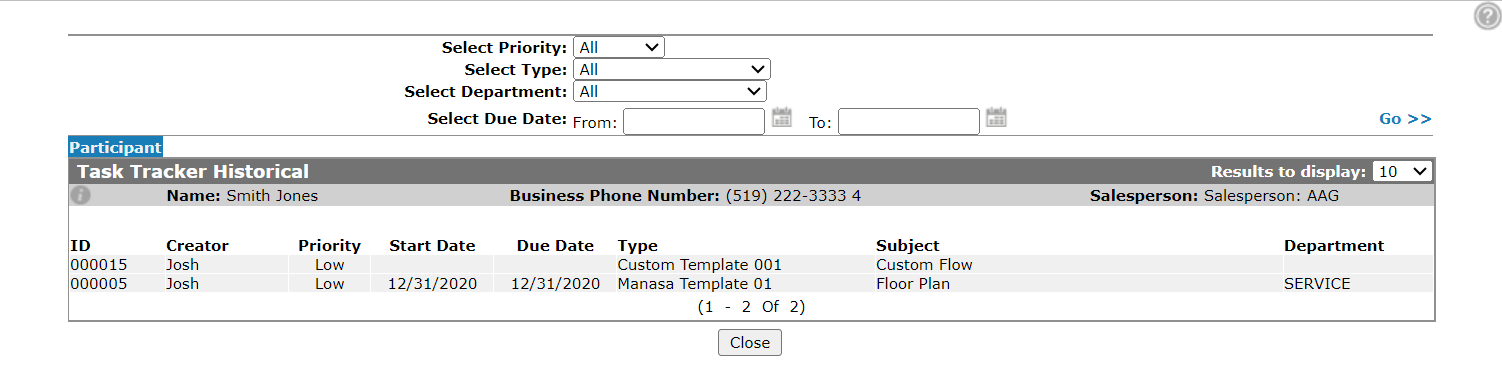
You can filter the results shown using the filter fields on the Task Tracker Historical screen:
| Filter by | |
|---|---|
| Field | Description |
| Select Priority | Select a priority from the drop down list. |
| Select Type | Select the type of task. |
| Select Department | Select the department to filter by. |
| Select Due Date | Select a date range. |
The fields on the Task Tracker Historical screen are:
| Field | Description |
|---|---|
| ID | The task ID number. |
| Creator | The IntelliDealer user who created the task. |
| Priority | The level of priority assigned to the task. |
| Start Date | The date the task is scheduled to start. |
| Due Date | The date the task is scheduled to end. |
| Type |
The type of task. See Adding a Task Type. |
| Subject | A brief description of the task. |
| Department | The department involved with the task. |
Click Close to complete your work on the Task Tracker Historical screen and return to the customer profile.
Revision: 2024.10