
Task Tracker
Use the Task Tracker screen to create, edit, and view tasks or actions within IntelliDealer. The Task Tracker is a job-process tracking system that can assist in the successful completion of activities not typically managed through a Dealership Management System.
To open the Task Tracker screen, navigate to Quick Links > Task Tracker.
Topics in this section are:
Task Tracker Overview
Located outside IntelliDealer's four key applications under Quick Links, the Task Tracker application is a job-process tracking system that can assist in the successful completion of activities not typically managed through a Dealership Management System.
Task Tracker allows users to create and define internal and external tasks by selecting a task type and inputting corresponding details such as responsibilities of different project personnel, automatic email notification settings, and due dates. Task Tracker enables the user to define the task types and create up to five customized screens associated with each type. A single-screen dashboard helps manage workflow and shows each user what tasks they are involved in and what their next step is.
How It Works:
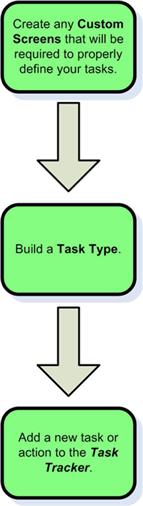
Once a task has been built, each member of the project team is notified. Each individual user can then review the details of the task and note any action they need to take. Each user has the ability to enter comments regarding the task, provide information on how the project is doing, or identify roadblocks they might be facing. Upon the completion of their portion of the task, each user can use the custom screens to show the other users on the task that their portion of the project has been completed.
Screen Description
Sort by options on the Task Tracker screen are:
| Sort by | |
|---|---|
| Field | Description |
| Due Date | Sort the search results by due date. |
| Priority | Sort the search results by priority. |
| Template | Sort the search results by type. |
| Status | Sort the search results by status. |
| Department | Sort the search results by department. |
| User | Sort the search results by user. |
| Location | Sort the search results by branch location. |
Status options on the Task Tracker screen are:
| Status | |
|---|---|
| Field | Description |
| Pending | Search for tasks with a status of pending. |
| In Progress | Search for tasks with a status of in progress. |
| Cancelled | Search for tasks with a status of cancelled. |
| Completed | Search for tasks with a status of completed. |
Search fields on the Task Tracker screen are:
| Field | Description |
|---|---|
| Include Task |
Select which task option to include in the search results.
|
| Select Template | Search for a task/action by selecting a template type from the drop down list. |
| Select Department | Search for a task/action by selecting a department from the drop down list. |
| Select Due Date | Narrow down the task/action search results by selecting/entering a due date range. |
| Select Vendor | Search for a task/action by entering a vendor number. |
| Select Stock Number | Search for a task/action by entering a stock number. |
| Select Customer | Search for a task/action by entering a customer. |
| Select Priority | Search for a task/action by selecting a task/action priority from the drop down list. |
| Select Location | Search for a task by entering a branch location. |
| Select Task ID | Search for a task by entering a task/action ID. |
| Select Employee | Search for a task by entering an employee ID. |
Fields on the Task Tracker screen are:
| Field | Description |
|---|---|
| ID | The task/action ID number. |
| Status | The current status of the task/action. |
| Priority | The level of priority assigned to the task/action (e.g. low, medium, or high). |
| Start Date | The date the task/action is scheduled to start. |
| Due Date | The date the task/action is scheduled to end. |
| Template | The template of task. Requires a set of predefined task types be set up. |
| Subject | A brief description of the task/action. |
Click a task ID number to open the Task/Action screen to view or edit the desired task.
Click the Need to add a task? Click here to add link to add a task.
Hover over the Bookmark  icon and select either Save Defaults or Reset Defaults from the drop down list to save or reset search defaults.
Data Source: TAHDR
Revision: 2026.01