
Job Scheduler: Batch Jobs
A Job is a command or query that occurs in the system, usually at night, and completes automatically. The Batch Jobs screen lists the configured jobs and allows you to edit and control when those jobs occur and how frequently. Jobs in the Job Scheduler run on a per library basis so the Job Scheduler functions in the exact same fashion for both ASP and on-site dealers.
See also: IntelliDealer Batch Jobs - Complete Reference.
The Batch Jobs screen is found at Administration > Settings > Batch Jobs.
Topics in this section are:
Screen Description
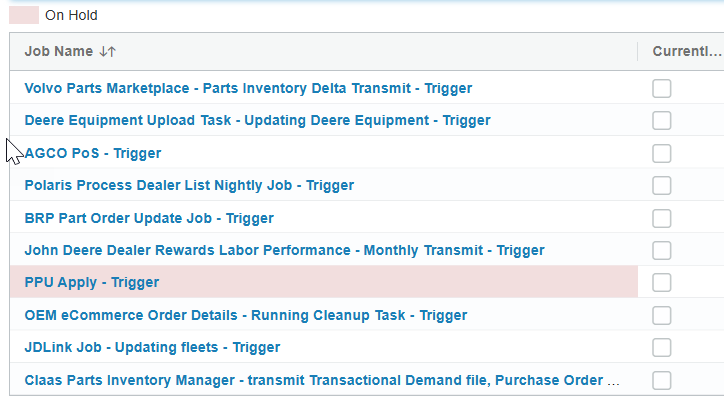
The fields on the Batch Jobs tab are:
| Field | Description |
|---|---|
| Job Name | The name of the scheduled job. When a job is waiting to run after maintenance mode or a delayed retry, the name includes (Re-)scheduled and the expected run date and time. |
| Currently Running | Indicates whether the job is currently running within the system. |
| Recursive Job | If Yes, the job is set to reoccur at a specific time and date. |
| Job Schedule | Describes when and how often the job will be run. |
| Next Run | Displays when the job is scheduled to run next. |
| Last Run | Displays when the job was most recently completed. |
Click Reload to refresh all Batch Job details.
Jobs on hold are indicated visually with a color highlight.
Selecting a job opens the Batch Job Details screen.
 Batch Job Details
The Pause Job button temporarily halts the selected job. Paused jobs appear highlighted as On Hold on the Batch Job screen.
The Pause Job button is replaced by Resume Job for jobs that are On Hold on the Batch Job Details screen.
Maintenance Mode and Rescheduled Jobs
When Maintenance Mode is active, batch jobs that attempt to run are not executed immediately. IntelliDealer reschedules the job to run later instead. The same reschedule behavior also applies when a job requests a delayed retry (for example, when another instance of the job is already running).
While a job is waiting to run again, it can appear on the Batch Jobs tab as an additional row for the same job. The Job Name for that row includes (Re-)scheduled and the date and time the retry is expected to run. Click Reload to refresh the list after maintenance mode ends or after a job is rescheduled.
IntelliDealer maintains only one pending rescheduled run per job. If a job tries to reschedule again before the pending retry runs, IntelliDealer compares the proposed run time with any existing retry or regular schedule for that job:
-
If an existing retry or scheduled run is already set for the same time or sooner, the new reschedule request is skipped.
-
If a pending (Re-)scheduled retry is set for a later time and a sooner retry is requested, IntelliDealer removes the later pending retry and creates a single retry at the earlier time.
After a rescheduled run completes, the one-off (Re-)scheduled entry is removed from the Batch Jobs list.
Most jobs reschedule 30 minutes after the skipped run. Nightly batch jobs reschedule 60 minutes after the skipped run. Individual jobs can use a different delay when required.
You can review reschedule activity on the Job History tab. Common job messages include:
-
Rescheduled because of maintenance window to followed by the expected run date and time.
-
Job will not run due to Maintenance window - not rescheduled (next run is sooner) when an existing retry or scheduled run is already set for the same time or sooner.
-
Rescheduled: followed by the retry reason and expected run date and time when a job requests a delayed retry.
Security Switch: WEB ADMIN 994, Access Batch Jobs
Revision: 2026.09