
Komatsu: Distributor Maintenance Configuration
You can use the Komatsu Distributor Maintenance to configure IntelliDealer to transmit invoiced work orders and the previous day's billing history to Komatsu.
Topics in this section are:
Setup the Automated Transmit
Prerequisites: Feature PFW.6409 - Komatsu Distributor Maintenance is required to use this interface.
-
Navigate to Configuration > Interfaces > Komatsu > Distributor Maintenance.
-
On the Configuration tab, enter the ID for the user who is to receive the nightly report.
The report is a PDF that lists errors that may have occurred during file creation.
-
To transmit the changes to work orders and billing history to Komatsu each night, click the Transmit Delta (Nightly) Feed checkbox.
-
Click Save.
 Komatsu Distributor Maintenance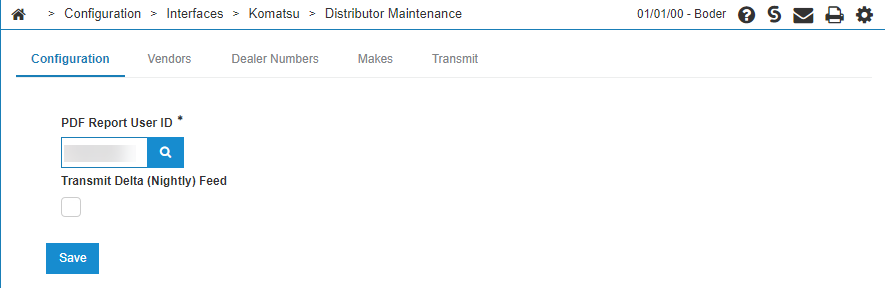
Setup a Komatsu Vendor
If no Komatsu vendors exist, or you would like to setup an additional Komatsu vendor, follow these steps:
-
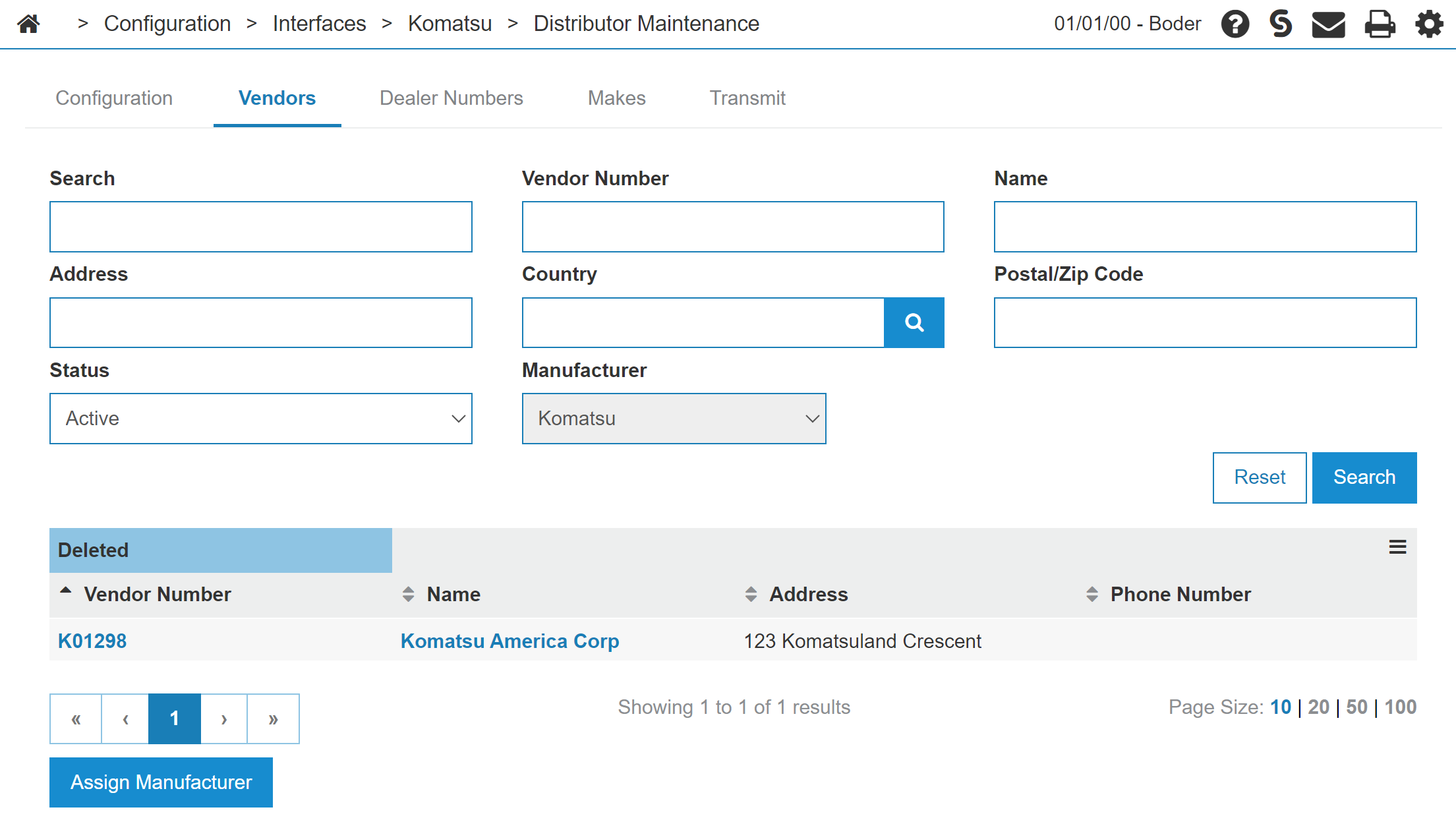
Navigate to Configuration > Interfaces > Komatsu > Distributor Maintenance, then click the Vendor tab.
-
Click Assign Manufacturer.
The Vendor Profile search screen opens.
-
Search for a vendor then hover over the Vendor Number and click Select. Or, create a new vendor by clicking Create. Both options automatically assign a Komatsu manufacturing code to the vendor.
You are returned to the Vendors tab and the selected Vendor is added to the list.
Setup Komatsu Dealer Numbers
You only need to perform these steps if you have not yet set up Komatsu dealer numbers.
-
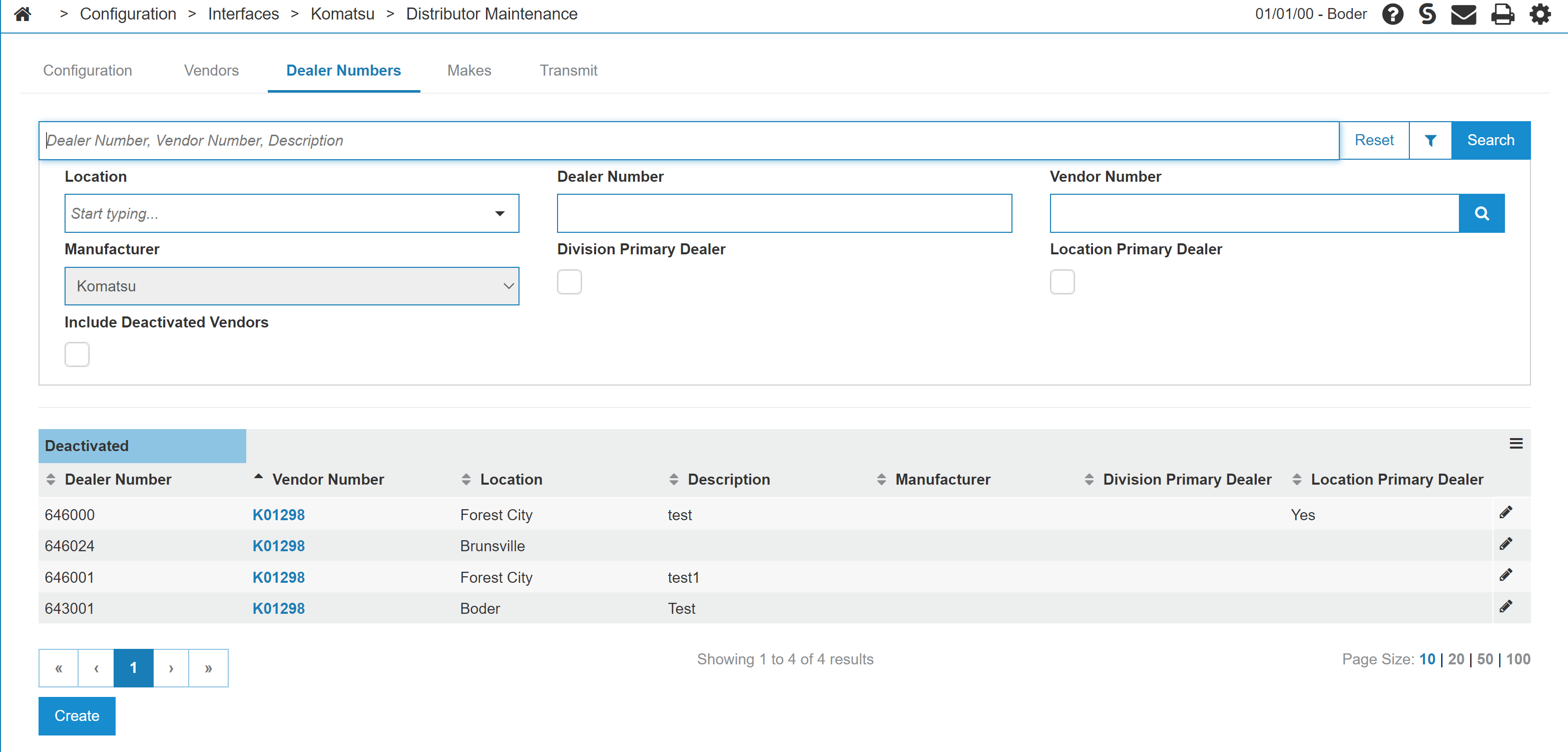
Navigate to Configuration > Interfaces > Komatsu > Distributor Maintenance then select the Dealer Numbers tab.
-
To edit existing dealer numbers, click the pencil icon on the far right of the line you wish to edit.
-
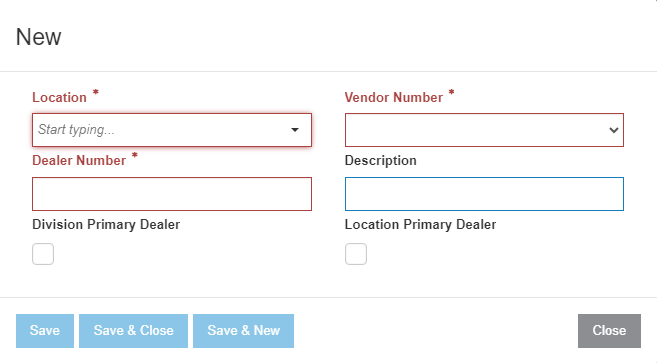
To add new dealer numbers, click the Create button.
-
Choose the relevant Komatsu Vendor Number and Location, then enter your Dealer Number. You can also add a Description to this dealer number.
-
When you are satisfied with your entries, click Save.
-
Setup Komatsu Makes
Use this tab if you wish to filter the transmit data by make and model.
-
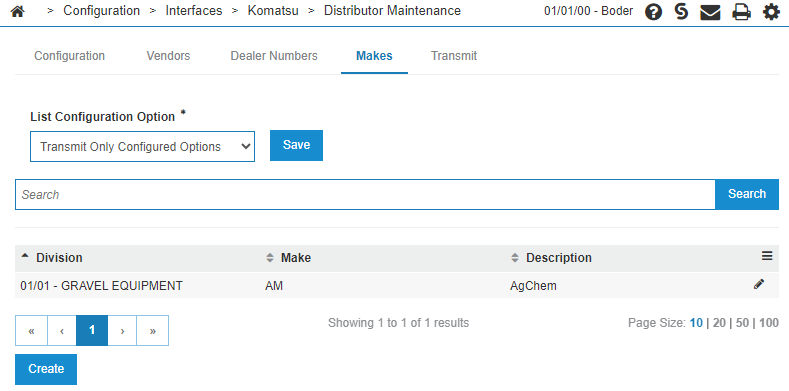
Navigate to Configuration > Interfaces > Komatsu > Distributor Maintenance then select the Makes tab.
-
From the List Configuration Option dropdown menu, choose one of these options:
-
Transmit Only Configured Options—transmit ONLY the makes configured on the list below. If nothing is configured in the list, nothing is transmitted by the interface.
-
Transmit All—transmit all makes in the system, regardless of what is configured on the list.
-
Transmit All Excluding Configured Options—transmit all makes EXCEPT the ones configured in the list. This option is useful when only a few makes should be excluded from the transmission, but the majority should be sent. If nothing is configured in the list, all makes are transmitted.
-
-
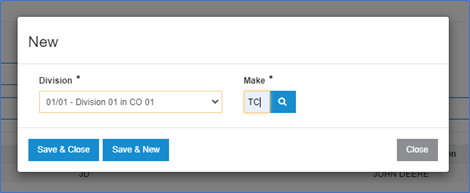
To add a new make to the list, click Create in the bottom right. In the popup, select a Division and the desired Make code.
-
Click Save & Close to return to the configuration screen, or Save & New to configure an additional make.
How to Manually Transmit
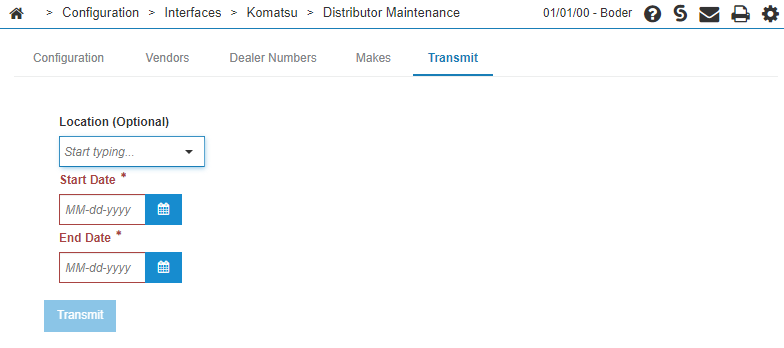
You can transmit the data to Komatsu for a particular date range on the Transmit tab.
-
Navigate to Configuration > Interfaces > Komatsu > Distributor Maintenance then select the Transmit tab.
-
In the Location (Optional) field select a location. To send for all locations, leave this field blank.
-
Specify both the Start Date and the End Date.
-
Click Transmit.
Feature: 6409 - Komatsu Distributor Maintenance
Revision: 2024.02