
Kubota Syncron
Kubota Syncron is a parts replenishment interface that reports parts stock levels, open orders, and transactional demand to Kubota on a nightly basis. It automatically generates parts orders based on suggested orders that Kubota transmits.
Prior to configuring Smart Supply and attempting to transmit any data, ensure that the new Kubota price file system has been configured and the first manual price file download and application has been successful.
When a location is added through Buy/Sell, converted PARTMAST demand may be available even though billing files are not. Use the Newly Added Location Transactional History File export on the Transmit tab to generate a seed file for manual upload to Syncron Smart Supply.
To open the Kubota Syncron screen, navigate to Configuration > Interfaces > Kubota > Syncron.
Topics in this section:
Steps to Configure Kubota Smart Supply
-
While on the Configuration tab, click the Create button:
-
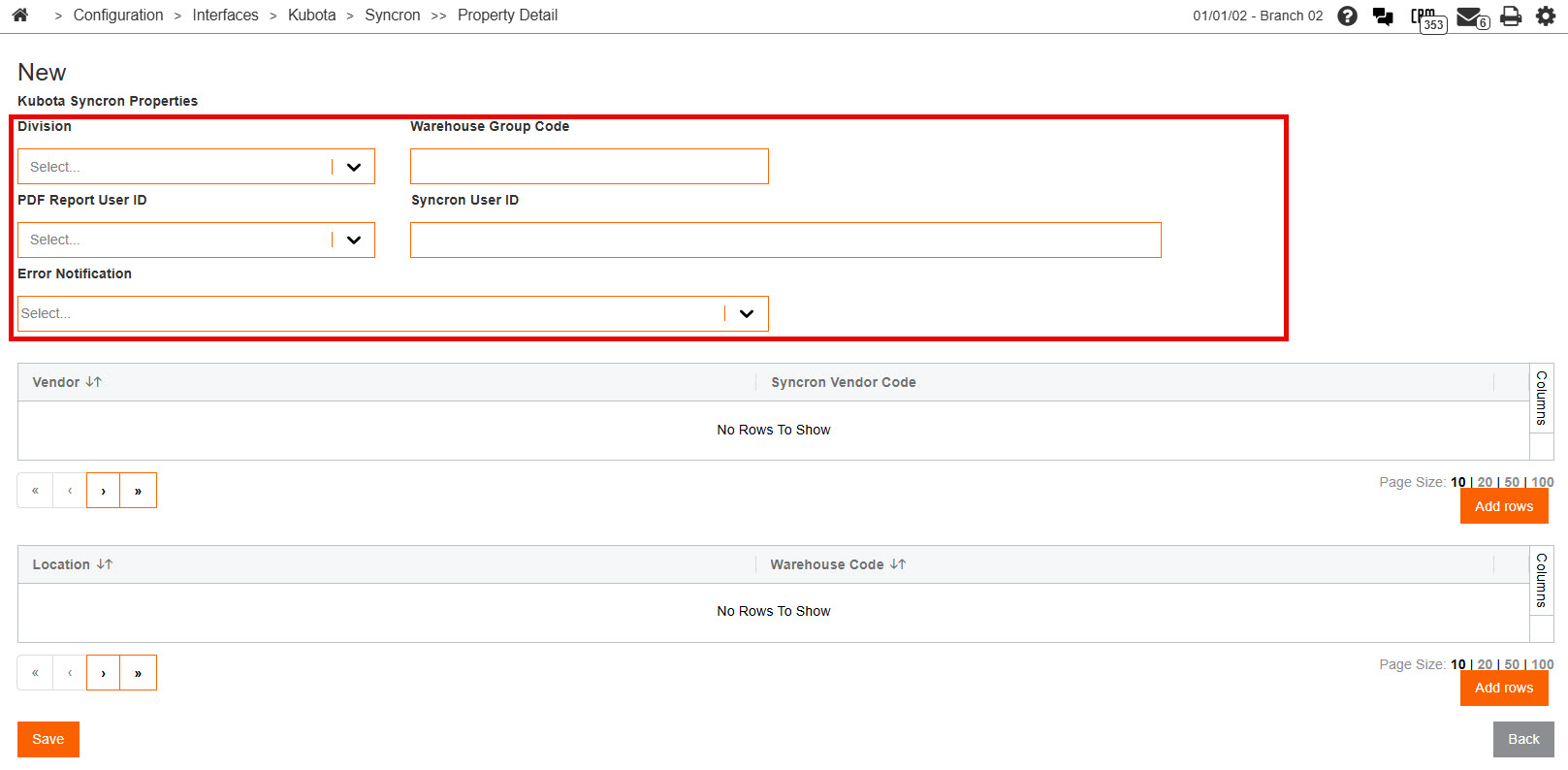
Select the Division which you would like to configure the integration for.
You can then select the PDF Report User ID that you wish to receive generated PDF error reports. -
Supply the Warehouse Group Code for your dealership. This is typically the main account number for the dealership organization.
-
The Syncron User ID should be populated with kubotaprod004. This is a common value shared across all IntelliDealer dealerships.
-
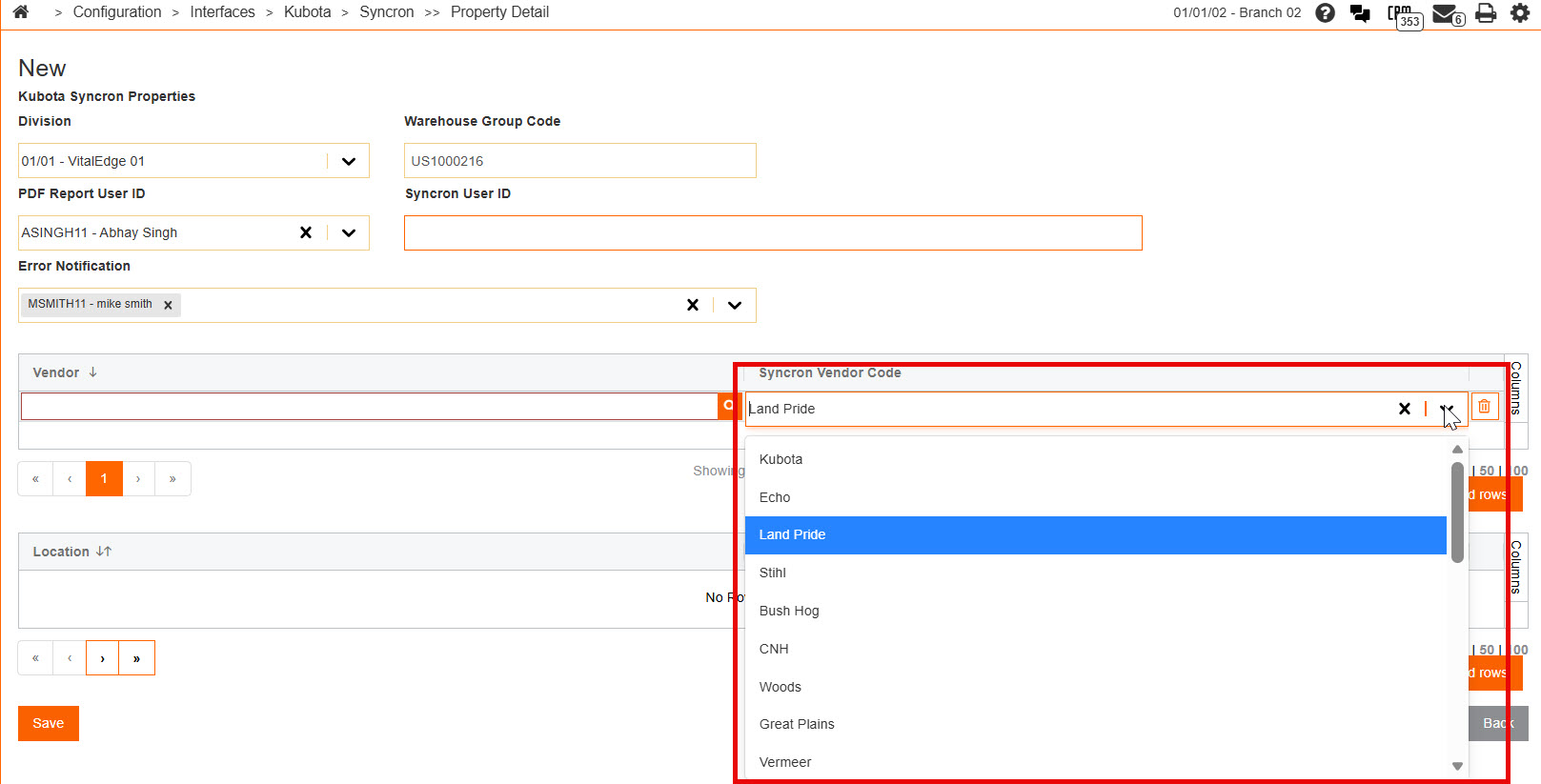
Identify parts vendors to be used by the integration.
Vendor numbers used here must match the vendor numbers configured in automatic price file updates.
-
Select the drop-down for the Syncron Vendor Code and map your Kubota vendor number to the Syncron Vendor Code for Kubota.
You can continue adding rows and configuring additional vendors to manage through Smart Supply, but you must ensure that you are mapping the IntelliDealer vendor number to the appropriate Syncron Vendor Code.
Note: Dealers have the ability map a single ‘Other’ vendor within the integration. This can represent any single vendor which does not have a Syncron vendor code.
-
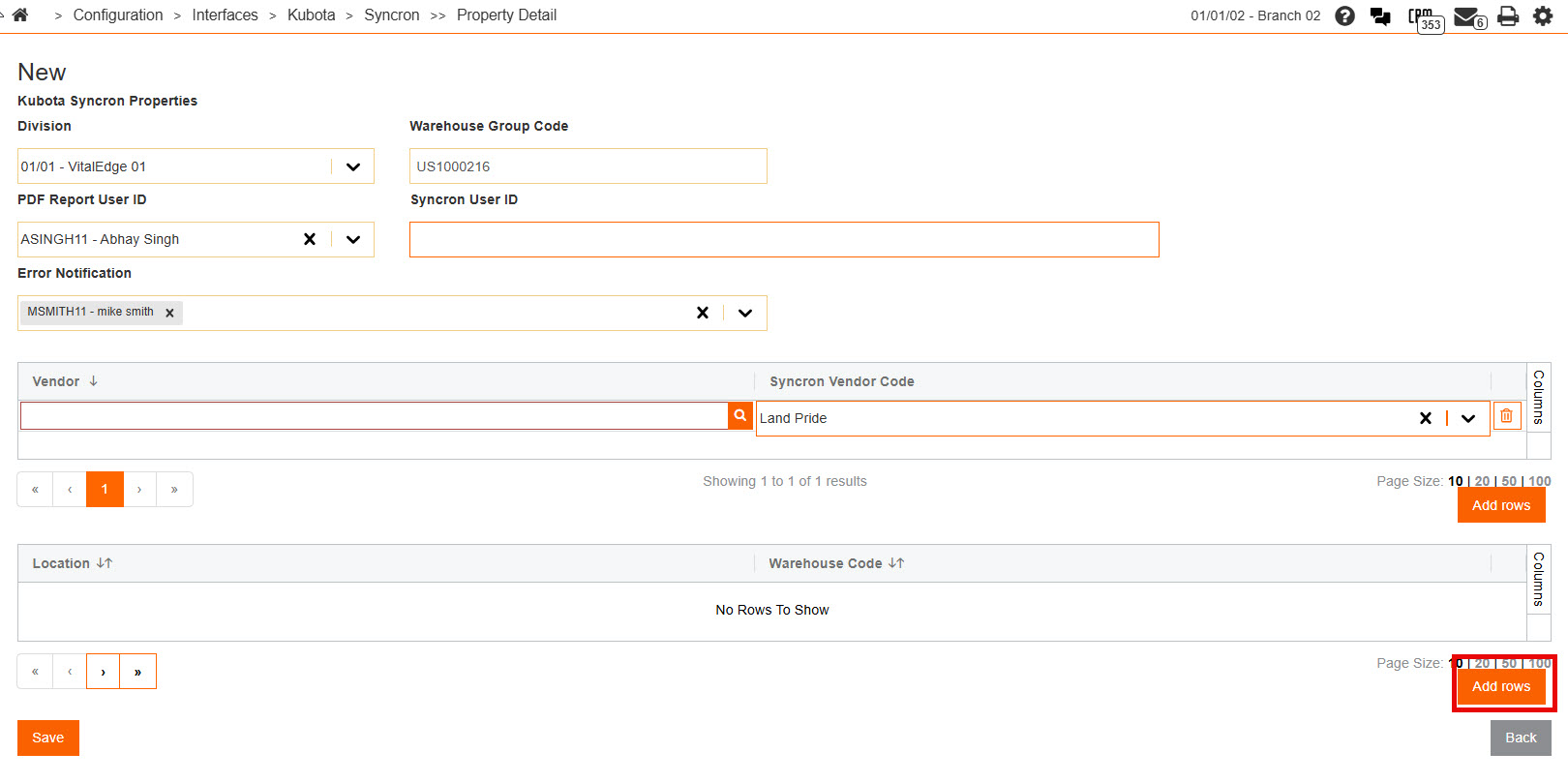
Select the locations you wish to configure for the interface.
-
For each location which should have inventory managed within Smart Supply, assign the appropriate location specific Warehouse Code.
-
(Optional) Navigate to the Exclude Customers tab. This area allows you to identify any customer numbers that do not have transactional information sent to Smart Supply for. This may include inventory adjustment customers, parts return customers, location transfer customers, etc.
Select the Create button and enter the division and customer number to exclude from the data transmit process.
 The Syncron screen appears.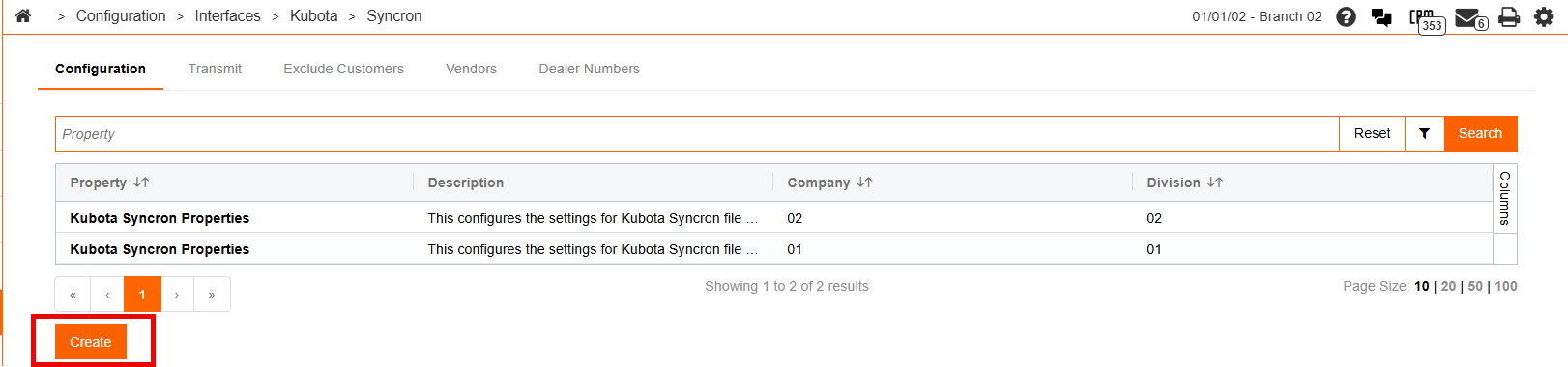

Transmitting Data with Kubota Smart Supply
-
Click on the Transmit tab.
-
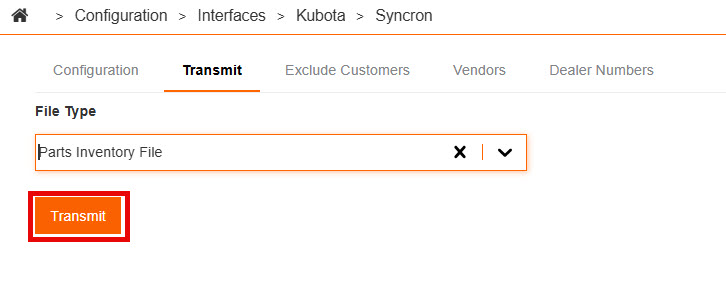
Click on the File Type drop-down and select Parts Inventory File.
-
Click on the Transmit button to send parts inventory for the previous configured vendors.
-
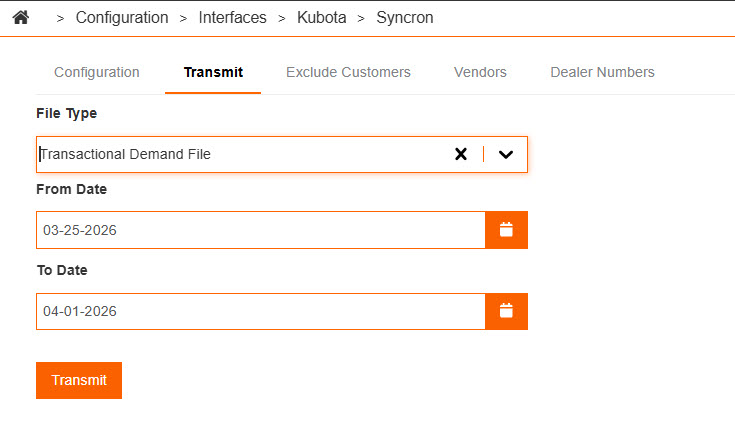
Click the File Type drop-down again, and select Transactional Demand File.
-
Enter a From Date and To Date for the desired data transmit, then click Transmit.
The last two years of transactional data should be transmitted to Smart Supply.
The Newly Added Location Transactional History File option uses a separate export workflow. See Exporting Transactional History for New Locations.
Exporting Transactional History for New Locations
Use this export when a newly acquired location has converted PARTMAST demand but no billing history for nightly Syncron transmission. The export generates an Excel file in Syncron Aggregated Demand Upload format for manual upload through the Syncron Smart Supply portal.
Note: The Transactional Demand File option transmits billing-based demand to Syncron through SFTP. The Newly Added Location Transactional History File option exports PARTMAST-based aggregated demand for local download and manual upload. Use the seed export only when billing history is unavailable for a converted location.
Note: This export is available for United States Kubota dealers only. Canadian dealers cannot access the Newly Added Location Transactional History File file type.
-
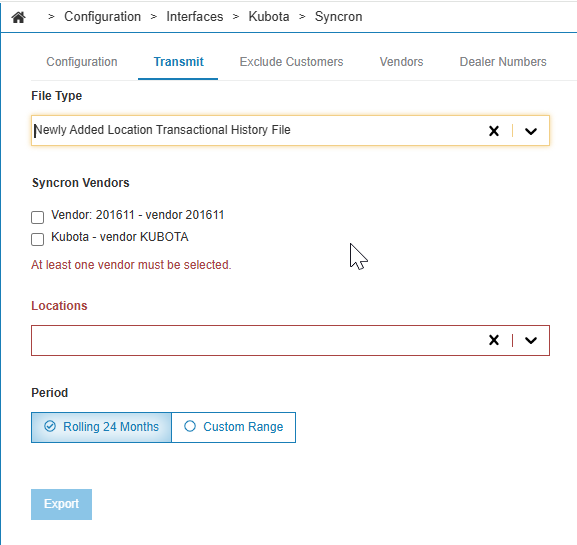
On the Transmit tab, select Newly Added Location Transactional History File from the File Type drop-down.
-
Select one or more Syncron Vendors. At least one vendor is required. The list includes only vendors configured on the Vendors tab.
-
Select a Location. Only locations with a configured Kubota dealer number are listed. One export covers one location. Repeat the export for each location you need to seed.
-
Select a Period:
-
Rolling 24 Months — includes the current calendar month and the previous 24 months (25 monthly periods). This is the default.
-
Custom Range — enter From Date and To Date. Data is available only for the last 24 months. To Date cannot be in the future.
-
-
Click Export. IntelliDealer downloads an .xlsx file to your workstation. The file is not transmitted to Syncron automatically.
-
Upload the downloaded file to Syncron Smart Supply through the Syncron portal.
If the export cannot be generated, this message is displayed:
The export could not be generated. Please try again. If the problem persists, reduce the number of selected vendors or shorten the selected period.
Error Notification
You can configure one or more users to receive email notifications if an error occurs during the Smart Supply Order Download process.
Select the users who should be notified when a Smart Supply import job fails. Multiple users can be added to ensure appropriate team members are alerted and can take corrective action.
Note: This notification is specifically triggered when an error is encountered while processing the Smart Supply Order Download file.
Error Handling and Notifications
If an error occurs during the Smart Supply Order Download process, email notifications will be sent to all users configured in the Error Notification field on the Configuration tab. This ensures timely awareness of issues that may impact automated order processing.
Feature Number: FW.6428 - Kubota Parts Inventory Manager.
Revision: 2026.09