
Vermeer Dealer Integrations
The Vermeer Dealer Integrations (Equipment Classification) interface transmits information to Vermeer about equipment units. Included in the interface are two sub-interfaces: Vermeer Field Inventory and Vermeer Retail Sales. Data for both interfaces is transmitted on an automated nightly basis and does not require any jobs to be manually configured.
Topics in this section include:
Vermeer Field Inventory
The Vermeer Field Inventory interface transmits a list of dealer equipment inventory to Vermeer and sorts the equipment into Vermeer's defined categories. For each unit, the unit hours and VIN are sent, as well as its category/classification as defined by Vermeer.
IntelliDealer selects Inventory, Rental, and Sold status units, and filters them into Vermeer designated classifications. The logic for filtering a unit into Vermeer's classifications are:
| Vermeer Classification | VitalEdge Logic |
|---|---|
| Rental Purchase Option (RPO) |
Since VitalEdge does not have a specific RPO field, IntelliDealer has configuration tables to help dealers choose what units are designated as RPO. They are:
Dealers do not need to set up all configuration screens - only one is necessary to identify the units for RPO. Dealers may use all configuration screens if they have multiple ways of identifying RPO units, but the screens work on an "OR" basis rather than an "AND". For example, if a dealer has a group and an account configured as RPO, units are designated RPO if they have either the group OR the inventory account. |
| Rental |
|
| Used |
Equipment Type is Used (U). When determining the classification of a unit for the Vermeer Field Inventory transmit, units that are marked as "Used" type are designated as "Used" before they are considered for "Demo" classification. |
| Demo |
Equipment In/Out is Out Demo (D). When determining the classification of a unit for the Vermeer Field Inventory transmit, units that are marked as "Used" type are designated as "Used" before they are considered for "Demo" classification. |
| New | Equipment Type is New (N) |
| Sold | Equipment Type is Sold (S) and configuration screen has Sold selected in the "sold classification" box |
| Committed | Equipment Type is Sold (S) and configuration screen has Committed selected in the "sold classification" box |
Filtering logic goes from top to bottom. A unit is first checked to see if it is RPO, then Rental, then Demo, and so on.
Vermeer Retail Sales
The Vermeer Retail Sales interface transmits invoiced equipment units that have been sold the previous day. Units are recognized as being invoiced when they enter the billing history databases. Only the VIN and hours of the units are transmitted. No dollar amounts are sent.
Setup Requirements
- The configuration screen can be found under Configuration > Interfaces > Vermeer > Dealer Integrations.
- A Key ID must be configured by the dealer.
-
A PDF Report User ID should also be configured by the user, as the interface generates a PDF report when data is transmitted to Vermeer.
-
The Retail Sales Dates tab shows a list of when retail sales transmissions were last received by Vermeer. The Key ID is required in order to view Retail Sales Dates.
-
On the Excluded Serial Numbers tab, a list of pre-configured default excluded serial numbers are visible. Additional serial numbers can be added to this tab to exclude these units from being transmitted to Vermeer, but the basic list cannot be removed entirely.
-
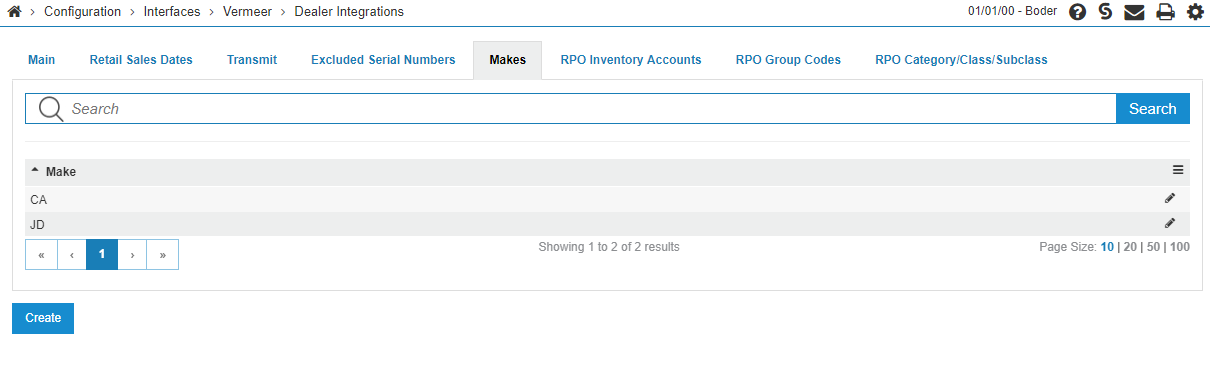
The Makes tab must have the equipment makes configured to be sent to Vermeer. Two non-Vermeer makes are shown for testing purposes, but this screen should normally have only Vermeer makes on it. Most dealers only have one make configured, but there is an option for additional makes to be added as necessary.
-
The next three tabs designate what units are marked as RPO classifications. Dealers have the option of any of the RPO Inventory Accounts, RPO Group Codes, RPO Category/Class/Subclass tabs to designate units as RPO. Any combination of these tabs can be used, but they function on an OR basis. These tabs are currently NOT location specific.
- Click on the RPO Iventory Accounts tab
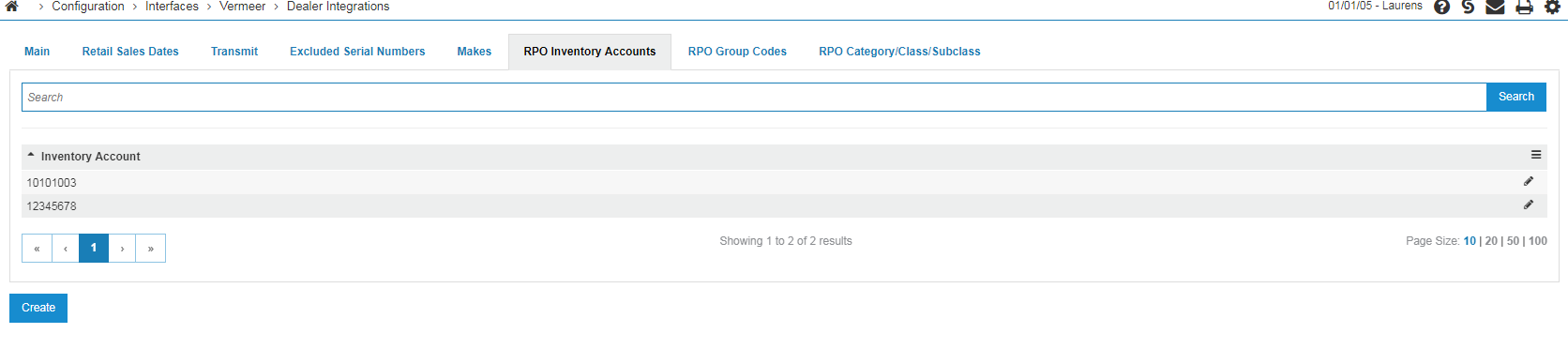
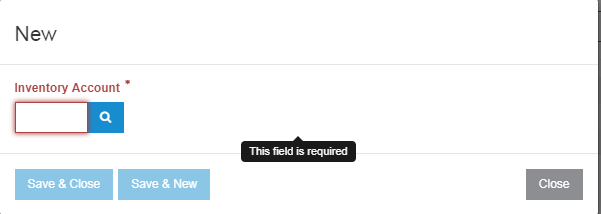
- Click on Create to configure an Inventory Account.
- Then click the RPO Group Codes tab
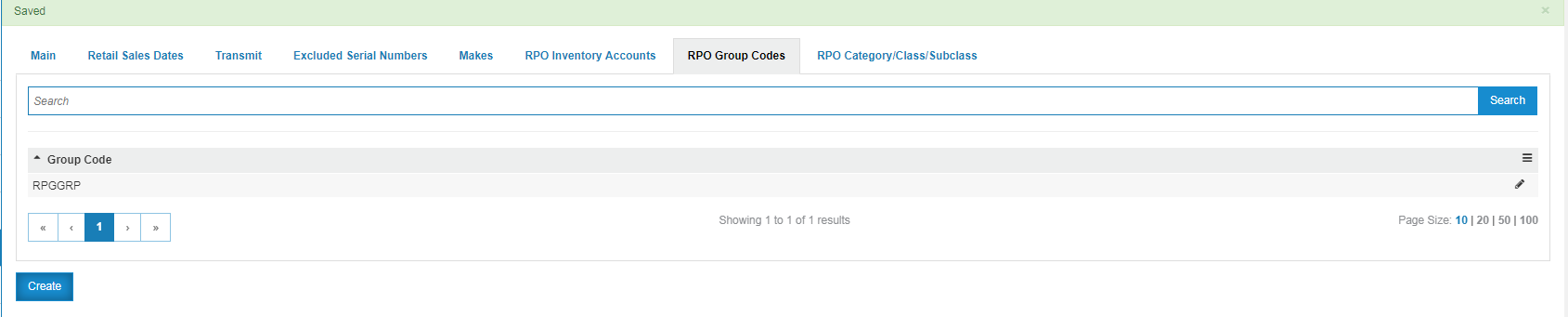
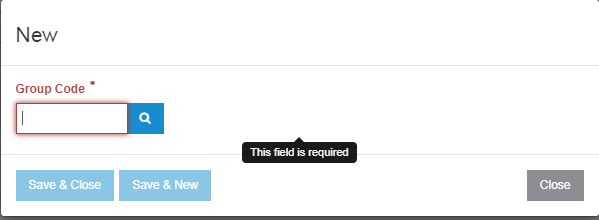
- Click on Create to define a Group Code.
- Then click the RPO Category/Class/Subclass tab
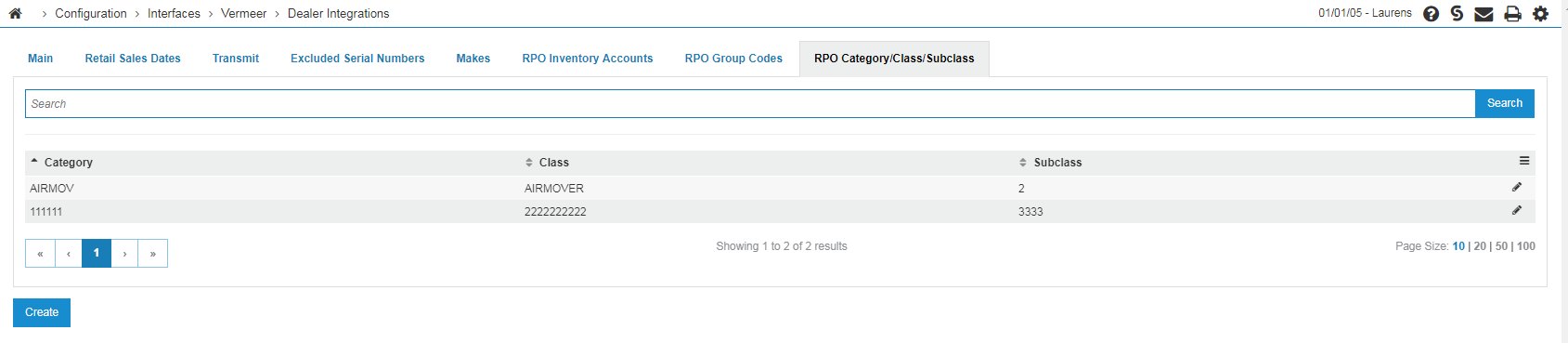
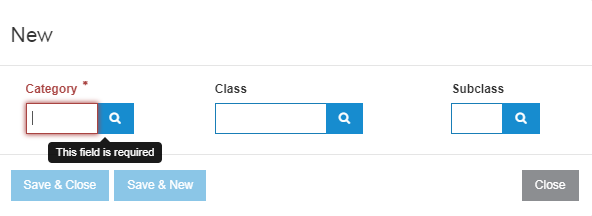
- Click on Create to assign Cat/Class/Subclass.
 Excluded Serial Numbers tab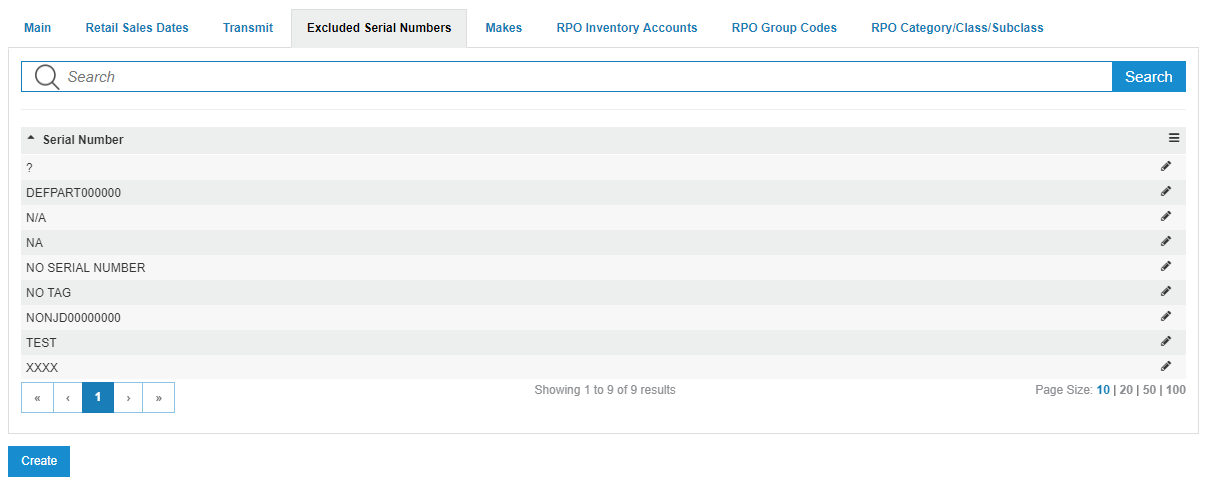
Transmit Details
As the interface runs primarily as an automated job, there is limited interactive functionality. IntelliDealer generates a PDF report after every transmission. The report contains details about the transmission and any errors encountered during the data collection process. For debugging purposes logs are also recorded in the IFS.
Sample Vermeer Field Inventory Transmit Report
Sample Vermeer Retail Sales Report
You can use the Transmit tab on the configuration screen to manually transmit data to Vermeer in case of a missed transmission. You can select a date range for Retail Sales, while Field Inventory always transmits the dealer's current inventory.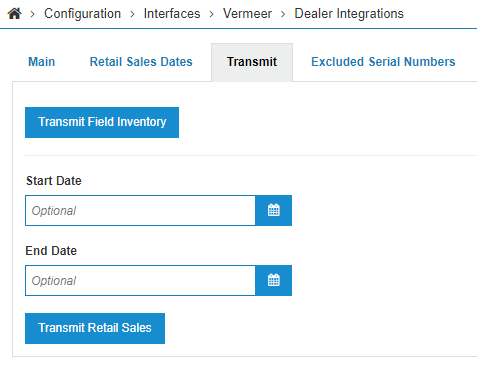
Dealer Accounts
The Dealer Accounts tab is an optional table used to configure Account and Location information for specific Vermeer Dealer Numbers. It is used by the Vermeer Field Inventory interface when the default method of parsing the Account and Location from the Dealer Number configured on the Vendor Profile is insufficient. Dealer Numbers that do not have an Account or Location configured in this table will have their Account and Location information determined by the default method used within.
Feature Number: 6255 - Vermeer Eqp Classification Interface
Revision: 2024.11