My Account - Invoices
To open the My Account - Invoices screen, click the Menu  icon from anywhere within the application and select My Account> Invoices from the drop down list.
-or-
Search for an Invoice on the Home screen of the application.
The My Account - Invoices screen displays your paid and outstanding invoices:
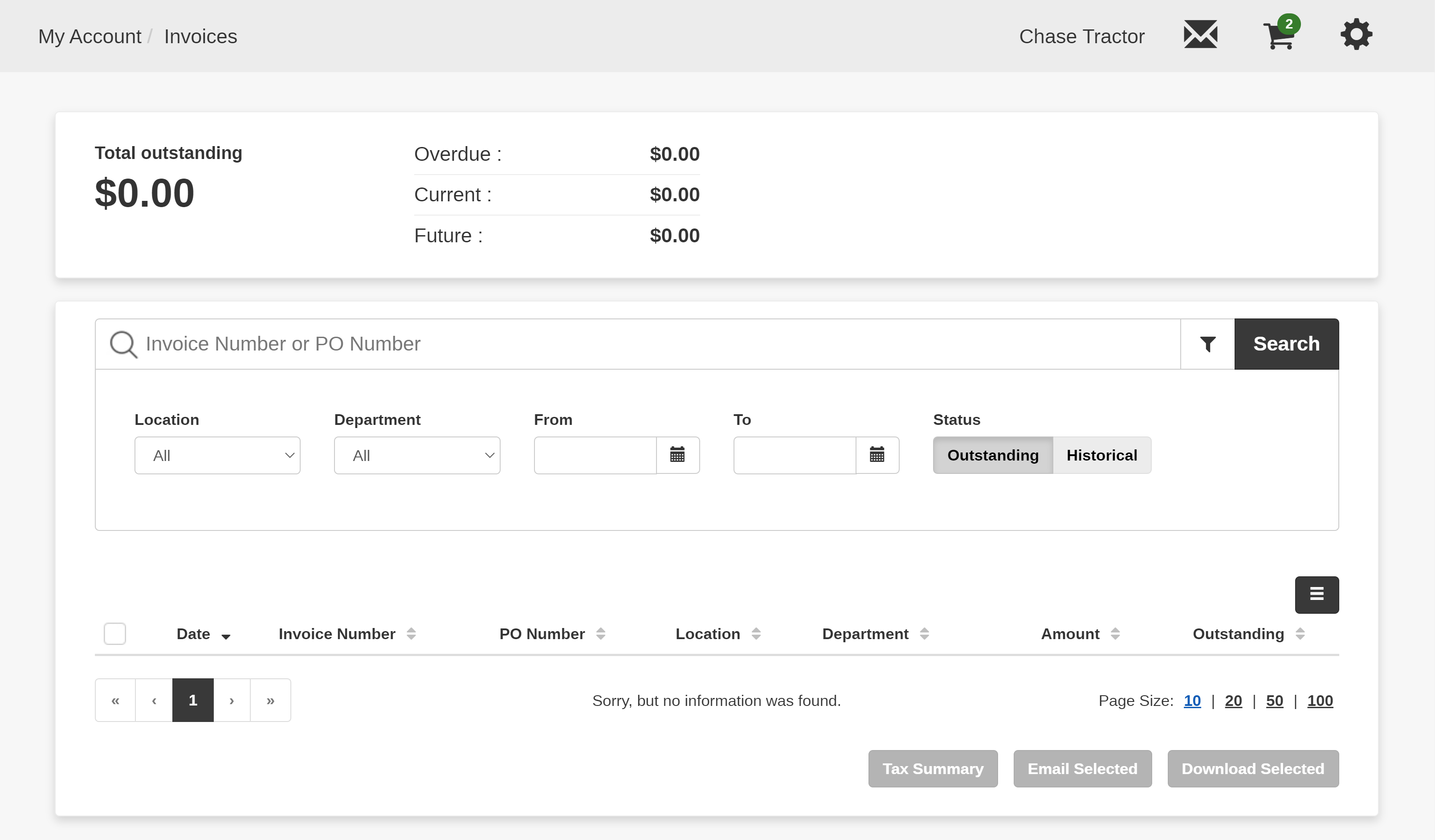
Invoices from IR (Integrated Rental) transactions will share the same invoice number between them.
You can also perform these actions:
| Action | Steps |
|---|---|
| To search for a specific invoice or PO Number |
Enter the desired Invoice Number or PO Number in the field provided, then click Search. The screen refreshes, displaying the results. |
| To perform an advanced search |
Click the The screen refreshes, displaying the results. |
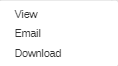
| To view, email, or download a PDF of an invoice |
Select the
|
| To make a Lump Payment to any outstanding invoices | An email message is automatically sent with the receipt for the payment. The email is sent to the customer's primary contact. If a secondary contact made the payment, the email is sent to both the primary and secondary contacts. A copy of the receipt is also sent to the dealer contact and any dealer CC contacts. |
| To Pay a selected outstanding invoice |
Select the Pay Selected button and enter the amount to be applied to the invoice. An email message is automatically sent with the receipt for the payment. |
| To view a Tax Summary of all the invoices currently displayed in the search results |
Click the Tax Summary button. |
 icon next to the Search field to display additional search criteria, then enter the desired criteria and click Search.
 icon to display the invoice options menu: