
Parts Ordering: Order Correction
Use the Order Correction screen to correct errors on a part order. Corrections can only be applied to the order after it has been receipted, updated, and moved into history.
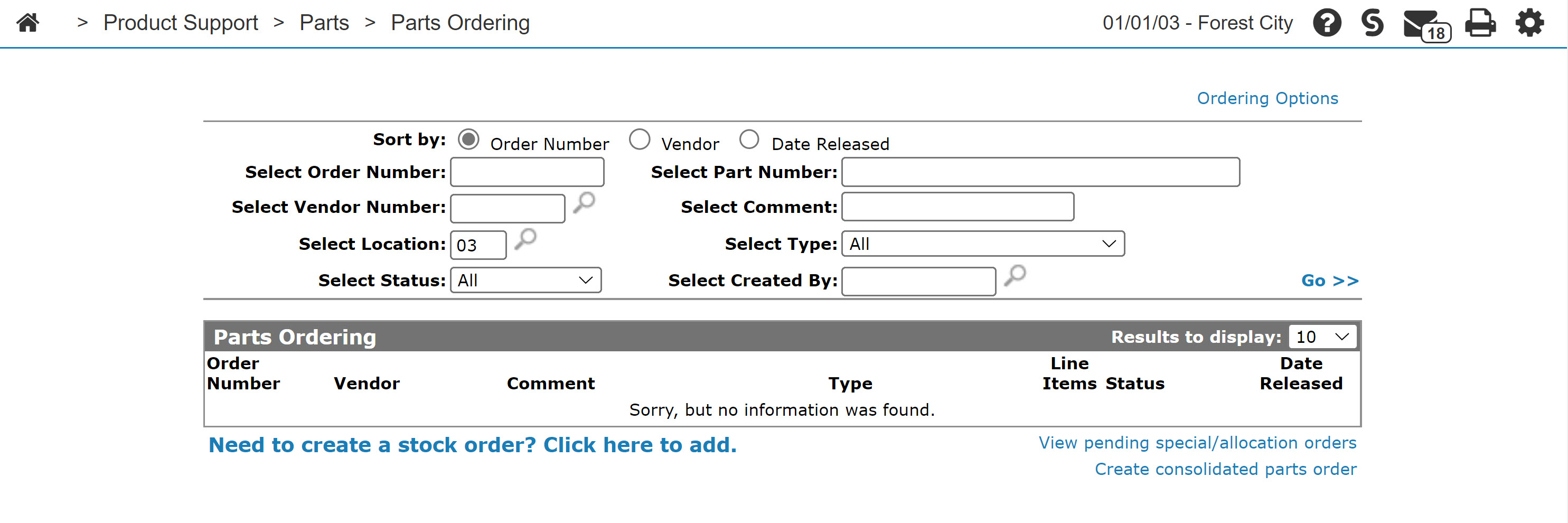
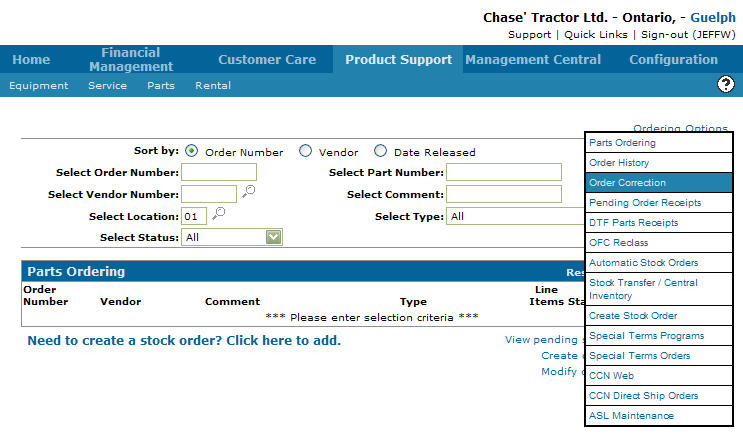
The Order Correction screen can be accessed from the Parts Ordering screen by moving the cursor over Ordering Options link and select Order Correction from the pop-up menu.
 Order Correction screen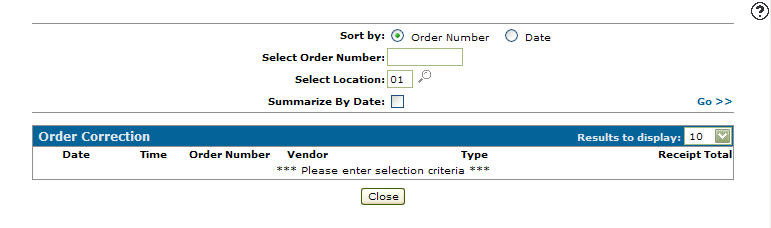
Topics in this section are:
Important to Consider Before you Start
The Order Correction application is used to make changes to a parts order after it has been receipted and updated. The order must already be in history before any corrections can be made. Using this application, you can update the quantity and cost of parts.
Important notes:
-
Purchase Orders (POs) tied to parts transfers cannot be corrected using this option.
-
If the vendor on the PO is configured on the Location Transfers screen this option cannot be used, and an alternative correction method is required.
Regarding quantity changes, note that:
-
Quantity can only be changed for stock orders.
-
The new quantity must be equal to or less than the quantity that was receipted.
-
If the quantity is reduced, the difference will be placed on back order.
This scenario is typically used when parts were receipted but later found not to have been received.
-
If an open order already exists for the same vendor, the back-ordered parts are added to that order.
-
If no open order exists, a new order is created and placed on back order.
-
If an order with the same order number already exists but has a different vendor or order type, the quantity cannot be changed.
Once a part order has been corrected, note that:
-
Correcting an order generates new order(s).
-
The new orders use the original order number, followed by an alpha character.
-
If you lower the quantity of a part, the original order will be re-opened and placed into a Back-Ordered status. To close the re-opened order, receipt it when the parts are received or delete it if the parts are not going to be delivered.
-
Reversed parts orders are displayed on the Purchase Order tab for the selected customer.
Correcting a Parts Order
Prerequisites: The order must be receipted, updated, and moved into history before corrections can be applied.
-
Navigate to Product Support > Parts > Parts Ordering .
-
Move the cursor over the Ordering Options link and select Ordering Correction from the pop-up menu.
-
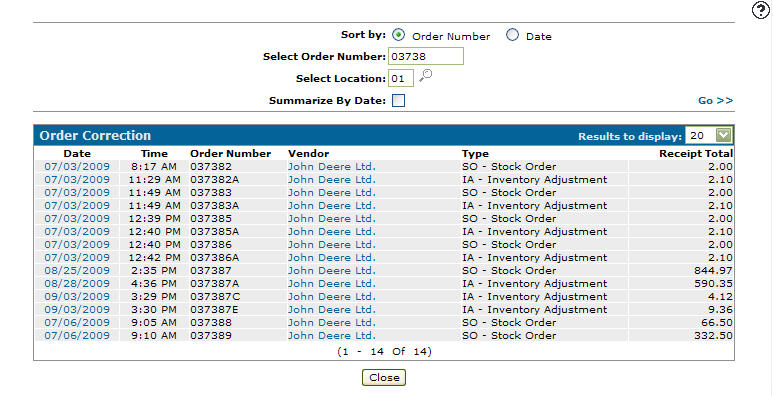
Enter an order number in the Select Order Number field.
-
Enter a location in the Select Location field - or - click the Search
 icon to search for and select a location from the Location Selection screen.
 -
(OPTIONAL) select the Summarize by Date checkbox to summarize the search results by date.
-
Click Go >>.
-
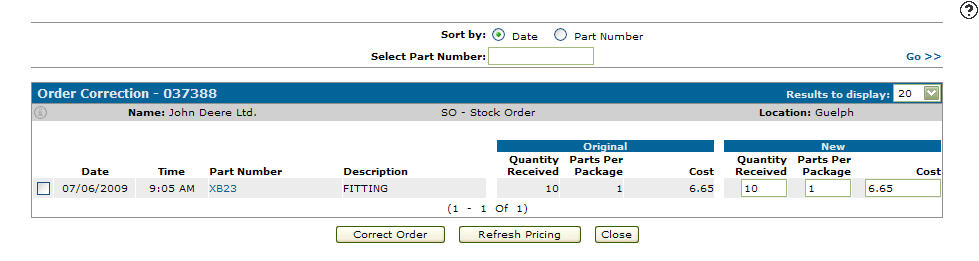
Click the Date of the order you wish to correct.
-
Select a Sort by option to sort the parts on the order by either Date or Part Number.
-
For orders with multiple parts, enter a part number in the Select Part Number field and click Go >> to search the order for a particular part.
-
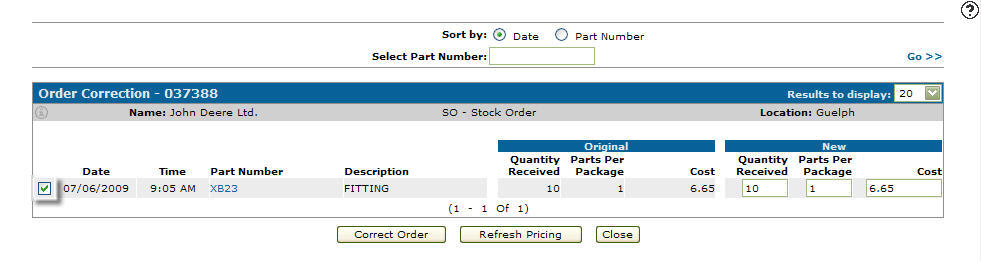
Select the part number you wish to apply corrections to by selecting the corresponding checkbox.
-
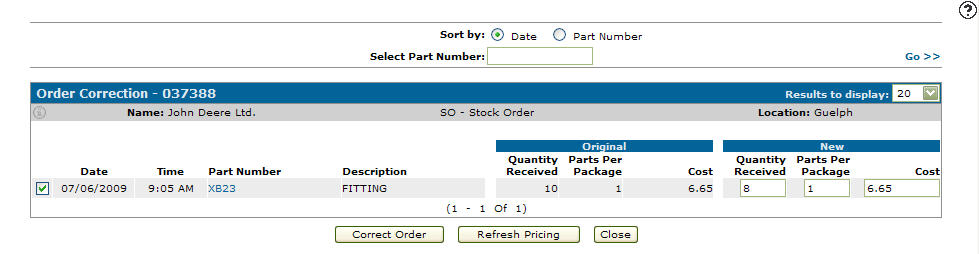
Under the New section heading make an adjustment to either the Quantity Received and/or Cost.
Note that:
-
The quantity on special order types (MD, FI, T$, etc.) cannot be changed.
-
If you enter a zero or a blank for the new cost, the current cost will be loaded for the part.
-
If you click the Refresh Pricing button, the current cost will be loaded for all parts on the order.
In this example we are adjusting the Quantity Received from 10 to 8.
If the parts per package does not equal the current value on the part, the value is highlighted as 'mismatched'.
You can change the cost to the new cost of the part if you receipted it using the wrong cost. If you enter the cost as zero, or blank out the cost, the current cost is loaded for that part. Click the Refresh Pricing button to reload the current cost for ALL parts. This also automatically selects any parts where the refreshed cost is different from the cost displayed on the screen.
Keep in mind if you're using cost codes at all, the system triies to calculate the amount by taking the amount in the PARTHIST file (landed cost) and dividing it by the COSTCODU (receipting) factor configured for this vendor/part and order type. If there is a cost code on the vendor it is used first, otherwise the cost code on the part is used.
-
-
Select the parts you want by placing a check mark in the checkbox for the part. Change the values you want.
-
Click Correct Order.
The Confirmation screen appears.
When you click Correct Order button, the system creates one or two orders. The order numbers for these are the original order number, followed by a letter from A to Z. The first order is created if you have entered a new quantity greater than zero for any of the selected parts. This puts the new values into history. The second order uses the original values for each part selected, but all the quantities are negative. This reverses the incorrect parts from history. You may also get the original order 're-opened' if you have any new quantities that are less than the original quantities for any selected parts.
The one or two correction orders are completed orders and only show in history. They are not orders that you can edit. The original order, if 're-opened', will be in a back-ordered status. You must finish receipting this order when you have received the parts, or clear it if the parts are not coming in.
-
Click Yes.
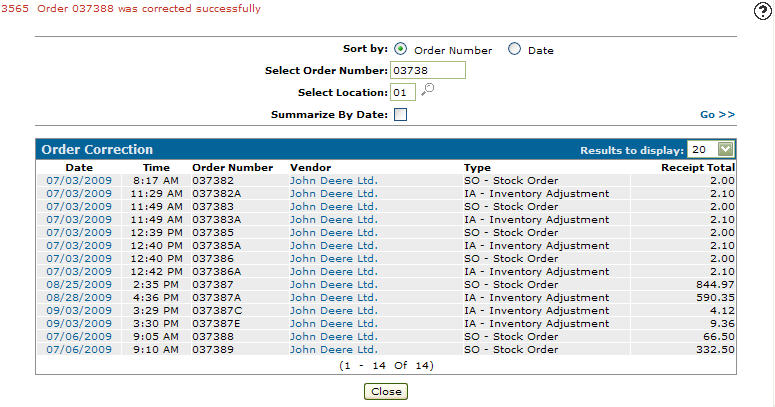
The Order Correction screen appears indicating that the order was corrected successfully.
-
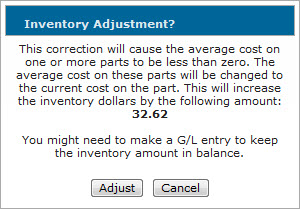
(OPTIONAL) If the corrections you make to the order causes the average cost of the part(s) involved to be less than zero, the system automatically changes the cost of the parts to the current cost and displays the subsequent increase to the inventory account in the Inventory Adjustment window.
To confirm the inventory adjustment and complete the order correction, click Adjust.
-
Click the Go >> link to refresh the screen.
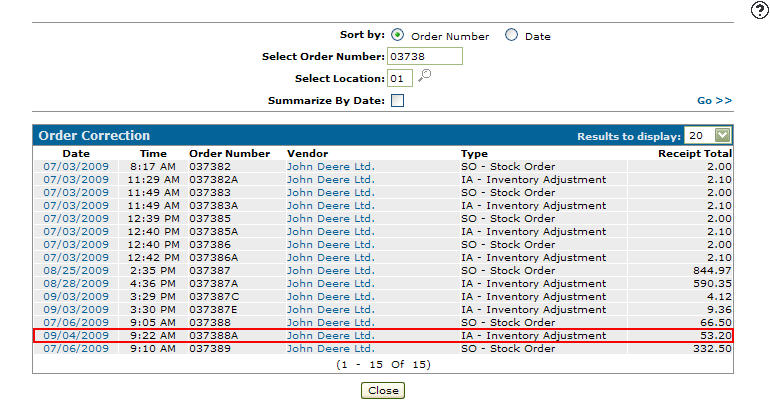
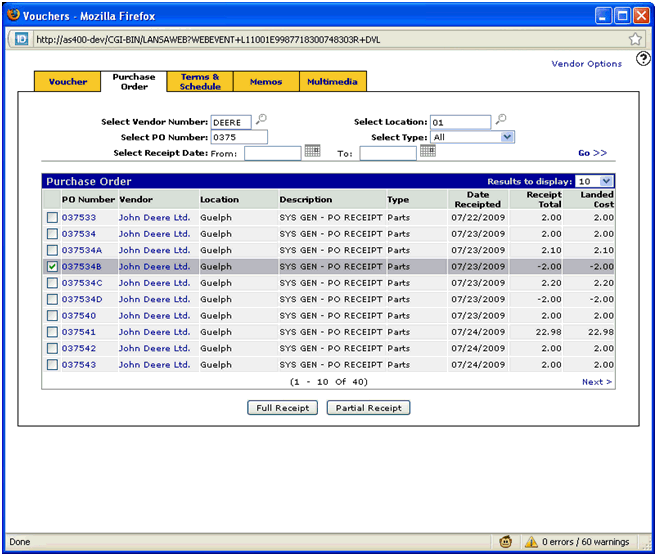
Post-requisite: The vouchers system shows the 'reversed' parts orders. These show with a negative receipt total. To get your voucher amount correct you must to select the main PO and every correction PO.
Balancing Issue with Parts Order Corrections
If you do a PO correction and change the cost of a part that currently has zero on hand (zero inventory), your parts inventory goes out of balance by the difference in the cost correction.
Consider these examples of cost adjustment done using PO corrections for:
A part that currently has zero on hand (zero inventory)
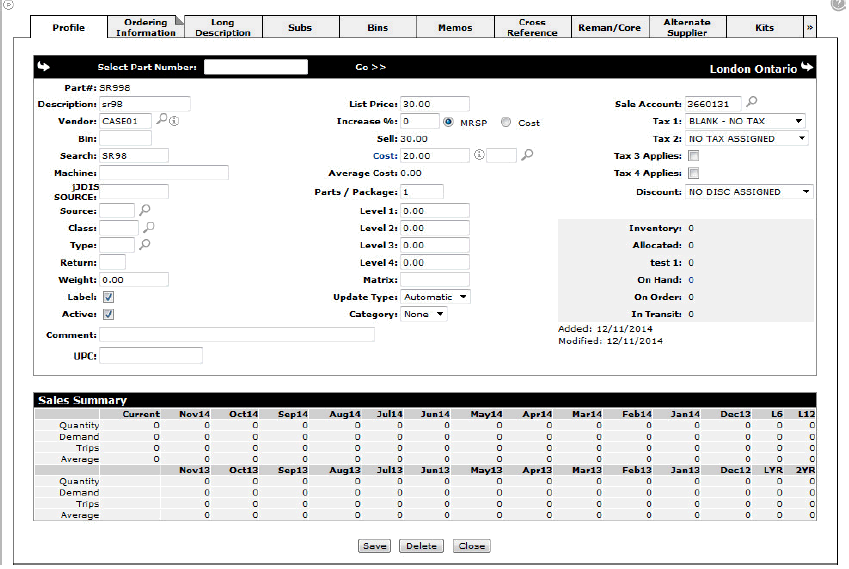
Receipt the part in on a PO, invoice the part and run a parts billing run.
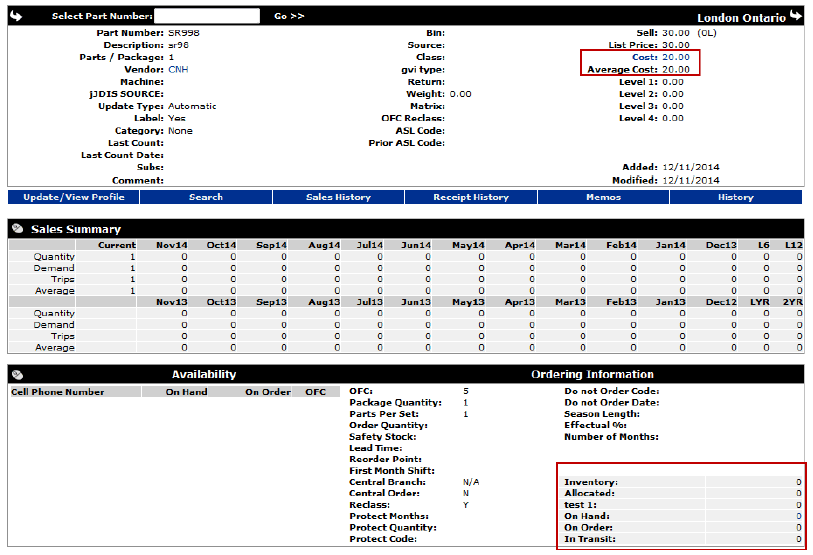
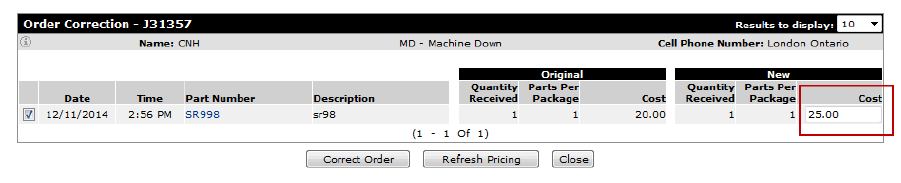
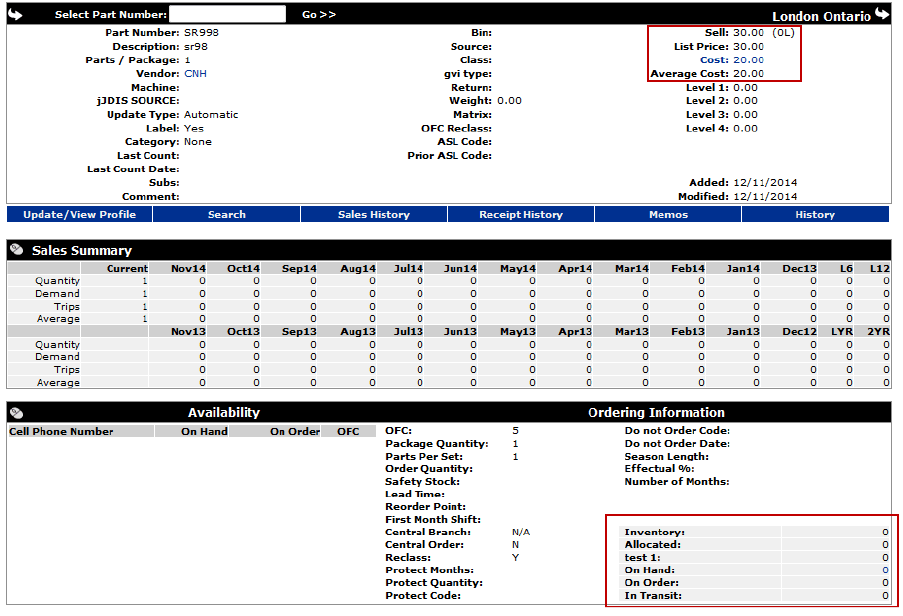

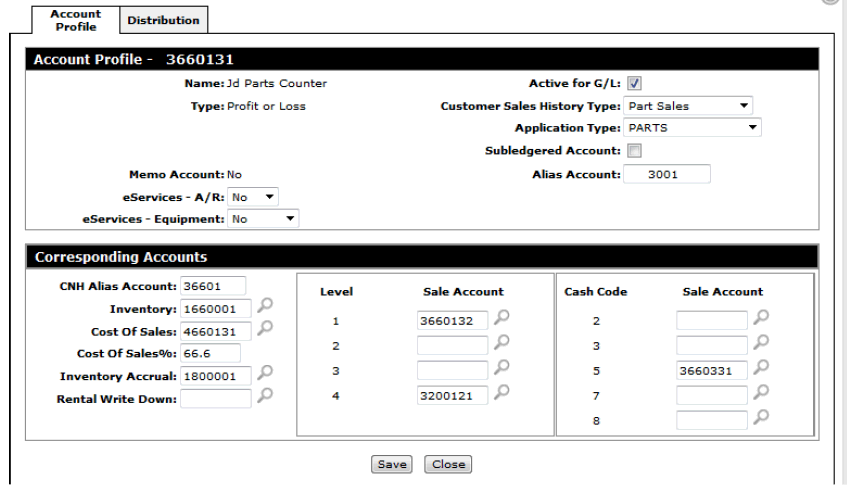
The problem is that the parts inventory account 1800001 now shows the 25.00 but it was only relieved by 20.00 when the part was sold as it was sold before the correction was done:


This leaves 5.00 left in the inventory account for a part that has zero on hand so your parts inventory would be out of balance by 5.00.
A part that currently has a quantity of at least 1 in inventory
When performing the same test but where the part still had 1 left in inventory, the average cost updated to 25.00 to compensate so the system should be in balance.
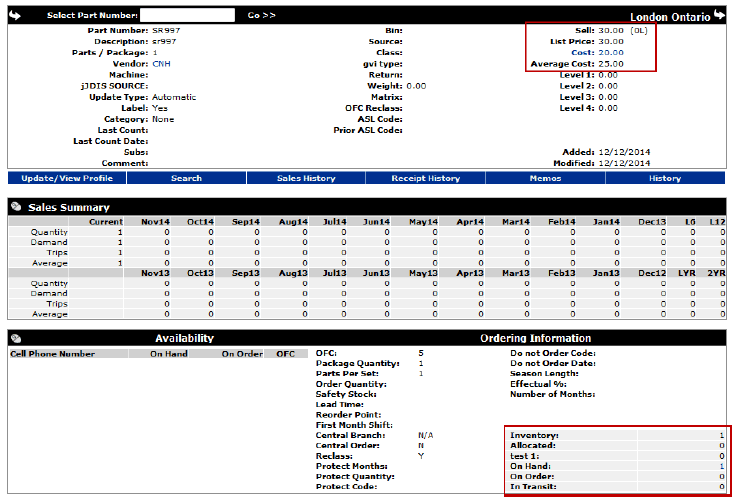
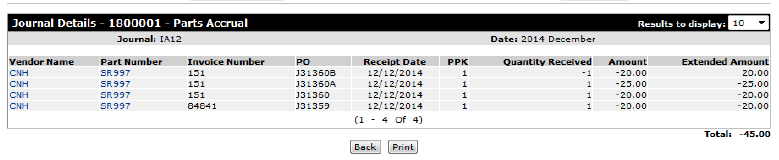
Parts inventory account reflects the 45.00 and it was relieved by 20.00 when it was sold leaving 25.00 left in inventory.
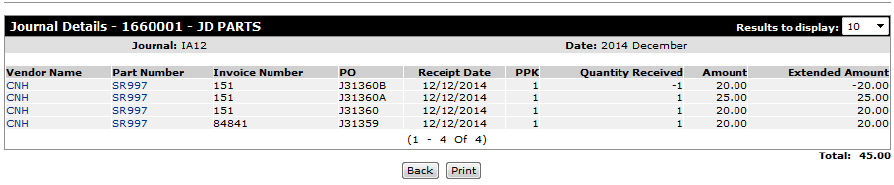

This leaves 25.00 left in inventory and currently there is 1 one on hand with an average cost of 25.00 so the system is in balance.
If you do a PO correction and change the cost of a part that currently has zero on hand (zero inventory), your parts inventory instantly goes out of balance by the difference in the cost correction. The difference in this case should be posted to the corresponding cost of sale account.
Screen Description
The sorting options available on the Order Correction screen are:
| Sort by | |
|---|---|
| field | Description |
| Order Number | Sort the search results by order number. |
| Date | Sort the search results by receipt date. |
The search fields on the Order Correction screen are:
| Field | Description |
|---|---|
| Select Order Number | Search for a part order by entering an order number. |
| Select Location | Search for a part order by entering a branch location. |
| Summarize by Date | Summarizes the search results by date. If selected, the Time field will be excluded from the search results. |
The fields on the Order Correction screen are:
| Field | Description |
|---|---|
| Date | The date the order was receipted. |
| Time | The time the order was receipted. |
| Order Number | The order number. |
| Vendor | The vendor associated with the order. |
| Type | The type of order. |
| Receipt Total | The order's receipt total. |
Click an Order Number to open the Order Correction screen allowing you to correct any errors on the selected order.
Click a Vendor to open the Vendor Profile screen.
Click Close to close the Order Correction screen and return to the Parts Ordering screen.
Security: 821 - Product Support - Parts Ordering
Revision: 2026.03