
Create Purchase Order
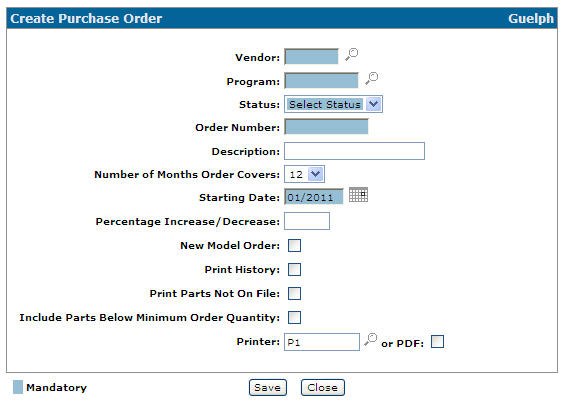
Use the Create Purchase Order screen to create a purchase order for a special terms program.
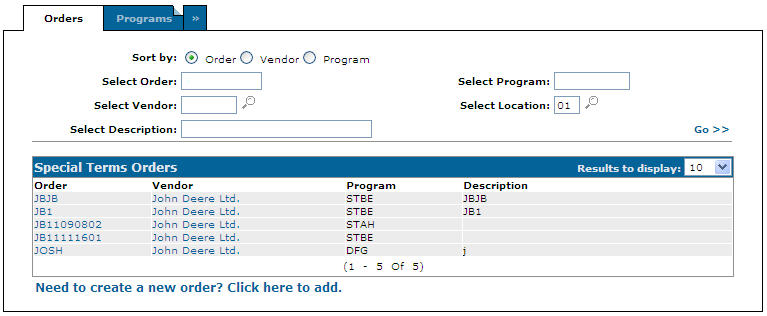
The Create Purchase Order screen is accessed from the Orders tab by clicking the Need to create a new order? Click here to add. link or by clicking an Order Number. You can also access the Create Purchase Order screen from the Programs tab by hovering over Program name and clicking the Create PO link.
Topics in this section are:
Creating a Special Terms Order
-
Navigate to Product Support > Parts > Parts Ordering.
-
Click the Ordering Options menu, and select Special Terms.
-
Click the Need to create a new order? Click here to add link.
-
Fill in the fields referring to the table below.
-
Once you have finished, you can complete your work on the order:
To: Do This: Save changes to the order and continue working and refresh the fields on the screen. Click the Save button. Close the order without saving changes. Click the Close button.
 The
The 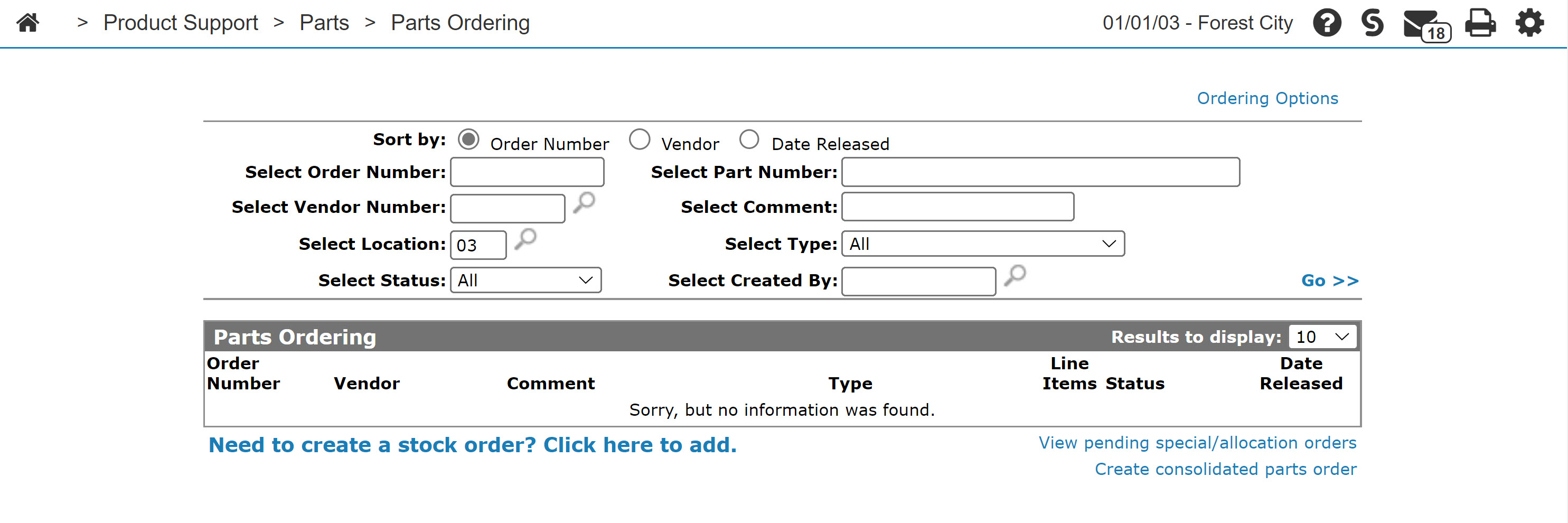
Screen Description
Fields on the Special Terms Orders screen are:
| Field | Description |
|---|---|
| Vendor | The name of the part vendor for this order. |
| Program | The program number for this special terms order. |
| Status |
Select either the Manual or Electronic status of this order. This field appears only if you access the Create Purchase Order screen from the Orders tab. |
| Order Number | The order number. |
| Description | A description of the special terms order. |
| Number of Months Order Covers | The system carries 24 months of history for ordered parts and you may select the number of months that the special terms order should cover. |
| Starting Date | Indicates at which point in each part's history to start looking at sales, and then moves forward the number of months specified in the Number of Months Order Covers field. |
| Percentage Increase/Decrease | The percentage to increase or decrease the order quantity based on sales of the part during the number of months specified in the Number of Months Order Covers field. For example, if the Percentage Increase/Decrease field is set to 10 and the Number of Months Order Covers field is set to 12 with 100 sales occurring in those 12 months, the order is for 110 parts. |
| New Model Order | If selected, the part does not get ordered if this is a new model order and the part has been returned at some point within the time period specified in the Number of Months to Check for Returns field. |
| Number of Months to Check for Returns |
The number of months to check for returns of new model parts. This field appears only if the New Model Order field is selected. |
| Print History | Select whether or not you wish to print an order report. |
| Print Parts Not On File | Select whether or not you wish to print a report displaying program parts not on the order. |
| Include Parts Below Minimum Order Quantity | Include parts whose calculated order quantity is less than the minimum order quantity as specified on the special terms program for that part. |
| Printer | Specify the printer to be used when generating the reports. |
| or PDF | Allows you to create a PDF file for the selected Purchase Order. |
Use these buttons to complete your work on the Create Purchase Order screen:
-
Click Save to save changes made on the Create Purchase Order screen.
-
Click Close to close the screen and return to the Special Terms Orders or Special Terms Programs screen.
Security: 821 Product Support - Parts Ordering
Revision: 2026.01