

Adjusting Labor Pricing
-
Navigate to Product Support > Service > Labor Pricing.
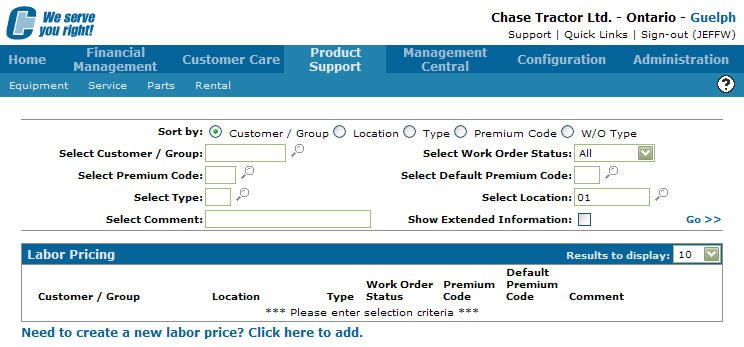
The Labor Pricing screen appears.
-
Enter your search criteria in the appropriate fields.
-
Click the Go >> link to begin the search.
Labor pricing settings matching your search criteria are returned in the labor pricing list.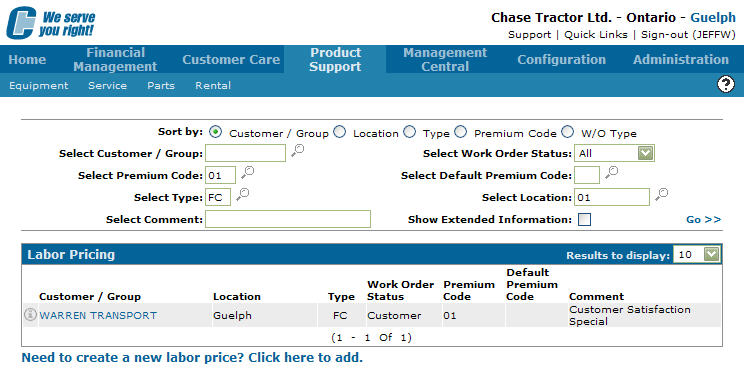
-
Click a Customer/Group.
The Labor Pricing screen appears.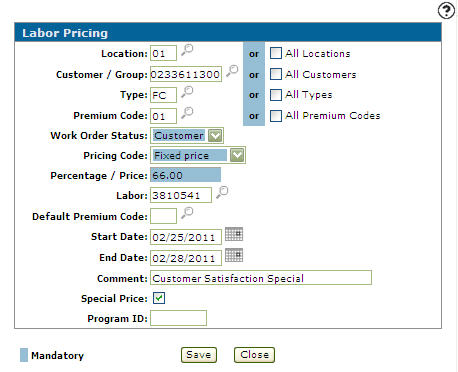
-
Edit the parameters to adjust the labor rate and set the rate criteria.
-
Enter a branch Location where the labor pricing takes effect.
- or -
Select All Location, indicating that the labor pricing affects all locations. -
Enter the number of the Customer, indicating that the labor pricing is only available to that specific customer.
- or -
Enter the customer Group, indicating that the labor pricing is only available to that specific customer group.
- or -
Select All Customers, indicating that the labor pricing is available to all customers. -
Enter a specific labor Type, indicating that the labor pricing is applied only to a single type code.
- or -
Select All Types, indicating that the labor pricing is applied to all type codes. -
Enter a Premium Code, defining the labor pricing rate based on the Premium Code used at the time labor is entered into the system.
- or -
Select the All Premium Codes, indicating that the labor pricing is applied to all Premium Codes. -
Select a Work Order Status, defining the labor pricing based on the status of the work order (Customer, Warranty, Internal, or All).
-
Select a Pricing Code, indicating how to determine the labor pricing.
-
Enter a Percentage/Price value, indicating the actual fixed labor price or the percentage increase or decrease from cost or list (based on the Pricing Code).
-
Enter a Labor G/L account. The Labor sales G/L account the labor pricing hits when posting labor.
-
Enter a Default Premium Code if All Premium Codes was previously selected.
-
Enter a Start Date, indicating the date the labor pricing is applied.
-
Enter an End Date, indicating the date the labor pricing no longer applies.
-
Enter a Comment to note any additional information about the labor pricing.
-
Select the Special Price checkbox, indicating that the labor pricing rate on this screen is to be used if there is an overlap with another labor pricing record.
-
Enter a Program ID, to identify the record as part of a group of common labor pricing programs.
-
-
To complete your work on the labor pricing:
To Do This Save your changes to the labor pricing parameters. Click the Save button. Leave this screen without saving any changes. Click the Close button.
Revision: 2026.01