
Modifying Taxes/Discounts at the Line Item Level
When entering parts on the Parts Invoice Details tab, the default tax and discount settings are automatically drawn from the taxes defined on the Customer - Parts Invoicing Header tab. However, you can change the Tax and Discount settings for each part on the invoice by accessing the LDTTTTN field for each line item and modifying the pricing Level, Discount, Tax 1, Tax 2, Tax 3, Tax 4, and Non stocking codes for the selected part.
 Parts Invoice Details tab

-
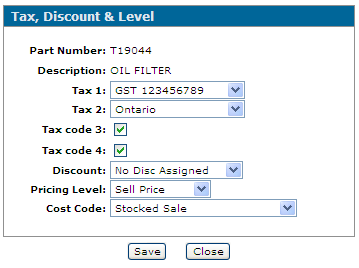
For the selected part, click the link in the LDTTTTN field. The Tax, Discount & Level screen appears.
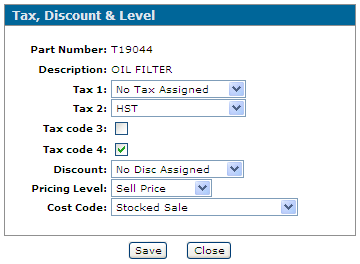
Use the Tax, Discount & Level screen to view and modify the tax, discount and pricing level and non-stocking code details for the selected part. These values default to the values entered on the previous screen.
Fields on the Tax, Discount & Level screen are:
Field Description Part Number The part number whose tax and discount values are being viewed or adjusted. Description A physical description of the part. Tax 1 Tax 1 value that applies to the part. Tax 2 Tax 2 value that applies to the part. Tax 3 Code Determines whether the Tax 3 value specified on the Customer - Parts Invoicing Header tab applies to this part. Tax 4 Code Determines whether the Tax 4 value specified on the Customer - Parts Invoicing Header tab applies to this part. Discount The discount value that applies to the part. Pricing Level Used to set up the desired pricing for the selected part. These levels refer to such things as wholesale price, fleet price, jobber price, etc. Cost Code Identifies the type of parts sale. -
Modify the fields on this screen to alter the Discount and Tax settings.
-
Click Save to keep your changes for this part on this invoice. The Parts Invoice Details tab updates with the new information in the LDTTTTN field.

Revision: 2026.01