
Subtask Assignment Details
Use the Subtask Assignment Details screen to assign subtasks to participants.
The Subtask Assignment Details screen is accessed from the User Accessibility screen by clicking the Click here to add a Subtask link.
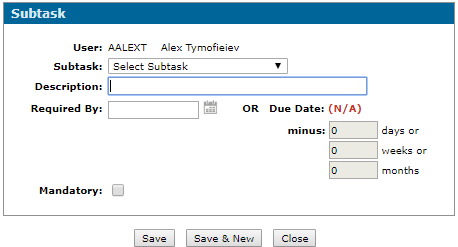
Fields on the Subtask Assignment Details screen are:
| Field | Description | ||||||||||||||||||||||||||||||||||||||
|---|---|---|---|---|---|---|---|---|---|---|---|---|---|---|---|---|---|---|---|---|---|---|---|---|---|---|---|---|---|---|---|---|---|---|---|---|---|---|---|
| User | The user the subtask is assigned to. | ||||||||||||||||||||||||||||||||||||||
| Subtask |
A drop down list displays all available subtasks:
|
||||||||||||||||||||||||||||||||||||||
| Description | A brief description of the subtask. If there is no description entered, the name of the subtask is used instead. | ||||||||||||||||||||||||||||||||||||||
| Required By | The date by which the subtask is to be completed. If this field is completed, the Minus in the Due Date column is not available. | ||||||||||||||||||||||||||||||||||||||
| Due Date | The entries keyed in the Minus fields determine the default values for the due date on the task. Task Tracker uses these fields to define the Required By date. | ||||||||||||||||||||||||||||||||||||||
| Mandatory | Toggle whether the subtask is mandatory or not. |
-
Save—saves all entered changes.
-
Save & New—saves all entered changes and opens a new Subtask Assignment window to assign additional Subtask details.
-
Close—closes the window.
Revision: 2026.01