
Validate Tables
Use the Validate Tables screen to submit a table validation to a batch. This process validates all table configurations to ensure that there are no conditions that may cause problems throughout the system. For example, all G/L account numbers are validated to ensure they exist and are active accounts. A report (PFW139) is generated that identifies the specific tables that need to be fixed.
To open the Validate Tables screen, navigate to Configuration > Utilities > Validate Tables.
Note: Any tables found to have an error with the severity of 40 and above will halt billing runs and the database and will need to be addressed immediately.
If a field is incorrect, the process sets it to the default value.
Topics in this section are:
Submitting a Table Validation to a Batch
-
Navigate to Configuration > Utilities > Validate Tables.
-
On the Validate Tables screen, enter a Company code.
-
Click Submit to submit the job to the batch.
-
To view the report, click the printer icon
 and choose Printer Output.
 The Validate Tables screen appears.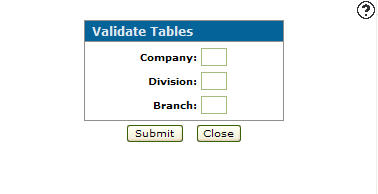
Screen Description
The following fields appear on the Validate Tables screen:
| Field | Description |
|---|---|
| Company |
Enter the company code of the location you wish to perform a table validation on or AA for all companies. |
Use these buttons to complete your work on the Validate Tables screen:
| Button | Function |
|---|---|
| Submit | Submits the job to the batch. |
| Close | Closes the Validate Tables screen without submitting the batch and returns to the Configuration Quick Links screen. |