
Configuration: Parts Store Priorities
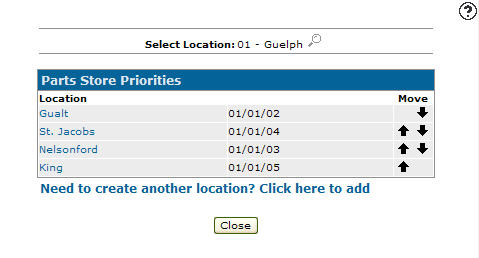
Use the Parts Store Priorities screen to organize the stores in priority sequence and identifies the order in which stores are to be checked for parts availability.
To open the Parts Store Priorities screen, from anywhere within IntelliDealer navigate to Configuration > Parts > Genera l> Parts Store Priorities.
Topic in this section
Adding a Parts Store
-
From anywhere within IntelliDealer ,navigate to Configuration > Parts> General> Parts Store Priorities .
-
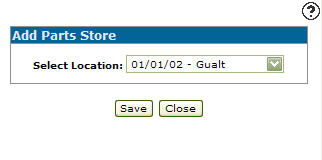
Click the Need to create another location? Click here to add link.
-
On the Add Parts Store screen, select the location you wish to add as a part store from the Select Location drop down list.
-
Click on the Save button.
 The Parts Store Priorities screen appear.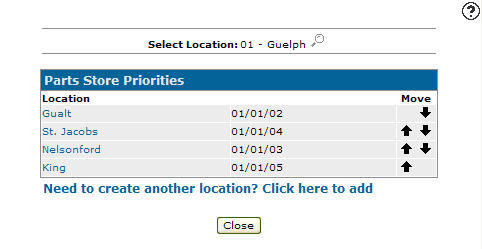
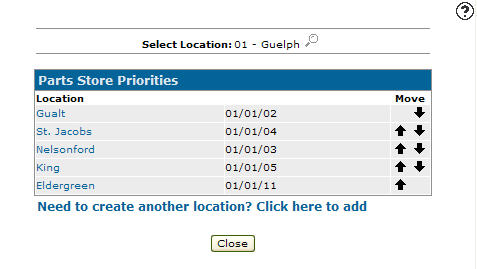
Deleting a Store from Parts Store Priority
-
From anywhere within IntelliDealer , navigate to Configuration > Parts> General> Parts Store Priorities .
-
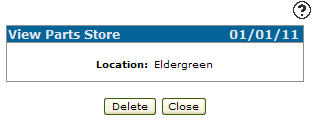
Click the Location you wish to remove from the list.
-
Click the Delete button.
-
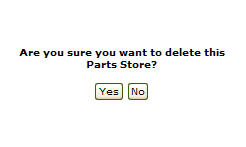
On the Confirmation screen, click the Yes button.
Screen Description
The search field appears on the Parts Store Priorities screen are:
| Field | Description |
|---|---|
| Select Location | Search for parts store priorities by selecting a branch location. Clicking on the Search icon next to the field opens the Location Selection screen allowing you to select a branch location. icon next to the field opens the Location Selection screen allowing you to select a branch location. |
The fields appear on the Parts Store Priorities screen are:
| Field | Description |
|---|---|
| Location | The name of the branch location used as a parts store priority location. |
| Company/Division/Branch | The system company, division and branch codes. Which shows the company, division, and branch location used as a parts store priority location. |
| Advanced Ordering | Indicates if the part has had the Advanced Ordering switch activated. |
| Move | Allows you to change the order of the branch locations on the Part Store Priorities screen. |