
Claas: Machine Online Order
The Claas Machine Online (MOL) interface runs as an automated nightly task that creates and updates Equipment Profile stock units in IntelliDealer with on-order and status information from Claas. The interface uses the Claas Order Status API to create and update core order fields and the Order Confirmation API to add options and related enrichment data.
Stock numbers assigned to these Equipment Profile records are system generated. If a dealer does not want to use the stock number assigned to a unit, change the stock number after the unit has been created. See How To Change the Stock Number On A Status "On Order" or "Presold" Equipment Profile for specific status change instructions.
Status changes are updated during the vehicle life cycle from the original dealer request through manufacturing and invoicing. The interface creates units and the associated configuration options in the Equipment Profile and in equipment base/options records viewed on the Base/Options screen. These base/option records are updated as additional information becomes available from Claas.
The unit is updated for as long as the unit is in On Order or Pre-Sold status in IntelliDealer and the Claas machine enquiry number is in the Equipment Identifier or the Claas order confirmation sales receipt matches the order status sales receipt.
Note: Claas-managed fields can be overwritten by the nightly sync while the unit remains in On Order or Pre-Sold status. Do not rely on manual edits in interface-managed fields unless your process specifically allows it.
Note: This is an interface developed by VitalEdge for the IntelliDealer dealer business system. Technical details in this topic pertain only to the IntelliDealer side of this integration. Contact Claas for information about the Claas Machine Online system.
To open this screen, navigate to Configuration > Interfaces > Claas > Machine Order.
Topics in this section are:
See also IntelliDealer Batch Jobs for the ClaasMachineOrderJob scheduled task.
Prerequisites
Complete the setup described in this section before relying on the nightly Claas MOL workflow. Some steps must happen first, others can be completed in any order as long as they are all finished before go-live.
Required first
Complete these steps before other interface configuration or before the nightly job can run:
-
Enable feature 6524 - Claas Machine Online MOL. Users cannot open the Machine Order screen until this feature is enabled.
-
Enter Claas API credentials on the Credentials Tab. The nightly job cannot connect to Claas until all credential fields are saved.
Required before go-live
Complete all of the following before the dealership relies on the nightly job to create or update units. These steps can be done in any order, or at the same time:
-
Create dealer account mappings on the Dealer Accounts Tab for each participating location.
-
Complete all required fields on the Default Configuration Tab for each division.
-
Set up Setting Up Equipment Defaults for each location.
-
In Administration > Settings > System Settings, uncheck Change I/O Status to I for DTF Equipment Order.
Before the first production sync
If the dealership already has Claas units in On Order or Pre-Sold status, make sure each unit has the full Claas Machine Enquiry Number in Equipment Identifier before the first production sync. This step is not required to save interface settings, but it helps prevent duplicate unit creation during later updates.
Recommended setup order
Use this sequence if you are configuring the interface for the first time:
-
Enable feature 6524.
-
Enter credentials on the Credentials tab.
-
Configure the Dealer Accounts and Default Configuration tabs. Either tab can be completed first.
-
Set up Equipment Defaults.
-
Update the DTF equipment order system setting.
-
Correct Equipment Identifier values on existing units, if applicable.
-
Review the Logs tab after the first nightly run.
Credentials Tab
Use the Credentials tab to authorize the connection between IntelliDealer and the Claas Machine Online APIs. The values entered here are provided by Claas during onboarding.
 Credentials tab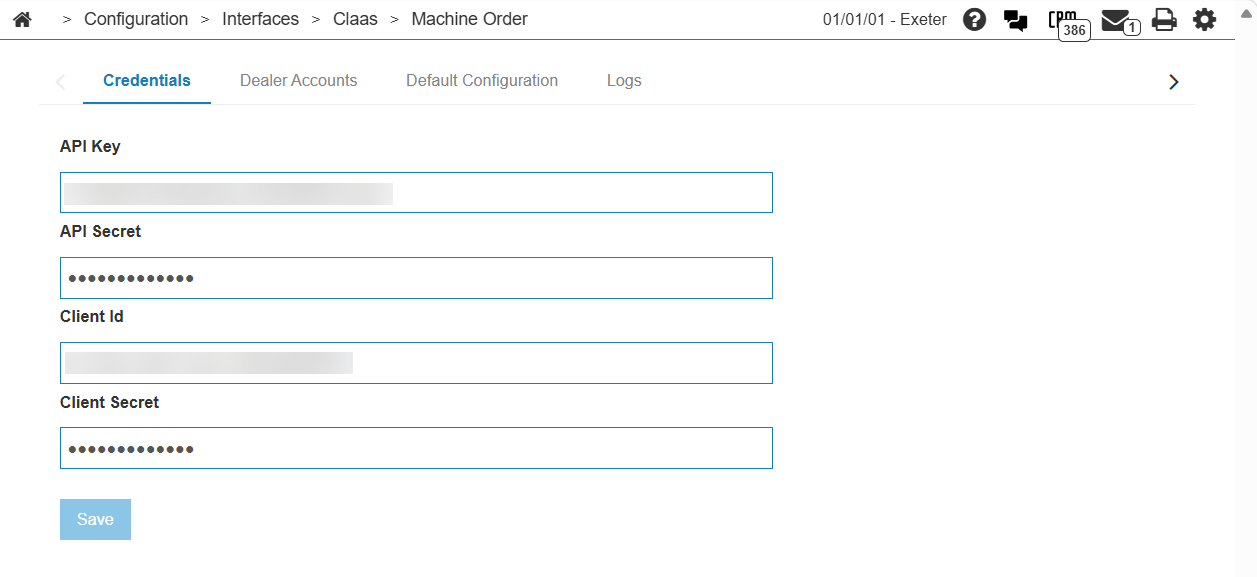
The fields on the Credentials tab are:
| Field | Description |
|---|---|
| API Key | The API key provided by Claas. This value is dealer specific. |
| API Secret | The API secret paired with the API Key. This value is dealer specific and is masked on entry. |
| Client Id | The client identifier provided by Claas. This value is the same for all IntelliDealer dealers. |
| Client Secret | The client secret paired with the Client Id. This value is the same for all IntelliDealer dealers and is masked on entry. |
Click Save to store the credential values. All fields are required before the nightly job can retrieve order data from Claas.
Dealer Accounts Tab
Use the Dealer Accounts tab to associate each Claas SAP account with the IntelliDealer location where equipment should be created. The nightly job uses text matching on Account Name and City from the Claas Order Status API to find the correct mapping.
Warning: Information must be entered exactly as it appears on the Claas system. If account name, city, or dealer mapping values are not exact, units may fail to create.
To add a dealer account mapping:
-
On the Dealer Accounts tab, click Is there a dealer missing from the list? Click here to add.
-
Fill in the fields so they match the Claas SAP system exactly.
-
Save the record.
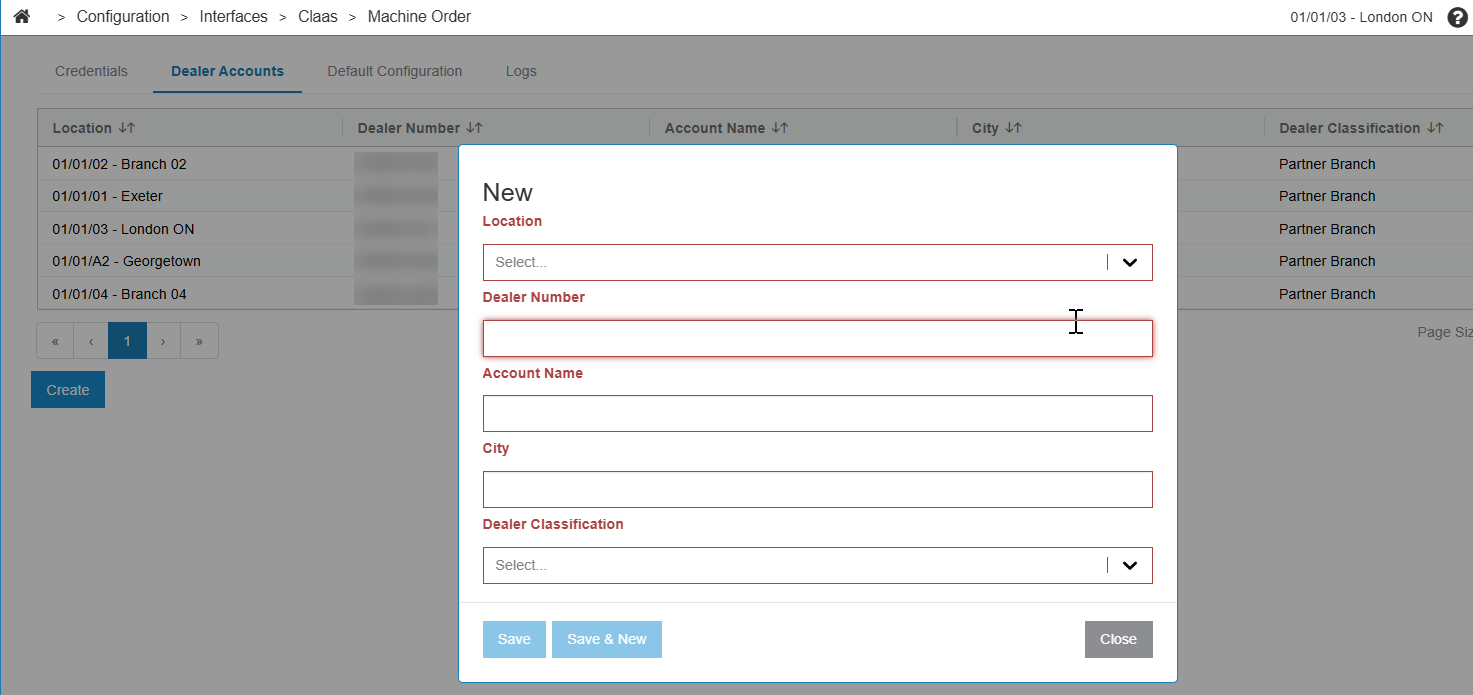
The fields on the Dealer Accounts tab are:
| Field | Description |
|---|---|
| Location | The IntelliDealer location where equipment created for this Claas account should be stored. This field cannot be changed after the record is created. |
| Dealer Number | The Claas SAP Reference ID for the dealer. Confirm that this value matches the dealer number shown in the Claas SAP system. |
| Account Name | The goods recipient account name from Claas. The interface matches this value to the Claas Order Status response. Enter the value exactly as it appears in Claas. |
| City | The goods recipient city from Claas. The interface matches this value together with Account Name. Enter the value exactly as it appears in Claas. |
| Dealer Classification | The Claas dealer classification for the account. Select Partner or Partner Branch to match the Claas account type. |
Default Configuration Tab
Use the Default Configuration tab to define the default equipment and purchase order values the interface applies when it creates units for each company and division. Create one record for each division that receives Claas machine orders.
To add a default configuration record:
-
On the Default Configuration tab, click Is there a dealer missing from the list? Click here to add.
-
Select the division and fill in all required fields.
-
Save the record.
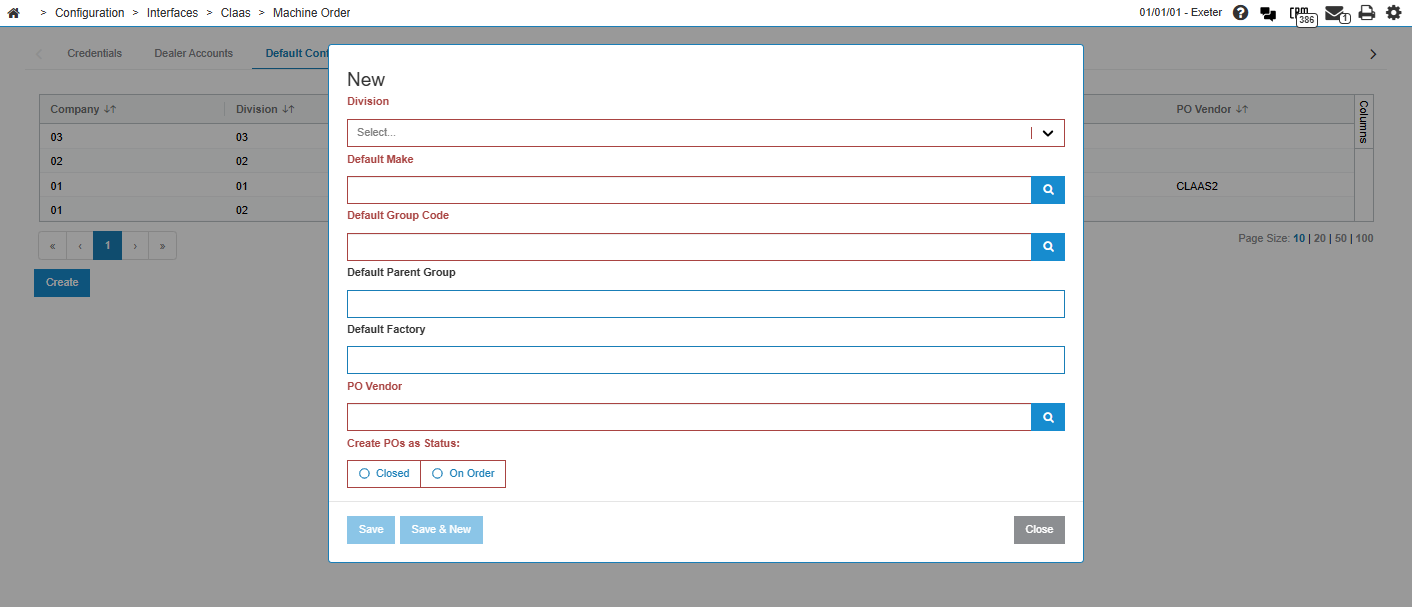
The fields on the Default Configuration tab are:
| Field | Description |
|---|---|
| Company | The company code for the default configuration record. This field is set when the division is selected and cannot be changed after the record is created. |
| Division | The division code for the default configuration record. This field cannot be changed after the record is created. |
| Default Make | Required. The Claas brand code applied to units created by the interface when no make can be derived from Claas data. |
| Default Group Code |
Required. The default group code that represents the equipment category. For example, BALER or BACKHOE. |
| Default Parent Group |
The default parent group that represents a broader classification above a normal group code. For example, a parent group named HARVESTING could contain HEADER and COMBINE group codes. |
| Default Factory | The default factory code for the Claas factory fulfilling the order. |
| PO Vendor | Required. The active vendor number used when the interface creates equipment purchase orders. The vendor must exist and be active for the selected company and division. |
| Create POs as Status | Required. Controls the initial status of purchase orders created by the interface after invoice data is received from Claas. Select Closed for the most automated workflow, or On Order when the dealership needs manual control over receipt and close timing. If no value is selected, the interface defaults to Closed. |
Logs Tab
Use the Logs tab to review success and error events from the nightly Claas MOL job and from purchase order creation. After each successful nightly run, the tab shows an entry for each unit that was created or updated. If errors occurred during the run, an error entry is also logged at the end of processing.
The log listing includes:
-
Stock Number—the IntelliDealer stock number for the unit that was created or updated.
-
Sales Receipt Id—the Claas sales receipt identifier associated with the order.
-
Success and error event types for interface processing and purchase order creation.
Use the stock number from a success entry to locate the unit in the Equipment Profile. Review error entries to identify authentication, dealer mapping, confirmation API, or purchase order configuration problems before the next nightly run.
Setting Up Equipment Defaults
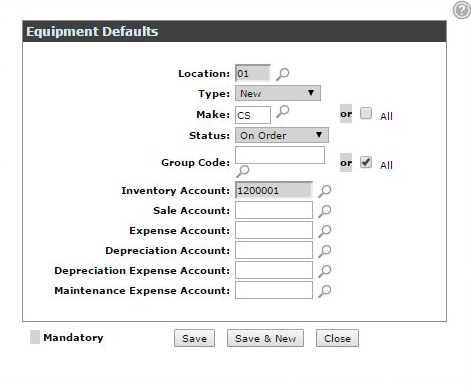
After completing the interface configuration, set up Equipment Defaults so the interface knows which inventory account should be associated with created units.
-
Navigate to Configuration > Equipment > Profile > Equipment Defaults and click Need to add a new equipment default? Click here to add.
-
For each location, set the fields to these settings:
-
The Type field must be set to New.
-
The Make field must match what is used on the Default Configuration tab. Otherwise, set this field to All.
-
The Status field must be set to On Order.
-
The Group Code field must be set to All.
-
The Inventory Account field must be set to a valid default GL account.
-
-
If Claas Equipment Defaults are visible, the interface configuration steps are complete.
Purchase Order Workflow
The interface creates equipment purchase orders during the same nightly processing flow, but only after invoice-related data is present on the unit. A purchase order is created only when all of the following exist on the equipment record:
-
A stock number
-
A supplier invoice date
-
A supplier invoice number
-
A non-zero original cost
-
A configured PO Vendor on the Default Configuration tab for the division
When those conditions are met, the interface creates a purchase order using the unit stock number as the purchase order number and applies the vendor and status configured on the Default Configuration tab.
| Create POs as Status selection | Description |
|---|---|
| Closed | Best fit for dealers that want the most automation and the least manual receiving work. The purchase order is created in closed status when invoice data is received from Claas. |
| On Order | Best fit for dealers that want tighter control over receiving and close timing. The purchase order is created in on-order status and must later be manually received and closed according to the dealership process. |
Note: Equipment can remain in On Order until invoice-driven completion logic is reached, regardless of which purchase order status option is selected. Purchase order status and equipment status are separate lifecycle values.
Daily Workflow
After setup is complete, users normally perform these steps each business day:
-
Confirm the nightly ClaasMachineOrderJob completed successfully.
-
Review success and error entries on the Logs tab.
-
Locate newly created or updated units in the Equipment Profile using the stock number from the log.
-
Validate core equipment fields such as status, equipment identifier, model, base, description, dates, serial numbers, and options on the Base/Options screen.
-
Work any authentication, dealer mapping, confirmation API, or purchase order exceptions identified in the logs.
Note: The preferred match key for existing units is the Claas Machine Enquiry Number stored in Equipment Identifier.
Viewing Units in the Equipment Profile
To view units created by the Machine Order interface, navigate to Equipment > Equipment Profile. Search for a unit by entering the Stock Number from the Logs tab into the Stock Number field.
You can also adjust Equipment Profile search criteria and displayed columns to find recently added Claas units.
Troubleshooting
| Issue | What it usually means | Action |
|---|---|---|
| Invalid client or bad credentials | One or more values on the Credentials tab are wrong or incomplete. | Re-enter the API Key, API Secret, Client Id, and Client Secret exactly as provided by Claas. Remember that the API Key and API Secret are dealer specific, while the Client Id and Client Secret are shared across IntelliDealer dealers. |
| No unit created | Dealer account text matching failed. | Validate dealer number, account name, city, location, and dealer classification against the Claas SAP values on the Dealer Accounts tab. |
| Duplicate units | The Equipment Identifier is missing or does not contain the full Machine Enquiry Number. | Correct the equipment identifier on existing units before the next sync. |
| Confirmation API error or NO_ORDER_CONFIRMATION | Claas has no matching confirmation record for the sales receipt ID yet. | Review the log entry and retry on later runs. Escalate to support if the error persists. |
| PO Vendor is not configured | The division default configuration does not contain a valid PO Vendor. | Open the Default Configuration tab and enter an active vendor number in PO Vendor for the division. |
| In/Out status changed unexpectedly | A system setting or interface behavior may conflict with expected equipment logic. | Confirm that Change I/O Status to I for DTF Equipment Order is unchecked in system settings and review the unit update history. |
Feature: 6524 - Claas Machine Online MOL
Revision: 2026.08