Wells Fargo Receivables Manager
Use the Wells Fargo Receivables Manager interface to apply customer payments made through the Wells Fargo bank to the respective customer A/R account through the Bank Electronic Cash Receipts system. Files are downloaded on a scheduled basis and payment data is processed and stored in the BANKECR file. From there, the Bank Electronic Cash Receipts screen is used to view payment details and match them to the appropriate customer invoice or perform an adjustment.
To open this screen, navigate to Configuration > Interfaces > Other > Wells Fargo Receivables Manager.
Topics in this section are:
Setup Requirements
Before using the interface, complete these setup steps:
-
License feature PFW.6264 - Wells Fargo Receivables Manager.
-
On the FTP tab, enter the SFTP information provided by Wells Fargo. Credentials for the Wells Fargo SFTP server must be obtained by the dealership prior to setting up this interface.
The SFTP connection to Wells Fargo also requires an RSA SSH key pair. Use the Keys tab (see step 3) to generate and manage the key pair on the server. The public key must be registered with Wells Fargo; the private key remains on the IntelliDealer server. When the private key is password-protected, enter that password in the Private Key Password field on the Configuration tab (see step 4).
-
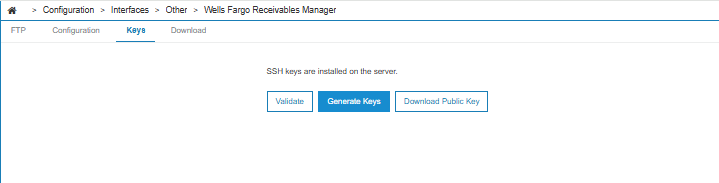
On the Keys tab, generate and manage the RSA SSH key pair used to authenticate the SFTP connection to Wells Fargo. The private and public key files are stored on the IntelliDealer server. When the tab opens, a status message indicates whether both key files are installed on the server.
Use these buttons to manage SSH keys on the Keys tab:
Button Description Validate Verifies that the private and public key files are installed on the server, form a valid RSA key pair, and match the private key password configured on the Configuration tab (when applicable). Generate Keys Creates a new 2048-bit RSA key pair on the server and replaces any existing Wells Fargo SSH key files. Existing files are backed up on the server with a .old extension. A confirmation prompt appears before keys are replaced. Download Public Key Downloads the public key file (wells_fargo.pub) to the workstation. This button is available only when a public key is installed on the server. After you click Validate or Generate Keys, the Key details section displays information about the installed key pair:
Field Description Algorithm The encryption algorithm for the SSH key pair. Only RSA keys are supported. Key size (bits) The length of the RSA key in bits. New key pairs are generated with a 2048-bit key size. Fingerprint The fingerprint of the public key, used to verify key identity. Comment The comment stored with the public key file. If the private key requires a password, enter the Private Key Password on the Configuration tab and click Save before you click Generate Keys. Click Generate Keys to create the key pair on the server, then click Download Public Key and provide the file to Wells Fargo. After you generate new keys, you must register the new public key with Wells Fargo; until Wells Fargo has the updated public key, the interface cannot connect to the SFTP server.
-
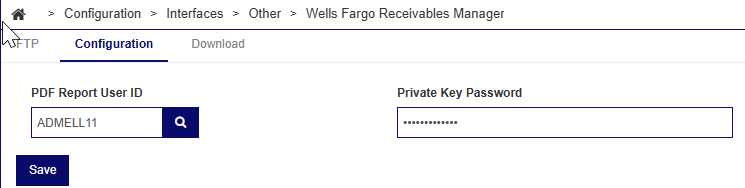
On the Configuration tab, enter the PDF Report User ID and, if applicable, the Private Key Password.
The fields on the Configuration tab are:
Field Description PDF Report User ID The ID of the IntelliDealer user to receive a PDF report when exceptions are found during file processing. Private Key Password The password for the SSH private key used to connect to the Wells Fargo SFTP server. Required when the private key was generated with a password. The value is masked on entry. Click Save to store the configuration values.
-
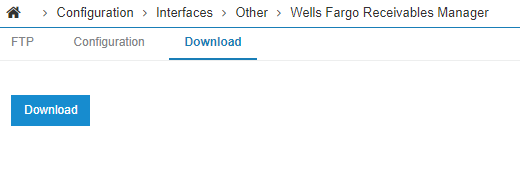
Use the Download tab to manually download and process files. A manual download is a good way to verify that the FTP configuration is correct.
 FTP tab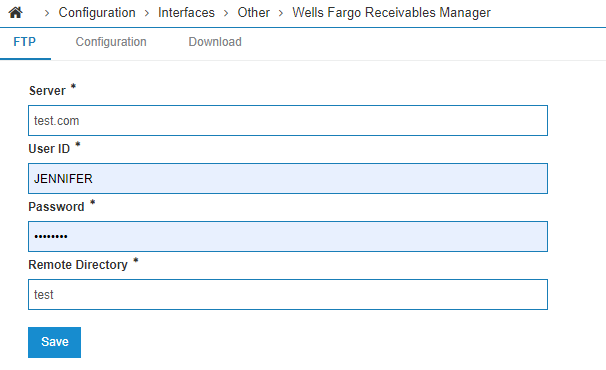
File Processing and Match Logic
Files are automatically downloaded from Wells Fargo on a scheduled basis and processed into the system. When a file is processed, the system attempts to identify which fields from Wells Fargo match fields in the IntelliDealer system. The main matching is done on invoice number, customer number, and invoice amount.
-
For a match to exist, only one entry in the system can match the Wells Fargo data. For example, if customer number BER123 is passed in from Wells Fargo, the system considers this a customer match only if a single BER123 customer exists across all locations. The same logic applies to invoice numbers.
-
A location is assigned to an entry only when a direct match on at least the customer and invoice number is identified.
-
When processing payments, the system creates a database entry for each remittance contained within a payment. If a payment has three remittance entries, three entries are made in the BANKECR file.
-
If a difference exists between the payment total and the sum of the remittance lines—or if no remittance lines exist for a payment—a separate entry is created in BANKECR to cover the difference. For example, if a payment totals $500 and two remittance lines exist for $100 and $150, a third entry of $250 is added to cover the remaining amount. This separate payment line does not have an invoice number associated with it by default.
Bank Electronic Cash Receipts Screen
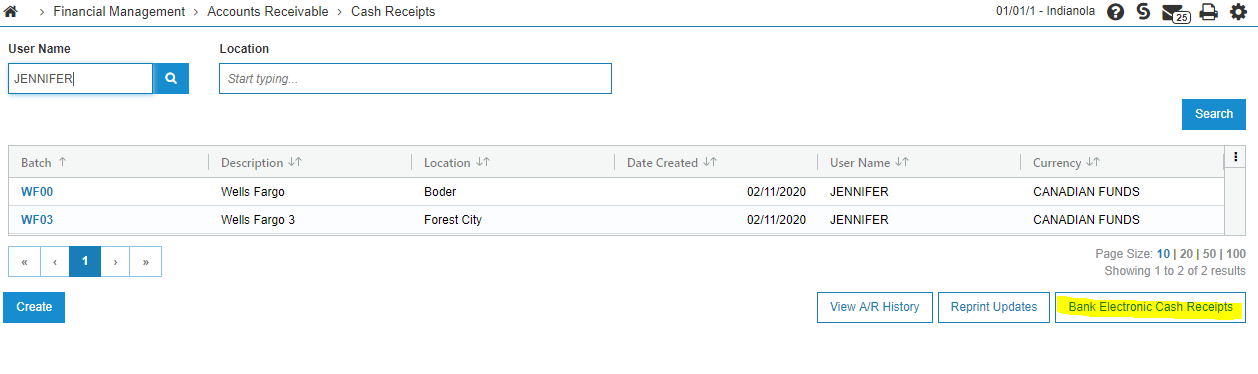
The Bank Electronic Cash Receipts screen stores payment information once files have been successfully downloaded from Wells Fargo and processed into the system. To open this screen, click the corresponding button on the Financial Management > Accounts Receivable > Cash Receipts screen.
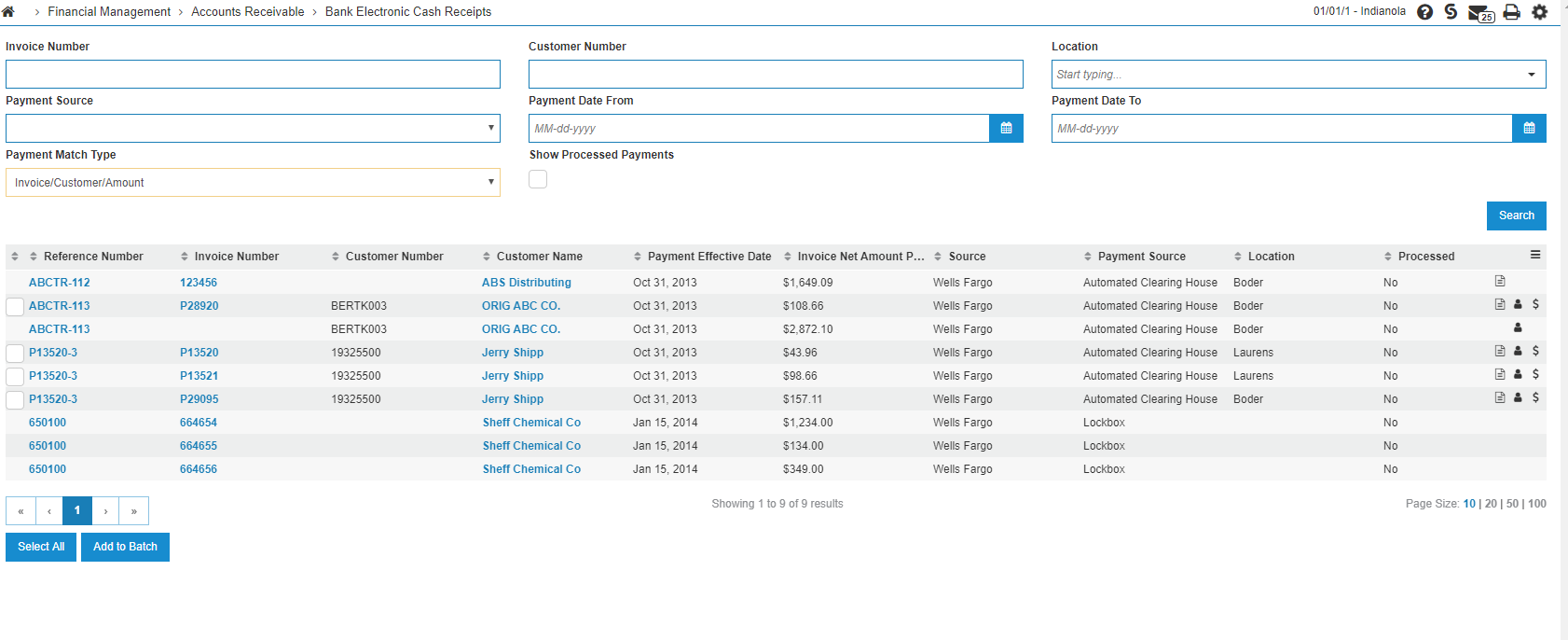
The columns on the Bank Electronic Cash Receipts screen are:
| Column | Description |
|---|---|
| Reference Number | The sender payment reference number provided by Wells Fargo. |
| Invoice Number | The invoice number found in the remittance information. |
| Customer Number | The customer number entered in the name identification field from Wells Fargo. |
| Customer Name | Customer name information found in the payment payor name and address fields. |
| Payment Effective Date | The effective date of the payment, provided by Wells Fargo. |
| Invoice Net Amount Paid | The net amount paid toward the invoice. |
| Source | The source of the bank electronic cash receipt record. This value is always Wells Fargo for Wells Fargo payments. |
| Payment Source | The source of the payment. Supported values are Automated Clearing House, Lockbox, Wire, and Wells Fargo Payment Gateway. |
| Location | If a direct match is made to an invoice in the system, this column displays the location of the invoice. On payments where no direct match exists, this field remains blank. |
| Processed | Indicates whether the payment has been processed. Only unprocessed payments are shown by default; processed payments are viewed by selecting the Show Processed Payments checkbox on the search. |
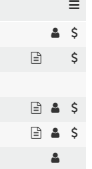
| Icons | The icons at the far right of the screen show what type of match was found on the payment. The symbols represent invoice, customer, and amount. For example, in the first line below, a match exists on customer number and invoice amount; in the second line, a match exists on invoice number and invoice amount. |
Payment Match Types
On the listing screen, the Payment Match Type drop-down controls which type of matches are shown and made available for processing. Changing the value to Invoice/Customer/Amount, for example, adds a checkbox to entries that have a direct match on invoice number, customer number, and invoice amount. The list can also be filtered by match type by choosing a match type and clicking Search.
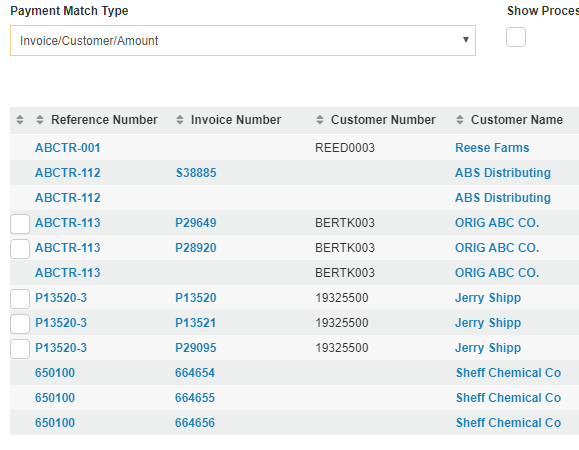
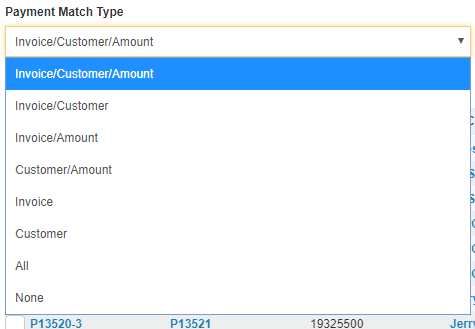
The available match types are:
| Match Type | Description |
|---|---|
| Invoice/Customer/Amount | A checkbox is shown on entries that match on invoice, customer, and invoice amount. |
| Invoice/Customer | A checkbox is shown for matches on invoice and customer number. The invoice amount may not match the Invoice Net Amount Paid field. |
| Invoice/Amount | A checkbox is shown for matches on invoice and invoice amount. The entry may not have a customer number, or the customer number provided by Wells Fargo does not match any IntelliDealer customer numbers. |
| Customer/Amount | A checkbox is shown for matches on customer and invoice amount. The entry may not have an invoice number, or the invoice number provided by Wells Fargo does not match any IntelliDealer invoice numbers. |
| Invoice | Shows matches made only on invoice number. No checkbox is shown for these matches. Update the customer number on the details screen to find a match. |
| Customer | Shows matches made only on customer number. No checkbox is shown for these matches, because the invoice the payment should be applied against cannot be determined. |
| All | Shows all possible matches. |
| None | Shows entries without any matching criteria. |
Payment and Remittance Details
Click any of the linked columns on the listing screen to view payment and remittance details.
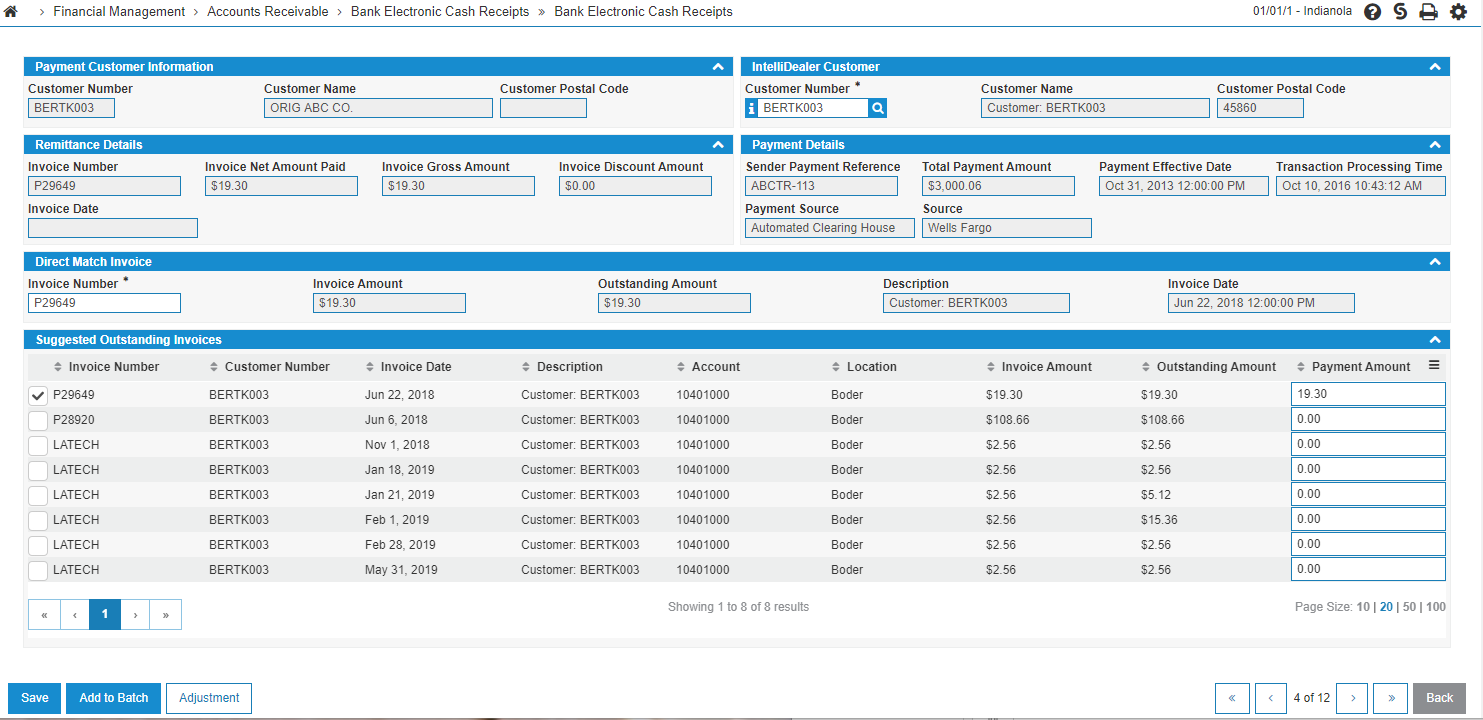
The sections on the payment details screen are:
| Section | Description |
|---|---|
| Payment Customer Information | Customer information provided by Wells Fargo that was extracted from the file. This information cannot be changed. |
| IntelliDealer Customer | When a match is found on the customer number, this section shows the IntelliDealer customer information. The customer can be changed if necessary; click Save at the bottom of the screen to update the customer number associated with this payment. |
| Remittance Details | If this record was extracted from a remittance line, the details from the remittance line appear here. This information cannot be changed. |
| Payment Details | Details about the payment as a whole. This information cannot be changed. |
| Direct Match Invoice | If a 1:1 match is made on an invoice, that data is pulled into this section for quick viewing. The invoice number field can be saved and updated and can also be used as a partial search for suggested outstanding invoices. |
| Suggested Outstanding Invoices | A list of suggested outstanding invoices that may match either the customer number or invoice number, depending on what data is provided. When a customer number is provided and matched to an IntelliDealer customer, the list shows the outstanding invoices associated with that customer. When only an invoice number is provided, the list shows invoices matching or containing the invoice number provided by Wells Fargo. |
For example, setting the invoice number to 1234 and clicking Save searches for invoices containing 1234 and displays them in the list below.

Select the desired invoice, enter the Payment Amount, and click Add to Batch to add the payment to a batch.

Add to Batch
Payments can be added to a Cash Receipts batch from either the details screen or the listing screen, depending on user preference. Both screens function similarly. The primary difference is that the payment details screen allows the payment amount to be applied against multiple outstanding invoices, while the listing screen applies the entire payment amount to the single invoice selected based on the match type criteria above.
Click Add to Batch to open the batch selection screen.
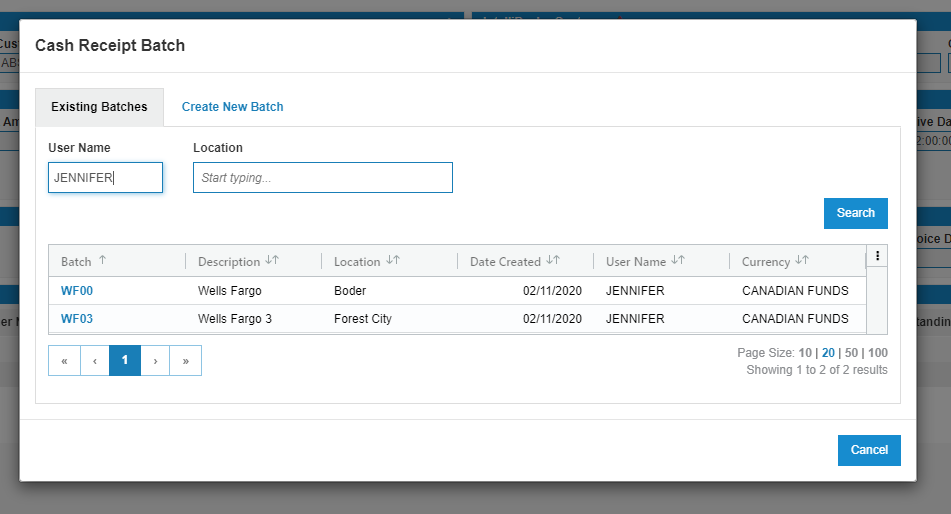
-
To use an existing batch, click the batch number.
-
To create a new batch, use the Create New Batch tab.
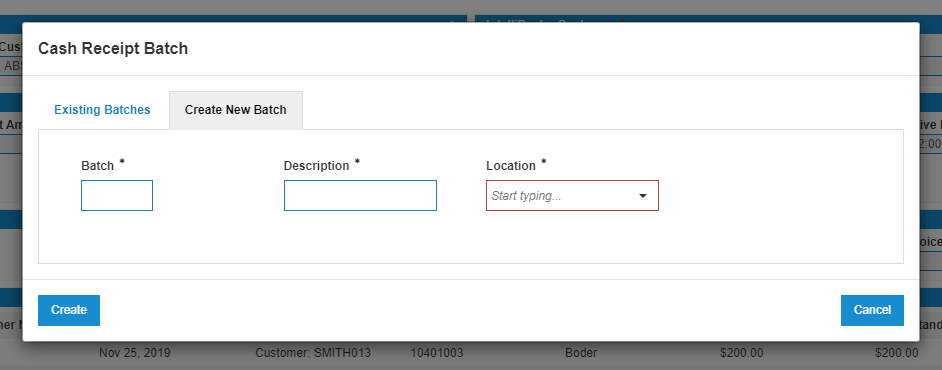
Click the existing batch name, or click Create when creating a new batch, to enter the payment into a Cash Receipts batch. Any errors found during processing are displayed at the top of the screen.
Adjustment
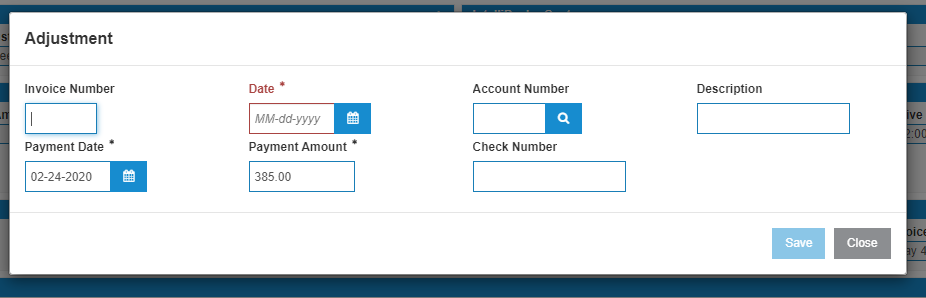
On the payment details screen, perform an adjustment when a customer is provided. The Adjustment button is disabled if no IntelliDealer customer is associated with the payment detail.
Select a batch (see Add to Batch), then the Adjustment screen opens. This screen functions the same as the Adjustment functionality in the Cash Receipts system.