
Ditch Witch Invoices
Use the Ditch Witch Invoices screen to display imported invoices from Ditch Witch into the IntelliDealer voucher system. For information on how to configure this screen, see Ditch Witch Invoice Download.
To access the Ditch Witch Invoices screen, navigate to Financial Management > Accounts Payable > Ditch Witch Invoices.
Screen Description
The search fields on this screen are:
| Field | Description |
|---|---|
| Location |
Used to search for invoices associated with a particular location. This field is generated by mapping the Dealer Number provided on the invoice by Ditch Witch to a Dealer Number configured on the Vendor Profile. |
| Invoice Type | Filter results by Invoice Type. |
| Invoice Number |
Filter results by Invoice Number. Clicking the hyperlinked number opens additional invoice and line pricing information. |
| PO Number | Filter results by PO Number. |
| From/To Date | Filter results to invoices from the selected date range. |
| Voucher Created |
Filter results to only show invoices that already have a voucher created. |
Click an invoice link to open the Detail screen for that invoice.
Use the checkboxes next to the Invoice Number to select one or more invoices to create a voucher for.
 Selecting Multiple Invoices
Details Screen
The Details screen displays information about an invoice.
The Invoice Date uses noon as the time, regardless of the user’s time zone.
The invoice's Due Date is not shown on the details screen if it is equal to the Invoice Date.
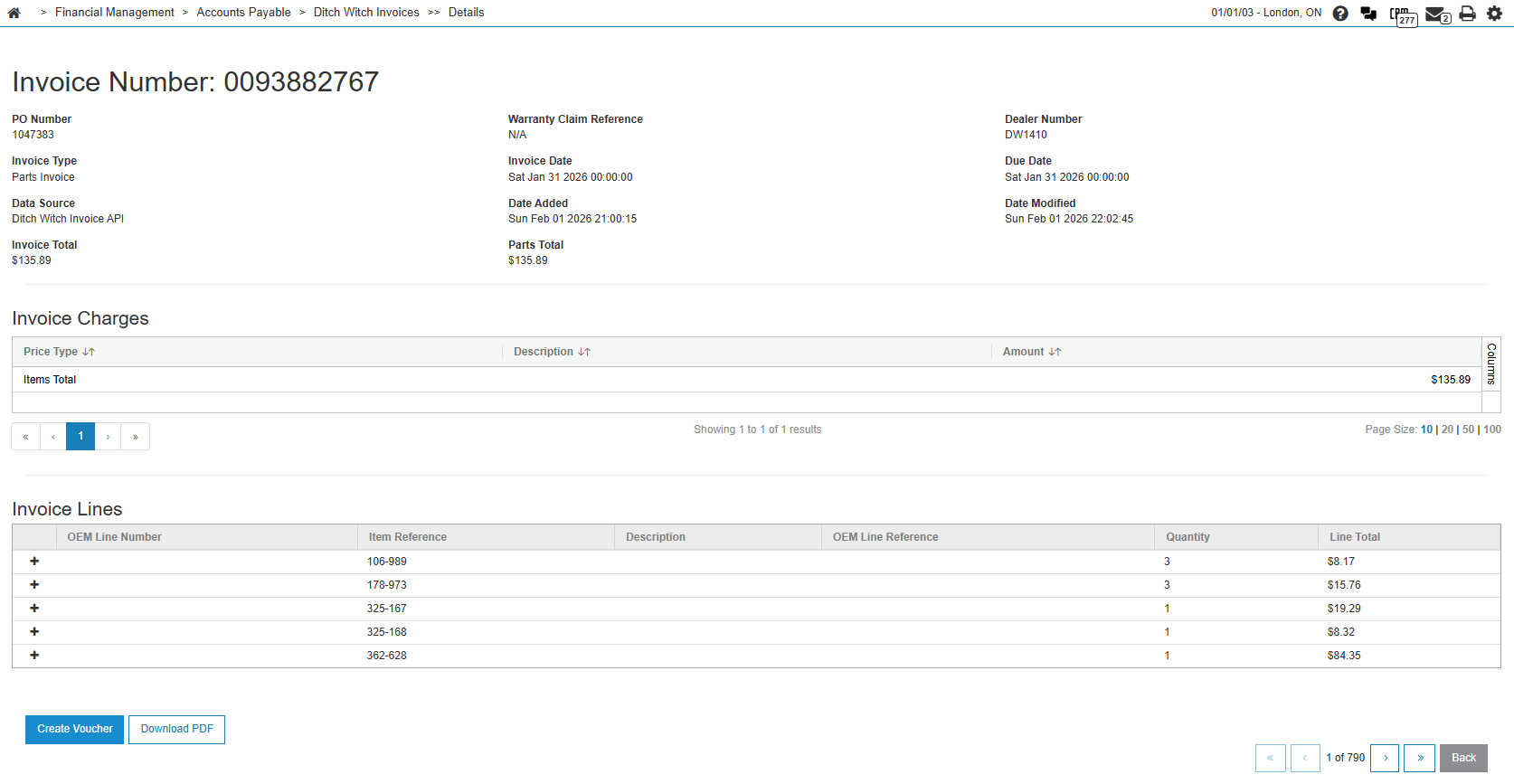
Click Create Voucher to create a voucher for the invoice.
Click Download PDF to download a copy of the invoice in PDF format. This button only displays if a PDF invoice is available.
Click Back to return to the listing screen.
Creating a Voucher
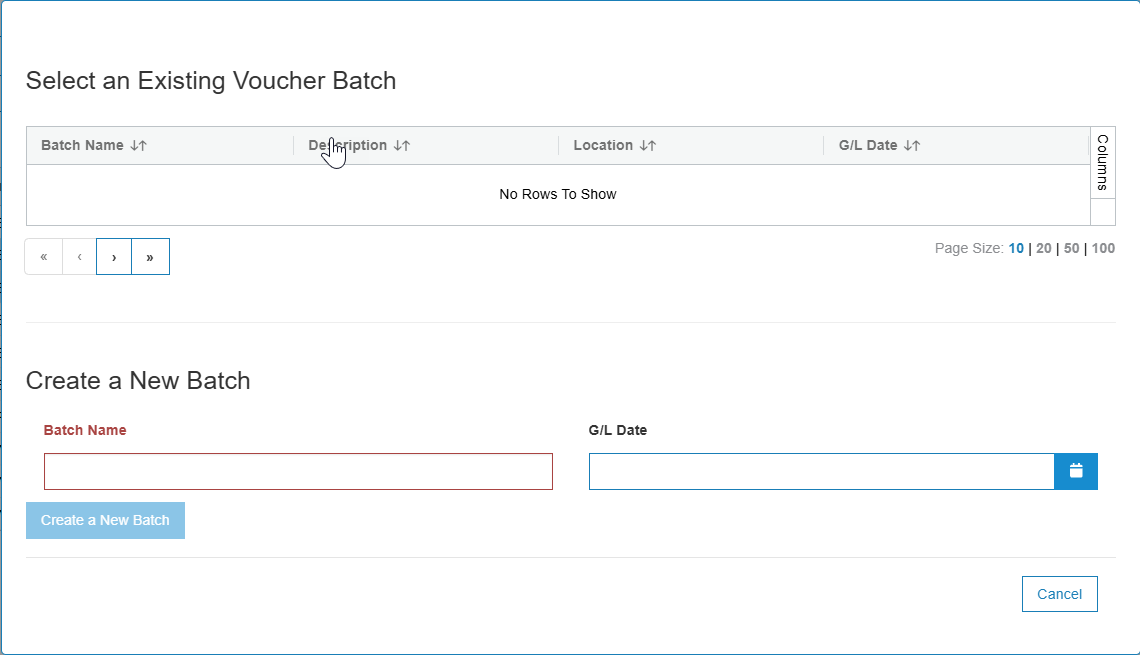
Click Create Voucher to open the Voucher Batch selection screen.
Select an existing voucher batch from the list at the top, or enter a new Batch Name and optional G/L Date to create a new one.
When creating a voucher, the Invoice Type determines what action the system takes.
Using equipment invoices opens the Voucher Batch Selection screen.
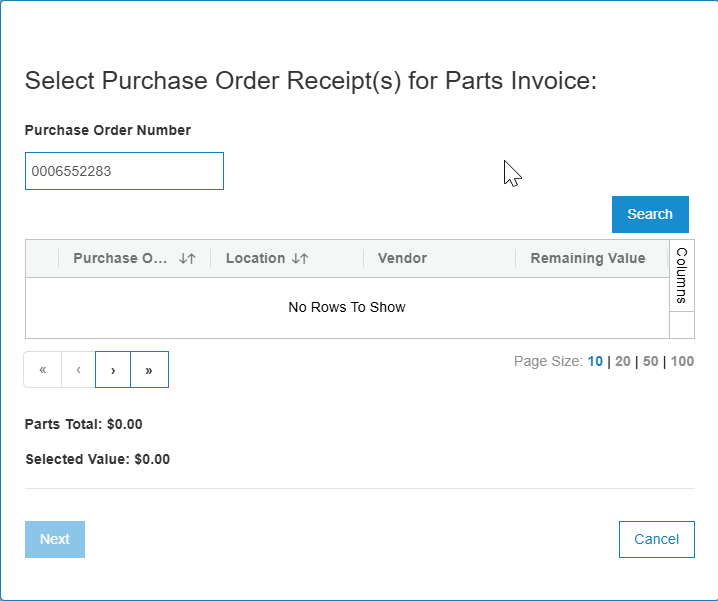
Using parts invoices requires a PO Receipt to be selected before the voucher batch. This popup appears if the system is unable to find a direct match between the Ditch Witch provided PO Number and the invoice amount. Select any PO Receipt(s) that the invoice should be applied to and click Next.
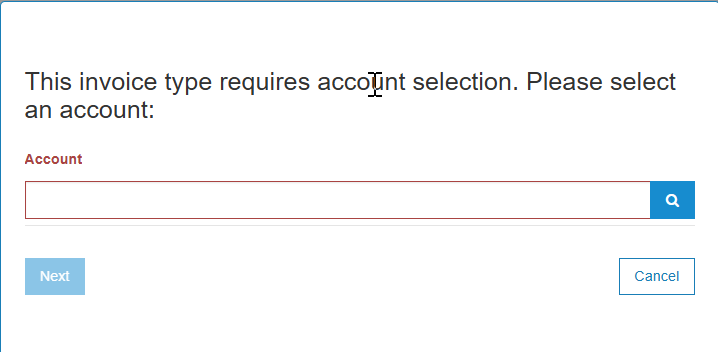
Note: When creating a voucher for a Miscellaneous Invoice Type, a popup message appears to confirm which account should be used. Miscellaneous invoice types cannot use a static account and the account used must be determined when the voucher is created.
The Reset Voucher Created Status button allows the Voucher Created status to be reset on an invoice. This may be necessary if a voucher must be voided and recreated.
Security: 601 - Financial Management - Accounts Payable
Revision: 2026.06