
Ditch Witch Invoice Download
The Ditch Witch Invoice Download interface allows Ditch Witch invoices to be imported into the IntelliDealer voucher system. Invoices are downloaded and imported each night and made available in the Ditch Witch Invoices listing screen which shows invoice details as well as the option to create a voucher.
The Ditch Witch Invoice Download interface is accessed from IntelliDealer through Configuration > Interfaces > Ditch Witch > Invoice Download.
Topics in this section are:
Configuration Tab
The Configuration tab controls the default settings for ALL Ditch Witch invoices.
The Create Zero Dollar Voucher option allows the interface to process invoices into a zero dollar voucher. If unchecked, a normal voucher is created.
The Split Parts POs to Distribution Lines option, when checked, splits parts purchase orders into separate distribution lines when creating vouchers. If unchecked, parts purchase orders are processed as a single distribution line.
The Default Voucher Vendor should be provided for voucher creation. This can be overridden on the Invoice Type Accounts tab.
Invoice Type Accounts Tab
The Invoice Type Accounts tab allows for different accounts to be configured, by location, for each invoice type the interface can process.
Note: Invoice accounts must be configured for every type of invoice that is processed. If there are no configuration settings found for an invoice type being processed, an error is shown.
 Invoice Type Account Details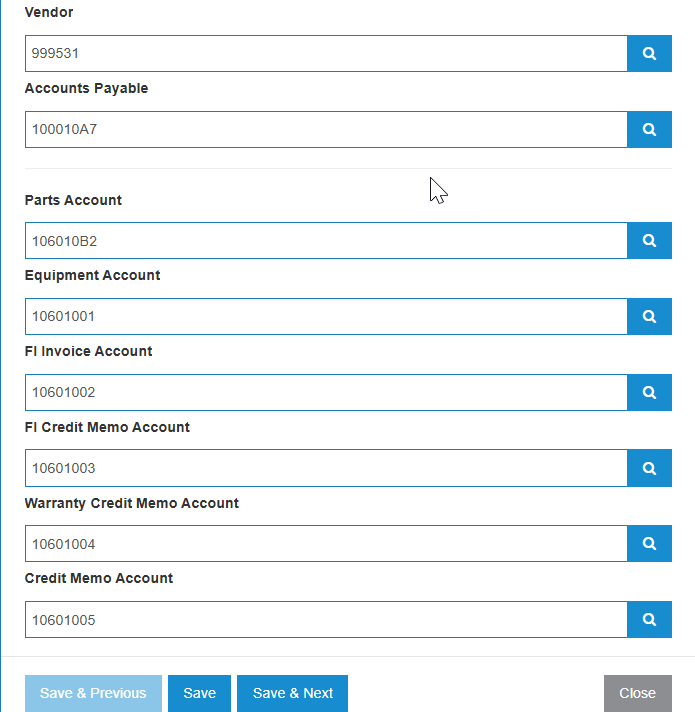
Surcharge Accounts Tab
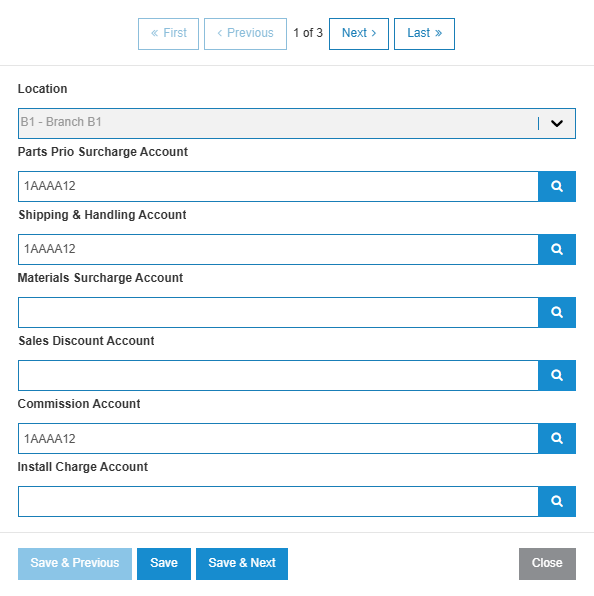
The Surcharge Accounts tab allows different accounts to be configured, by location, for each available surcharge type.
These accounts are optional. If separate accounts are not configured, the charges are added into the invoice amount.
Logs and Import Tabs
The Logs tab shows information about nightly jobs, and includes errors that are found while attempting to import invoices.
Invoices are imported automatically during the nightly job process, but the Import tab allows for invoices to be manually downloaded for a given time period. This can be used to back fill the list of invoices available within IntelliDealer when using the Ditch Witch Invoice Download interface for the first time.
Select the date range to import and click the Import button to submit a job to import the invoices.
Vendors Tab
The Vendors tab lists the vendors configured with the manufacturer code Ditch Witch. These vendors drive the dealer numbers configuration.
The fields on the Vendor tab are:
| Field | Description |
|---|---|
| Search | Search by any term. |
| Vendor Number | Search for vendors by their registered Vendor number. |
| Name | Search for vendors by their name. |
| Address | Search for vendors by their physical address. |
| Country | Search for vendors by their physical address. |
| Postal/Zip Code | Search for vendors by their postal code. |
| Status | Search for vendors by their activation status. You can specify filtering by Active, Deleted, or All vendors. |
| Manufacturer |
Defaults to manufacturer code "Ditch Witch" because this screen only displays parts that have a vendor assigned with a Manufacturer code of Ditch Witch. If no vendor is listed on the screen, click the Assign Manufacturer button to assign the Ditch Witch Manufacturer code for the Ditch Witch vendor that Ditch Witch parts are assigned to. Use the Vendor History button to open a list of vendors that have been used previously. |
Click the Assign Manufacturer button to add another vendor manufacturer.
Dealer Numbers Tab
Displays dealer numbers associated with the vendors on the Vendors tab.
The fields on the Dealer Numbers tab are:
| Field | Description |
|---|---|
| Location | The dealer's location. |
| Dealer Number | The dealer's identification number. |
| Vendor Number | The vendor's number. |
| Manufacturer | The dealer's original equipment manufacturer (OEM). Defaults to Ditch Witch. |
| Primary Dealer (Division) or (Location) | Check which box applies to the dealer number. If it is assigned as the primary dealership and is different from the default dealer number. |
| Include Deactivated Vendors | Select this checkbox to include deactivated vendors in the list below. They are shown with a highlight. |
Click Create to open a New window where you can make a new Dealer entry.