
Printer Output/PDF Viewer
Use the Printer Output screen to view your pending printer output or another user's printed output, depending on your authorization. Use the View PDF tab to view reports that were selected to print to PDF.
To open the Printer Output screen, click the  icon at the top right-hand corner of the screen, then select Printer Output/PDF Viewer from the drop-down list.
 Location of the PDF Viewer option
Topics in this section are:
Printer Output Tab
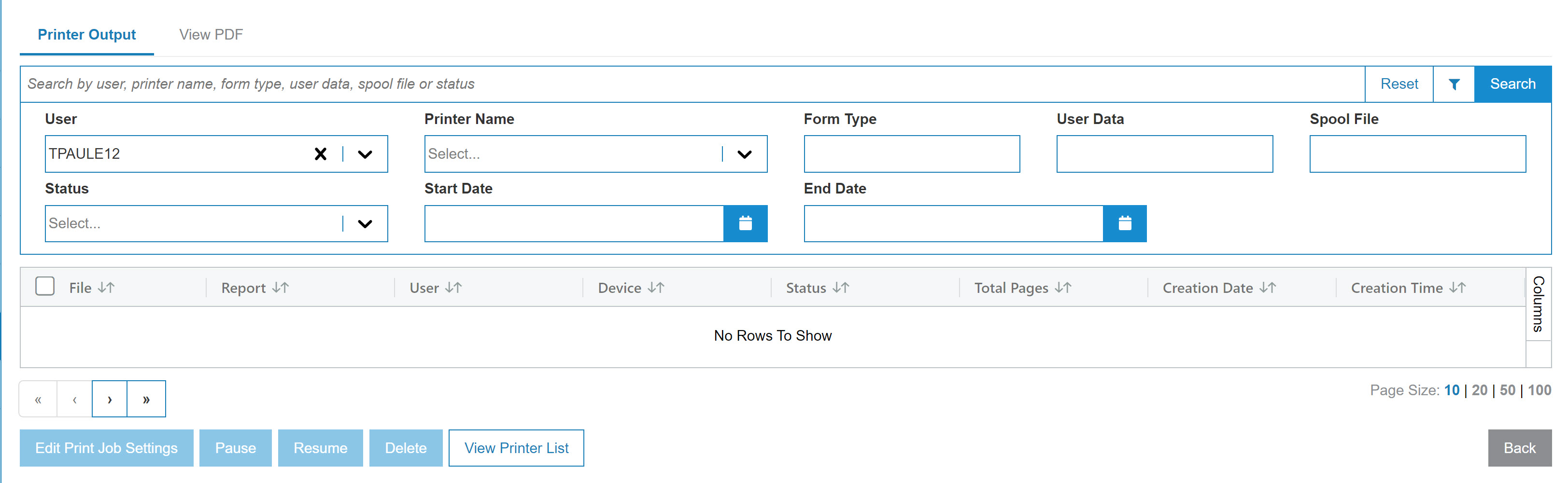
You can download multiple print spool files together into a zip archive, by selecting one or more files using the checkboxes next to the file name, then clicking either Export .TXT or Export with .CSV extension. If the download requires a long time to process, you can continue working on other tasks while the download is being prepared on the server side. Once the download is ready, you receive a notification.
Searching can be refined by category:
| Field | Description |
|---|---|
| User |
Search for output files by entering a user ID. Note: Access to this field is restricted if you are on ASP. If you are on your own server, you must have access to 995 User Security (Allow Viewing Of Other Users PDF/Printer Output). |
| Printer Name | Search for output files by entering a printer ID. |
| Form Type | Search for output files by entering a form type. |
| User Data | Search for output files by entering user data. |
| Spool File |
Search for output files by entering a spool file. Note: For ASP Dealers, Spool files are kept for a minimum for 45 days. Spool files are purged after this retention period. |
| Status | Search for output files by selecting a print status from the drop-down list. |
| Date Range |
Narrow down the output files search results by selecting or entering a date range. |
The fields on the Printer Output screen are:
| Field | Description |
|---|---|
| File | The printed document file name. |
| Report Name | The type of report as it appears in the output. |
| Total Pages | The total number of pages of printed output. |
| User | The ID of the user who created the printed output. |
| Device | The device used to print the output. |
| User Data Source | Indicates where the print originated from. For example, the name of the program or run that generated the spool file. It could also be the job number or other information. |
| Form Type | The type of forms which should be loaded on the printer; usually Standard (*STD). See Forms Numbers. |
| Status |
The status of the spooled file. Possible statuses include:
These status values (with a '*' in front of them) are displayed when an action was performed on the file as a result of taking an option:
|
| Creation Date | The date the printed output was created. |
| Creation Time | The time the printed output was created. |
Use these buttons to complete your work:
| Button | Function |
|---|---|
| Edit Print Job Settings |
Opens the Print Job Settings menu in which you can select a different printer, adjust the number of copies, determine whether the output is Double Sided and you have the option to Save File After Printer. |
| Pause | Pauses the selected print job. |
| Resume | Resumes a paused print job. |
| Delete | Deletes the selected output file. |
| Export .TXT |
Exports the printer output into a .txt file or a .csv file, respectively. You can select multiple files before you click an Export button. The files are bundled into a zip file, called download.zip. Each file within the zip retains the name of the original selection, but with an extension consisting of attributes of the spooled files to uniquely identify it. |
| Export with .CSV extension | |
| View Printer List |
Opens a window where you can configure any printer that is available and what is currently printing. |
| Back | Returns to the previous screen. |
View PDF Tab
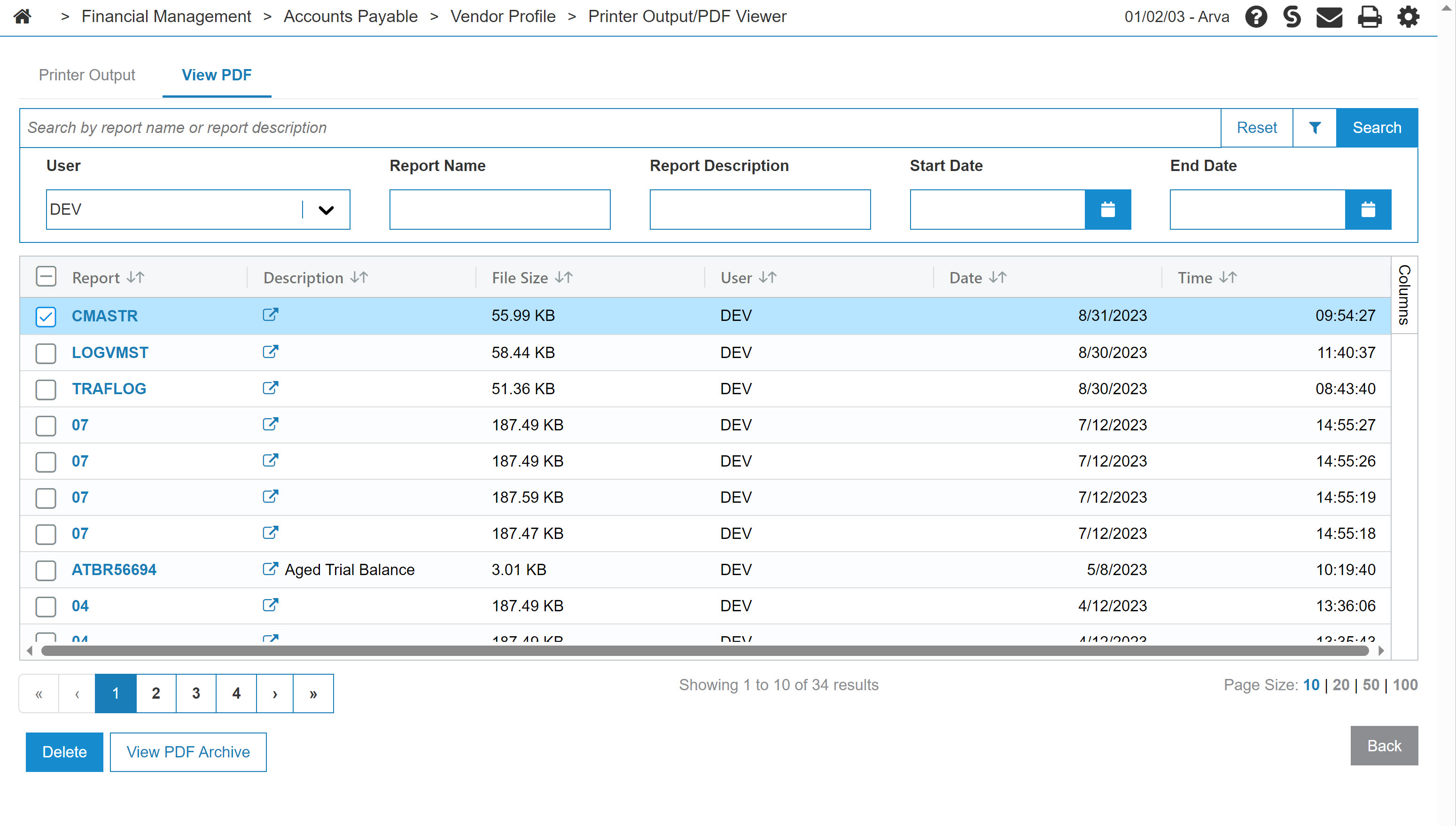
The View PDF tab displays reports that were selected to print to PDF.
To view a report, click the desired report name.
Some browsers handle streamed content such as PDFs a bit differently. In certain cases, the browser might flag the file as potentially harmful, even when it's not. This can cause the browser to show a warning or prompt the user to confirm if they want to keep the file. Browsers that are Chrome-based are more likely to show these warnings.
To delete a report, select the checkbox next to one or more report names, then click Delete.
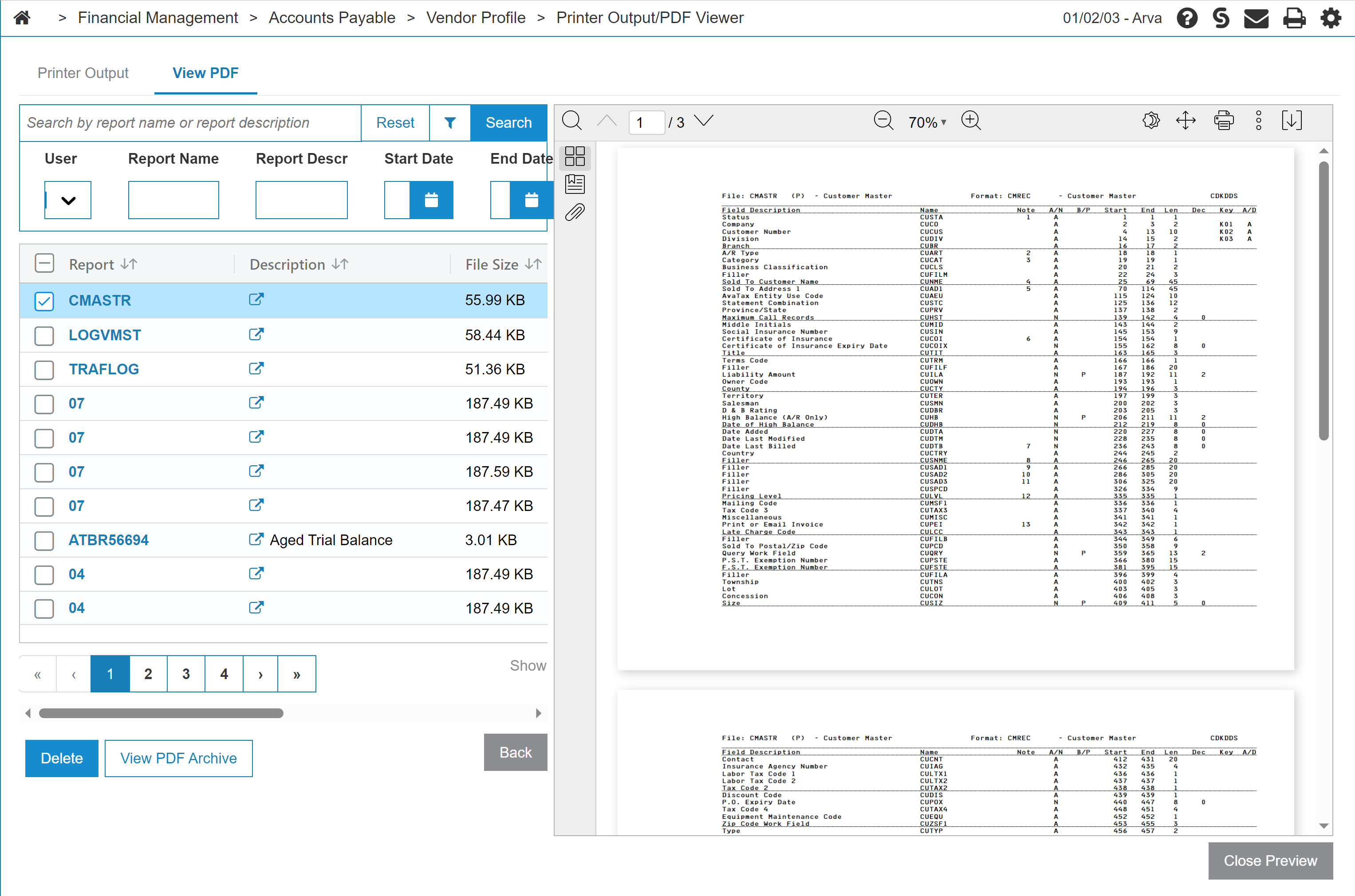
The search fields on the View PDF tab are:
| Field | Description |
|---|---|
| User | Search for PDF files by entering the name of the user who created the files (depending on your authority). |
| Report Name | Search for a PDF by its report name. |
| Report Description | Search for a PDF by phrases that appear in the description. |
| Start Date | Search for PDF files by entering the start of the date range when the file was created. |
| End Date | Search for PDF files by entering the end of the date range when the file was created. |
The fields on the View PDF tab are:
| Field | Description |
|---|---|
| Report | The type of report as it appears in the output. |
| Description | A brief description of the report. |
| File Size | The size of the file. |
| User | The ID of the user who created the printed output. |
| Date | The date the report was created. |
| Time | The time the report was created. |
Use these buttons to complete your work on the View PDF tab:
| Button | Description |
|---|---|
| Delete | Deletes the selected PDF files. This button is enabled when one or more reports are selected. |
| View PDF Archive | Opens the View PDF Archive screen to view PDF files that have been automatically archived by the system. |
| Back | Returns to the previous screen. |
View PDF Archive
Use the View PDF Archive screen to view archived PDF files. The system automatically archives and/or purges PDF files based on the settings configured in Configuration > Miscellaneous > Printing > PDF Retention.
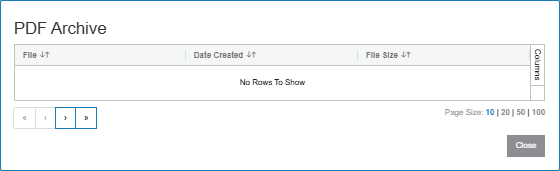
To open the View PDF Archive screen, click View PDF Archive on the View PDF tab.
The fields on the View PDF Archive screen are:
| Field | Description |
|---|---|
| File | The file name uses the month and year the archived PDF files were originally created. PDF files are grouped by month. File names are sorted from the most recent date to oldest date. |
| Date Created | The date the PDF files were archived. |
| File Size | The size of the .zip file containing the archived PDF files. Click Download to download the file. |
Click Close to complete your work on the View PDF Archive screen and return to the View PDF tab.
Security: 995 User Security
Revision: 2026.07