
Equipment Quoting: Include on Print
The Include on Print screen allows you to select which options you wish to include on the printed quote.
You can access it from the Equipment Quoting Printing Parameters screen by clicking the Print button.
Topics in this section include:
Printing a Preview of the Quote
You may want to print a preview of the quote to verify it before printing it for the customer. To do so, select the preview option to see a preview of the system/generic quote OR you can select the option to preview a custom quote.
 Print Preview Options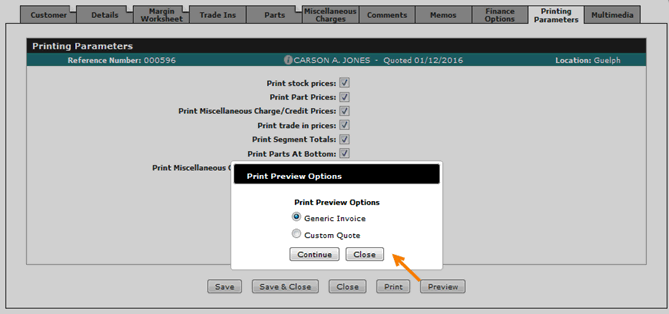
When you select the custom quote you also get the option to include any multimedia loaded on the equipment (not the quote). Images can be added to the quote from the Attachments tab.
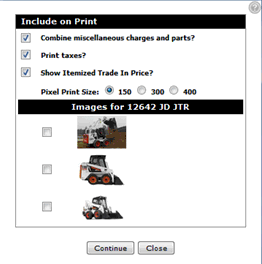
To generate a local printout of the quote from your PC or laptop, including the images you've selected, use the keyboard shortcut Ctrl-P, or right click the quote and select Print (IE or Chrome).
Screen Description
The fields on the Include on Print screen are:
| Field | Description |
|---|---|
| Combine Miscellaneous Charges and Parts | Combines miscellaneous charges and parts on the printed quote. |
| Print Taxes | Includes taxes on the printed quote. |
| Show Itemized Trade In Price> | Prints an itemized list of pricing related to any trade ins on this quote. |
Use these buttons to complete your work on the Include on Print screen:
| Button | Function |
|---|---|
| Continue | Prints the selected quote including any selected options. |
| Close | Closes the Include on Print screen without printing the quote and returns to the Printing Parameters screen. |
Security: 801 - Product Support, Equipment Quoting
Revision: 2024.03