
Time Card Entry
Use the Time Card Entry screen to charge shop labor to a work order. You can manually enter as many labor hours as you wish on this screen. Labor transactions entered can apply to any repair or work order. As these transactions are posted the total charges for the corresponding work orders immediately reflect the labor posting.
The Time Card Entry screen is accessed from Product Support > Service > Time Card Entry.
All transactions entered on one screen must regard the same labor date. The field is initially displayed with the current date.
After a labor transaction is entered and saved, the Time Card Entry screen refreshes allowing the user to review the transactions. The transactions are only posted against the corresponding work order when clicking the Save button and no changes have been made (unless Immediate Update is selected).
Note: Labor entries spanning more than one day need to be split into two separate entries For example, when entering a labor entry for the time period 11:00 PM - 7:00 AM. The first labor entry would cover 11:00 PM - 12:00 AM and the second entry would cover 12:00 AM - 7 AM.
Topics in this section are:
Manually Charging Shop Labor to a Work Order
-
Navigate to Product Support > Service > Time Card Entry.
-
Enter a Labor Date.
- or -
Click the Calendar icon and select a labor date from the Calendar screen.
Note: All transactions entered on one screen must have the same labor date.
-
Select the Immediate Update checkbox to post all labor transactions immediately to the work order without reviewing the entries.
-
Fill in any required fields, referring to the table below.
-
Click Save to charge shop labor (as described in your entry fields) to the Work Order(s) listed.
- or -
Click Close to exit the Time Card Entry screen without saving any of your changes.
 The Time Card Entry screen appears.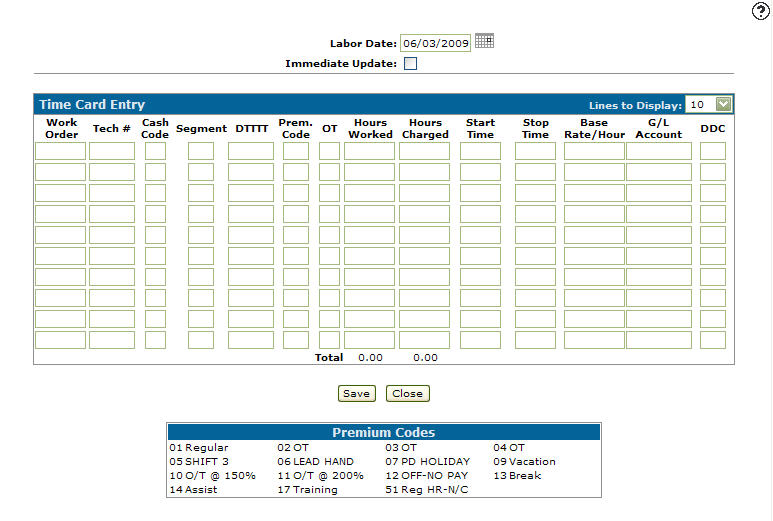
Screen Description
Fields on the Time Card Entry screen are:
| Field | Description |
|---|---|
| Labor Date | The date the labor was performed. All labor entries on the same screen must have the same Labor Date. |
| Immediate Update | Posts transactions immediately to the work order without reviewing the entries. |
| Work Order | The work order number the labor occurred on. If you make more than one entry and leave the field blank, the work order number defaults to the one entered on the previous line. |
| Tech # | The technician who performed the work on the work order segment. If you make more than one entry and leave the field blank, the technician number defaults to the one entered on the previous line. |
| Cash Code | The cash code for the labor transaction either (5 - customer, 7 - warranty or 8 - internal). If left blank the Cash Code is pulled from the corresponding work order segment. |
| Segment | The labor is charged to the work order segment number that appears in this field. |
| DTTTT |
Discount and Tax information is pulled from the corresponding work order. Values are for these fields, if they apply:
|
| Prem Code |
The premium code used to calculate the total labor charged to the work order. Premium codes can be used to adjust the work order labor rate to obtain special labor rates. Premium codes are listed in the Premium Codes list at the bottom of the screen. The premium codes are set up on the W/O Premium Code G/L Defaults screen. |
| OT | Overtime code either R (regular hours) or O (overtime hours). |
| Hours Worked | The amount of hours it took to complete the segment. The value entered is in 100ths of an hour. For example, 1.50 (or 150 depending on your switch setting) represents 1 ½ hours (or 1 hour and 30 minutes). The Work Order Stop/Start Times switch determines whether the hours worked and hours charged are entered in minutes (Hours) or 100ths of an hour. |
| Hours Charged | The amount of labor hours charged to the work order. |
| Start Time | The time that the technician started working on the segment. If no start and stop time is entered, hours worked defaults to 0. Leave this field blank if hours charged is desired. If a start and stop time is entered, hours worked defaults to the difference between the start and stop time. The hours charged defaults to the hours worked. If 0 hours charged are desired, you must enter 0 in the Hours Charged field. The Work Order Stop/Start Times switch determines whether the hours worked and hours charged are entered in minutes (Hours) or 100ths of an hour. |
| Stop Time | The time that the technician stopped working on the segment. The Work Order Stop/Start Times switch determines whether the hours worked and hours charged are entered in minutes (Hours) or 100ths of an hour. |
| Base Rate/Hour | The base labor rate per hour charged on the work order segment. The adjustment to the base rate/hour resulting from the premium code used is made when the transaction is posted to the work order. This means that the default base rate/hour always displays on the screen even though it is being adjusted by the premium code. The base rate/hour to be charged on the repair defaults to the base rate/hour that was entered for the segment when it was added to the work order. For more information regarding the default labor rate/hour, see the About Default Labor Rates help topic. |
| G/L Account |
Which labor sales account is credited. The G/L account entered on the work order for the segment being posted becomes the default G/L account. If no default G/L account is entered on the work order segment, then the G/L account defaults to the general ledger account entered on the employee (technician) through Employee Profile screen. |
| DDC | Downtime delay code indicates why there was a delay in completing the segment. |
Note: If Display Additional Detail Line is enabled, after the labor entry the work order, customer name, technician name, make and model of the unit, and unit history description are displayed.
Buttons on the Time Card Entry screen are:
| Button | Description |
|---|---|
| Save | Clicking the Save button once allows you to preview your labor entry before posting it to the G/L account. Clicking the Save button a second time posts the labor entry to the corresponding G/L account. |
| Close | Closes the Time Card Entry screen without saving and returns to the Product Support Quick Links screen. |
Security: 817 - Time Card Entry
Revision: 2026.04