
Link Order
Use the Link Order screen to add location-level purchase orders onto a consolidated parts order. The purchase order you are linking must be a stock type order, have a status of changeable and must have the same vendor as the consolidated parts order.
The Link Order screen is accessed from the Consolidated Parts Order screen by clicking the Link Order button. It is only available after filling out the Vendor and Due Date fields and clicking Save.
Topics in this section are:
Linking Purchase Orders onto a Consolidated Parts Order
-
Create a Consolidated Parts Order, or open an existing one.
-
Click the Link Order button.
-
Fill out the fields and click Go >> to search for a specific order.
The Link Order screen refreshes listing the generated search results.
-
Click the checkbox next to the Order Number of the orders you wish to link to the consolidated parts order, then click Select.
The Consolidated Parts Order screen appears with the parts from the location level PO linked to the consolidated parts order.
-
Use these buttons to complete your work on the Consolidated Parts Order screen:
Button Description Release The parts on the consolidated order are not considered as an order until the Release button is selected. Once the release command has been executed, the order status changes to on order releasing all part orders link to the consolidated order. Link Order Adds location level purchase orders from the same vendor to create one large consolidated parts order.
The purchase order must be a stock type order, have a status of changeable and must have the same vendor.
Unlink Order Removes location-level purchase orders from the consolidated parts order. Save Saves changes made to the Consolidated Parts Order screen. Refresh Pricing If a cost or discount percentage have been updated, use the Refresh Pricing button to update the totals. Print Prints the consolidated parts order. Memos Opens the Memos screen to view memos on a consolidated part order.
A highlighted Memos button indicates that a memo exists for the selected consolidated part order.
Total Opens the Totals screen listing the order totals. Close Closes the Consolidated Parts Order screen and returns to the Parts Ordering screen.
 The Link Order screen appears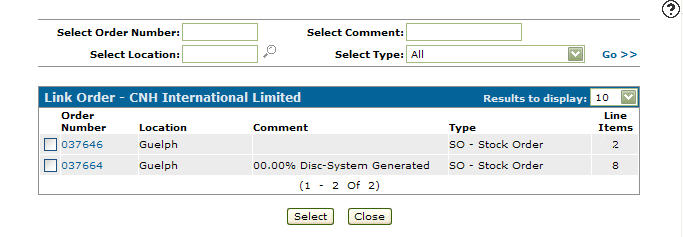
Screen Description
Search fields on the Link Order screen are:
| Field | Description |
|---|---|
| Select Order Number | Search for a location-level purchase order by entering an order number. |
| Select Location | Search for a location-level purchase order by entering a branch location. |
| Select Comment | Search for a location-level purchase order by entering a comment. |
| Select Type | Search for a location-level purchase order by selecting an order type from the drop down list. |
Fields on the Link Order screen are:
| Field | Description |
|---|---|

|
Select which purchase orders you would like to include on the consolidated order. |
| PO Number | The number of the purchase order you wish to link to the consolidated order. |
| Location | The purchase order branch location. |
| Description | A brief description of the purchase order. |
| Type | The type of purchase order. |
| Line Items | The amount of items on the purchase order. |
Click a PO Number to open the Parts Order screen.
Click Select to add the selected location-level purchase orders onto the consolidated parts order.
Click Close to close the screen without adding any location-level purchase orders to the consolidated parts order and return to the Consolidated Parts Order screen.
Revision: 2026.04