
Parts Order
The Parts Order screen allows you to create a stock order and edit an existing stock order (using the Unrelease button).
To open the Parts Order screen, navigate to Product Support > Parts > Parts Ordering screen, click an Order Number or the Need to create a stock order? Click here to add link.
Topics in this section are:
Creating a Parts Order
-
Navigate to Product Support > Parts > Parts Ordering.
-
Click the Need to create a stock order? Click here to add link.
-
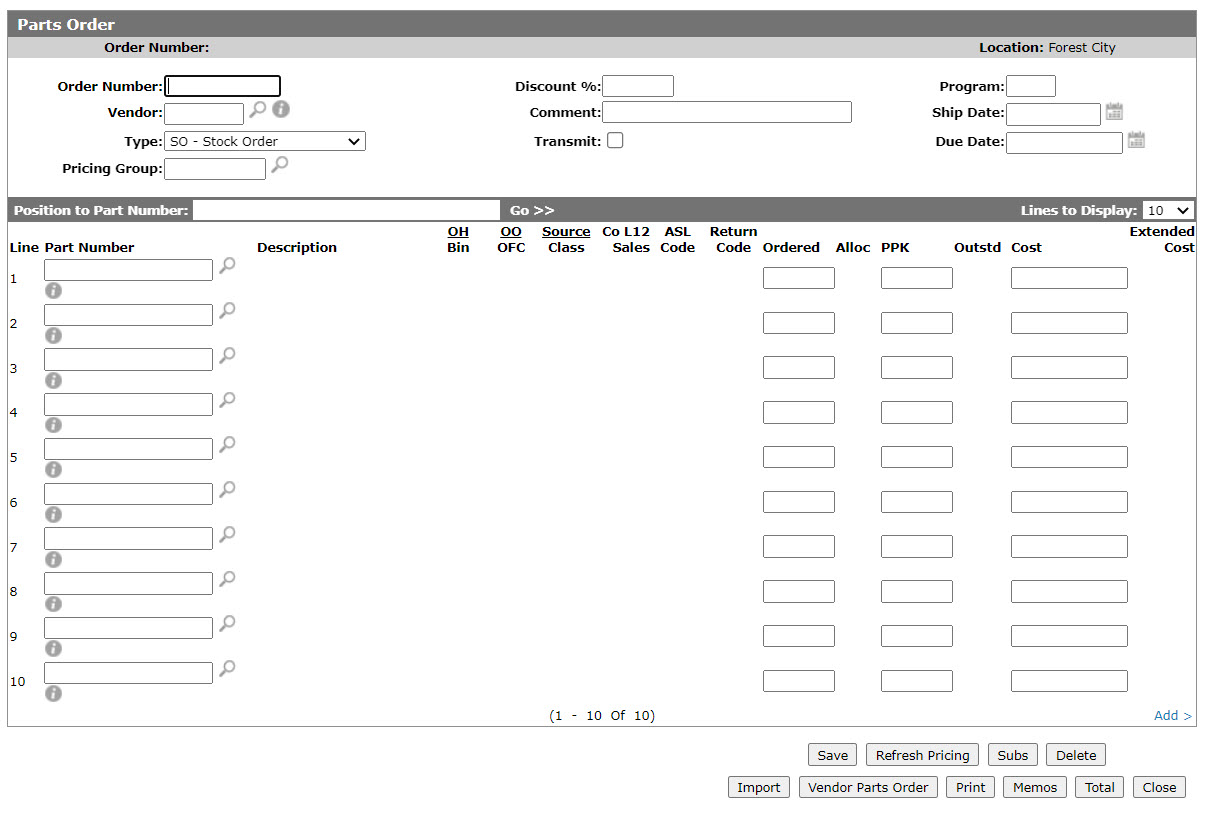
Fill in the fields referring to the Screen Description below.
-
Once you have finished, you can complete your work on the invoice in one of these ways:
To: Do This: Put the parts on the parts order screen on order. Click the Release button. Save changes to the invoice, refresh the fields on the screen, and continue working. Click the Save button. Refresh the extended price value. Click the Refresh Pricing button. Display substitute part information. Click the Subs button. Print an outstanding parts order. Click the Print button. Write a comment. Click the Memos button. Add multimedia files. Click the Multimedia button. List the order totals. Click the Total button. Close the invoice without saving changes. Click the Close button.
 The
The 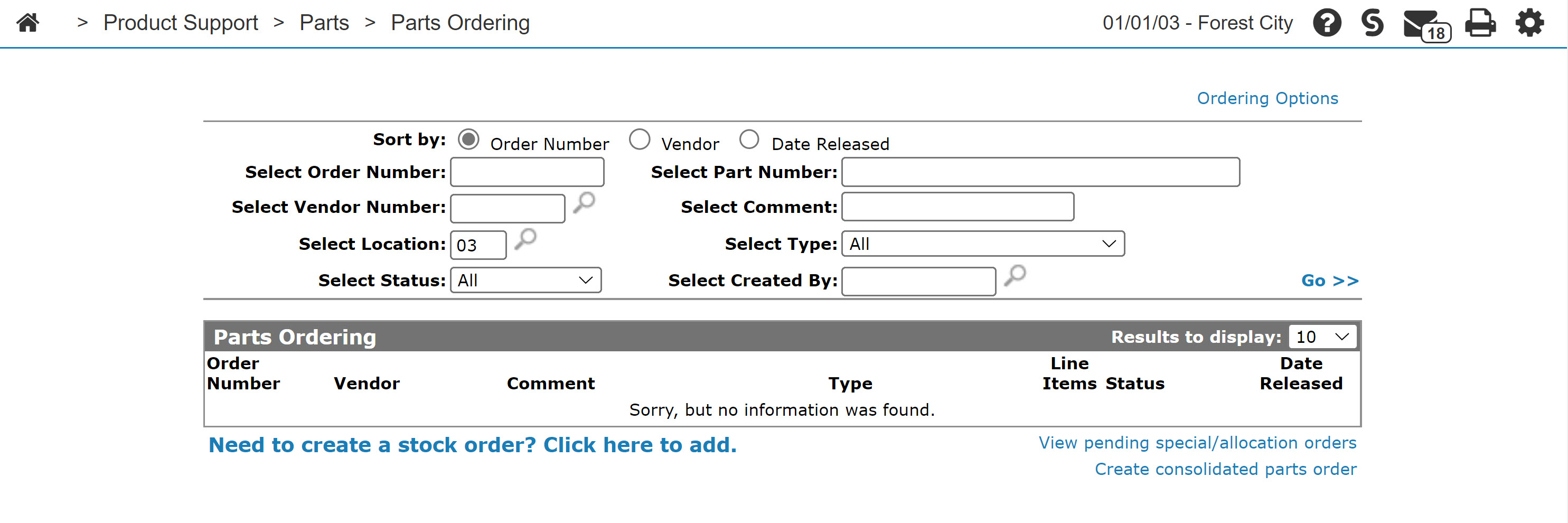
Receiving Parts off a Stock Order
-
Navigate to Product Support > Parts > Parts Ordering.
-
Fill out the appropriate fields and click Go >>.
The Parts Ordering screen refreshes listing the generated search results.
-
Click an Order Number.
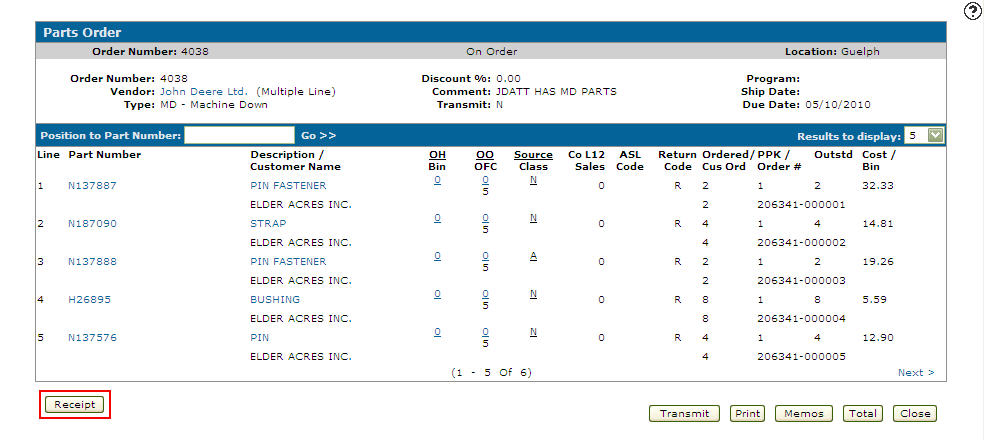
The Parts Order screen appears.
-
Click the Receipt button.
-
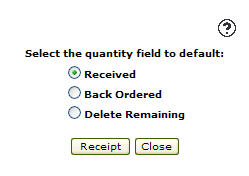
On the Receipt screen, select one of these options:
-
Received—indicates that the parts ordered were received
-
Back Ordered—indicates that the parts ordered are on back order
-
Delete Remaining—deletes the remaining parts ordered so leftover parts are not placed on a backorder.
-
-
Click the Receipt button.
The Parts Order screen appears.
You may also add a part substitution or adjust the quantity of parts on a stock order.
-
Enter the amount of parts that you wish to Receive, that are Back Ordered, or select Delete Remaining to indicate that remaining parts that are not received or back ordered are deleted.
These scenarios can occur when receiving parts into the system:
-
If you receive more parts than what was originally ordered, the system warns you that the amount of parts you are receiving exceeds the original Outstanding amount.
-
If you receive fewer parts than what was originally ordered, the system automatically creates a back order for the remaining parts to fill the demand of the particular part.
-
If you receive fewer parts than what was originally ordered and have selected the Delete Remaining checkbox for the corresponding part, the system receives in the amount entered and deletes the remaining number of parts so a back order is not created.
-
If the cost of a part is different than the original cost, the system warns you that the cost of the part is greater than the list price of the part.
-
-
Click Update.
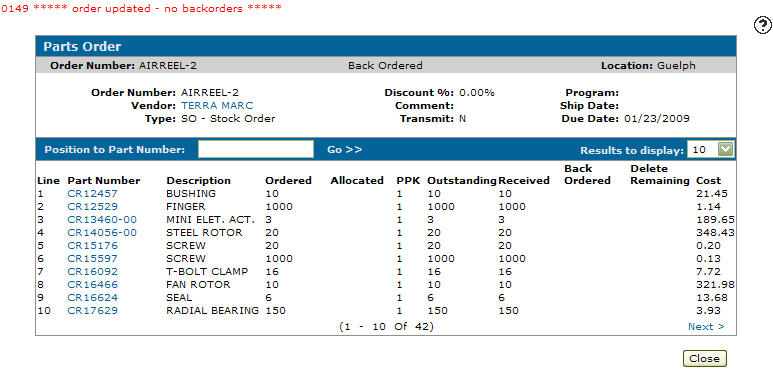
The system updates the On Hand, On Order, Back Ordered, and Average Cost quantities associated with the parts and creates any back orders required. If a back order is created, a PO remains in the system. Any parts that are fully receipted into the system are removed from the PO.
Deleting a Parts Order
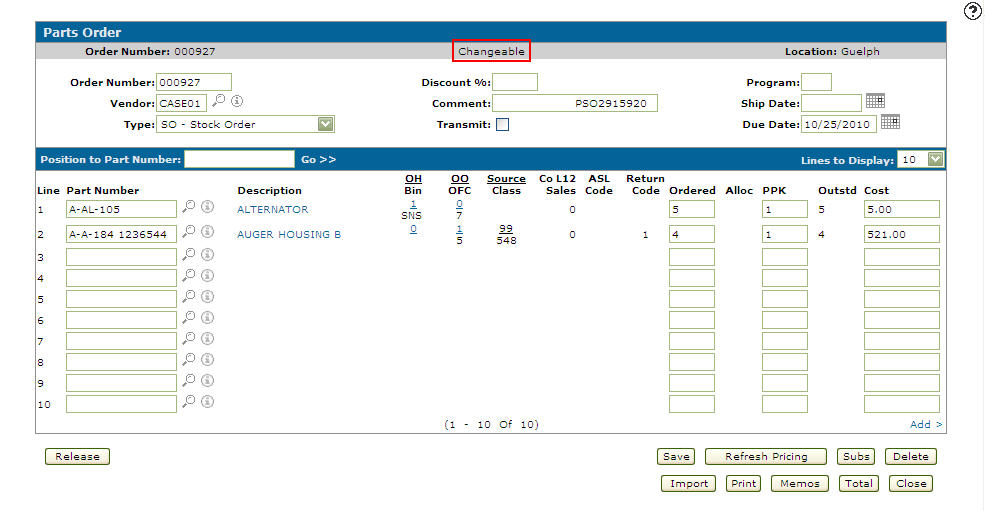
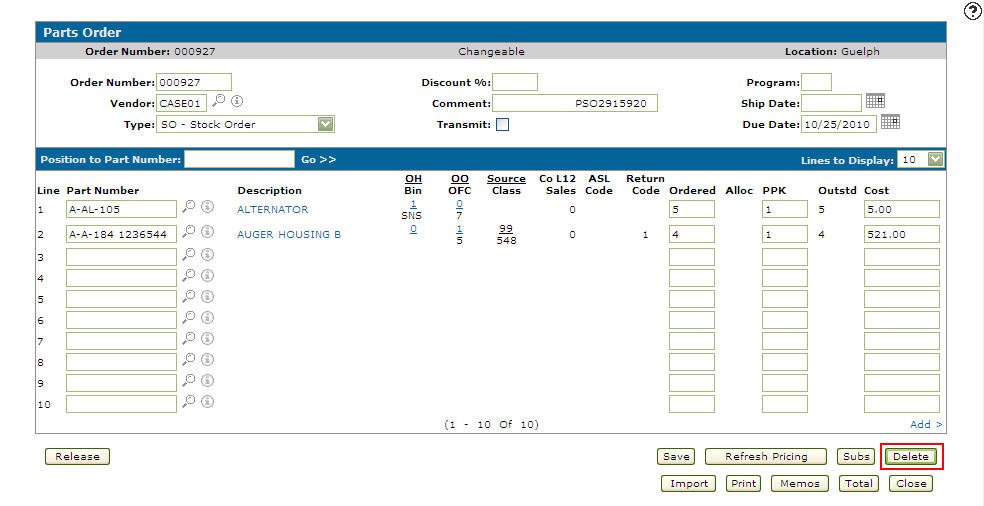
You can only delete a parts orders when its status is Changeable. If the order has been previously released and has a status of On Order:
-
If the order is not a special order, you can unrelease the order, reversing the status of the order back to Changeable which gives you the option to delete the order.
-
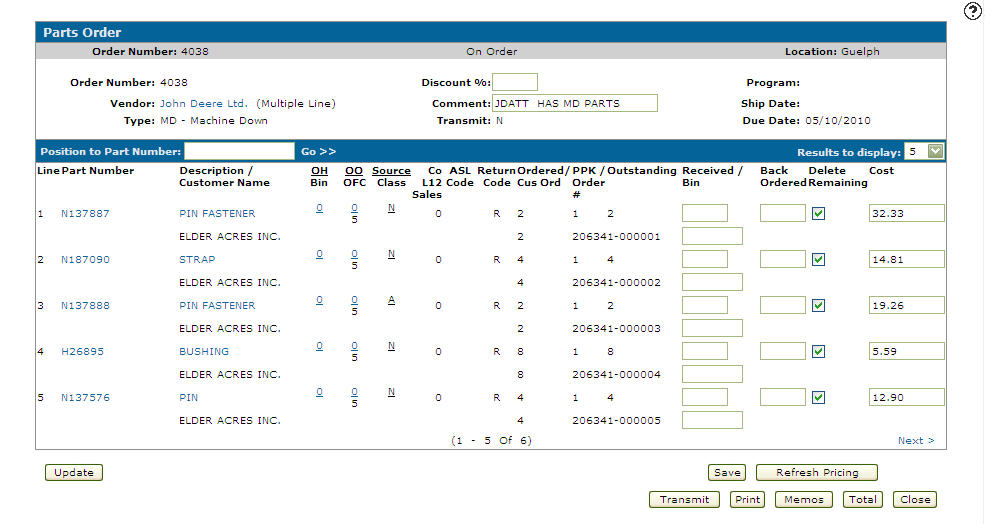
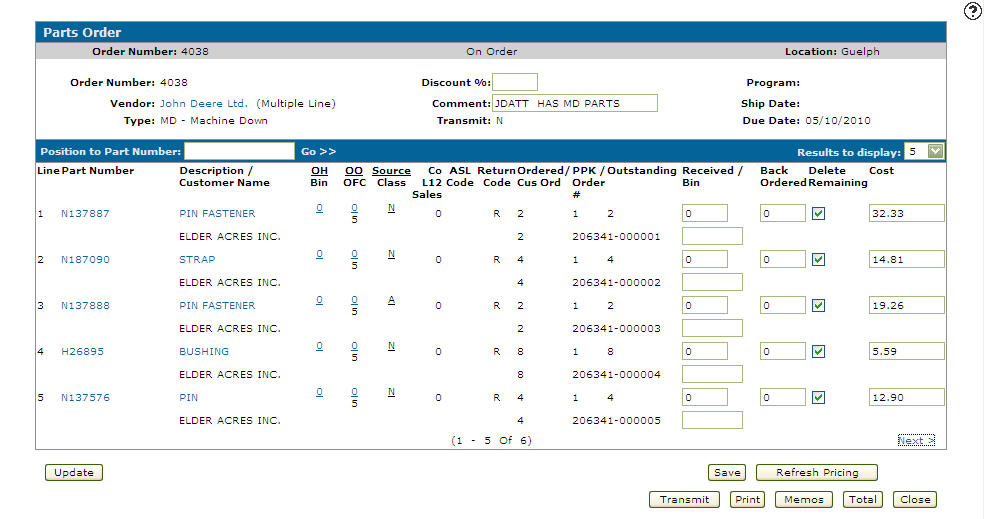
You can receipt all parts on the order using a value of zero for the quantity received.
To receipt all parts on the order
-
On the Parts Order screen, click the Receipt button.
-
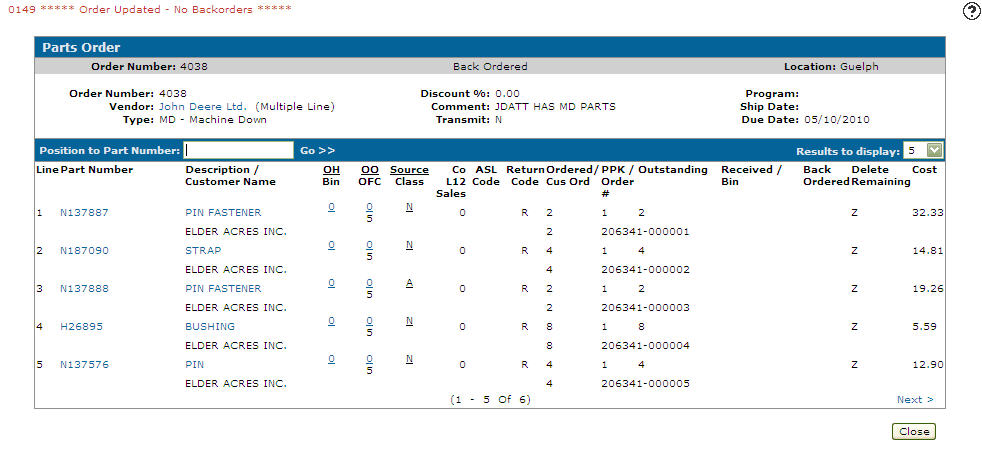
Select the Delete Remaining checkbox to delete the remaining part quantity so leftover parts are not placed on a backorder, then click the Receipt button.
-
Enter zeros or leave the Received and Back Ordered fields blank.
-
Click Update.
-
Click the Close button.
To delete the parts order
-
On the Parts Order screen, make sure the status of the order you wish to delete has a status of Changeable.
-
Click the Delete button.
A Confirmation screen appears.
-
Click Yes to delete the parts order from the system.
Screen Description
The fields on the Parts Order screen are:
| Field | Description |
|---|---|
| Order Number | The parts order number. If you do not enter a number on a new parts order, the system will assign a sequential order number. |
| Vendor |
The name of the part vendor for this order. Click on the Search |
| Type | The type of parts order. See the Type Options table below for more information. |
| Discount % | If applicable, the discount % to be applied to this order. |
| Comment | Allows the user to enter a description of the order. This field can be changed at any time and is often changed to reflect the packing list number in the case of back orders. |
| Transmit |
If selected, indicates that the order is to be transmitted to the vendor electronically. An order must be released before it is transmitted. Once the order has been transmitted, this field will show one of the following values:
For next steps, see: |
| Program | (Optional) If the order type is a special order program, enter the program number. |
| Ship Date | The date the parts will be shipped. |
| Due Date |
Mandatory. The date the order is expected to arrive. |

The cost codes used on the order to calculate the Landed Cost of the parts is determined by:
-
the Type applied to an order
-
the vendor
-
the parts on an order
-
the Order Creation
-
the Order Update cost codes assigned to the selected parts/ vendor
See Cost Code Logic for more details.
| Type Options | |
|---|---|
| Type | Description |
| SO | Stock Order |
| Q1 | First Quarterly Order |
| Q2 | Second Quarterly Order |
| Q3 | Third Quarterly Order |
| Q4 | Forth Quarterly Order |
| IS | Initial Stock Order |
| MD | Machine Down |
| FI | Fill In |
| TS | Special Order Program |
| ST | Special Terms |
The search field on the Parts Order screen is:
| Field | Description |
|---|---|
| Position to Part Number |
Used in conjunction with the Go >> link to reposition the parts list to the part number specified. |
The fields on the Parts Order screen are:
| Field | Description |
|---|---|
| Line | The line number of the corresponding part. |
| Part Number | The part number you wish to order. Click on the Search icon to open the Parts Search screen. icon to open the Parts Search screen. |
| Description/Customer Name |
A brief description of the ordered part and the name of the customer purchasing the part. The Customer Name field only appears if the order is a machine down type (MD, FI, T$, etc). *No Mastr appears if the selected part is not loaded on the price master file. Click the Add Part link next to *No Mastr to add the part to the part master file. |
| OH/Bin |
The current on hand amount for this part in your current branch location. The bin number indicates the part's physical location. If the Bin field appears highlighted, alternate bins exist. Move the cursor over the Bin number to view alternate Bin location numbers. |
| OO/OFC |
The current on order amount and OFC code for this part in your current branch location. The on order amount and OFC code is obtained from the parts system. |
| Source/Class |
The part's source of supply code and class code. The source of supply code typically represents the part's originating warehouse location, while the class code is used in conjunction with the part's Type code to group similar parts together. Valid source of supply codes are configured and listed on the Source of Supply screen. Valid class codes are configured and listed on the Classes screen. |
| Co L12 Sales | The number of times the selected part has been sold within the last 12 months across the entire company. |
| ASL Code | Deprecated. The part's authorized stocking list code (e.g. active/demand, new or collaborative). |
| Return Code | Indicates the part's return status, whether or not the part is returnable. |
| Ordered |
The quantity of parts being ordered. This amount must be a multiple of the package quantity for the part. -OR- The quantity ordered by the customer. The Cus Ord field only appears if the order is a machine down type (MD, FI, T$, etc). |
| Allocated |
Identifies how many parts have been allocated (reserved) for customers. The quantity ordered cannot drop below this value. A part is considered allocated when the part is sold on a rental contract or equipment invoice, or the part is adjusted on a work order. |
| PPK/Ord # |
The number of parts per package and the invoice number or requisition number from which the special order was requested. See Parts Per Package (PPK). The Ord # field only appears if the order is a machine down type (MD, FI, T$, etc). These rules apply while creating a parts order:
|
| Outstanding | Displays the quantity of the part ordered that has not yet been received. If the order has not been released, this field will display the same quantity as the quantity ordered. |
| Cost |
Defaults to the part master file current cost less any applicable discount. The bin number represents the part's physical location. The Bin field only appears if the order is a machine down type (MD, FI, T$, etc). |
| Extended Cost | Displays the Cost multiplied by the Outstanding quantity. |
Use these buttons to modify the Parts Order:
Use these buttons to complete your work on theParts Order screen:
| Button | Function |
|---|---|
| Save | Saves changes made on the Parts Order screen. |
| Refresh Pricing | If a cost or discount percentage have been updated, use the Refresh Pricing button to update the totals. |
| Subs | Displays the Sub screen. |
| Delete | If a parts order has been released but is never going to be received or if an order was released by mistake, the Delete button will delete the order. |
| Import | Allows you to import a parts list from a pick list, a piece of equipment, a job code, or a .CSV file to add to the purchase order. |
| Vendor Parts Order |
Allows you to print or email the parts order report (POR38231) to the supplier. When you print with the PDF checkbox selected, the report is sent to the Data Portal. |
| Can be used to print or email any outstanding parts order regardless of its status. | |
| Memos |
Opens the Memos screen allowing you to add memos to a part order. A highlighted Memos button indicates that a memo exists for the selected parts order. Memos added to a parts order are linked directly to the order number. If the order number is changed, the memos associated to the original order number will no longer be associated to the order. If the order number is changed back, the memos associated to the original order number will reappear. |
| Multimedia |
Opens the Multimedia screen allowing you to add media such as pictures and video to a part order. A highlighted Multimedia button indicates that there is multimedia already associated to the selected parts order. The Multimedia button only appears after entering each of the required fields for the order. |
| Total | Opens the Totals screen listing the order totals. |
| Close | Close the Parts Order screen and returns to the Parts Ordering screen. |