
Consolidated Parts Order
Use the Consolidated Parts Order screen to import multiple location-level purchase orders from the same vendor into one larger purchase order, breaking down the various parts on order by location.
For an overview of when and why to use consolidated parts ordering, setup requirements, and OEM transmit support, see Consolidated Parts Ordering Overview.
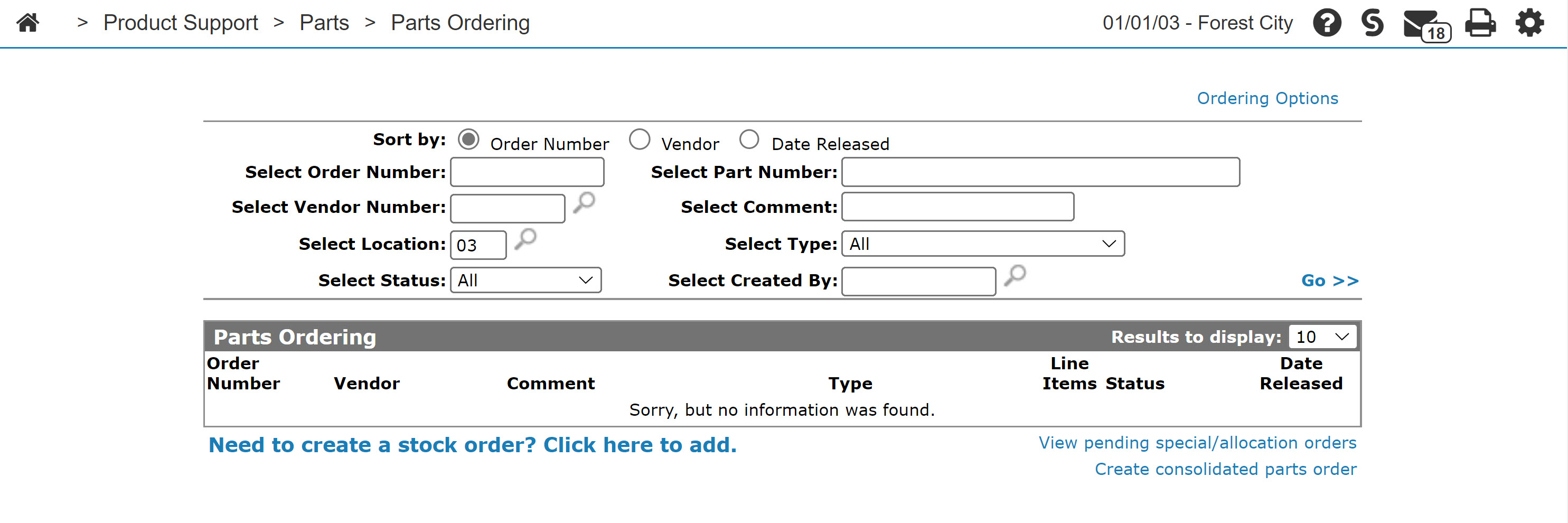
The Consolidated Parts Order screen is accessed from the Parts Ordering screen by clicking the Create consolidated parts order link.
Topics in this section are:
Creating a Consolidated Parts Order
-
Navigate to Product Support > Parts > Parts Ordering.
The Parts Ordering screen appears.
-
Click the Create consolidated parts order link.
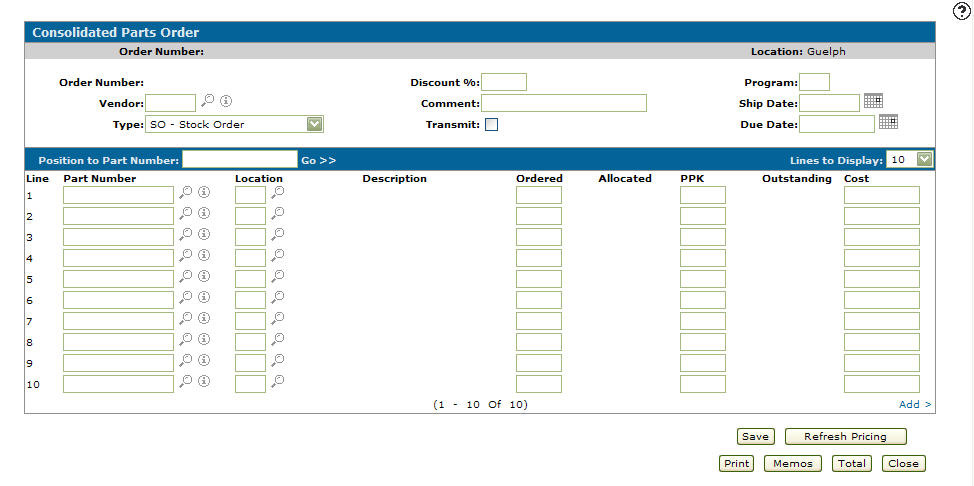
The system assigns a sequential Order Number.
-
Fill in the fields, referring to the table below, then click Save.
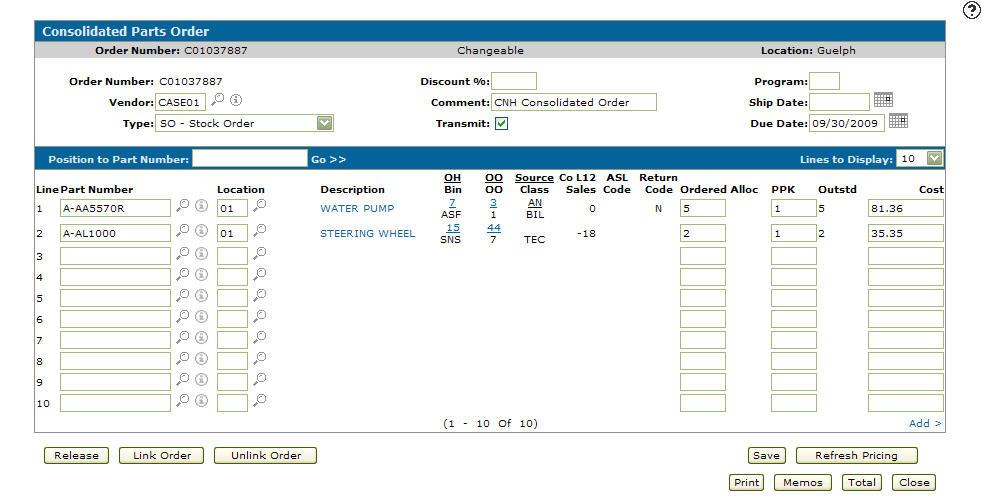
The system populates the remaining fields.
-
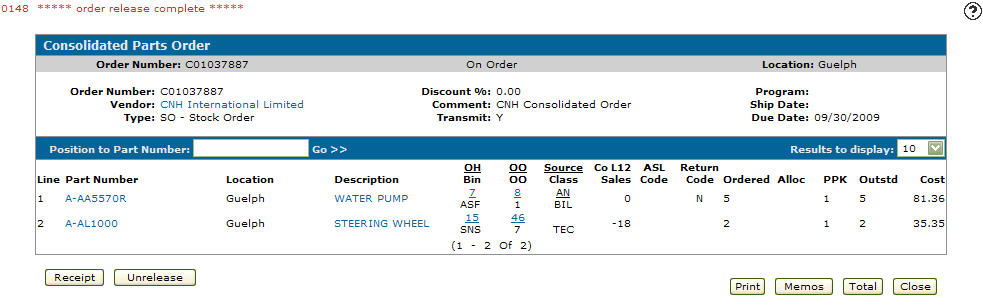
Click Release to change the order status to On Order.
-
Use these buttons to complete your work on the Consolidated Parts Order screen:
Button Description Receipt Indicates what parts have been received, back ordered, or to indicate that remaining on order parts should be deleted from the order. Once the parts order arrives from the vendor, the parts must be receipted into the system. Unrelease Reverses the release of the parts on the consolidated part order so you can modify the order. Print Opens Parts Order Printing Options so you can print the consolidated parts order. Memos Opens the Memos screen so you can view memos on a consolidated part order.
A highlighted Memos button indicates that a memo exists for the selected consolidated part order.
Total Opens the Totals screen listing the order totals. Download Available when the consolidated order vendor is a configured Stihl USA vendor and feature 6438 - Stihl Parts Order Download (USA) is licensed. Opens the Stihl USA parts order download window and exports order details as a CSV file.
This button does not transmit the order to Stihl electronically. See Stihl Parts Order Download: Download Parts Orders (USA).
Close Closes the Consolidated Parts Order screen and returns to the Parts Ordering screen.
Screen Description
Information fields on the Consolidated Parts Order screen are:
| Information | |
|---|---|
| Field | Description |
| Order Number | The consolidated parts order number. |
| Order Status | The current order status. |
| Location | The location of the consolidated order. |
When creating a Consolidated Parts Order, you should fill out these fields:
| Field | Description |
|---|---|
| Order Number | The consolidated order number assigned by the system. The order number consists of a start digit followed by the location and finally the next sequential order number. |
| Vendor | The vendor number for the purchase order. |
| Type | The type of order (e.g. SO - stock order). Refer to the Type table for available type options. |
| Discount % | If applicable, the discount % applied to the order. |
| Comment | Use to enter a description of the order. This field can be changed at any time. |
| Transmit | This indicator is currently not being used for transmitting consolidated orders to John Deere. However, CNH dealers need to use the Transmit button at the bottom of the screen. |
| Program | If the order type is a special order program, the program number is entered in this field. |
| Ship Date | The date the order is shipped. |
| Due Date | The date the order is to arrive at a designated location. |
| Position to Part Number | Used in conjunction with the Go >> link to reposition the parts list to the part number specified. |
| Line | The line number of the corresponding part. |
| Part Number |
The number of the part that appears on the consolidated parts order. The same part number can occur on one order multiple times as long as it has a different Location. |
| Location | The location ordering the corresponding part number. The system populates the Location field, however, you can manually enter which location is to receive which part. |
| Description | A description of the ordered part. |
| Ordered | The quantity of parts being ordered. If the part appears more than once, the total quantity being ordered must be a multiple of the package quantity for the part. |
These fields are populated by the system:
| Field | Description |
|---|---|
| OH/Bin |
The current on hand amount for this part in your current location. The bin number indicates the part's physical location. A reverse image Bin number indicates that alternate bins exist. Hover over the Bin number to view alternate Bin location numbers. |
| OO/OFC | The current on order amount and OFC code for this part in your current location. The on order amount and OFC code is obtained from the parts system. |
| Source/Class |
The parts source code. The source of supply for the part. Used to break down the parts into different categories within each vendor. This field is used to categorize parts. |
| Co L12 Sales | The number of times the selected part has been sold within the last 12 months across the entire company. |
| ASL Code | Deprecated. The part authorized stocking list code (e.g. active/demand, new or collaborative). |
| Return Code | Indicates the part's return status, whether or not the part is returnable. |
| Allocated | Identifies how many parts have been allocated (reserved) for customers. The quantity ordered cannot drop below this value. |
| PPK | The number of Parts Per Package The parts per package signifies how the system will maintain inventory on this part e.g. consider a part number for a 100 foot roll of hydraulic hose. By ordering 1 of that part number, 1 roll of hose (100 feet) is received. The hose is sold by the foot so when the part is receipted, we want to receipt 100 rather than just 1.. The parts per package signifies how the system will maintain inventory on this part e.g. consider a part number for a 100 foot roll of hydraulic hose. By ordering 1 of that part number, 1 roll of hose (100 feet) is received. The hose is sold by the foot so when the part is receipted, we want to receipt 100 rather than just 1.. |
| Outstanding | Displays the quantity or the part ordered that has not yet been received. If the order has not been released, this field displays the same quantity as the quantity ordered. |
| Cost | Defaults to the part master file current cost less any applicable discount. |
| Extended Cost | Displays the Cost multiplied by the Outstanding quantity. |
Type options are:
Click the Information  icon next to the Part Number field to open the Parts Profile screen.
Click a Description to view the Long Description screen.
Once the consolidated part order has been released:
Hover over a Part Number and select Display from the pop-up menu to open the Parts Profile screen.
Hover over a Part Number and select Substitute Part from the pop-up menu to open the Subs screen.
Click Update to create a pending order receipt for each of the locations on the consolidated parts order.
Click Release to release the parts on the consolidated order. The parts are not considered as an order until the Release button is selected. Once the release command has been executed, the order status changes to On Order releasing all part orders linked to the consolidated order.
Click Receipt to indicate what parts have been received, back ordered, or indicate that remaining on order parts should be deleted from the order. Once the parts order arrives from the vendor, the parts must be receipted into the system.
Click Unrelease to reverse the release of the parts on the consolidated parts order and allow you to modify the order.
Click Link Order to add level purchase orders from the same vendor to create one large consolidated parts order. The purchase order must be a stock type order, have a status of changeable and must have the same vendor.
Click Unlink Order to remove location-level purchase orders from the consolidated parts order.
Click Save to save changes made to the Consolidated Parts Order screen.
Click Refresh Pricing to update the totals if a cost or discount percentage have been updated.
Click Download to export a Stihl USA consolidated parts order as a CSV file when the vendor is configured for Stihl USA parts order download. See Stihl Parts Order Download: Download Parts Orders (USA).
Click Transmit to transmit the consolidated parts order provided that the order is for CNH.
Click Print to print the consolidated parts order.
Click Memos to open the Memos screen and view memos on a consolidated parts order. A highlighted Memos button indicates that a memo exists for the selected consolidated parts order.
Click Total to open the Totals screen listing order totals.
Click Close to close the screen and return to the Parts Ordering screen.
Revision: 2026.09