
Copying a Rental Reason Code
-
From any IntelliDealer screen, click on the Configuration tab.
The Configuration Quick Links screen will appear.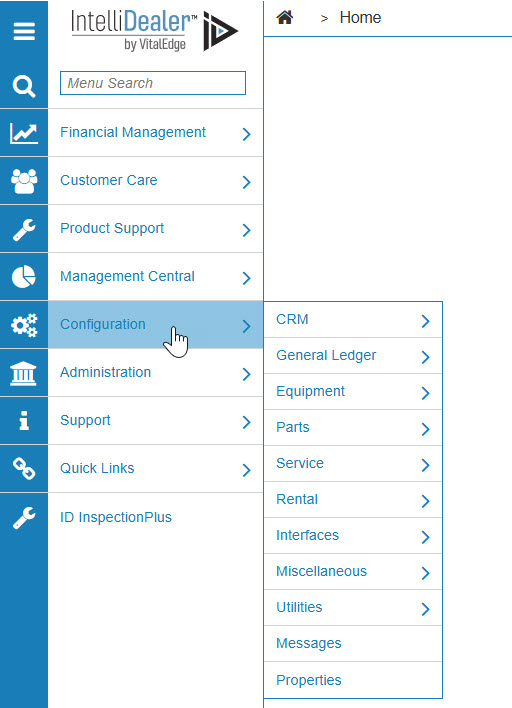
Configuration Quick Links screen
-
From the Rental list, click the Setup link and select Rental Reason Codes from the drop down list.
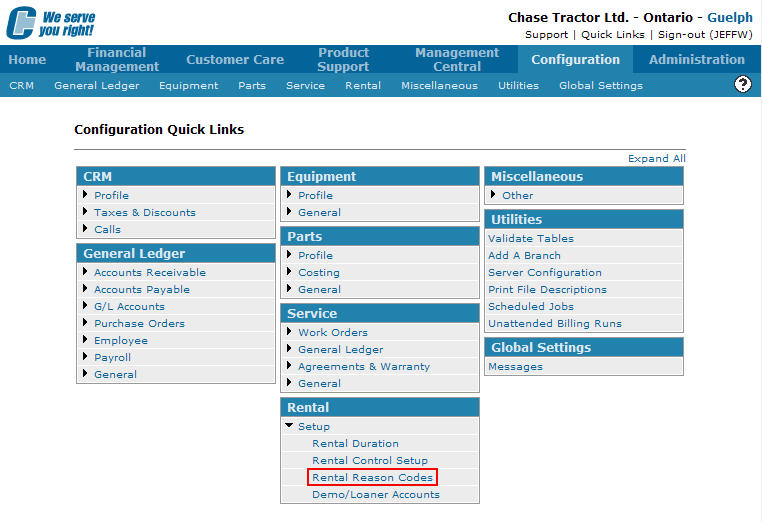
Configuration Quick Links screen
-
The Rental Reason Codes screen will appear.
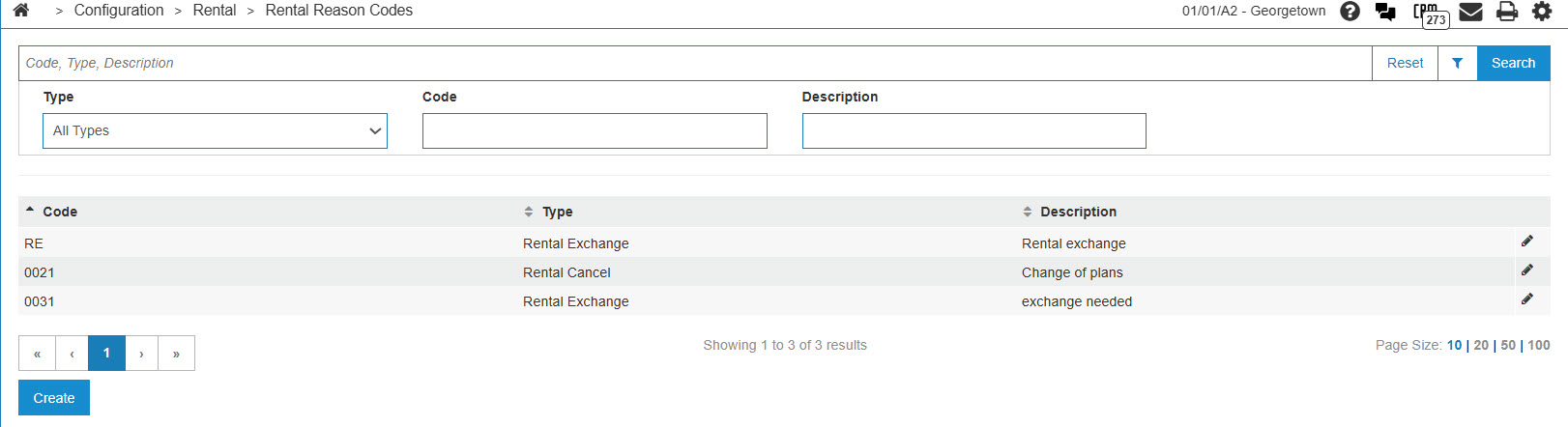
Rental Reason Codes screen
-
On the Rental Reason Codes screen, fill in the appropriate fields and click the Go >> link.
The Rental Reason Codes screen will refresh listing the generated search results.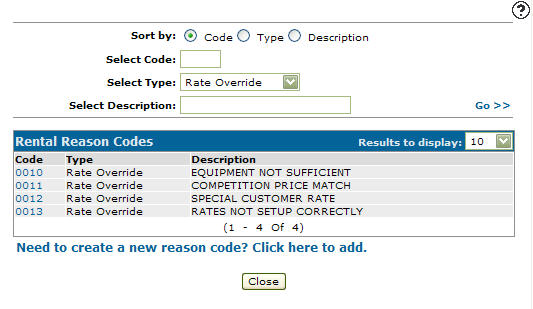
Rental Reason Codes screen
-
Click on a Code.
The Rental Reason Codes screen will appear.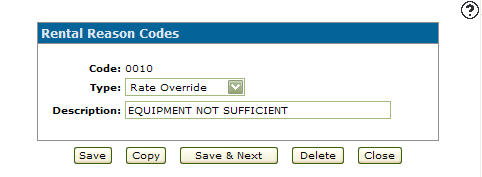
Rental Reason Codes screen
-
On the Rental Reason Codes screen, click on the Copy button.
The Rental Reason Codes screen will refresh allowing you to add additional information to the rental reason code before creating the new copy.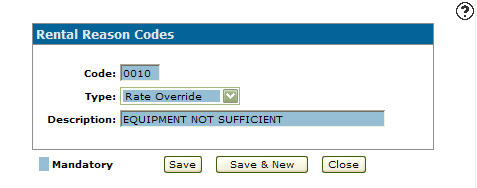
Rental Reason Codes screen
-
Once you have fill out all the desired fields click on the Save button to create the new rental reason code.