
Editing an Equipment Code
-
From any IntelliDealer screen, click on the Configuration tab.
The Configuration Quick Links screen will appear.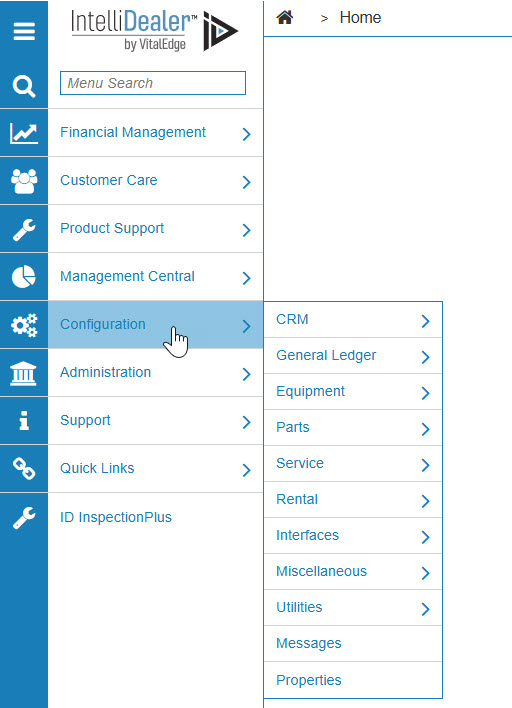
Configuration Quick Links screen
-
From the CRM list, click the Profile link and select Classifications from the drop down list.
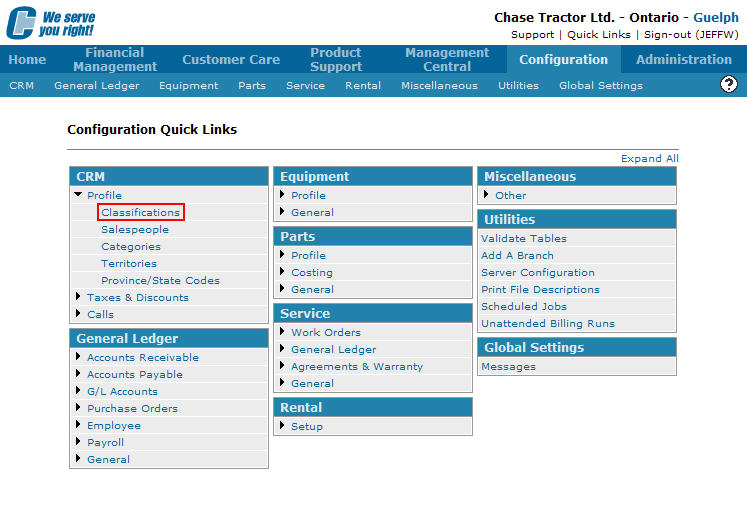
Configuration Quick Links screen
-
The Classifications screen will appear.
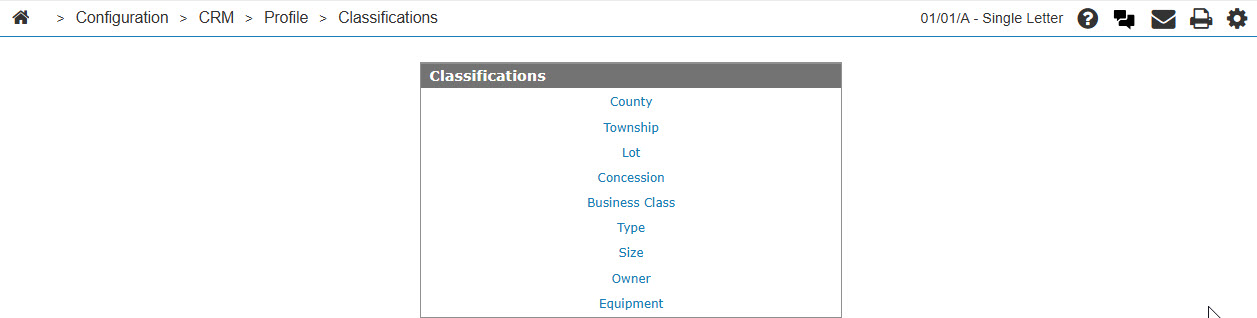
Classifications screen
-
On the Classifications screen, click on the Equipment link.
The Equipment Codes screen will appear.
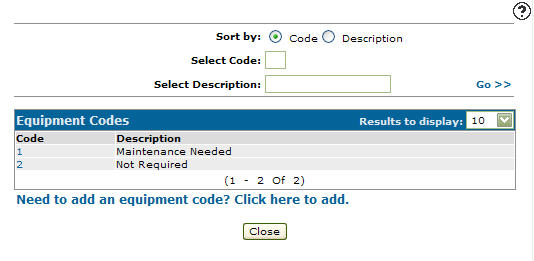
Equipment Codes screen
-
On the Equipment Codes screen, fill out the appropriate fields and click the Go >> link.
The Equipment Codes screen will refresh listing the generated search results.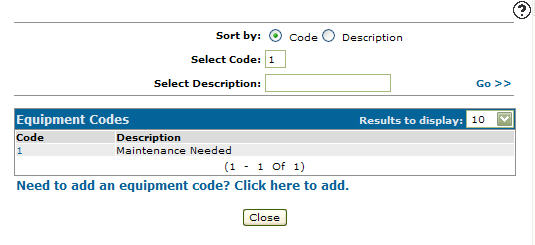
Equipment Codes screen
-
Click on a Code.
The Equipment Codes screen will appear.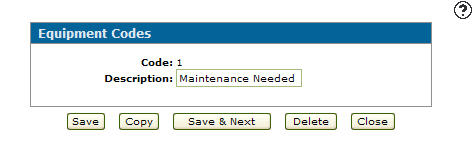
Equipment Codes screen
-
On the Equipment Codes screen, you may edit any of the available fields within the selected equipment code.
-
Click the Save button to save changes made to the equipment code.
- or -
Click the Save & Next button to save any changes made to the equipment code and continue to the next equipment code on the list.