
Updating General Ledger Account Balances
Running balancing reports throughout the day without first updating the General Ledger accounts results in a discrepancy between the balances that are displayed and the actual balances of the General Ledger accounts (since the accounts have not been updated with the transactions currently being entered in to the system).
As such, balancing reports in IntelliDealer should ideally be run first thing at the beginning of each business day after successfully completing the day end procedures for the previous business day. Doing so ensures that IntelliDealer displays the true transaction totals in your General Ledger accounts before you generate any new transactions.
Note: Update Account Balances totals general ledger account balances only through the Next Month End - Accounts Receivable date for the division. Use the Month-end Dates section on the Configuration > Miscellaneous > Other > System Settings screen to view that date. If the next Accounts Receivable month end date is earlier than the current calendar month, the balances on balancing screens reflect activity through that month end only. Journal entries dated after that month end remain in the system, but their amounts are not included in the updated general ledger totals until Accounts Receivable month end processing advances the next month end date.
To update the General Ledger accounts complete these steps:
-
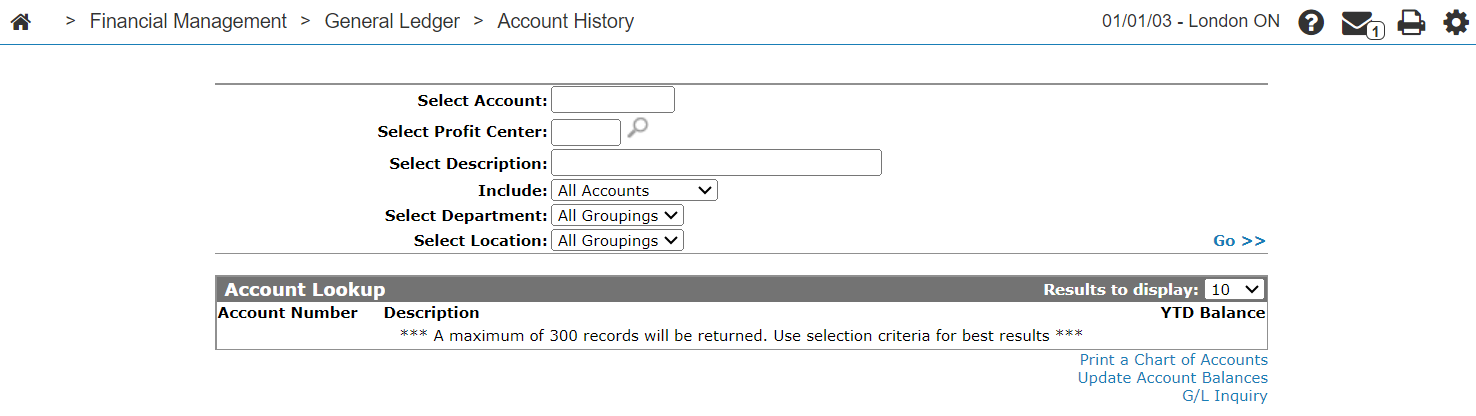
Navigate to Financial Management > General Ledger > Account History.
-
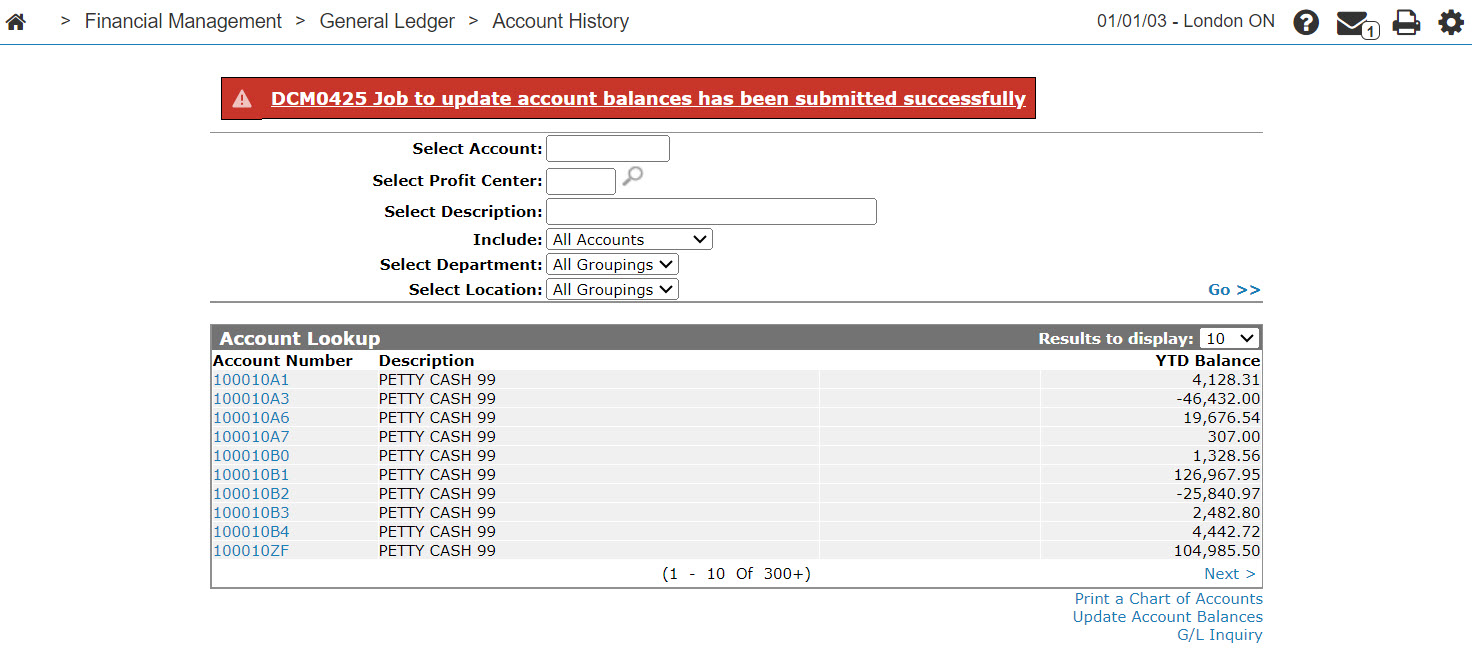
Click the Update Account Balances link.
Note: The Update Account Balances link only appears if the General Ledger requires an update.
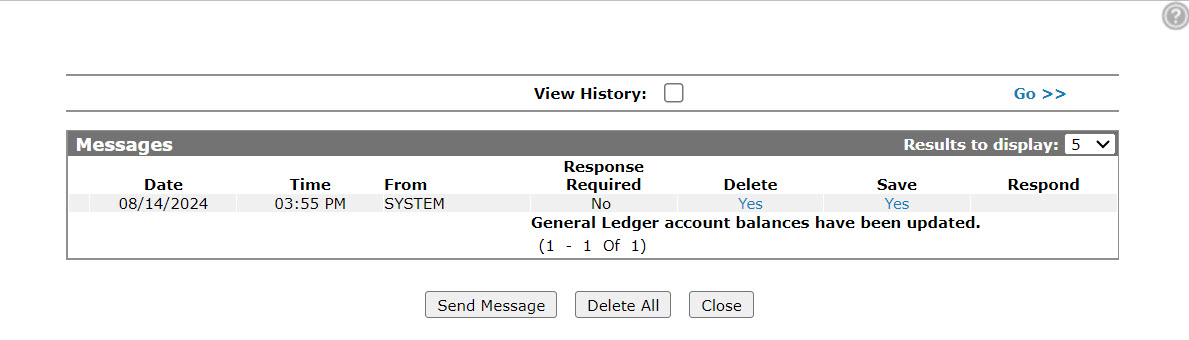
Once complete, a system message is sent confirming that the General Ledger account balances have been updated.
 The
Security: 602 Financial Management - General Ledger
Revision: 2026.10