
Add Highlighting/Change Highlighting - Parts Requisition Highlight
Use Parts Highlighting or Parts Requisition Highlighting to apply row highlighting to part numbers based on the criteria you select. Once configured, highlighting appears on transaction detail screens—not on the Executive Summary.
-
Rules on the Parts Highlighting screen apply to the Parts Invoicing Details tab.
-
Rules on the Parts Requisition Highlighting screen apply to the Work Order Parts Requisition Details tab.
You can specify the conditions to be highlighted and what colors to use. For example, you can highlight parts with negative on-hand quantities, those with no bin location, or parts that have had zero sales in the past twelve months. These conditions are highlighted by the colors you specify.
 Parts Row Highlighting Example on the Parts Invoicing Details tab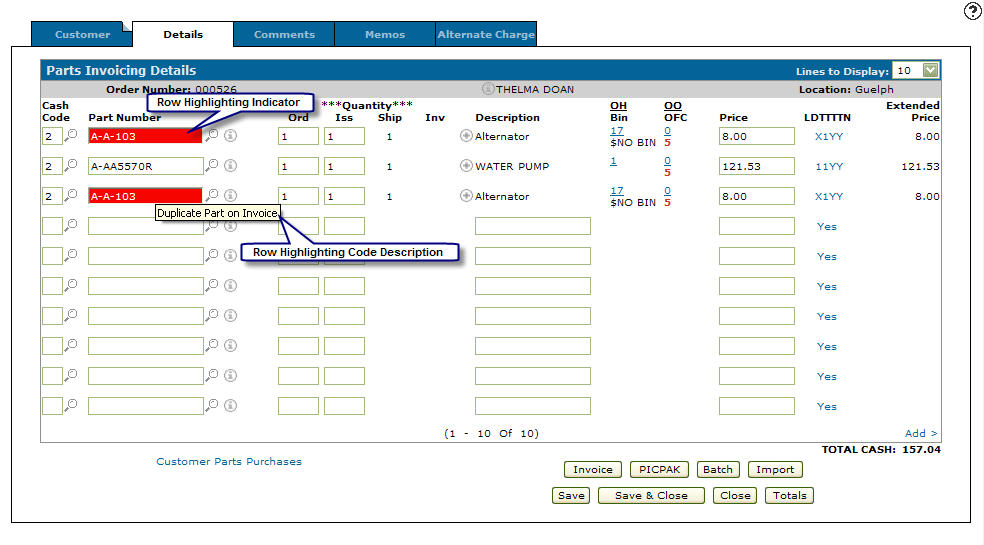
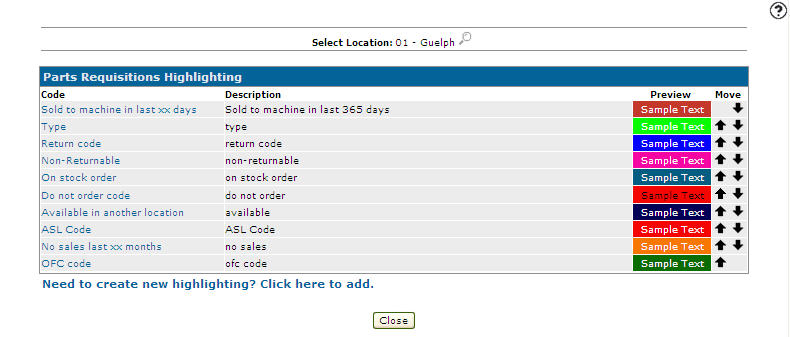
When multiple rules are configured, the system applies the first matching rule. Therefore, you should list the most important rules first. Use the Move buttons to arrange the list.
Also, do not define too many rules.
To open the Add Highlighting/Change Highlighting - Parts Requisition Highlighting screen, from anywhere IntelliDealer screen navigate to Configuration > Parts > General > Parts Requisition Highlighting.
Topics in this section are:
Sold to Machine in Last XX Days
When you configure Sold to Machine in Last XX Days, the system searches parts billing history for the work order unit serial number. To reduce processing time when opening parts requisitions, the system skips this lookup for certain serial numbers and stock numbers. Units with the following serial numbers are omitted from the Sold to Machine in Last XX Days check:
-
?
-
na
-
n/a
-
NA
-
N/A
-
DEFPART000000
-
NONJD00000000
Stock number ? is also omitted.
Use these values for internal units, miscellaneous stock, or placeholder equipment records that are not tied to a real machine. If a work order uses a real serial number on a non-equipment unit, parts requisitions can open slowly while the system searches billing history.
Note: DEFPART000000 and NONJD00000000 are serial numbers recognized by John Deere for certain parts warranty scenarios on non-Deere equipment. Dealers may need to retain these serial numbers for warranty submission even though they are excluded from the billing history lookup.
If the desired quantity of the part cannot be fulfilled, an "available in another location” message appears on the screen, otherwise this check is skipped.
Setting Up Parts Requisition Highlighting Criteria
-
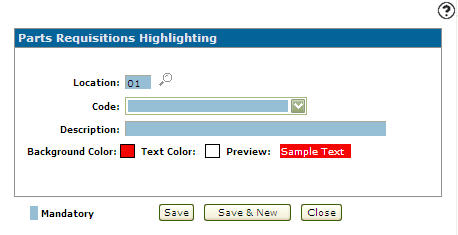
Navigate to Configuration > Parts > General > Parts Requisition Highlighting.
-
Click the Need to create new highlighting? Click here to add link.
-
Enter a Location - or - click the Search
 icon to search for and select a location from the Location Selection screen.
 -
Select a Code from the drop down list.
-
Enter a Description of the code.
The description entered appears when a user cursors over the part number.
-
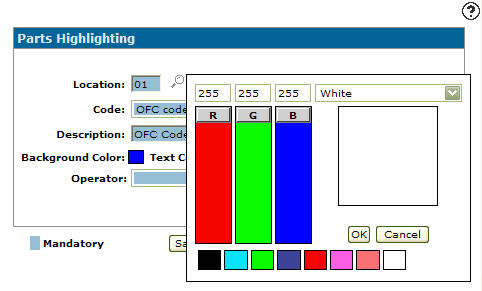
Click the Background Color box.
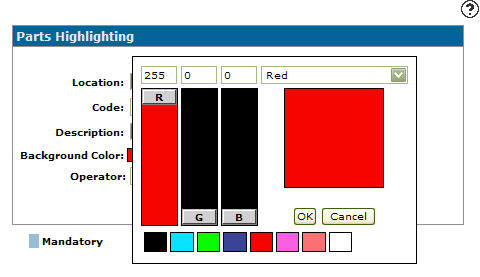
- Indicate the specific color you wish to use for the background color appearing behind the part number on the screen. You can:
Enter an RGB Value
Select a Color from the drop down list
Manipulate the RGB Color Slider
Select a Color box
-
Click the OK button once you have set the desired background color.
-
Click the Text Color box.
- Indicate the specific color you wish to use for the text color. You can:
Enter an RGB Value
Select a Color from the drop down list
Manipulate the RGB Color Slider
Select a Color box
-
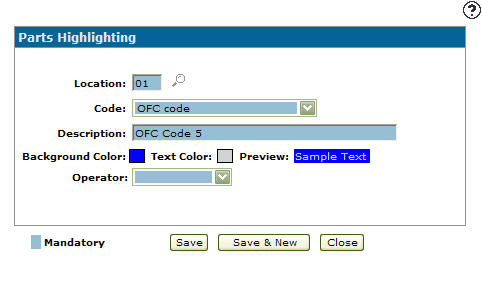
Click OK once you have set the desired text color.
-
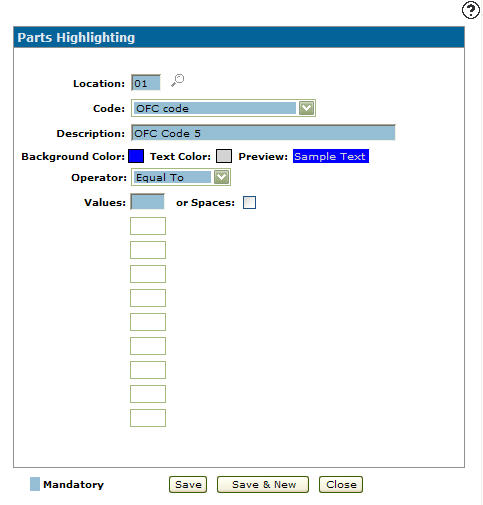
Select an Operator code.
The Operator field not appears for all Code selections.
-
Once an Operator code is selected from the drop down list a Values field appears.
The Values field does not appear for all Operator selections.
-
Enter a value in the Values field - or - select the or Spaces checkbox to include blank values for the field.
-
Click Save to save the new highlight criteria and return to the Add Highlighting - Parts Requisition Highlighting screen.
- or -
Click Save & New to save the new highlight criteria.The Add Highlighting - Parts Requisition Highlighting screen refreshes, allowing you to add another highlight criteria without closing the screen.
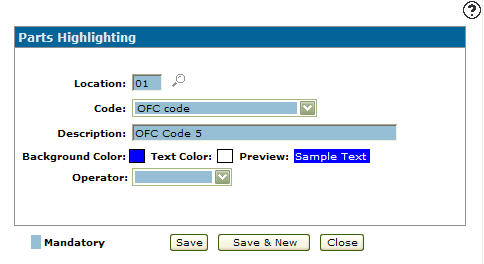
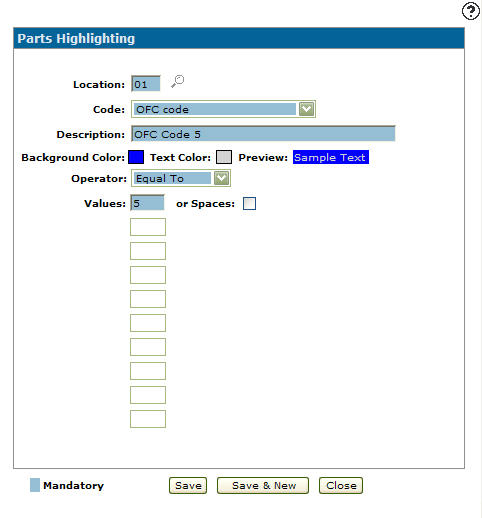
Screen Description
The fields appear on the Add Highlighting/Change Highlighting - Parts Requisition Highlighting screen:
| Field | Description |
|---|---|
| Location |
The location where the parts highlighting rule will apply. This field appears only by accessing the Add Highlighting - Parts Requisition Highlighting screen by clicking the Need to create new highlighting? Click here to add link. |
| Code | Indicates under what circumstance the system will apply row highlighting to a part that falling under this circumstance within the parts system (e.g. Do Not Order code). |
| Description | A brief description outlining the function of the code that will appear when a user cursors over the part number. |
| Background Color | The background color that appears behind the part number on the screen, when the criteria is met. |
| Text Color | The color of the text that appears on the screen, when the criteria is met. |
| Preview | Displays a preview of what the background and text color selected will look like on screen. |
| Operator |
Indicates the selection operator code (e.g. equal to, greater than, less than or not equal to). Which applies to the value entered. The Operator field will not appear for all Code selections. |
| Values | The value or value range which the operator selected will act on (e.g. greater than 5). |
The Parts Row Highlighting codes can be set up for:
| Code | Description |
|---|---|
| ASL Code | Deprecated. Parts with a certain ASL code can be flagged. |
| No sales Last XX Months | Parts with no sales within the last XX (specified) number of full months (plus the current month). |
| Sold to Machine in Last XX Days |
Parts sold to the work order unit serial number within the last XX (specified) number of days. The system searches parts billing history when the requisition opens. Vendor G/L parts, wear parts, and internal-only units are omitted. See Sold to Machine in Last XX Days for excluded serial numbers, stock numbers, and performance considerations. |
| Non-Returnable | Parts with a Return code equal to N (non-returnable), on the Parts Profile tab. |
| Return Code | Parts with a certain Return code can be flagged. |
| Type | Parts with a certain Type code can be flagged. |
| OFC Code | Parts with a certain OFC code can be flagged. |
| Duplicate Part on Invoice | Parts entered more than once of the same invoice. |
| On Stock Order | Parts on an existing stock order. |
| Available in Another Location | Parts that are available (in stock) in another branch location. |
| Do Not Order Code | Parts with a Do Not Order Code equal to D, on the Ordering Information tab. |
| Reman Part Number | Parts that are a remanufactured part, cataloged in the system and linked to the core part number (new/base part) available in the system. |
Use these buttons to complete your work on the Add Highlighting/Change Highlighting - Parts Requisition Highlighting screen are:
| Button | Function |
|---|---|
| Save | Saves changes made to the Parts Requisition Highlighting screen. |
| Copy |
Copies the selected highlight criteria. This button appears only by accessing the Change Highlighting - Part Requisition Highlighting screen by clicking on a Code. |
| Save & New |
Saves a newly added highlight criteria and refreshes the Add Highlighting - Parts Requisition Highlighting screen, allowing you to add another highlight criteria without closing the screen. This button appears only by accessing the Add Highlighting - Parts Requisition Highlighting screen by clicking the Need to create new highlighting? Click here to add link. |
| Save & Next |
Allows you to save any edits/changes made to the selected highlight criteria and scroll through to the next highlight criteria in the list to apply any edits/changes. This button appears only by accessing the Change Highlighting - Part Requisition Highlighting screen by clicking on a Code. |
| Delete |
Deletes the selected highlight criteria. This button appears only by accessing the Change Highlighting - Part Requisition Highlighting screen by clicking on a Code. |
| Close | Closes the Parts Requisition Highlighting screen without saving and returns to the Parts Requisition Highlighting screen. |