
Update Supplier Invoice Amount - Choose Voucher Batch
The Update Supplier Invoice Amount screen (formerly called Equipment Costing Update) automatically updates the original cost of a stock unit. This function creates a zero voucher with the equipment cost information loaded in from the Equipment Order header file (POEOH) that comes from the Purchase Order system. Essentially, it creates the same distribution line as would be created when manually selecting a stock number from the Purchase Order tab on a voucher. The voucher is then added to a batch which can be processed through a normal A/P update. As the costing is pulled from an Equipment Order, a Purchase Order for the unit is required for the interface to function.
Use the Choose Voucher Batch screen to create accounts payable vouchers. Voucher Batches that have already been created are listed here. For more information see Configuration: Equipment Profile Update Supplier Invoice Amount.
To open the Choose Voucher Batch screen, on the Equipment Profile screen, under the Machine Quick Links section, click the Update Supplier Invoice Amount button.
Topics in this section are:
Updating the Original Cost on a Unit
-
Navigate to the Equipment Profile screen for the unit.
If the unit fulfills these conditions, you will see the Update Supplier Invoice Amount button:
-
User has the appropriate security settings (see above)
-
Cannot be status Invoiced
-
Original cost must be less than or equal to $0.01
-
There must not be any records in Voucher Distribution that match the stock number
-
-
Click the Update Supplier Invoice Amount button.
-
Select the batch under you want the voucher to be created.
You may choose one of the batches in the list of your user batches, or to create a new batch, click the New Batch button. If you choose to create a new batch, you may:
-
enter a Batch Name and G/L Date which creates a new voucher batch with your requested batch name and G/L date
-
leave the fields blank which generates a new batch with the naming convention OC + Location + Month + Day
-
 The batch selection window opens.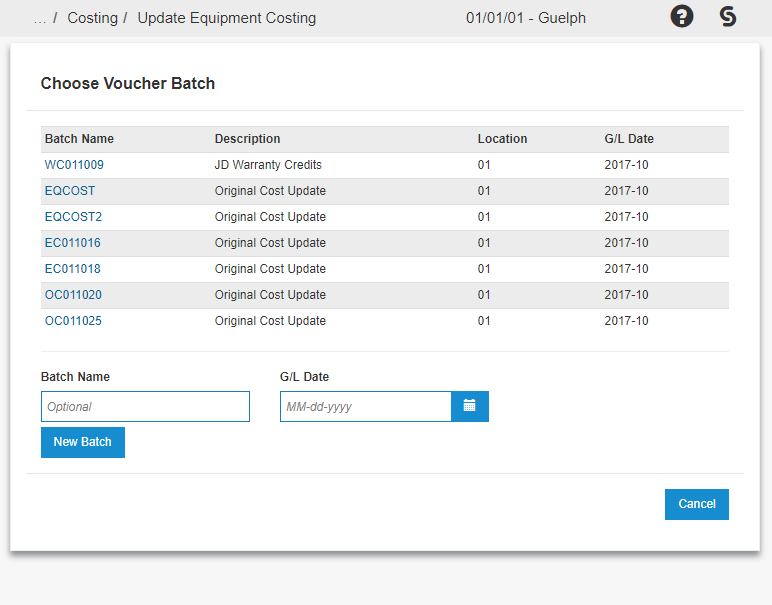
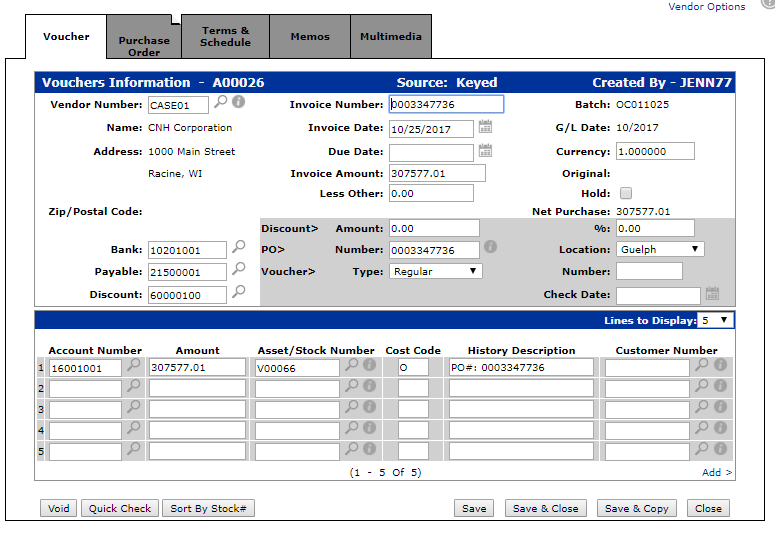
If voucher creation was successful, the window automatically closes. You can then navigate to the Vouchers screen in Accounts Payable and view your voucher in the batch selected:
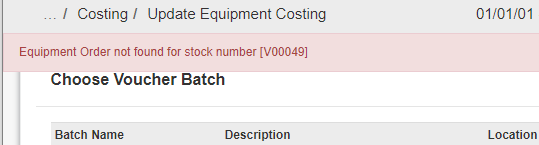
If voucher creation was not successful, you will see an error message at the top of the window which remains open.
Screen Description
The fields on the Choose Voucher Batch screen are:
| Field | Description |
|---|---|
| Batch Name | The number of the batch created. |
| Description | A brief description of the batch. |
| Location | The location where the batch was originally created. |
| G/L Date | The G/L date (MM/DD/YYYY) when the voucher is to be expensed. |
Use the Batch Name and G/L Date text fields when creating a new batch.

Data is pulled from the Equipment Order record to update pricing on the unit select. A matching Stock Number and Serial Number MUST exist before using this interface.
Data Source: APBAT
Security: 800 - Equipment Profile, Update Supplier Invoice Amount
Revision: 2026.05