
Accounts Payable: Komatsu Invoice
Use the Komatsu ASN Invoices screen to download Advance Ship Notice (ASN) invoices for import into the IntelliDealer Vouchers system. Invoices are downloaded and imported automatically during the nightly process and are then available in the Komatsu ASN Invoices listing screen. This screen displays invoice details and provides the option to create a voucher directly from the imported invoice.
Prerequisites: Configure the interface at Configuration > Interfaces > Komatsu > ASN Invoice Import. See Configuration: ASN Invoice Import.
To access the Komatsu ASN Invoices screen, navigate to Financial Managements > Accounts Payable > Komatsu ASN Invoices.
 Komatsu ASN Invoices screen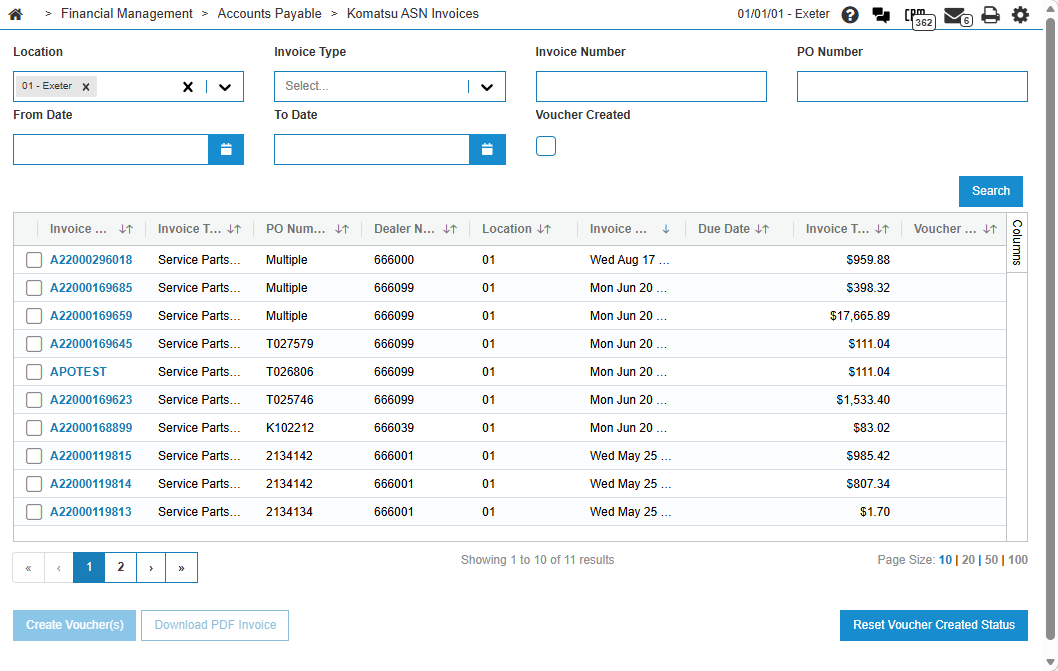
The filter fields on the Komatsu ASN Invoices screen are:
| Field | Description |
|---|---|
| Location | Search for invoices associated with a particular location. This field is generated by mapping the Dealer Number provided on the invoice by Komatsu to a Dealer Number configured on the Vendor Profile. |
| Invoice Type | Search for invoices based on the invoice type. This type is determined by the first character in the invoice number. |
| Invoice Number | Search for invoices by invoice number. |
|
From Date To Date |
Search for invoices within the provided date range. |
| Voucher Created | Search for only invoices that have already had a voucher created. |
The fields on the Komatsu ASN Invoices screen are:
| Field | Description |
|---|---|
| Invoice Number | The invoice's number |
| Invoice Type | The type of invoice. |
| PO Number | The purchase order number, or Multiple if there is more than one associated with this invoice. |
| Dealer Number | The dealer number associated with this invoice. |
| Location | The location. |
| Invoice Date | The date of the invoice. |
| Due Date | The date the invoice is due. |
| Invoice Total | The total amount of the invoice. |
| Voucher Created | Indicates whether a voucher has been created for this invoice. |
Click Create Voucher(s) to launch the batch selection screen. Select an existing Voucher Batch by clicking the Batch Name in the grid or create a new batch by providing a Batch Name and an optional G/L Date. If successful, the system generates a message that the voucher has been created successfully. You can now view the voucher in its associated Voucher Batch. See Vouchers Information.
Select an invoice and click Download PDF Invoice to download a PDF of the invoice, if one is available.
Click Reset Voucher Created Status to reset the Voucher Created status on an invoice. This may be necessary if a voucher must be voided and recreated.
Invoice Details
Click the Invoice Number to open a details screen which contains additional details about invoice lines and line pricing information.
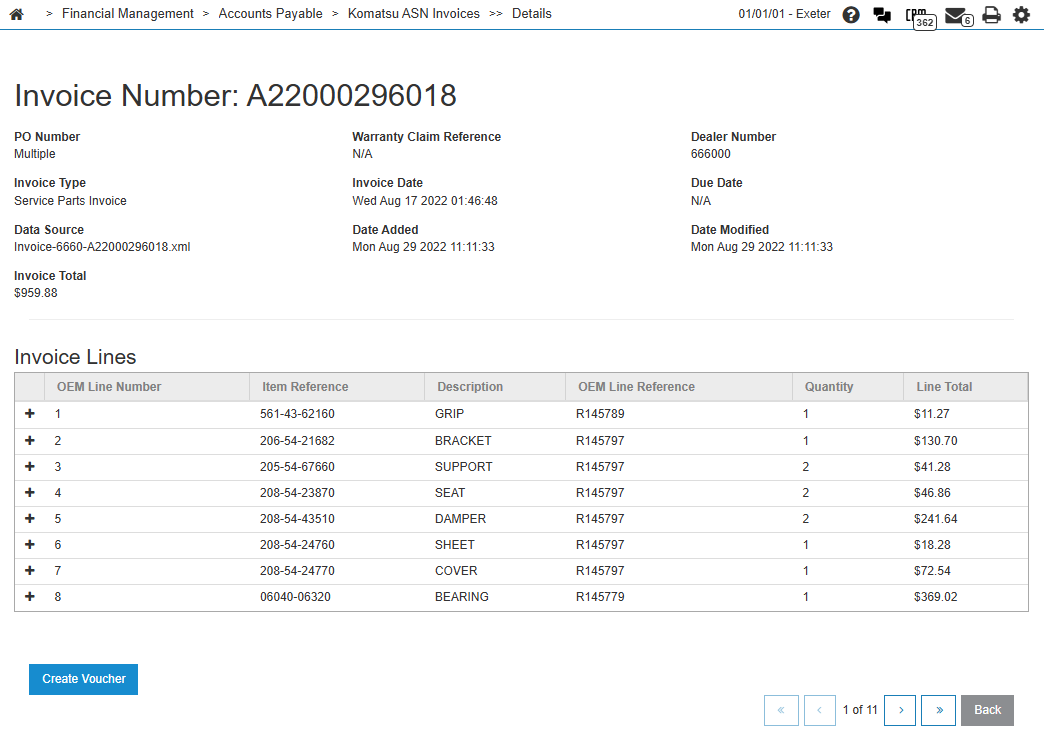
Click Create Voucher to launch the batch selection screen.