
Invoice History Listing
The Invoice History listing screen allows you to search for and view an invoice history in the billing history. The amount and kind of invoice history displayed is determined by the retention months specified in the Retention History configuration, with a maximum retention period of 99 months.
You can access the Invoice History screen from these locations:
-
Financial Management > Accounts Receivable > Invoice History
-
Product Support > Equipment > Invoice History
-
Product Support > Service > Invoice History
-
Product Support > Parts > Invoice History
-
Product Support > Rental > Invoice History
 Invoice History screen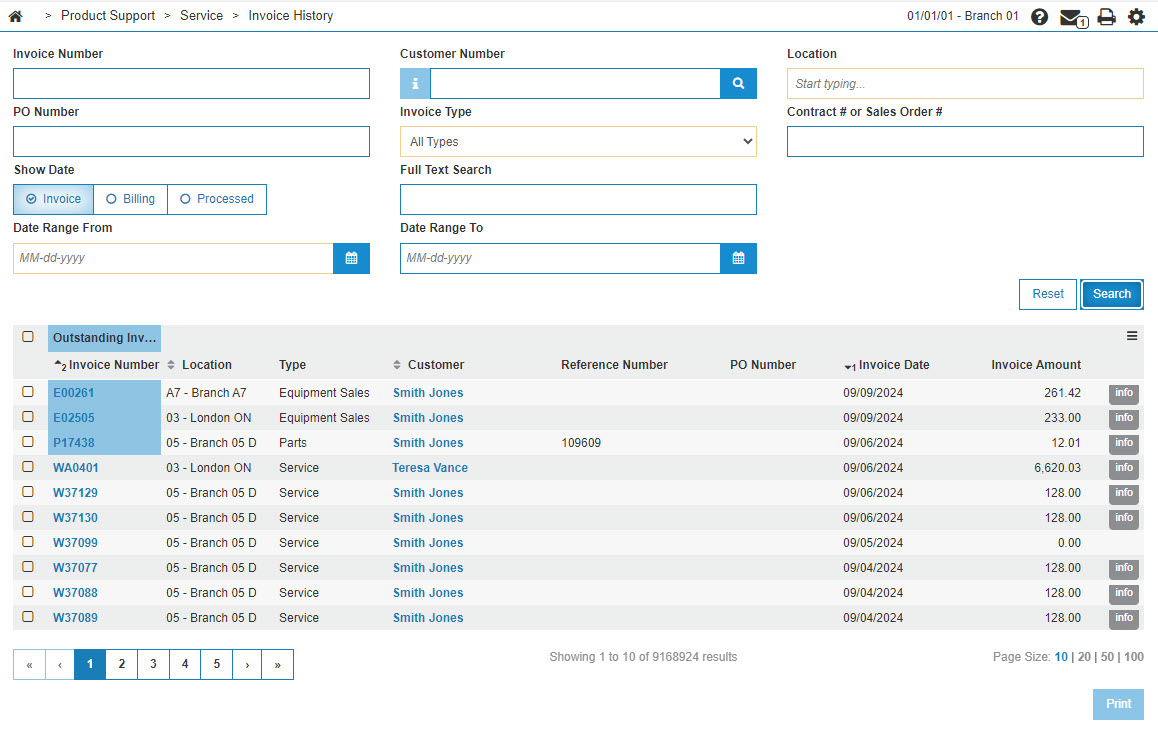
Searching Invoice History
-
If you enter an Invoice Number, executing a search also scans Integrated Rental Details for a matching invoiceNumber using a starts-with search.
-
If you enter a Contract Number, executing a search also scans:
-
Invoice History table for string constant $GB + contractNumber
-
Integrated Rental Details table for matching contractNumber using a starts-with search
-
-
If you enter your search into the Full Text Search, executing a search scans the invoice history header (invoice number, contract number, PO number, and customer name), Invoice History Details (INVHD) for matching line detail text, and Integrated Rental Details (INVHIR) for a matching Integrated Rental invoice number.
Screen Description
The fields you can searched on the Invoice History listing screen are:
| Field | Description |
|---|---|
| Invoice Number |
Search for history by entering an invoice number. If the invoice is outstanding the invoice number field is highlighted. |
| PO Number | Search for history by entering a purchase order number. |
| Show Date |
Search for history by selecting a date type:
|
| Date Range From/To |
Narrow the history search by selecting a specific date range. Note: The date range field is ignored if anything is entered in the Invoice Number, PO Number, Contract # or Sales Order # selection fields. |
| Customer Number | Search for history by entering a customer number. |
| Invoice Type | Search for history by selecting an invoice type from the drop down list. |
| Full Text Search | Search for an invoice by entering any string that might appear on the invoice history header, in the invoice image line detail (INVHD), or in the Integrated Rental invoice number (INVHIR). For example, you may enter a customer name, stock number, PO number, or other text captured on the invoice image. |
| Location | Search for history by entering the branch the invoice was billed in. |
| Contract # or Sales Order # | Search for history by entering a contract or sales order number. |
The fields on the Invoice History listing screen are:
| Field | Description |
|---|---|
| Invoice Number |
The invoice number or system reference number. The first digit of an invoice indicates the system from which the invoice was generated, as specified in the General Invoice First Digit . The Invoice 1st Digits are configured by location and can include special characters, any number from 0-9 and any letter from A-Z, except for Q, L and R which are reserved for sales order invoice values. |
| Location | The location where the invoice was processed. |
| Type | The invoice type. |
| Customer Name | The customer's name. |
| Reference Number | The invoice reference number. |
| PO Number | The purchase order number. |
| Invoice Date | The date the transaction was invoiced. |
| Invoice Amount |
The total charge for all billable items on the invoice. This amount includes the Final Customer Charge (FC), Final Warranty Charge (FW), and Final Internal Charge (FI), if they are applicable. If these additional charges are present a 'Info' tool tip appears next to the invoice amount that breaks out each charge as they are added to the invoice amount. |
Select the checkbox next to the desired Invoice Number(s) to choose it for printing or e-mailing.
Click on an Invoice Number to preview the invoice details.
Data Source: INVHH, INVHD, INVHIR
Security Switch: 600 Accounts Receivable - Access Invoice History
Revision: 2026.08