
Invoice Detail
The Invoice Detail screen displays a print preview of an invoice.
The Invoice Detail screen can be accessed from any Invoice History listing by clicking on an Invoice Number.
Topics in this section are:
Finding a Specific Invoice
Prerequisites: To see associated OneSpan documents, users must be configured with security access via these systems:
-
602 – General Ledger: Access General Invoicing Multimedia
-
802 – Equipment Invoicing: Access Multimedia
-
810 – Work Orders: Access Multimedia
-
823 – Parts Invoicing: Access Multimedia
-
840 - Rental Counter: Access Multimedia
-
From any IntelliDealer screen, navigate to the Invoice History screen from any of these locations:
-
Financial Management > Accounts Receivable > Invoice History
-
Product Support > Equipment > Invoice History
-
Product Support > Service > Invoice History
-
Product Support > Parts > Invoice History
-
Product Support > Rental > Invoice History
-
-
On the Invoice History screen, enter the search criteria and click the Go>> link to locate the desired invoice.
 Updated Invoice History screen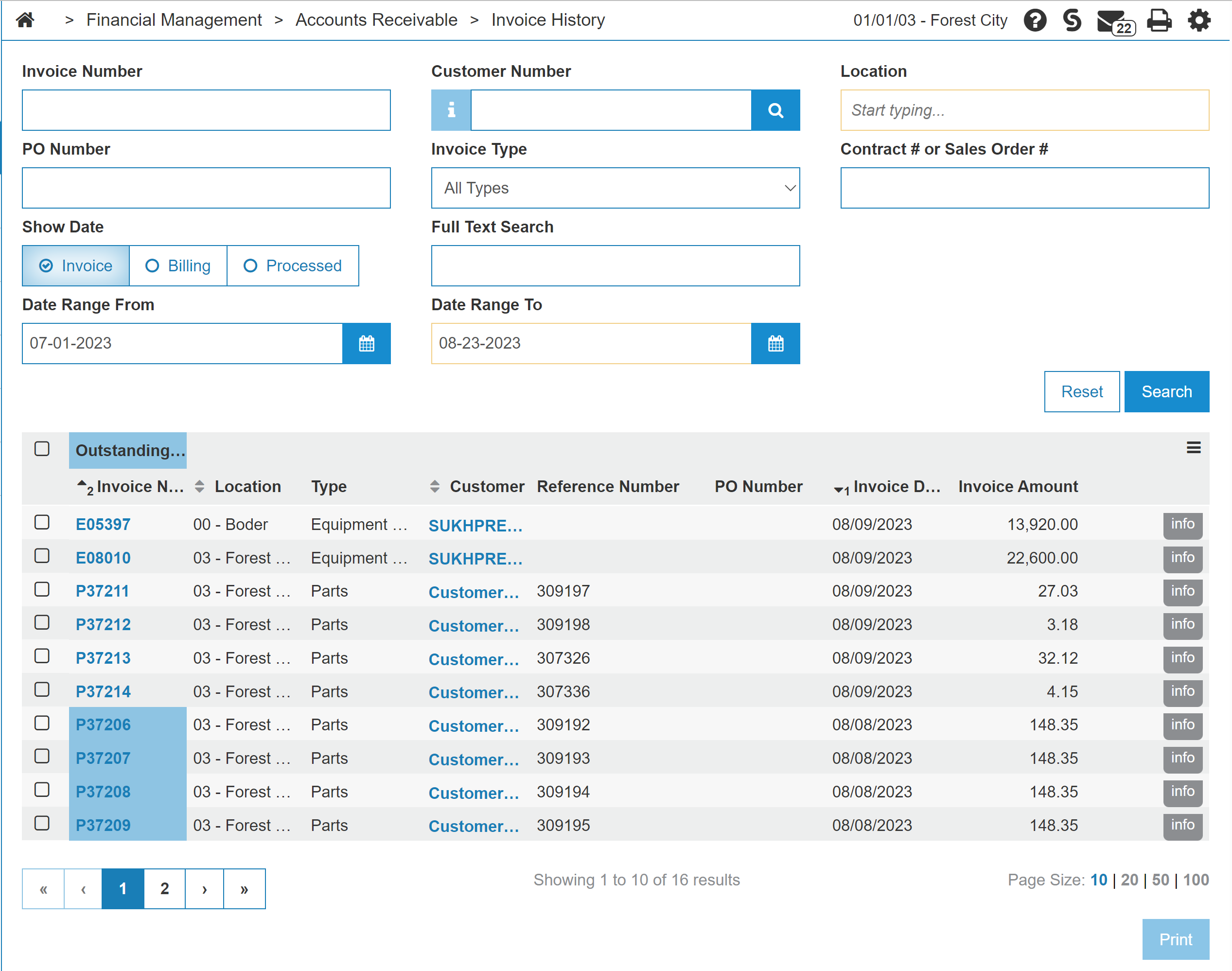
Viewing G/L Details of an Invoice
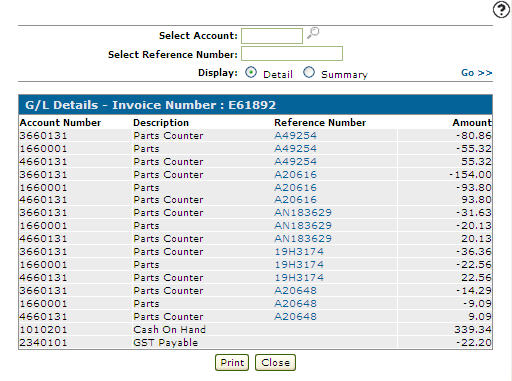
The G/L Details screen of an invoice allows you to view general ledger details on the selected invoice.
Prerequisites:
-
user must have 995 User Security - Allow Access To Invoice History G/L Details enabled.
-
search for a specific invoice. See Finding a Specific Invoice.
-
Click on an Invoice Number.
The Invoice appears. Note that the buttons available on the invoice depend on whether VESign is enabled.
-
Click the G/L Details button.
The G/L Details screen appears.
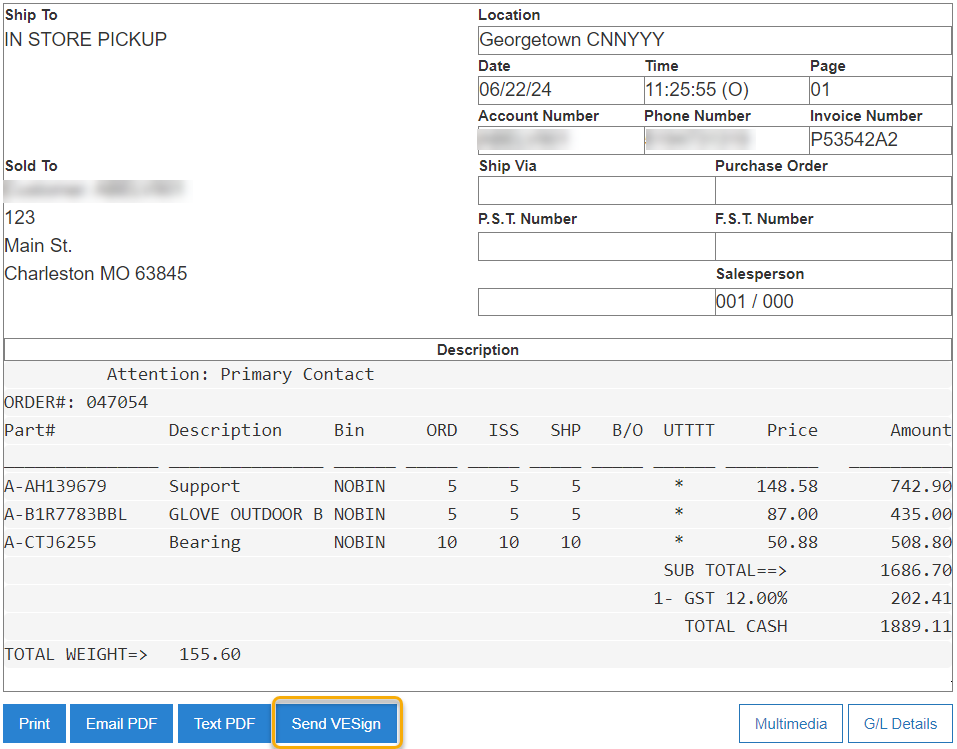
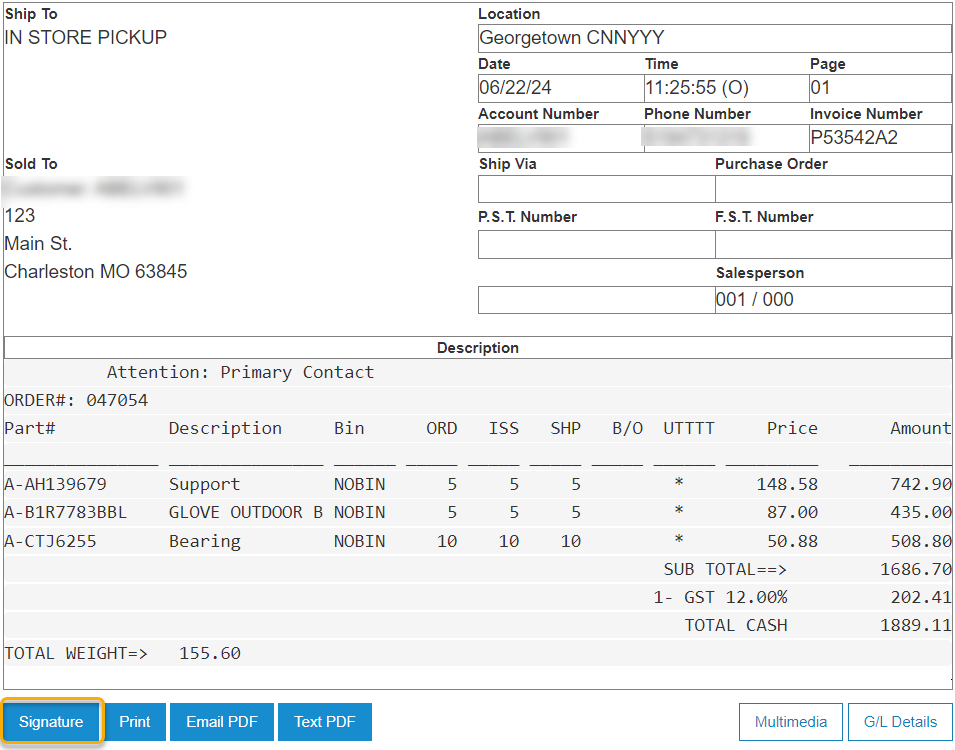
Screen Description
The fields displayed on the Invoice Detail are:
| Field | Description |
|---|---|
| Ship To |
The address the invoice is shipped to. If this address is the same as the one that appears in the Sold To field, a message stating 'SAME AS BELOW' is displayed. For miscellaneous customers, the Ship To area displays IN STORE PICKUP. The name and address entered on the transaction Ship To fields appear in the Sold To area instead. See Miscellaneous Customer on the Customer Profile screen. |
| Sold To |
The address the invoice has been charged to. For miscellaneous customers, this area displays the name and address entered on the transaction Ship To fields. See Miscellaneous Customer. |
| Location | The location for the invoice. |
| Date | The day/month/year the invoice was completed. |
| Time |
The time the invoice was completed. To the right of the time may be displayed:
|
| Page | The number of pages in the invoice. |
| Account Number | The G/L account number. |
| Phone Number | The phone number recorded on the invoice. |
| Invoice Number | The number assigned to the invoice. |
| Ship Via | The carrier used to ship the invoiced unit. |
| Purchase Order | The purchase order number applied to the invoice. |
| P.S.T. Number | The Provincial Service Tax number on the invoice. |
| F.S.T. Number | The Federal Sales Tax number on the invoice. |
| Salesperson | The sales representative assigned to the invoice. |
The Print button queues the invoice for printing.
The E-mail PDF button sends a copy of the invoice as a PDF attachment to the desired email address.
The Text PDF button sends a copy of the invoice as a PDF attachment to a text message.
The Multimedia button opens the Multimedia screen.
The Parts & Labor button opens the Parts & Labor Details screen.
The G/L Details button opens the G/L Details screen.
The Work Order Preview button generates a preview of the Work Order.
The Send VESign button brings up the VESign Signing Details screen so you can send the document to the customer.
Security Switch: 600 Accounts Receivable - Access Invoice History,
995 User Security - Allow Access To Invoice History G/L Details
Revision: 2026.09