
John Deere: Warranty Credits Listing
Use the John Deere Warranty Credits listing to review warranty credit records, import approved credit memos from John Deere, and create Accounts Payable vouchers. IntelliDealer creates a warranty credits record when you submit a claim from a work order. A scheduled task downloads approved credits from John Deere approximately every eight hours. You use this listing to match returned credits to submitted claims and generate vouchers.
Prerequisites: License PFW.6241 - John Deere Warranty Credits and complete Configuration > Interfaces > John Deere > Warranty (Warranty Credits tab). See also: John Deere Credentials.
Topics in this section are:
Setup Requirements
PFW.6241 - John Deere Warranty Credits must be licensed to open the listing, import credits, and create vouchers.
Configure default vendors, G/L accounts, and voucher options on the Warranty Credits tab of Configuration > Interfaces > John Deere > Warranty.
To create vouchers from the listing, assign security in system 601 - Accounts Payable: Other - Allow JD Warranty Credits Voucher Creation.
Listing Columns
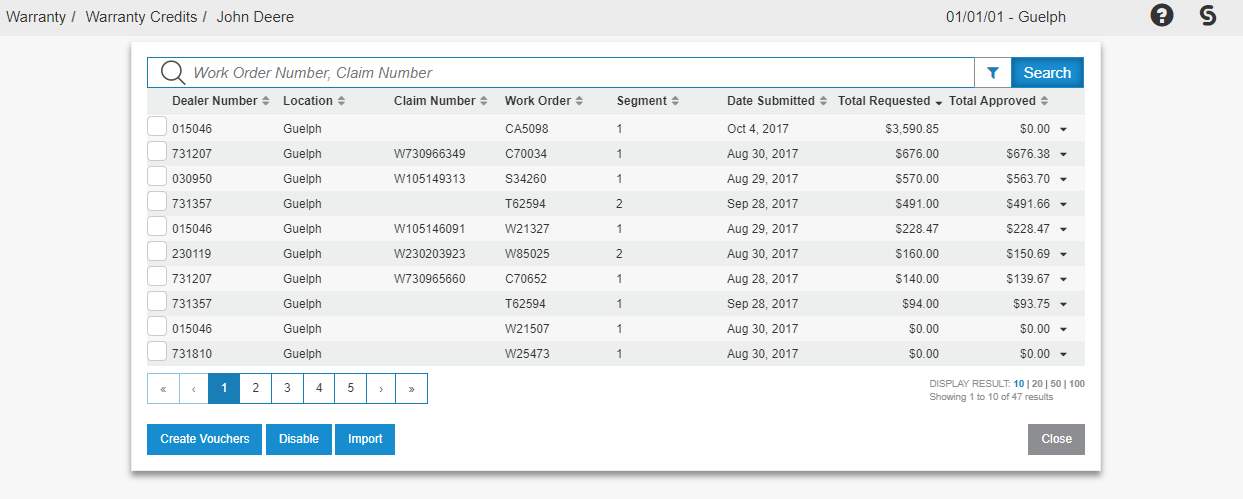
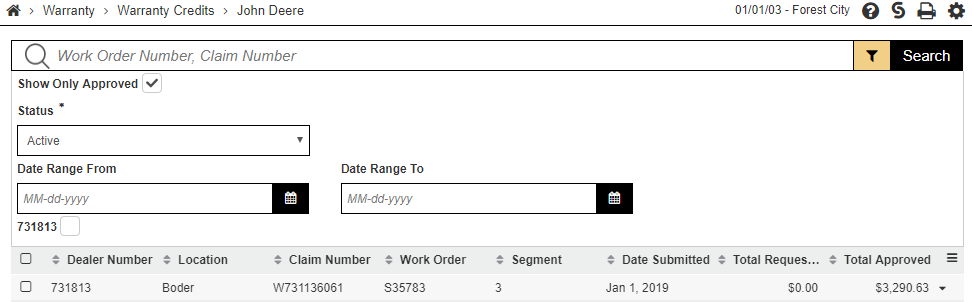
The main grid on the John Deere Warranty Credits listing includes:
| Column | Description |
|---|---|
| Dealer Number | The John Deere dealer number for the credit. |
| Location | The IntelliDealer location associated with the credit. |
| Claim Number | The John Deere warranty claim number. |
| Work Order | The work order number tied to the submitted claim. |
| Segment | The work order segment number for the claim. |
| Submitted | The date the claim was submitted to John Deere. |
| Returned | The date the approved credit was returned from John Deere. |
| Total Requested | The total amount requested on the claim. |
| Total Approved | The total amount approved by John Deere. |
Using the Warranty Credits Listing
-
Open Financial Management > Accounts Payable > Vouchers.
The John Deere Warranty Credits link appears below the Outstanding Batches table:
-
Click the link to open the warranty credits listing:
- If the Create Vouchers button does not appear, assign security Other - Allow JD Warranty Credits Voucher Creation (see Setup Requirements).
- By default, the list shows active warranty credits. To hide credits without removing them from the database, select the rows, then click Disable.
-
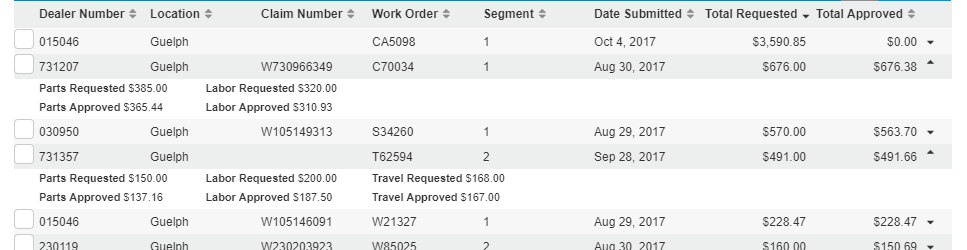
Click the expand control on the right side of a row to view part, labor, travel, other, and sales tax requested and approved amounts:
A section appears only when at least one requested or approved amount in that category is non-zero.
-
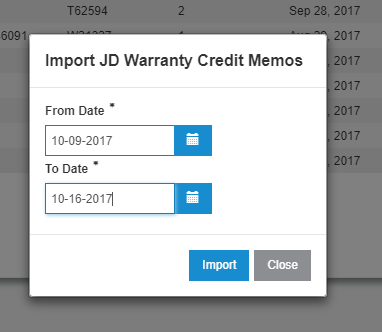
The scheduled task downloads approved warranty credits from John Deere. To import manually, click Import and specify the date range (and dealer where prompted):
Import retrieves warranty credit information for claims already submitted to John Deere after the dealership started using the John Deere Warranty Credits interface.
-
Click Import Single to import one claim by dealer, work order number, and segment.
-
Use the filter icon on the right side of the search bar to refine the list:
- Use the search bar to find a warranty credit by work order number or claim number.
- Use the dealer filter to limit rows to selected dealer codes. The filter lists dealer codes that appear on downloaded warranty credits.
- Use the location filter to limit rows to selected locations.
- By default, Show Only Approved is selected so only credits approved by John Deere appear. Clear the check box to include claims that are submitted but not yet returned.
- Use the submitted date range to limit rows by the date the claim was submitted.
- Use the returned date range to limit rows by the date the credit was returned.
-
Set the status filter to Disabled to work with deactivated warranty credits. Select rows and click Enable to reactivate them:
-
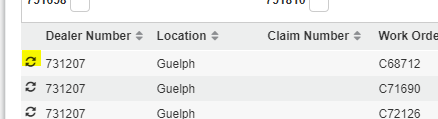
Select the warranty credits to include, then click Create Vouchers.
-
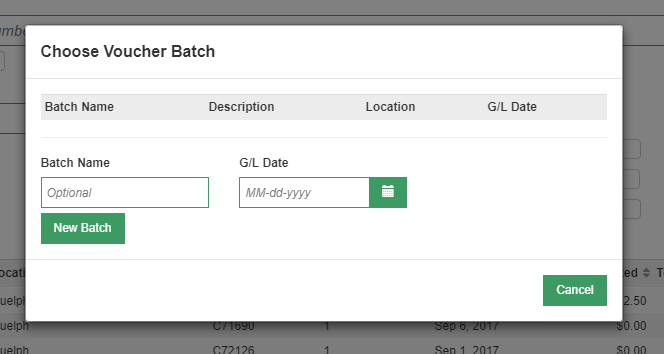
The batch selection screen opens:
- Choose an existing batch or create a new batch.
- Batches in the list belong to the current user. Click a batch name to add vouchers to that batch.
- To create a batch, enter a name and G/L date and click New Batch. If those fields are blank, IntelliDealer generates values. Generated batch names use the format WC + branch + month + day.
-
After IntelliDealer creates the vouchers, open them from the batch selection screen like any other voucher.
If a message indicates that a dealer number was not found, verify Warranty Credits configuration on Configuration > Interfaces > John Deere > Warranty so each dealer has the required accounts.
-
Run Voucher Update to post the voucher to the G/L and update the sub-ledger or A/R, depending on which process the dealership uses for warranty claims and credits.
-
In Subledger, or in Accounts Receivable Cash Receipts, match and clear the related warranty credit and claim entries.
 John Deere Warranty Credits link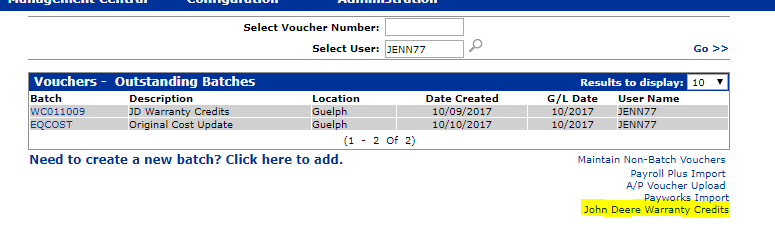
Feature: PFW.6241 - John Deere Warranty Credits
Security: 601 - Accounts Payable; Other - Allow JD Warranty Credits Voucher Creation (create vouchers)
Revision: 2026.08