
Employee Certifications
Use the Employee Certifications screen to view a technician's certifications.
The Employee Certifications screen can be accessed by clicking on the Certification Lookup icon next to an employee or technician name throughout the system.
Topics in this section are:
Viewing a Technician's Certifications From the Supervisor Menu
-
Navigate to Product Support > Service > Supervisor.
-
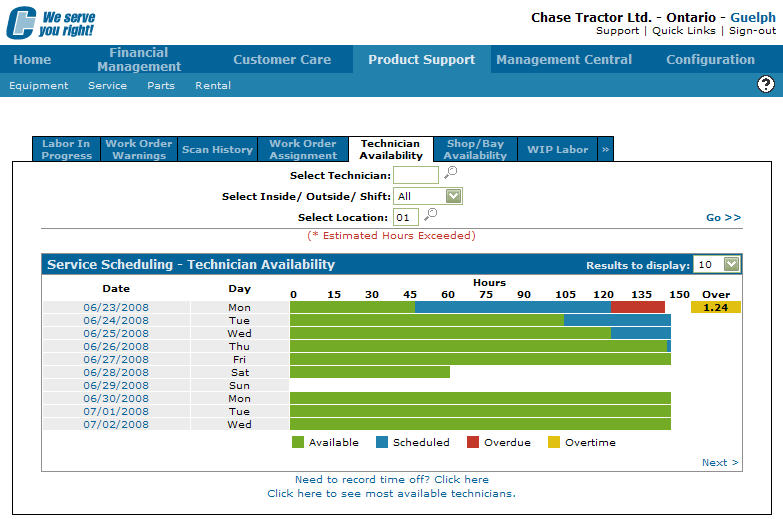
Click the Technician Availability tab.
-
Select a date on the Date field.
-
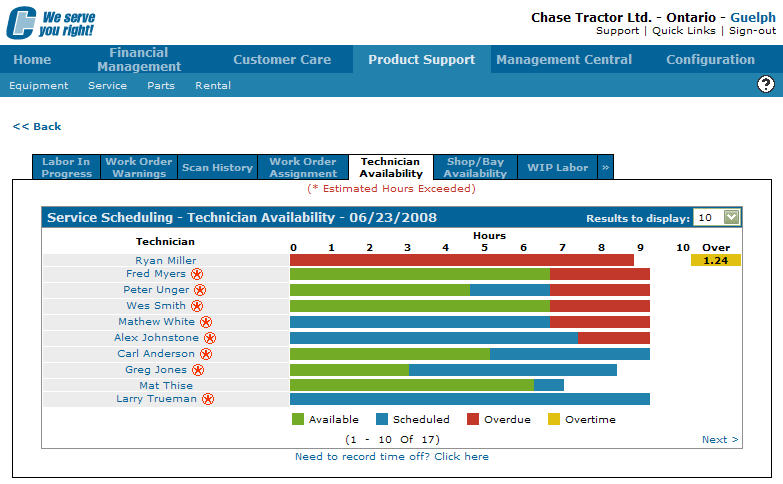
Click the Certification Lookup
 icon next to a technician's name.
 -
Click the certification number.
The Employee Certifications screen appears, displaying more detail on the technician's certification.
 The
The 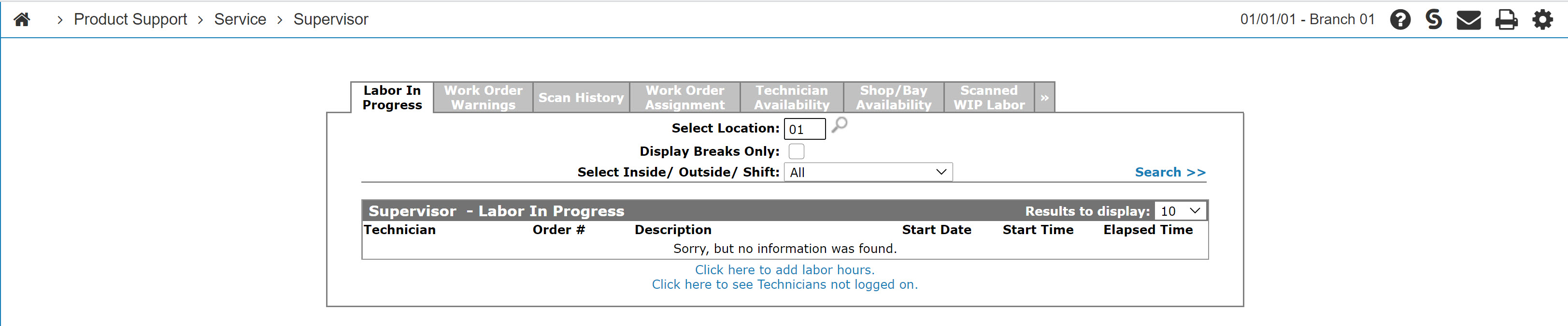

Screen Description
The fields on the Employee Certifications screen are:
| Field | Description |
|---|---|
| Certification Number | The technician's certification number received after successful completion of the course. |
| Product | The product the technician is certified on after the successful completion of the certification course. |
| Model | The model number the certification course covered. |
Click Close to complete your work on the Employee Certifications screen.