
Use the Supervisor Labor in Progress tab to view labor in progress, add more labor hours to a work order, or see technicians not logged in. Information from this screen is also displayed in the MobleTech menu of the ID MobileAccess application.
To open the Supervisor Labor in Progress tab, from anywhere within IntelliDealer navigate to Product Support > Service > Supervisor .
 Supervisor Labor in Progress tab
Topics in this section are:
Update a Work Order While Logged into the Supervisor Menu
-
From the Service List, click the Supervisor link.
The Supervisor Labor in Progresstab will appear.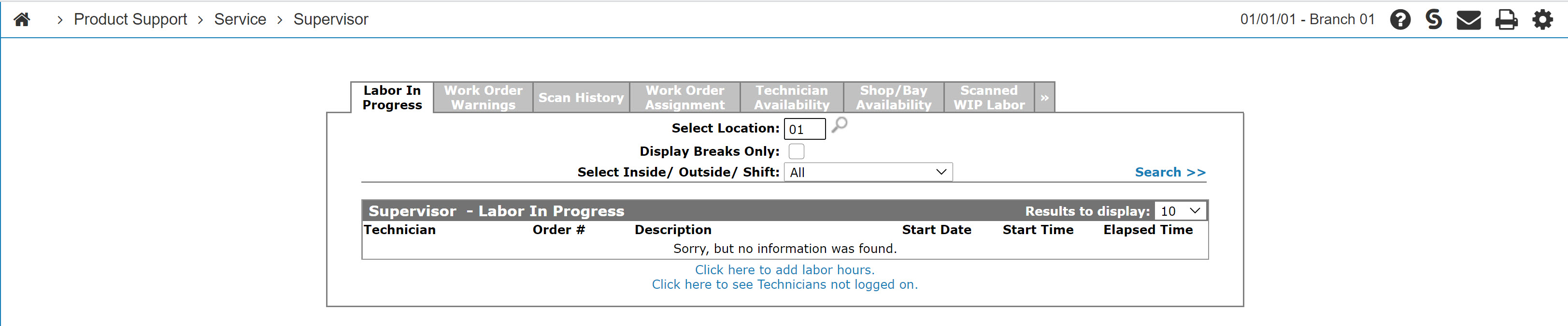
Supervisor Labor in Progress tab
-
On the Supervisor Labor in Progress tab, click on the Shop/Bay Availability tab.
The Service Scheduling - Shop/Bay Availability tab will appear.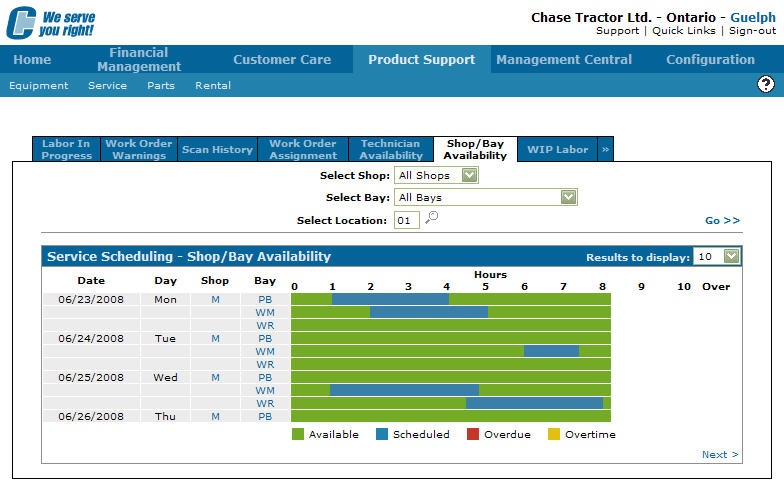
Service Scheduling - Shop/Bay Availability tab
-
On the Service Scheduling - Shop/Bay Availability tab, select a shop from the Select Shop drop down list.
-
Select a bay from the Select Bay drop down list.
-
Enter a branch Location.
- or -
Click on the Search icon and select a branch location from the Location Selection screen.
Location Selection screen
-
On the Shop/Bay Availability tab, click on the Go>> link to generate the search results.
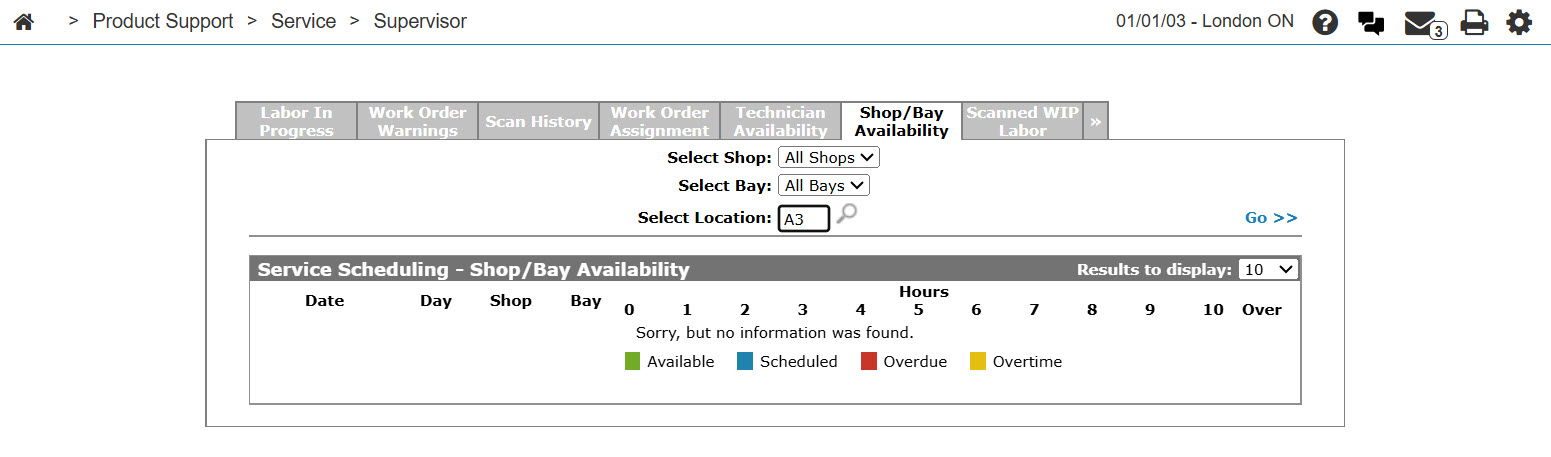
Updated Service Scheduling - Shop/Bay Availability tab
-
Click on a shop code on the Shop field.
The Scheduled Work Orders - Shop tab will appear.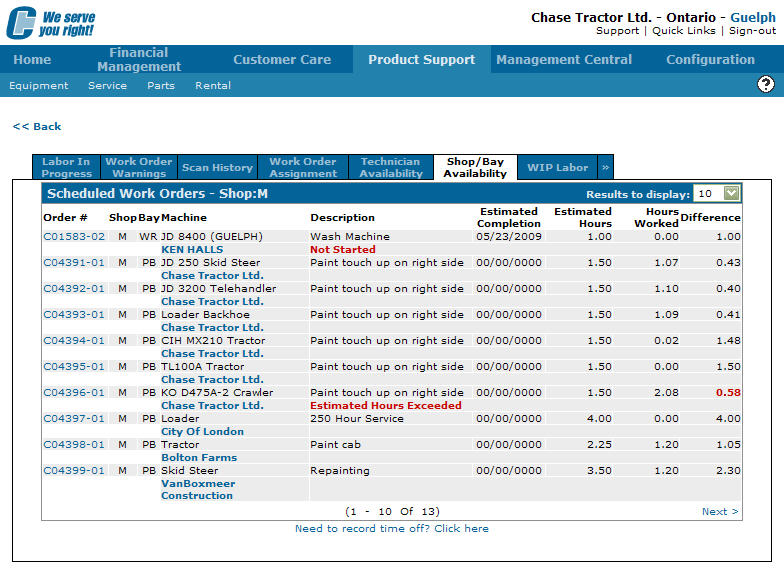
Scheduled Work Orders - Shop tab
-
On the Scheduled Work Orders - Shop tab, click on a work order number from the Order # field.
TheWork Order Details screen will appear.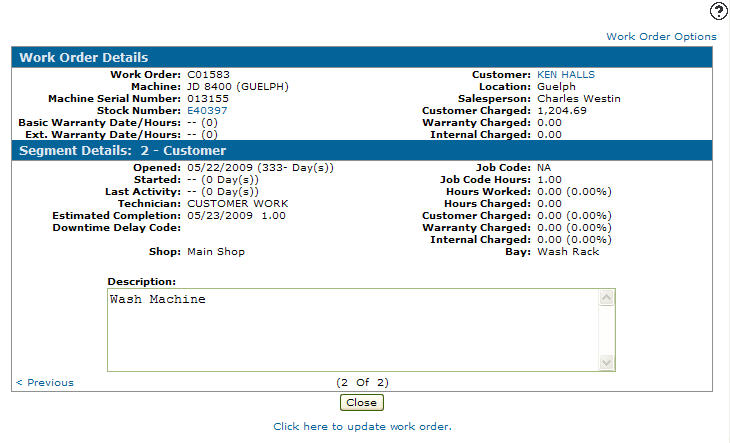
Work Order Details screen
-
On the Work Order Details screen, select the Click here to update work order link.
The Work Order Information screen will appear.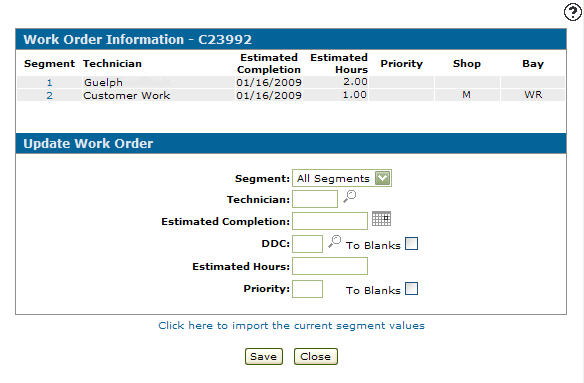
Work Order Information screen
-
On the Work Order Information screen, you can update the work order by editing or adding information in to the fields that appear on the Update Work Order section on the Work Order Information screen.
Note: Click on the Click here to import the current segment values link to update the Segment, Technician, Estimated Completion, and Estimated Hours field values import information from the corresponding work order segment.
-
Click on the Save button to save any changes made.
Screen Description
The search fields on the Supervisor Labor in Progress tab are:
| Field | Description |
|---|---|
| Select Location | Search for labor in progress by entering a location. |
| Display Breaks Only | If selected, displays only labor in progress, where the technician is currently on a break, within the search results. |
| Select Inside/Outside/Shift | Search for labor in progress by selecting either inside, outside, shift number, or all from the drop down list. |
The fields on the Supervisor Labor in Progress tab are:
| Field | Description |
|---|---|
| Technician | The technician's name. If there's a link, click it to view the Close Labor Entry screen. |
| Order # |
The labor charges are applied to the work order number or repair sequence number that appears in this field. Click the link to view the Work Order Details. |
| Description | A brief description outlining the work order or the customer's name. |
| Start Date | The day the labor transaction on the work order started. |
| Start Time | The time the labor transaction on the work order started. |
| Elapsed Time |
The amount of time that has elapsed since the labor transaction on the work order started. If the time has exceeded the amount of estimated hours, the Elapsed Time field appears in reverse image. |
Click the Click here to add labor hours link to add labor to a selected segment.
Select the Click here to see technicians not logged on link to see technicians not currently logged on to a work order segment.
Hover over a Technician name and select Close from the pop-up menu to force-close the associated labor entry. If the Update Date/Time Added On Supervisor Force Close checkbox is selected on the System Settings: Location tab, force-closing a labor entry from the Labor in Progress tab automatically updates the Date Added and Time Added fields in the WOTTM file (WTDTA and WTTMA) with the current date/time (when the entry was closed).
Security: 811 - Service Supervisor
Data Source: WOTTM
Learning Resources: Supervisor- Adding a Labor Punch; Supervisor - How to log a Technician off a Work Order.
Revision: 2025.07