
Parts Profile: Subs
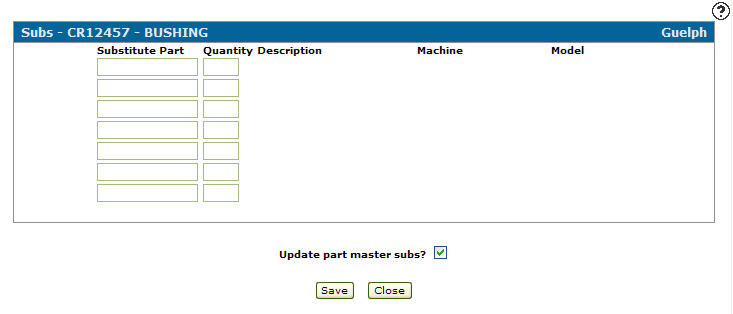
Use the Subs screen to view substitute part information in the case where a vendor has discontinued a part and is distributing a new part to take its place. Use the Subs screen to add a part substitution onto a stock order. Subs information applies across all locations.
To open the Subs screen, click the Subs button on the Parts Order screen, or click the Update/View Profile link on the Parts Profile screen.
Topics in this section are:
Adding a Part Substitution on a Stock Order at the Time of Receipt
-
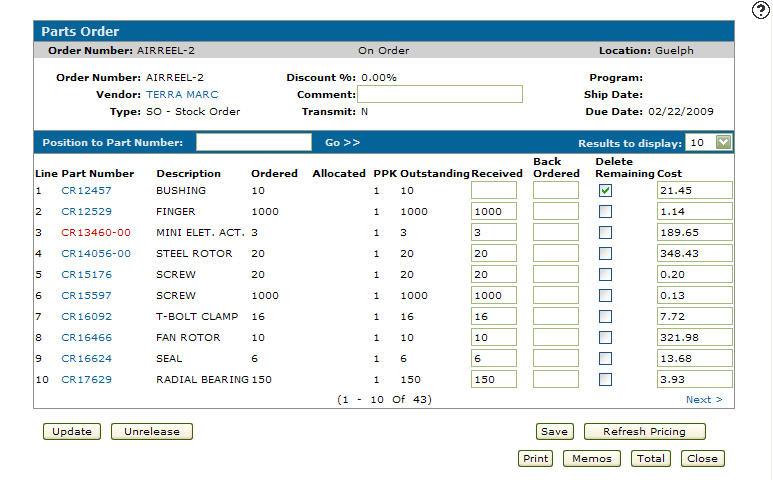
After receiving a part order, delete the Received field value for the part number you intend to substitute for.
-
Click the Delete Remaining checkbox.
-
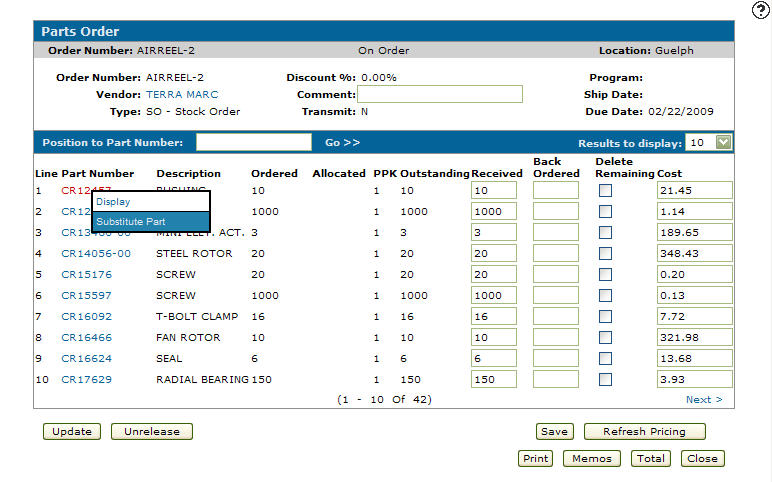
Move the cursor over the Part Number and select Substitute Part from the pop-up menu.
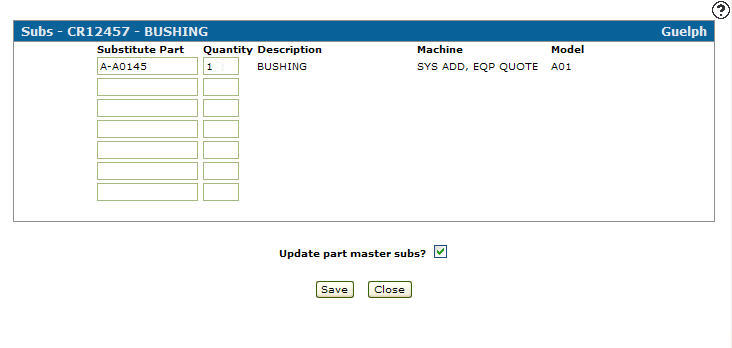
If a substitute part has been set up on the Substab of the original part's profile, then IntelliDealer automatically populates the fields on the Subs screen.
-
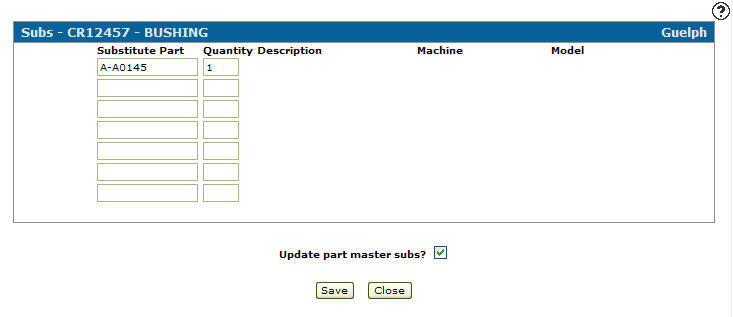
Enter a Substitute Part number and a Quantity.
-
(OPTIONAL) To update the Subs tab on the part master with the substitute part information, select the Update part master subs? checkbox.
-
Click Save.
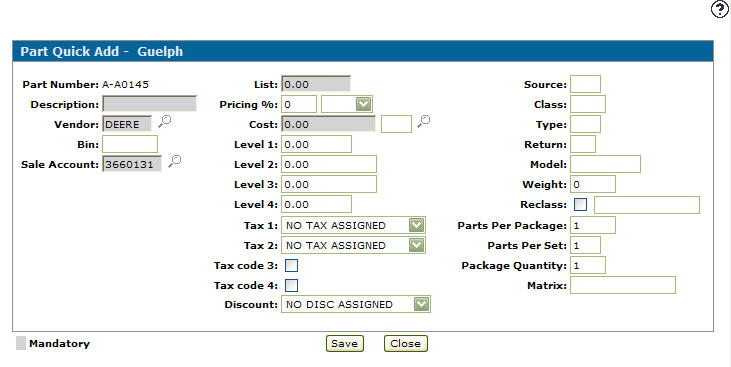
The Part Quick Add screen appears if the substitution part has not been setup within the system.
-
Fill out the Part Quick Add screen with the substitute part information, then click Save .
-
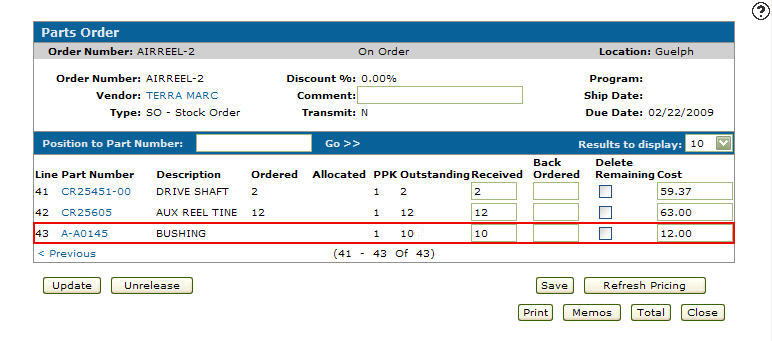
Move the cursor over a Part Number and select Substitute Part from the pop-up menu.
-
Click Save.
-
Click Update.
A picpack is produced and the sales order or work order requisition is updated.
 Parts Order screen, showing Delete Remaining selected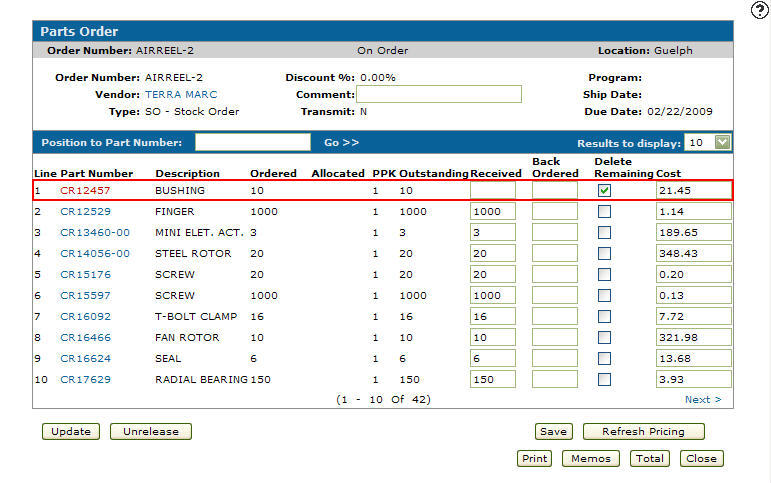
Screen Description
The search field on the Subs screen is:
| Field | Description |
|---|---|
| Part Number | The discontinued part number. |
Fields on the Subs screen are:
| Field | Description |
|---|---|
| Substitute Part | The new part number replacing the discontinued part number. |
| Quantity | The number of the new substitute part that is needed to make up the old part number. |
| Description | A brief description of the part. |
| Machine | The unit the part can be used on. |
| Model | The model number of the unit the part can be used on. |
| Update Part Master Sub? |
If selected, updates the parent part master with the substitution part information, making the substitution permanent. This field only appears if accessing the Subs screen through the Parts Order screen. |
Click the Click here to transfer parent part information link to transfer part sales history and other ordering information from a discounted part to a substitute part number.
Click Save to save changes made on the Subs screen.
Click Close to close the screen without saving changes and return to the previous screen.