
Printing Parameters
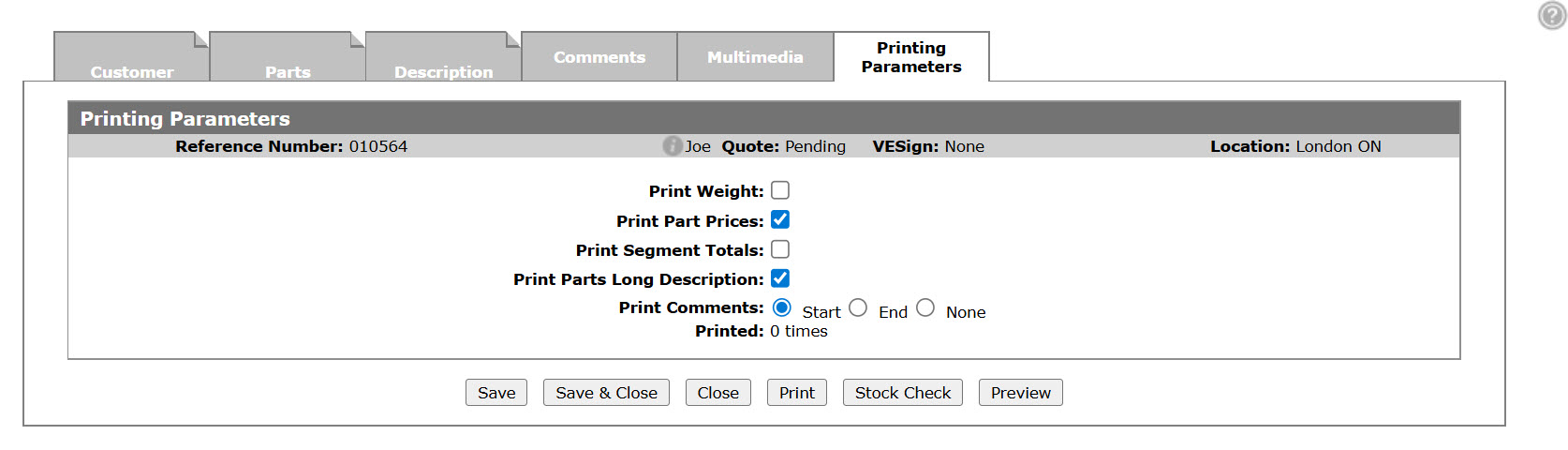
Use the Printing Parameters tab to choose the options you wish to appear on a quote before printing the selected parts quote, work order quote or equipment quote.
The first time a quote is created, your default print parameters are used. When you maintain your quote, any adjustments to the print parameters are stored with the quote.
Topics in this section are:
Printing a Parts Quote
-
Navigate to Product Support > Service > Parts Order Quoting.
-
Search for and open the quote you wish to print, then click the Printing Parameters tab.
-
Select the fields that you wish to apply to the print out.
-
In the Printer field select a printer by typing in the appropriate id
- or – click the Search icon to open the Print screen in a new browser window and select the appropriate printer location from the list.
 -
Click the Preview button at the bottom of the screen to preview the selected quote before printing the quote.
-
Click the Print button at the bottom of the screen to print the selected quote.
 The
The 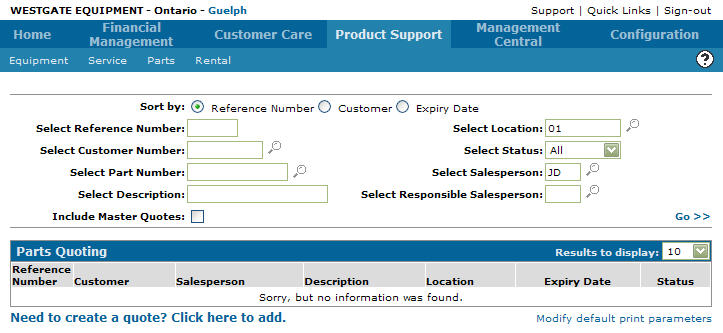
Screen Description
The fields on the Printing Parameters tab are:
| Field | Description |
|---|---|
| Print Weight | If selected, includes the part weight on the quote, and the total weight for all parts at the bottom of the quote. |
| Print Part Prices | Includes the part prices on the quote. |
| Print Miscellaneous Charge/ Credit Prices | Includes the miscellaneous charge/ credit prices on the quote. |
| Print Segment Totals | Includes the segment totals on the quote. |
| Print Parts Long Description | Includes parts long description on the quote. |
| Print Parts At Bottom | Includes the parts related to the work order on the bottom of the quote print out. |
| Print Miscellaneous Charges/ Credits At Bottom | Includes miscellaneous charges/ credit related to the work order on the bottom quote print out. |
| Print Estimated Completion Date | Includes the work order estimated completion date on the quote print out. |
| Print Parts | Includes parts related to the work order on the quote print out. |
| Print Comments | Includes comments on the work order either at the start, the end or no comments printed. |
| Printer | The printer that will print the quote. |
| Printed | The number of time the quote has been printed. This number is also printed on the invoice above the invoice number. |
The reports produced are:
| WOQUOTE | Work Order Quote |
| PSPSC01 | Stock Check |
Use these buttons to complete your work on the Printing Parameters tab:
| Button | Function |
|---|---|
| Save | Saves the selected printing parameters. |
| Save & Close | Saves the selected printing parameters and closes the quote. |
| Close | Closes the Printing Parameters tab and returns to the previous screen. |
| Prints the selected quote and changes the quote status from Pending to Quoted. | |
| Stock Check |
Produces a stock check report. This option is only valid if the quote is a parts quote. The Stock Check Report is useful for any dealer who sells “other than new OEM” condition parts such as new surplus, new aftermarket, rebuilt and used. Because a true count of inventory is very difficult to achieve, the report helps dealers evaluate where the part can be sourced and for validating physical inventory levels. |
| Preview | Previews the selected work order. Allows user to email or text PDFs and also Send VESign. |
Data Source: WOPQH
Security: 810 Product Support - Service Work Order, 822 Product Support - Parts Quoting
Revision: 2024.01