
Adding a Tax 3 Code
-
From any IntelliDealer screen, click on the Configuration tab.
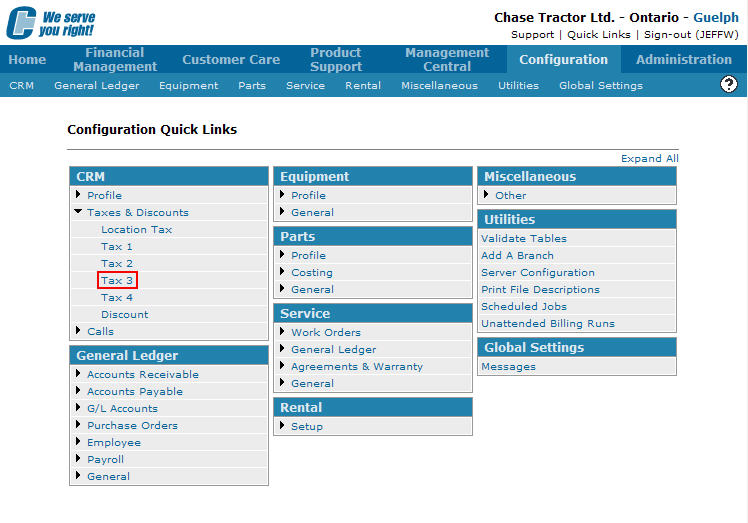
The ConfigurationQuick Linksscreen will appear.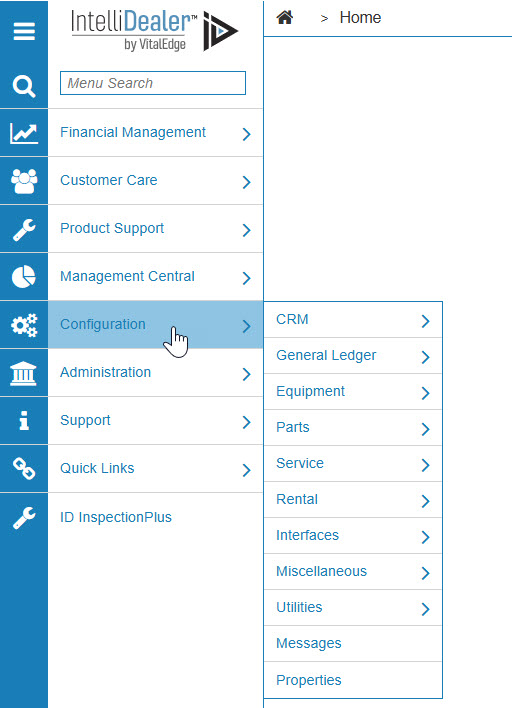
-
From the CRM list, click the Taxes & Discounts link and select Tax 3 from the drop down list.
-
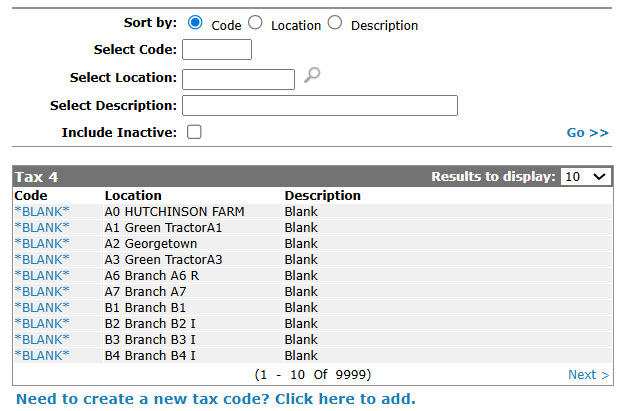
The Tax 3 screen will appear.
-
On the Tax 3 screen, click the Need to create a new tax code? Click here to add link.
The Tax 3 screen will appear.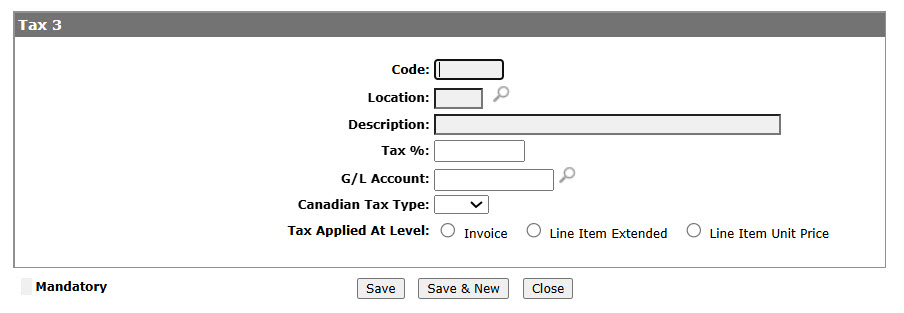
-
On the Tax 3 screen, enter a 4 digit alphanumeric Code.
-
In the Location field, enter or select the location you want the tax code to be applicable for.
-
In the Description field, enter a brief description of the tax code.
-
In the Tax % field, enter the percentage of tax that the tax code will apply to invoices when it is used.
-
In the G/L Account field, enter or select the general ledger account where the tax amounts will be posted.
-
(OPTIONAL) If you are a Canadian dealership, (CA is entered in the Country Company Located In field of the COTAB1 table), select the Canadian Tax Type you want to associate to the selected tax code; either GST, PST, HST, or QST.
This information will be recorded on credit card transactions for which the selected code applies and sent to the credit card company when the transactions are submitted using the Authorization Maintenance screen. -
In the Tax Applied At Level field, select the taxing method you want to configure for the tax code.
Note: For more information about taxing method options, see the Tax 3 or Tax 4 help topics.
-
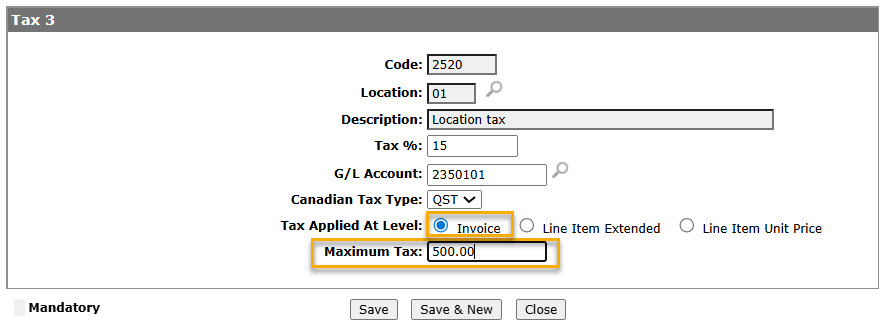
(OPTIONAL) If you select the Invoice taxing method in the Tax Applied At Level field, enter the Maximum Amount of tax that the tax code will be able to apply to an invoice.
-
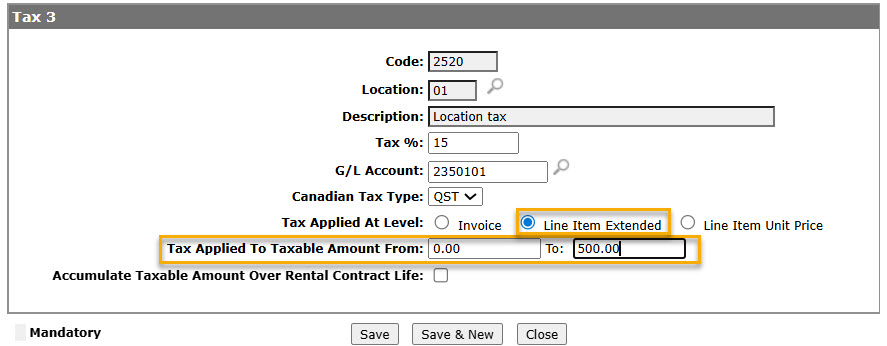
(OPTIONAL) If you select the Line Item Extended taxing method in the Tax Applied At Level field, enter the total line item price range that the tax code will be applicable for in the Tax Applied To Taxable Amount field.
Note: The Line Item Extended taxing method is currently only applicable within the Rental system.
-
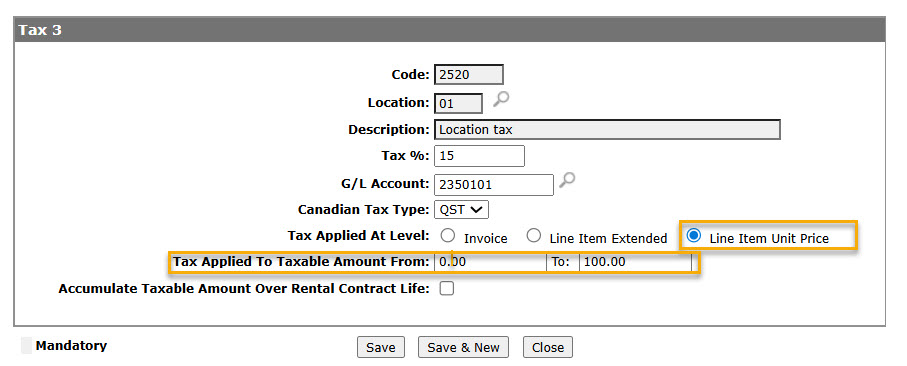
(OPTIONAL) If you select the Line Item Unit Price taxing method in the Tax Applied At Level field, enter the individual line item price range that the tax code will be applicable for in the Tax Applied To Taxable Amount field.
-
(OPTIONAL) If you select either the Line Item Extended or Line Item Unit Price taxing method, select the Accumulate Taxable Amount Over Rental Contract Life switch to force the system to accumulate the taxable amount on rental contract invoices that use the selected tax code.
Note: For more information regarding this switch, see the Tax 3 or Tax 4 help topics.
Note: Although it will appear when either the Line Item Extended or Line Item Unit Price taxing methods are selected, when activated, the Accumulate Taxable Amount Over Rental Contract Life switch will force all rental tax calculations to use the Line Item Extended taxing method.
-
After making your selections, click the Save button to save the new tax 3 code and return to the Tax 3 screen.
- or -
Click the Save & New button to save the new tax 3 code and refresh the Tax 3 screen, allowing you to create another tax 3 code.