
How to Collect a Deposit
Collect a deposit on Parts, Equipment, and Work Orders. The deposit is tracked in the Invoice Totals box on the G/L Defaults tab for cash payments or the A/R Agency tab for non-cash payments, so you can quickly see how much has been paid and the amount outstanding.
Note: You must have configured part numbers for deposits for each location. Deposit buttons are only available on invoices when the configuration is complete. See Deposit: Parts and Deposit: Equipment and Work Orders.
Topics in this section are:
Collecting a Parts Deposit
-
Navigate to Product Support > Parts > Parts Invoicing.
-
Navigate to the invoice you wish to add a deposit to and open it, then click the Details tab.
-
Click the Deposit button. The Deposit screen opens.
-
Enter the deposit amount and a cash code.
-
Click Continue or Continue and Print Invoice, or Close to exit without adding a deposit.
If the Print Deposit Receipt checkbox was selected in configuration, the button is Continue and Print Invoice; otherwise, it is Continue.
 Parts Invoicing screen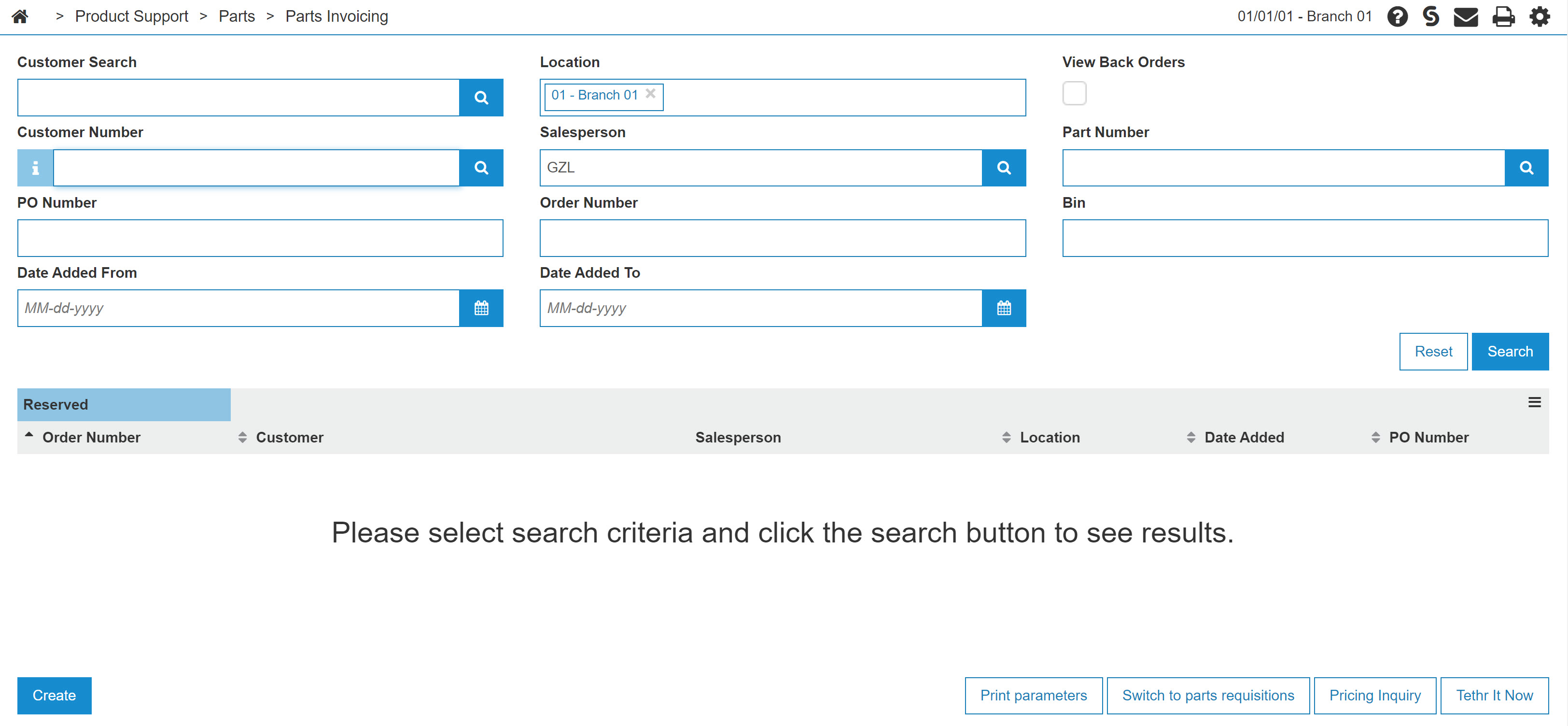
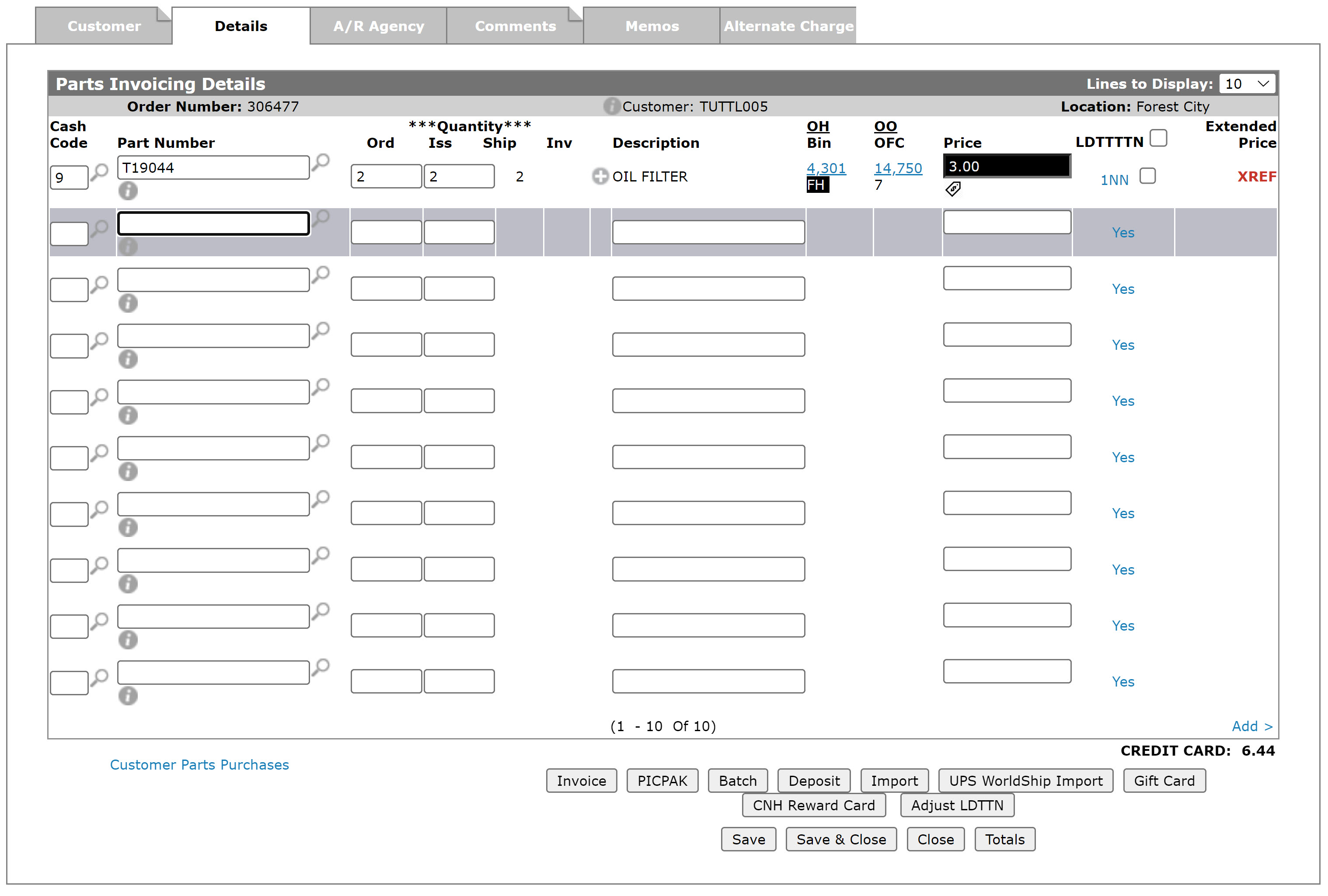
If the deposit was successful, a green message appears at the top left of the screen that includes details of the deposit (order number and invoice number). If unsuccessful, a red error message with a warning icon appears.
Collecting an Equipment or Work Order Deposit
-
Navigate to the equipment invoice and click the Details tab. Or navigate to a work order invoice and click the Segments tab.
-
Click the Add Deposit button on an equipment invoice or the Deposit button on a work order. Once a deposit has been taken in equipment invoicing, the Add Deposit button changes to Deposit Details.
-
Enter the amount to be deposited and a cash code.
-
Click Continue or Continue and Print Invoice, or Close to exit without adding a deposit.
If the Print Deposit Receipt checkbox was selected in configuration, the button is Continue and Print Invoice; otherwise, it is Continue.
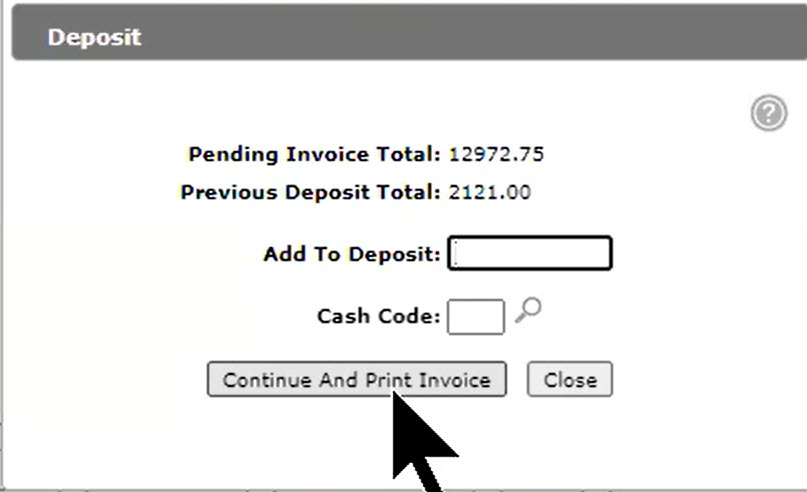
If the deposit was successful, a green message appears at the top left of the screen that includes details of the deposit (order number and invoice number). If unsuccessful, a red error message with a warning icon appears.
Viewing Collected Deposits
The total amount deposited is listed on the invoice PDF as a negative.
You can also view the amount deposited on the invoice in IntelliDealer. Navigate to the invoice and click the G/L Defaults tab for cash payments or the A/R Agency tab for non-cash payments. The Invoice Totals box displays details about the invoice, including how much has been deposited towards the total.
See also: Parts Deposit and Process Deposit, Using a Deposit as Payment on a Parts Invoice, and Deposit: Parts.
Security: 823 - Product Support - Parts Invoicing, 802 - Product Support - Equipment Invoicing, and 810 - Product Support - Work Orders
Revision: 2026.07