

How to create a KIT in IntelliDealer
-
Create a special Customer Profile for the parts department to sell the parts for the kit and receipt in the kit when it’s been created (Example: PARTS001).
Make sure the Terms on the customer is set to TRANSFER. This tells the billing system that all parts sold to this customer should by default be taken out of inventory and no sale should be recorded.
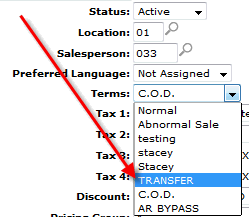
-
Add the special customer in to the Kit Customer Number field on the System Settings, Location tab.
-
Create a Part Number for the Kits.
The cost on the part should be the cost of all the parts required to make the kit. That way when you sell the Parts to the parts department to make the kit and receive in the number of kits made, the invoice will net to zero.
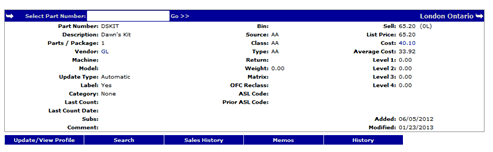
-
In the Part Profile, select the Kit tab and add the components of the kit.
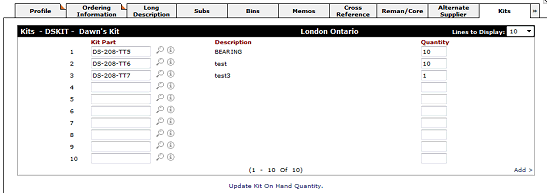
-
Click Update Kit On Hand Quantity then enter the Quantity of Kits the Parts Make up.
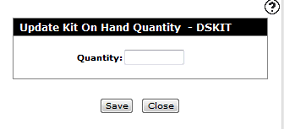
-
Click Save.
The KITS tab on the profile is shown with a red box that indicates how many kits have been created and the sales order that was created for it.

 An example sales order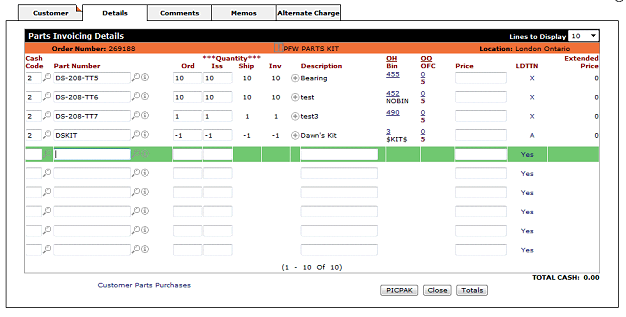
Once the Parts Billing Run has run, your Inventory will increase.
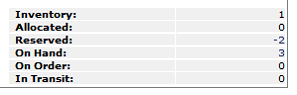
In the above screen shot there are two sales orders for the kit creation and one that has already been run thru a billing run.
When creating a kit, the inventory entries hit the clearing account that’s configured in Special Accounts.