Setting up CNH CRA Product Code Mapping
Allows you to set up a product code mapping for CNH CRA Freedom Pay which maps to either a miscellaneous charge code or part.
-
From any IntelliDealer screen, click on the Configuration tab.
The Configuration Quick Links screen will appear.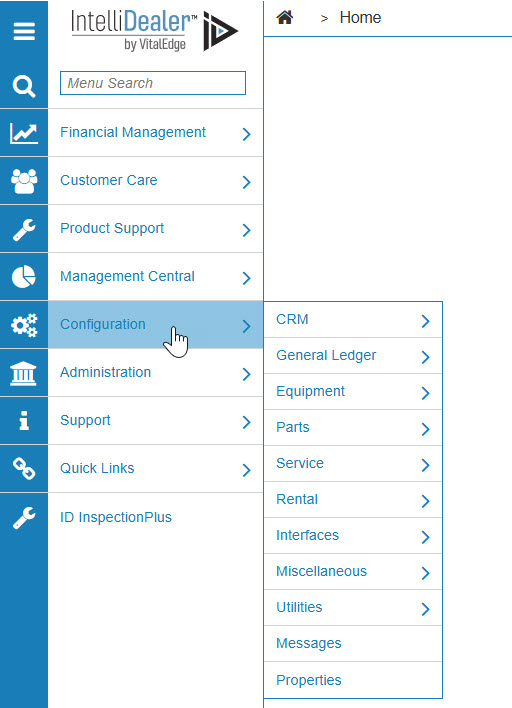
Configuration Quick Links screen
-
From on the Utilities list, select the CNH CRA Mapping link.
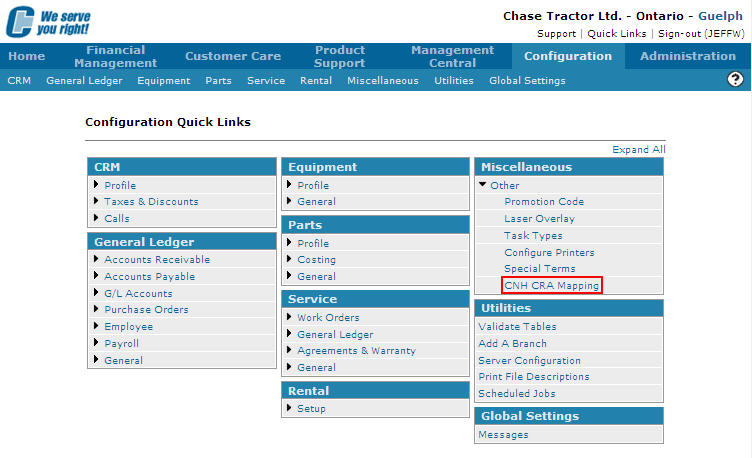
Configuration Quick Links screen
-
The CNH CRA Mapping screen will appear.
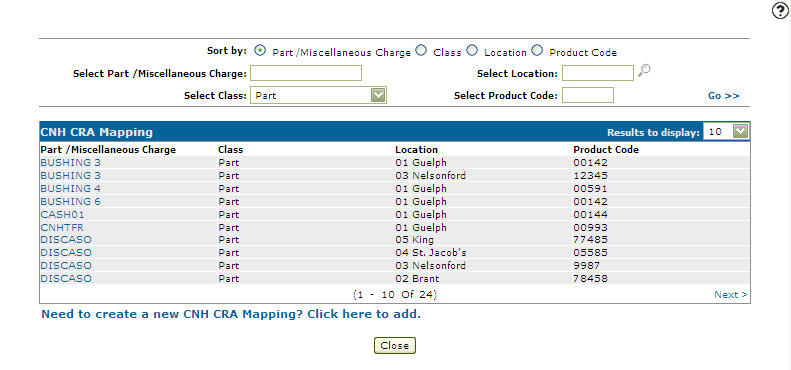
CNH CRA Mapping screen
-
On the CNH CRA Mapping screen, click on the Need to create a new CNH CRA Mapping? Click here to add link.
The Add CNH CRA Mapping screen will appear.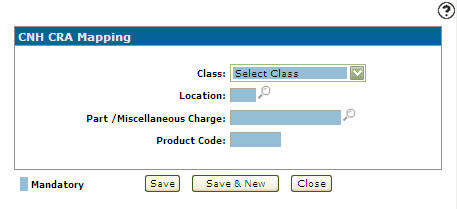
Add CNH CRA Mapping screen
-
On the Add CNH CRA Mapping screen, select a Class from the drop down list. The Class will indicate whether the CNH CRA product code is being mapped to a part or miscellaneous charge in IntelliDealer.
-
Enter a Location.
- or -
Click on the Search icon and select a location from the Location Selection screen.
 -
Depending on the Class selected, enter either a Part or Miscellaneous Charge.
- or -
Click on the Search icon and select a Part from the Parts Search screen or a Miscellaneous Charge from the Miscellaneous Charges screen. -
Enter a Product Code. The product code is the CNH CRA product code that is being mapped to the part or miscellaneous charge.
-
On the Add CNH CRA Mapping screen, click the Save button to save the new CNH CRA Product Code Mapping and return to the CNH CRA Mapping screen.
- or -
Click the Save & New button to save the new CNH CRA Product Code Mapping.
The Add CNH CRA Mapping screen will refresh allowing you to add another CNH CRA Product Code Mapping without closing the screen.