
Viewing Parts Analysis
-
Navigate to Management Central > Parts > Parts Analysis.
-
From the Parts list, click the Parts Analysis link.
-
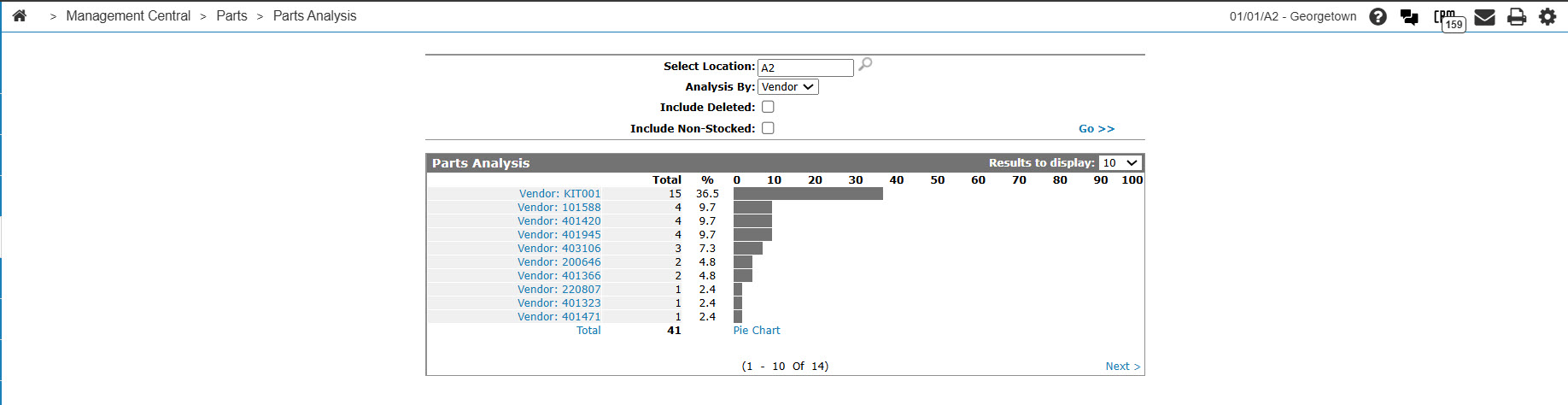
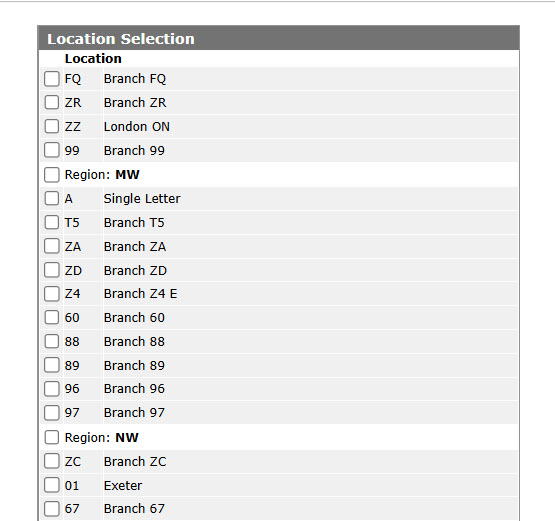
On the Parts Analysis screen, enter a location in the Select Location field, or click the Search
 icon and select a location from the Location Selection screen.
 -
On the Parts Analysis screen, select an analysis by method to display the part analysis information from the Analysis By drop down list.
-
Select the Include Deleted field to include deleted parts within the parts analysis information.
-
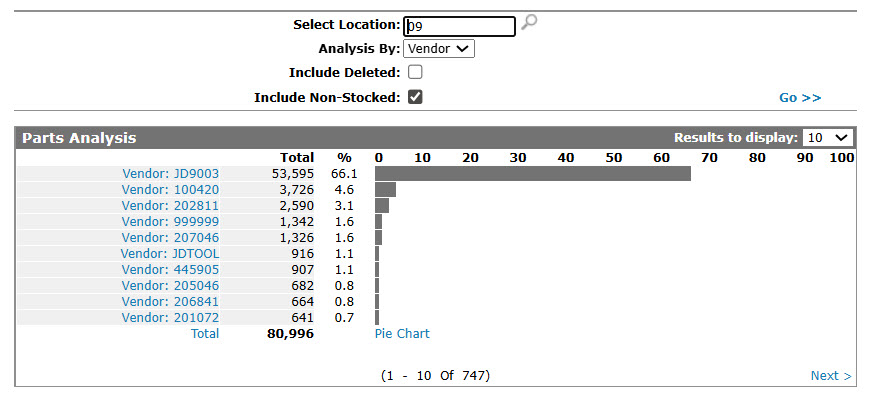
Select the Include Non-Stocked field to include non-stocked parts within the parts analysis information.
-
Click the Go >> link. The Parts Analysis screen refreshes displaying parts analysis information based on the criteria selected.
-
Click the Analysis By field link to drill further down into the parts analysis.
-
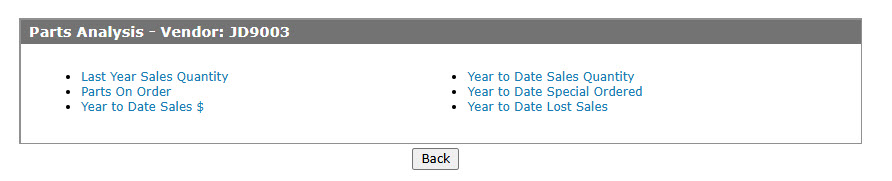
On the Parts Analysis Method screen, click the method you wish to use to further analyze the parts data:
-
Last Years Sales Quantity—view parts analysis data for last years sales quantity by location.
-
Parts on Order—view parts analysis data for parts on order by location.
-
Year to Date Sales $—view parts analysis data for year to date sales dollars by location.
-
Year to Date Sales Quantity—view parts analysis data for year to date parts sales quantity by location.
-
Year to Date Special Ordered—view parts analysis data for year to date special ordered parts by location.
-
Year to Date Lost Sales—view parts analysis data for year to date lost sales by location.
-
 The Management Central Quick Links screen.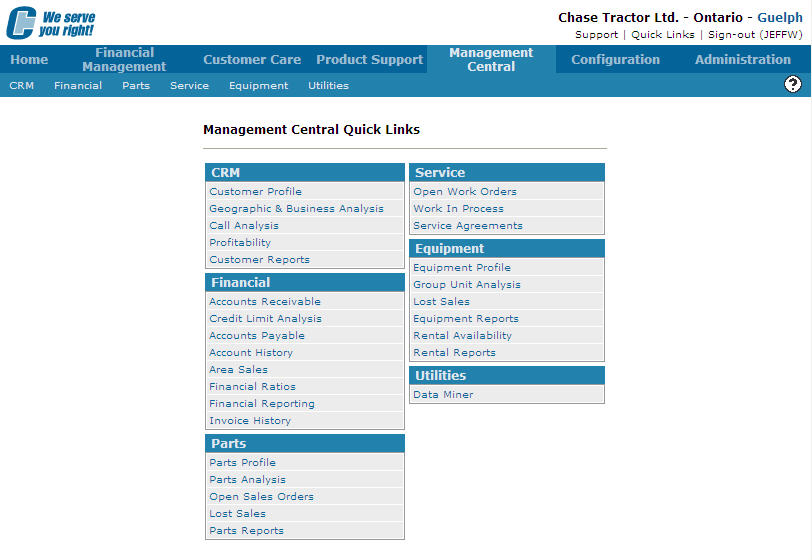
Revision: 2026.01