
Equipment Listing
Use the Equipment Listing screen to search for equipment, add equipment to an invoice and create a new equipment profile.
To access the Equipment Listing screen, navigate to:
-
Product Support > Equipment > Equipment Profile - for read/write access.
-
Management Central > Equipment > Equipment Profile - for read-only access.
 Equipment Profile Listing Screen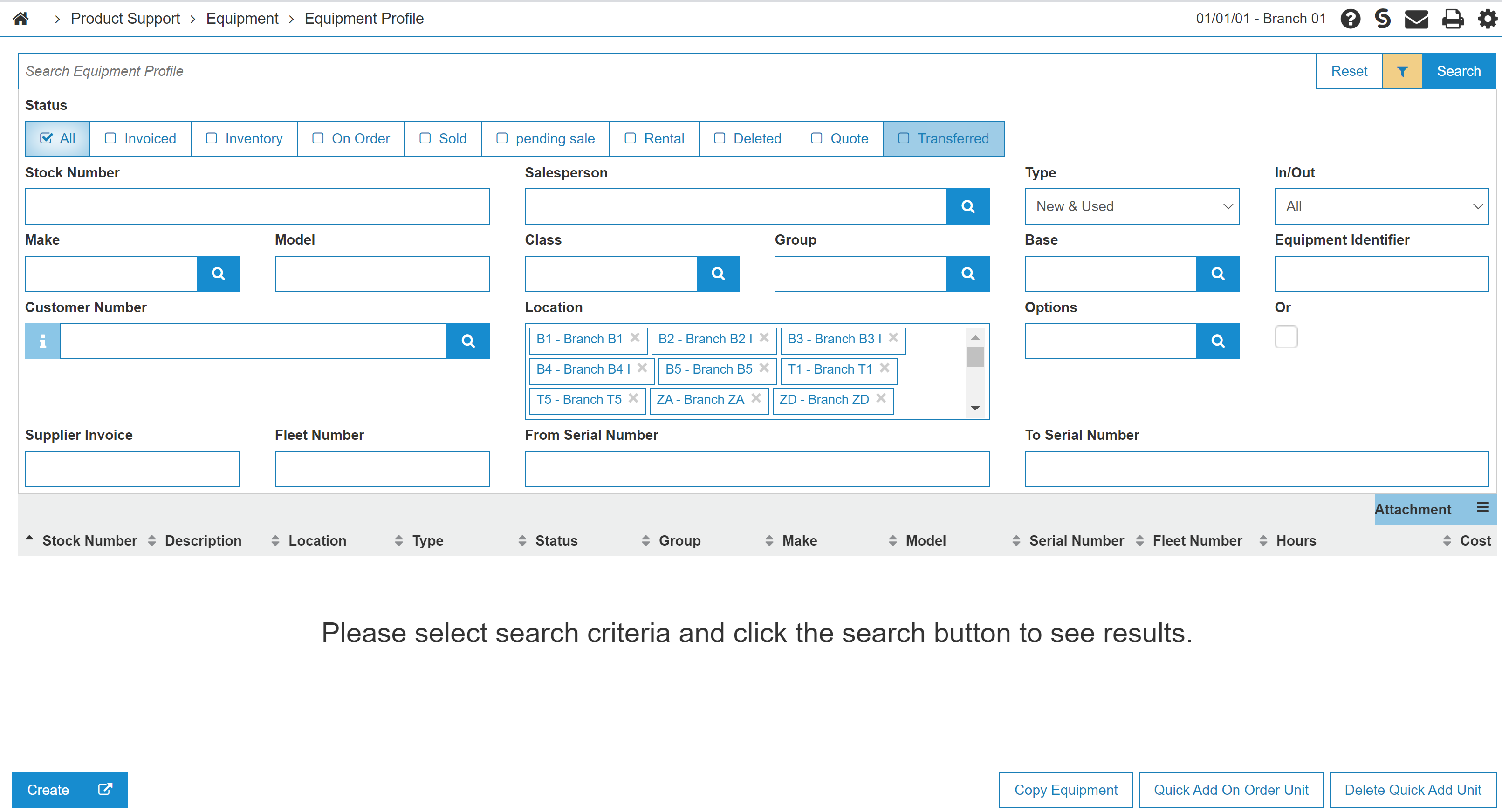
Topics in this section include:
Searching Equipment Profiles
-
Use the search bar to search keywords or if you know specific search terms such as a serial or stock number on an equipment unit.
-
By default, the search bar finds your text wherever it appears—even in the middle of a word. You don’t need to type the full word.
-
When you type multiple words separated by spaces in the search bar, the search finds results that contain any of those. Each one is matched wherever it appears—even in the middle of another word.
You can search by equipment stock number, identifier, base, make, model, serial number, options, factory, group, customer number or fleet number, salesperson, or supplier invoice number. However, searching by location while using the search bar is not supported.
-
When the Filter
 option is turned on (it is on by default), the search uses all of the filters together. Results must match every filter you enter—not just one.
 -
To keep specific search fields open or closed by default use the Sticky feature.
-
If Options is selected, executing a search also scans Equipment Base & Options tab for a matching option.
-
If Options is selected and the Or checkbox is selected, the IntelliDealer searches for any one of the options to match, otherwise it searches for all the options to match.
Screen Description
The status options for selecting equipment are:
| Status | |
|---|---|
| Field | Description |
| All | Search through all status options for the selected unit. |
| Invoiced | Search units invoiced to a customer. |
| Inventory | Search units physically in stock. |
| On Order | Search units on order with the supplier. |
| Sold | Search units physically in stock and tagged for a particular customer. |
| Presold | Search units on order with the supplier for a specific customer. |
| Rental | Search rental units. |
| Quote | Search units being priced for a customer. |
| Transferred | Search units transferred to another dealer. |
The search fields on the Equipment Listing screen are:
| Field | Description |
|---|---|
| Stock Number | Search for a stock number by entering a stock number. |
| Make/Model | Search for a stock number by entering a make/model code. |
| Customer Number | Search for a stock number by entering a customer number. |
| Supplier Invoice | Search for a stock number by entering a supplier invoice number. |
| Fleet Number | Search for a stock number by entering a fleet number. |
| Salesperson | Search for a stock number by entering a salesperson. |
| Class | Search for a stock number by entering a class code. |
| Group | Search for a stock number by entering a group code. |
| Location | Search for a stock number by entering a location. The behavior of this search field is affected by the Access Units in Other Divisions switch. If the switch is enabled, the dropdown is sorted by divisions. Otherwise, it is sorted by regions. |
| From/To Serial Numbers |
Search for a stock number by entering a serial number. To search for a stock number containing the specified characters, use the From field alone. To search for a stock number that starts with the specified characters, use the From and To fields together. Either usage searches for all serial number types: Machine, Engine, Transmission, and Sound Guard. |
| Type |
Search for a stock number by selecting an equipment type from the drop-down list. The Traded Date is the date the unit was traded from the customer. A Traded Date prevents the unit from appearing on this screen unless you choose Traded Date or All from the drop-down. Options are:
|
| In/Out | Search for a stock number by selecting either in or out traffic status from the drop-down list. |
| Base Number | Search for a stock number by entering a base number. |
| Equipment Identifier | Search for the unit's specific OEM (Original Equipment Manufacturer) number. |
| Options |
Search for a stock number by entering an equipment option. Note: Option numbers that contain spaces cannot be filtered directly. |
Click Reset to clears all fields of their data.
Click Search to show search results from across all divisions.
The default columns on the Equipment Listing screen are:
| Column | Description |
|---|---|
| Stock Number |
The unit's stock number. A |
| Description | A brief description of the unit. |
| Location | The location where the unit is currently located. |
| Type | The unit's type code. Displays Traded when the unit has a traded date. |
| Status | The unit's current status. When the status is In Use, the previous status also displays. |
| Group | The unit's group code. |
| Make | The manufacturer of the unit. |
| Model | The model number on the unit. |
| Base | The unit's base number. |
| Serial Number | The unit's machine serial number. |
| Fleet Number | The unit's fleet number. |
| Hours | The amount of hours currently on the unit's hour meter. |
| Price, Cost, Sales Cost, Net Book Value, or Reference |
The costing column displayed depends on the user's Price To Load On Equipment Listing Screen security setting on 800 - Product Support - Equipment Profile:
When Price To Load On Equipment Listing Screen security setting is set to None it hides this column. Units with attachments display an Attachment indicator in this column. Net book value appears in red when the equipment unit was automatically costed when invoiced. |
 marks the most recent stock number if there are multiple instances of the same model or serial number.
Optional Columns
Click the menu icon  to use the grid column menu to show or hide additional columns. You can also use the Sticky feature to save your column layout. Optional columns available from the column menu are listed in the table below.
Note: Some optional columns are hidden by field security when configured for the user or equipment profile. Available columns also depend on the user's field security settings. Original cost, current cost, and net book value cannot be added as separate optional columns; use the default costing column instead.
| Optional Columns | |
|---|---|
| Column | Description |
| Machine Location | A designated physical place within the selected location. |
| In/Out | Whether the unit is in the location or out in transit. |
| Model Year | The model year of the unit. |
| Hours 2 | If available, the amount of hours currently on the second hour meter on the unit. |
| Reserved | The promised or reserved date for the unit. |
| Supplier Invoice | The supplier invoice number. |
| Supplier Invoice Date | The supplier invoice date. |
| Salesperson | The salesperson code assigned to the unit. |
| Customer Number | The customer number associated with the unit. |
| Customer Invoice Date | The customer invoice date. |
| Customer Name | The name of the customer who purchased or rented the unit last. When a unit is rented or invoiced, IntelliDealer automatically enters a name. |
| Sequence Number | The customer's Search 1 value from the Customer Profile. IntelliDealer populates this field when a customer is assigned to the unit. |
| Base & Option Price | The base and option price for the unit. |
| Other Total Price | The total price of options on the Base & Options tab that do not have an option number. Base & Option Price plus Other Total Price equals the unit's price with options. |
| Over Allowance | The difference between the trade-in amount offered to the customer and the actual cash value of the trade-in unit. For example, if the trade-in amount is $2,000.00 but the unit is worth $1,500.00, the over allowance is $500.00. |
| Rental Income | The rental income amount for the unit. |
| Avatax Product Code | The AvaTax product code assigned to the unit. |
| Transmission Serial Number | The transmission serial number. |
| Cab Serial Number | The cab serial number. |
| Engine Serial Number | The engine serial number. |
| Floor Plan | The note amount for the unit. This amount is loaded through a general ledger entry to an account coded with an application type of Floor Plan. On the Equipment Profile, this value appears in the note amount field of Note Amount/Code/Due Date. |
| Floor Plan Due Date | The floor plan due date. |
| Floor Plan Due Code | The floor plan due code. |
| Insurable Amount | The insurable amount for the unit. |
| Basic Warranty Hours | The basic warranty hours on the unit. |
| Basic Warranty Code | The basic warranty code on the unit. |
| Basic Warranty Date | The basic warranty date on the unit. |
| Extended Warranty Hours | The extended warranty hours on the unit. |
| Extended Warranty Code | The extended warranty code on the unit. |
| Extended Warranty Date | The extended warranty date on the unit. |
| Last Prevent Maintenance Work Order Machine Hours | The machine hours recorded on the last preventative maintenance work order. |
| Last Preventative Maintenance Work Order | The work order number for the last preventative maintenance work order. |
| Last Preventative Maintenance WO Date | The date of the last preventative maintenance work order. |
| Interest Charges | The interest charges on the unit. |
| Maintenance Expense | The maintenance expense on the unit. |
| Finance Start Date | The finance start date for the unit. |
| Delivery Date | The date the unit was delivered. |
| Traded Date | The date the unit was traded. |
| Date Not Available For Sale | The date the unit became not available for sale. |
| Source |
The module that owns the stock number in CGIBASE (field CB_SRC). Values are:
Equipment Listing shows only units with a source of Equipment. Fixed Assets source units are excluded from this screen. |
| Parent Division | The division of the parent unit. |
| Parent Stock Number | The stock number of the parent unit. |
| Costing Indicator | The costing indicator for the unit. |
| Date Added | The date the unit was added. |
| Date Modified | The date the unit was last modified. |
| Modified | The date and time the unit was last modified. |
| Time Modified | The time the unit was last modified. |
| Date Ordered | The date the unit was ordered. |
| Traded | Indicates whether the unit has been traded. |
| Hour Reading To Date | The date of the last hour meter reading. |
| Hour 2 Reading To Date | The date of the last reading on the second hour meter. |
| Rental Fleet Date | The rental fleet date for the unit. |
| In or Out Sub Type Indicator | The traffic subtype code assigned to the unit when it is out of the dealership. This code provides additional detail beyond the In/Out status and corresponds to a subtype configured on the Traffic Subtypes screen. On the Equipment Profile, this value appears as In/Out Sub Type. |
| Last Count Date | The date of the last physical inventory count. |
| Last Count Method | The method used for the last physical inventory count. |
| Settlement Number | The manufacturer-assigned settlement number for the unit. For John Deere dealers, this value auto-populates when linked with JDMINT. See Settlement Number/Date on the Equipment Profile. |
| Settlement Date | The date the unit was settled with the manufacturer or when financial arrangements were made. For John Deere dealers, this value auto-populates when linked with JDMINT. See Settlement Number/Date on the Equipment Profile. |
| Depreciation | The depreciation amount for the unit. |
| Reference Amount Estimated Cost | A reference value for the unit, such as a minimum selling price. This is the same value shown as Reference Amount on the Equipment Profile and as Reference in the default costing column when Price To Load On Equipment Listing Screen is set to Reference. |
| Update Identifier | This field is used internally for record change tracking. |
| Most Recent Stock | Indicates whether this stock number is the most recent for the model or serial number. |
| Attachment Count | The number of attachments on the unit. |
| Factory | The factory or class code for the unit. |
| Category | The category code for the unit. |
| Equipment Class | The equipment class for the unit. |
| Equipment SubClass | The equipment subclass for the unit. |
| Quantity | The quantity for the unit. |
| Hours Estimate Code | Indicates whether the unit hours reading is actual or estimated. Values are Actual (blank), Estimate, or Not Available. This value applies to the primary hour meter shown in the Hours column. |
| Hours Estimate Code On Last Order | The hours estimate code recorded on the last order. |
| Hours 2 Estimate Code | The hours estimate code for the second hour meter. |
| Rental Cost Of Sales Percent |
The rental cost percentage used when the unit is rented. When the unit is invoiced on a rental invoice, the system uses this percentage to calculate rental cost of sales. When 0.1 is entered, no costing takes place for rental invoices for the unit. If the chart of accounts cost of sales percentage on the rental sale account is 0.1 and the rental cost percentage is 0.0 or 0.1, the cost is zero for rental invoices for the unit. See Rental Cost Percentage on the Equipment Profile. |
| Internal Unit | Indicates whether the unit is an internal unit. |
| Control Number |
When the unit is taken in as a trade, this is the stock number of the original unit sold. The system uses this value to group units for washout reporting. To include stock numbers in a washout, set the control number on each unit to the stock number of the machine that originally started the washout. Update this field on the Equipment Profile. |
| Equipment Identifier | The unit's OEM equipment identifier. |
| Invoice Number | The invoice number for the unit. |
| In Use | Indicates whether the unit is currently in use. |
| Status Before Last Change | The status the unit had before its most recent status change. |
| Inventory Account | The G/L inventory account for the unit. |
| Final Sale Account | The G/L final sale account for the unit. |
Click the Create button to open a new Equipment Profile screen.
Click the Copy Equipment button to open the Copy Equipment screen.
Click the Quick Add On Order Unit button to open the Add On Order Units screen. Stock number assignment and general ledger account defaults come from Equipment Add Defaults when matching values are not available from Equipment Defaults.
Click the Delete Quick Add Unit button to open the Delete Quick Add Unit screen.