
CNH DEP eWarranty Claim Submission
Use the CNH DEP eWarranty Claim Submission interface to submit warranty claims to CNH for processing.
Topics in this section are:
Prerequisites: Setup your system on the Configuration: CNH Vehicle Lookup screen.
How to Open the CNH DEP eWarranty Claim Submission Screen
-
To launch the CNH DEP eWarranty Claim Submission interface, open a Work Order and click the Segments tab.
-
Hover your mouse over Work Order Options.
-
Click the menu entry for CNH DEP eWarranty Vehicle.
-
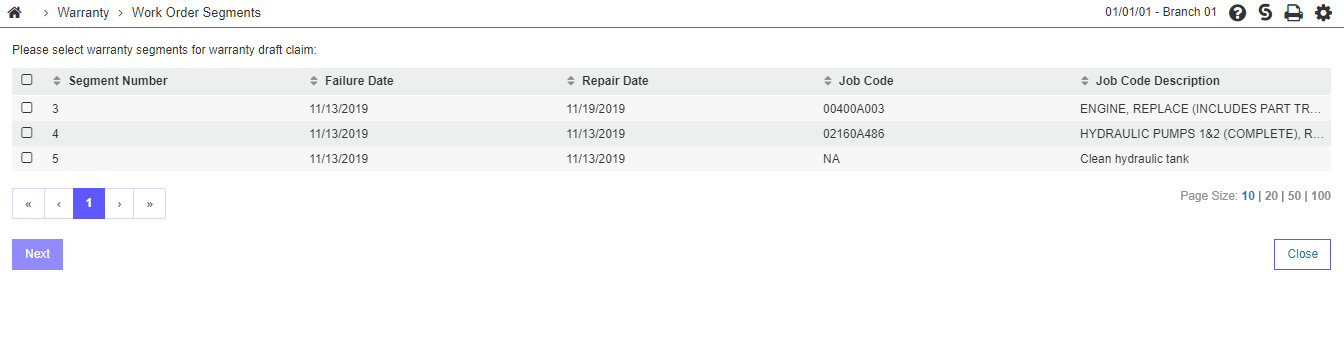
Only work order segments designated as Warranty, Closed or Signed off are shown.
-
Segments can be processed together, or can be processed one at a time depending on your preference.
-
-
Select at least one segment then click Next.
 Work Order Options menu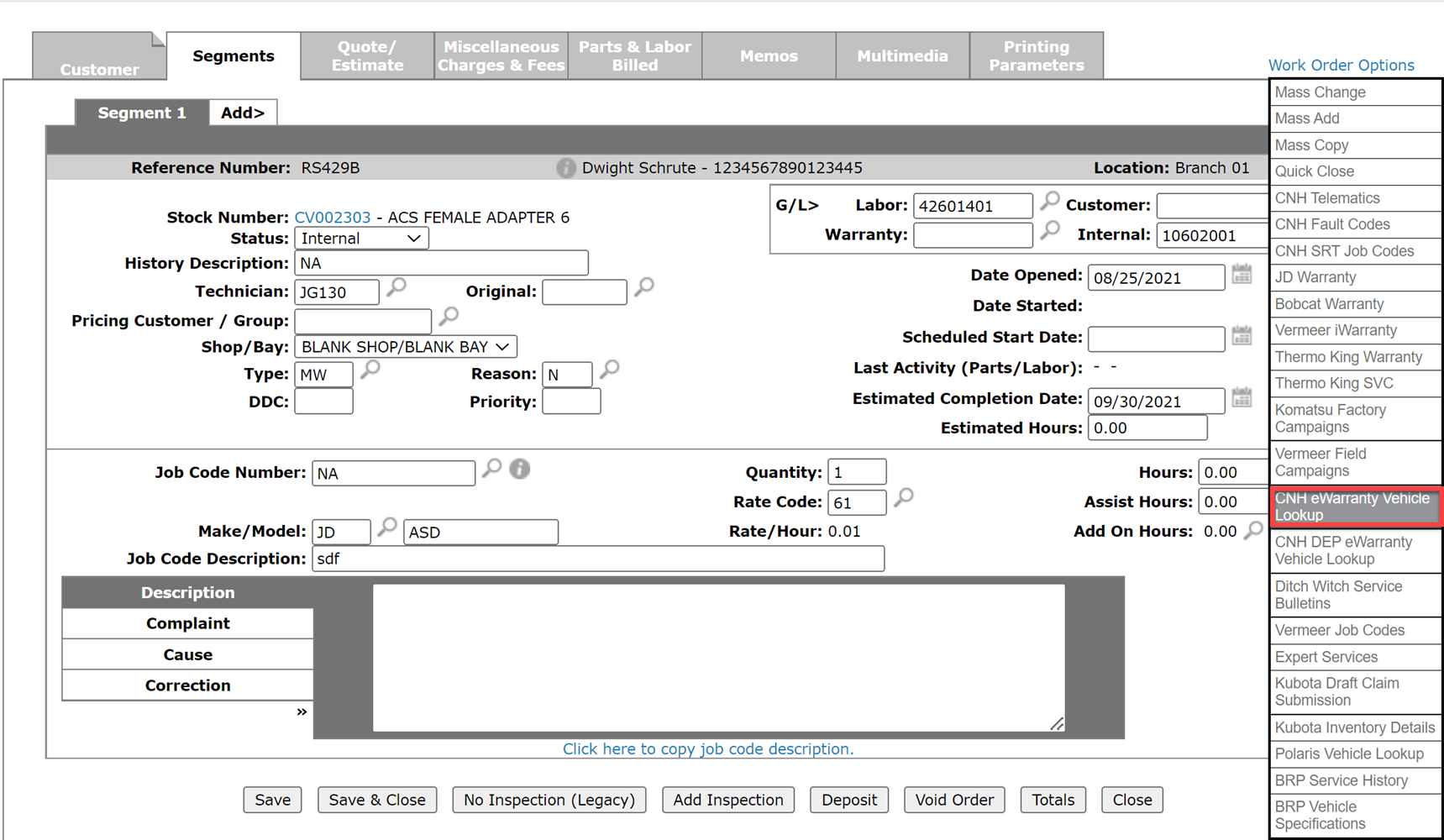
Screen Overview
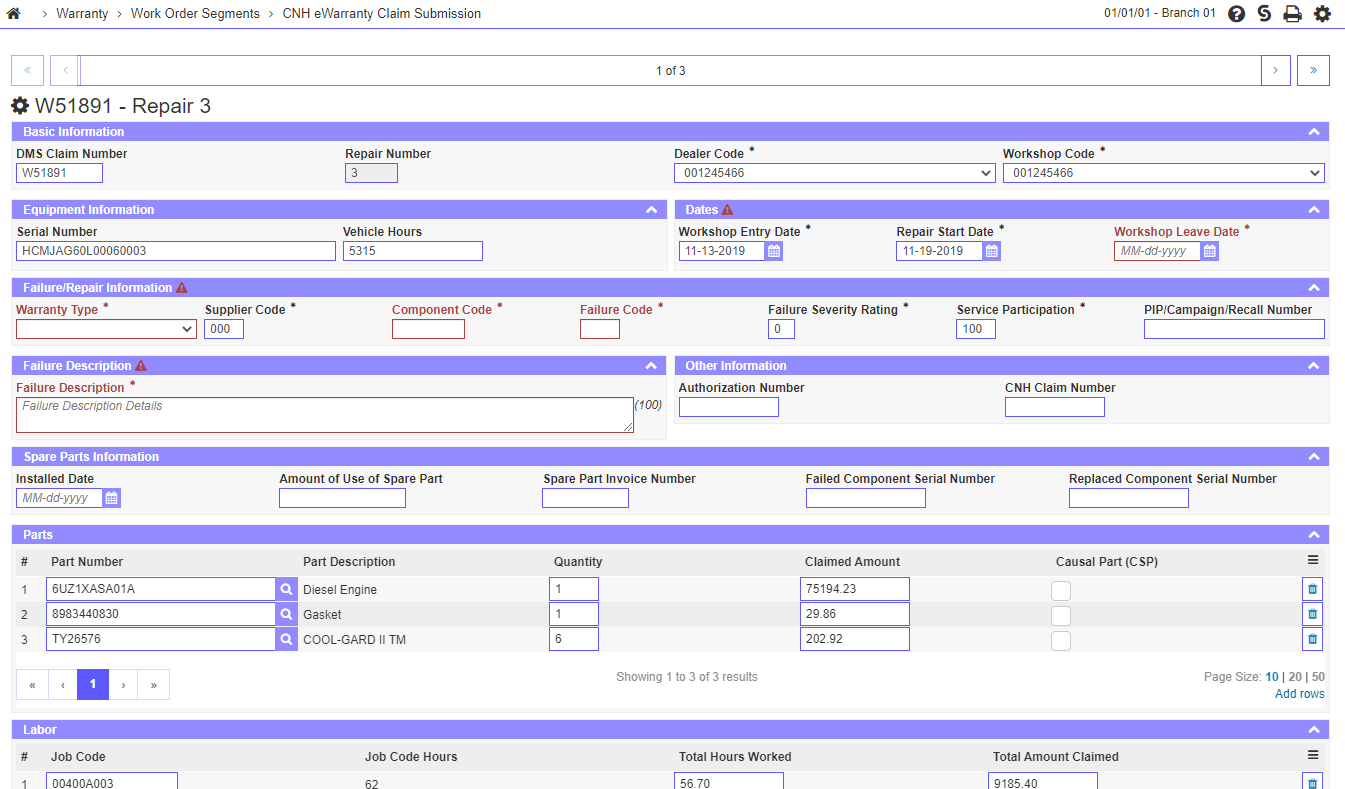
If more than one segment is selected, the top of the screen shows a navigation bar to switch between segments. All segments must be completely populated before the claim can be submitted to CNH for validation.

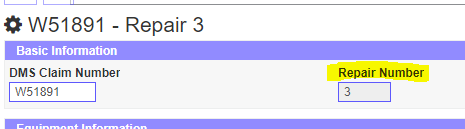
Some fields are pre-populated with data from the work order and others need to be filled out. Any pre-populated field can be edited except the Repair Number which is not submitted to CNH and is used only for reference purposes.
By default, IntelliDealer selects the dealer codes of the primary dealer number for the work order location.
Mandatory fields are shown in red and may change depending on the Warranty Type selected. For example, a Campaign warranty type requires a PIP, Campaign, or Recall Number to be provided.

Some information must be submitted as common to the entire work order. These fields are submitted at the work order header level for all segments. If you require any these fields to be submitted by segment, it is recommended to process each segment one at a time instead of in a group.
Additional Search
Additional search functionality is available on the Component Code and Failure Code fields in the Failure/Repair Information section. These search popups retrieve live data from CNH and have the same functionality as the search functions available within CNH's claim submission interface.
The following procedure walks through the process of selecting a Component Code. The Failure Code search works similarly, but only has one level of search available.
-
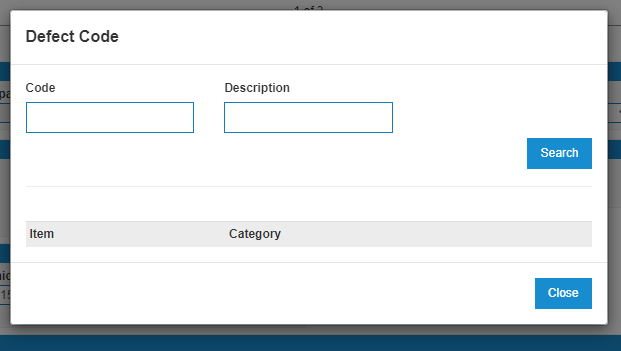
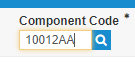
Click the magnifying glass icon to launch the Defect Code popup.
-
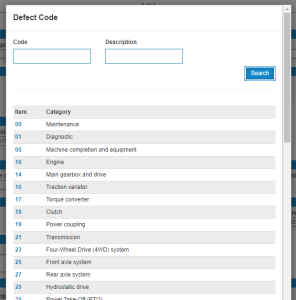
Enter a Code or Description. Or click Search with the fields empty to return all available Group options.
-
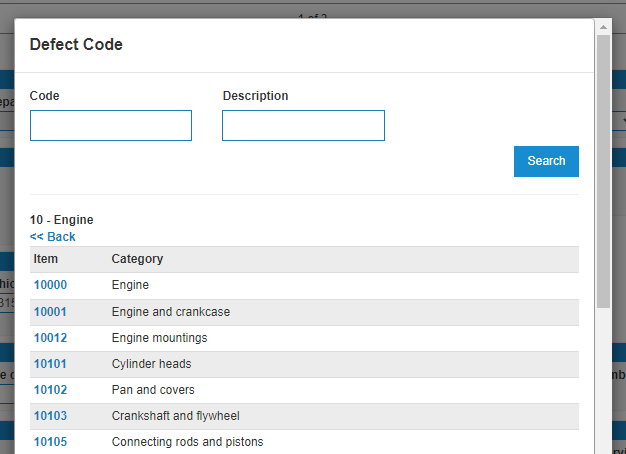
Click an Item.
The search pop-up automatically drills-down the search to the sub-group level.
-
Click a Sub-Group item drills down to the Sub-Sub-Group level, then clicking a Sub-Sub-Group item through to the selected Sub-Sub-Group Defect Code.
Parts Information
Parts are shown in the Parts section for each segment.

At least one Causal Part (CSP) must be provided. CNH returns an error message if no Causal Part is selected: 
You can add additional parts to the work order using the Add Rows link at the bottom right of the list. Or you can remove parts by clicking the trash  icon.
icon.
Labor Information
The Labor section of each segment displays all labor entries under a single job code. Job code hours are provided for reference only and are not submitted to CNH. You can add further labor entries using the Add Rows link and entries can be removed by clicking the trash icon.
EZ Labor Validation
To use Validate EZ Labor, you must populate these mandatory fields which are sent in the request to CNH:
-
dealerCode—derived from the CNH DEP configuration
-
workshopCode—the CNH workshop code for the dealer/location
-
At least one labor line must be entered in the Labor section (Total Hours Worked are used as the laborWu value).
-
serialNumber—from the Equipment Information of the work order unit
-
warrantyType—selected in the Failure/Repair Information section
-
at least one part on the claim must be marked as Causal Part (CSP); this is used as the causalPart in the EZ Labor request.
The Validate EZ Labor button remains disabled until these fields are populated.
When you click Validate EZ Labor, the system sends a request to the CNH EZ Labor API with these possible results:
-
If unsuccessful, EZ Labor is not applied to the claim and you must proceed with standard labor entry, using multiple line items based on Standard Repair Times.
-
If successful, a new Labor Work Unit field is displayed in the Failure/Repair Information section that is pre‑filled with the `ez_labor_time` returned from CNH. The Labor Work Unit value is included in the claim submission payload sent to CNH when you submit the claim. Note that the Labor section is removed as you cannot enter further labor data once you have validated with EZ Labor.
Miscellaneous Charge Information
Miscellaneous Charges are shown on the first segment selected due to the way they are structured on the work order. If you have miscellaneous charges present on a work order with multiple segments, it is strongly recommended you process all warranty segments together as one claim so you do not have the same miscellaneous charges submitted on multiple claims.
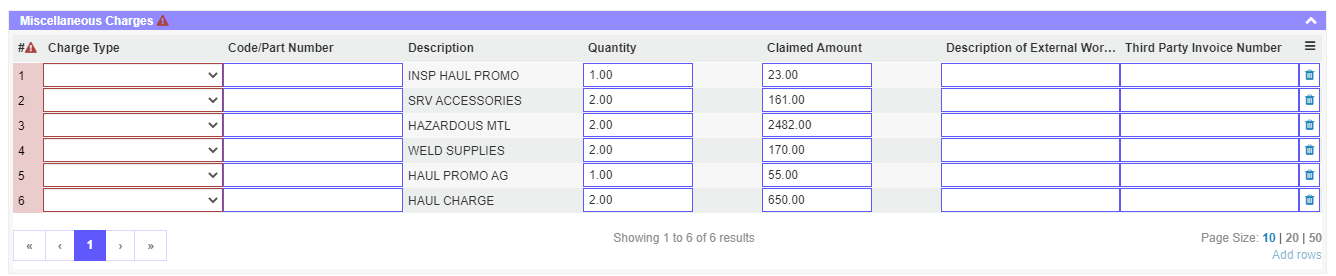
Each miscellaneous charge requires a Charge Type to be selected. The available Charge Types are determined by CNH and cannot be changed.
It is preferable to add Spare Part, Causal Part, and Labor entries in the Parts and Labor sections above, but they can also be submitted with the Miscellaneous Charges provided all the mandatory fields are filled out. Different fields may become mandatory depending on the Charge Type selected. For example, External Work requires a Description of External Work and Spare Part requires a Part Number.

Travel Mileage does not submit the Claimed Amount to CNH. Only the quantity is submitted.
Claim Submission
You must populate all mandatory fields on all segments to successfully submit a claim. IntelliDealer does not enable the Submit button until all mandatory fields on the screen have been populated. If you have not filled out all mandatory sections on other segments, an error message appears at the top of the screen when you attempt to submit.
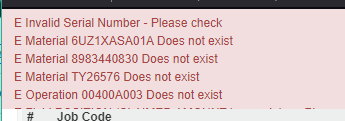
After IntelliDealer has validated the claim, it is submitted to CNH for a secondary round of validation. Any error messages provided by CNH appear at the top of the screen.
If the claim is successfully validated and accepted by CNH, a success message is displayed confirming that the claim has been submitted. No further action is required unless additional corrections are needed.
Correct Claim
The Correct Claim button allows users to make changes to a previously submitted claim.
When clicked, the claim is re-opened so that required corrections can be made based on validation errors or updated information. After making the necessary updates, the claim can be re-submitted to CNH for processing.
This feature is typically used when a claim has been rejected or requires modification following CNH validation.