
Inventory Count
The Inventory Count screen is for performing physical inventory audits of parts stock directly from a smartphone or tablet in the dealer's lot. It is used to accurately reconcile on-hand quantities with the records in the main IntelliDealer system.
This screen is found under the Parts section on the side menu with the Inventory Count option.
 Inventory Count option in Parts section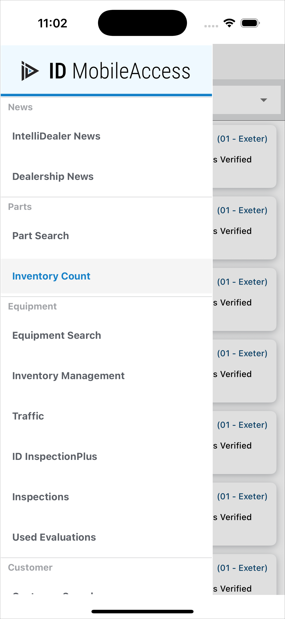
The Inventory Count list displays counts separated into Bins. Each Bin contains part quantities as well as where they are located.
Selecting a listing entry opens the Bin and displays all part counts for that Bin.
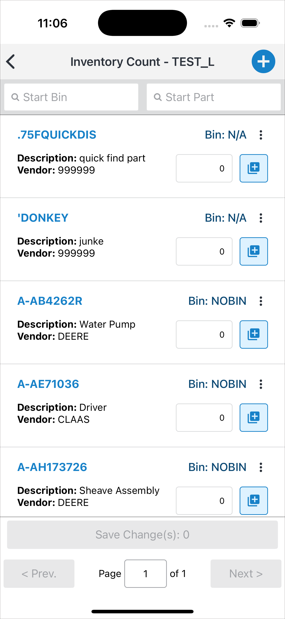
Selecting the add ( ) button opens a new window where you can further edit quantity amounts.
When editing part quantities, you are given the option to either Add or Override the existing entry.
-
Add� Adds the entered quantity to the part count.
-
Override� The entered quantity replaces the current part count.
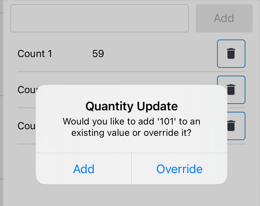
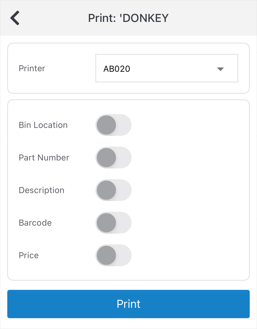
The  option next to a part count provides these options:
| Option | Description |
|---|---|
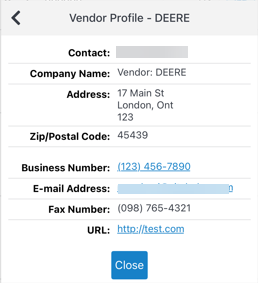
| Vendor Information |
Displays a list of details for that vendor. |
| Print Label |
Displays a list of available printers configured in IntelliDealer (Configuration > Miscellaneous > Printing > Configure Printers) A list of print details can be toggled on or off. These settings persist between part counts. |
| Delete | Deletes that part count listing. Deleting a part count refreshes the count list. |
Note on Part Counts Made in IDMA
ID MobileAccess supports completing counts that already exist in IntelliDealer. For the full desktop workflow for parts inventory counts�including creating counts, cycle counts, reports, and related setup�see IntelliDealer online help, Inventory Count.
Security: 827 - Product Support - Parts Inventory Count
Revision: Version 2.3.3