
Alerts
Use the Alerts screen to configure alerts that are automatically sent to customers, technicians, or dealership staff under various circumstances. For more detailed information about each alert type, see Alert Type Overview. For a description of the entire alert management system, see Alert Management Overview.
To open the Alerts screen, navigate to Configuration > Miscellaneous> Other> Alert Management from the drop down list.
The Alerts screen displays the existing alert messages that have been configured for your dealership and allows you to perform the following actions:
-
To edit an existing alert, click the Alert name.
-
To create a new alert, click the Need to create a new alert? Click here to add link.
-
To set the alert methods for your dealership, click the Setup alert methods link.
-
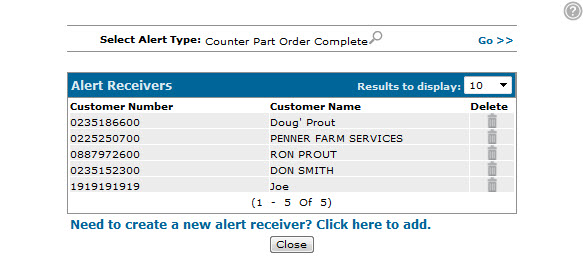
To configure the recipients for each alert type, click the Setup alert receivers link.
Creating an Alert Receiver
Before the Alert Management system can send an alert, you must specify the recipients for each alert type using the steps outlined below.
Only recipients configured using the steps outlined below can receive alerts, with the following exceptions:
-
Recipients specified in the Via field of the Add Alert/ Edit Alert screen always receive the selected alert.
-
When configuring a Parts Quote is Expiring, Work Order Quote is Expiring or Equipment Quote is Expiring alert message, if the Salesperson field is selected on the Add Alert/ Edit Alert screen, the salesperson associated to the quote always receives the alert.
-
Navigate to Configuration > Miscellaneous > Other > Alert Management.
-
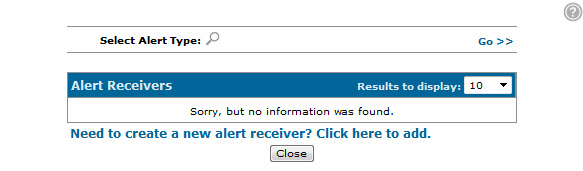
Click the Setup alert receivers link.
-
Click the Need to create a new alert receiver? Click here to add link.
-
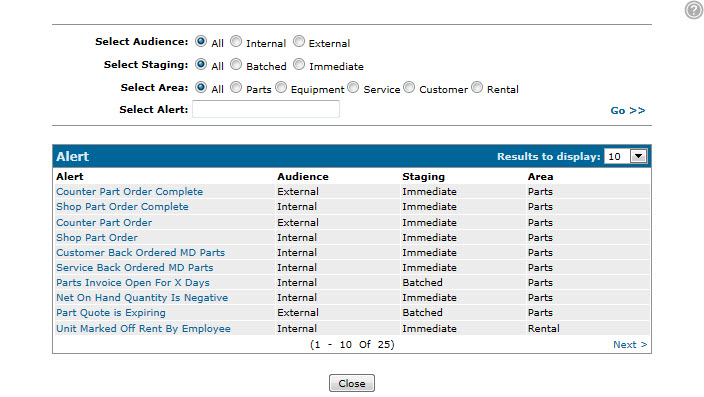
Select the Alert you want to configure the recipients for.
-
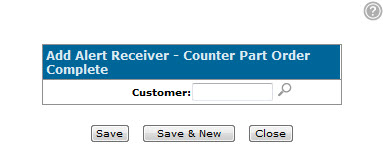
On the Add Alert Receiver screen, enter or select the desired recipient in the Customer/ User Id field and click Save.
 The Alerts screen appears.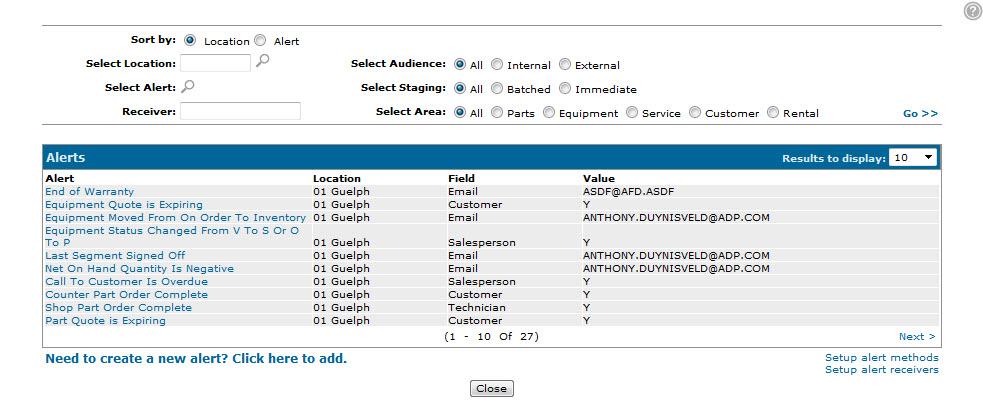
Screen Description
The sorting option on the Alerts screen is:
| Option | Description |
|---|---|
| Sort by | Sort the search results by either the branch Location or Alert name. |
The search fields on the Alerts screen are:
| Field | Description |
|---|---|
| Selection Location | Search for an alert by entering the location it applies to. |
| Select Alert | Search for an alert by entering the alert name. |
| Receiver | Search for an alert by entering the name of the intended recipient. |
| Select Audience | Search for an alert by selecting the intended audience type. |
| Select Staging | Search for an alert by selecting when the alert has been configured to be sent. |
| Select Area | Search for an alert by selecting the business area that the alert applies to. |
The fields on the Alerts screen are:
| Field | Description |
|---|---|
| Alert | Describes the type of alert message. For more information about each alert type, see Alert Type Overview. |
| Location | The location that the alert message applies to. |
| Field |
In conjunction with the Value field, this field outlines the recipients configured for the alert. For example, if the value in the Field field is Customer and the value in Value field is Y, it denotes that the alert has been configured to send alert messages to any customer that has been configured as a recipient on the Alert Receivers screen. |
| Value | The name of the recipient configured for the selected alert. If Y is displayed in this field, no specific recipients have been configured but any user or customer configured as a recipient on the Alert Receivers screen will receive the alert message. |
Click Close to complete your work on the Alerts screen.