
Rental Counter: Parts
Use the Parts tab to view all parts that have been configured as part of the category/class/subclass for the selected stock number that accompany the selected rental. Parts that are mandatory for the rental sale of this unit are automatically populated on the Parts tab.
Note: Parts added to a rental contract are automatically allocated (reserved) for the customer on the contract.
To open the Parts tab, click a Contract Number or the Need to create a new contract? Click here to add link on the Rental Counter screen.
 Parts tab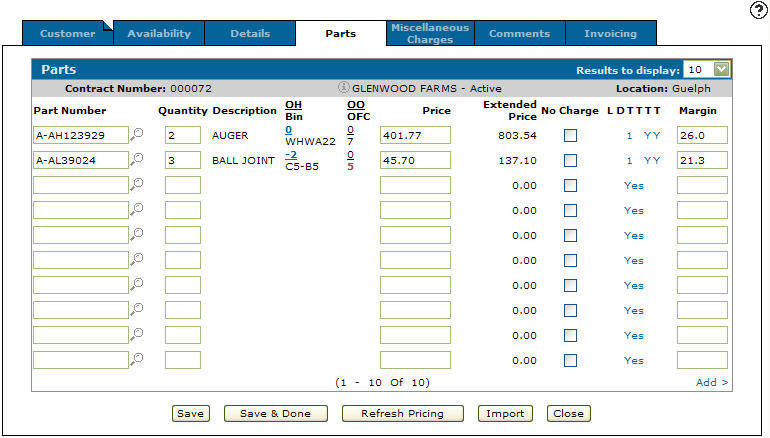
Information fields on the Parts tab are:
| Information | |
|---|---|
| Field | Description |
| Contract Number | The rental contract number. |
| Customer Name |
The name of the customer associated to the contract. If the contract was created for a miscellaneous customer, the name specified in the Ship To field on the Customer tab of the contract appears. |
| Location | The location of the rental contract. |
Fields on the Parts tab are:
| Field | Description |
|---|---|
| Part Number |
The number of the part configured to be used on the rental unit. |
| Quantity | The quantity of the part being sold. |
| Description | A brief description of the part is automatically filled in from the parts system. You are required to enter a description unless you are selling a miscellaneous part. |
| OH Bin |
The current on-hand (OH) from the parts system for this part in your location. The bin number indicates the part's physical location. A reverse image Bin number indicates that alternate bins exist. Hover over the Bin number to view alternate Bin location numbers. |
| OO OFC | The current on order (OO) quantity, including back-ordered quantity, and Order Formula Code (OFC) from the parts system for this part in your location. |
| Price |
The selling price of the part. This is automatically filled in from the parts system unless you are selling a miscellaneous part when you are required to enter a price. The default value is the selling price currently loaded on the part master. If the part selling price is different from MSRP (manufacturer suggested retail price), the price value appears in reverse color. For example, if a customer parts discount applies or if you manually enter a price different from MSRP. To see the MSRP, hover over the price and a pop up window appears. |
| Extended Price |
The unit price multiplied by the quantity. The Extended Price field also shows other important information about the part such as whether or not the part is a substitute (sub), a cross referenced part (xref), a remanufactured part exists (rem), if the part does not exist in the part master file (*NO MSTR) and an Add link appears allowing you to quick add the part master to the system. If xref appears in uppercase, it means that the part number entered is the parent part of a cross reference relationship. If it appears in lowercase, the part entered is the child of a cross reference relationship. If subs appears in uppercase, it means that the part number entered is the parent part of a substitution relationship. If it appears in lowercase, the part entered is the child of a substitution relationship and the parent part number has an on-hand quantity. |
| No Charge | If you do not wish to charge the customer for this rental. |
| LDTTTT | Change the default tax and discount values for this part. |
| Margin | Displays the current margin for the part being sold, provided you have the proper authority. This margin can be overwritten if desired. |
Click the Select Recommended Parts link to display a list of optional parts that can be added to the contract.
Note: The Select Recommended Parts link appears only if there are optional parts loaded on the Category/Class/Subclass attached to the stock number loaded in the Stock Number field on the Details tab.
Click Save to save changes made on the Parts tab.
Click Save & Done to save changes made on the Parts tab and exit the contract.
Click Refresh Pricing to refresh all parts back to their default prices.
Click Import to open the Import screen which allows the user to import part files from part catalogs or PC files, equipment parts lists, or job code parts lists.
Click Close to close the tab without saving and return to the Rental Counter screen.
Data Source: RMPART
Revision: 2026.07